Hello! Welcome to the final lesson of the "Collaboration with GitHub" module.
In our last lesson on Git tags, we saw that when you git checkout a tag to view a past release, Git gives you a warning: "You are in 'detached HEAD' state." We noted that this is a special mode for exploring history and that making commits here can be risky.
Today, we'll demystify this message completely. Our goal is to diagnose and resolve a 'detached HEAD' state by creating a new branch. Understanding this concept is crucial for navigating your repository's history safely and recovering work that might otherwise be lost.
1. What is HEAD?
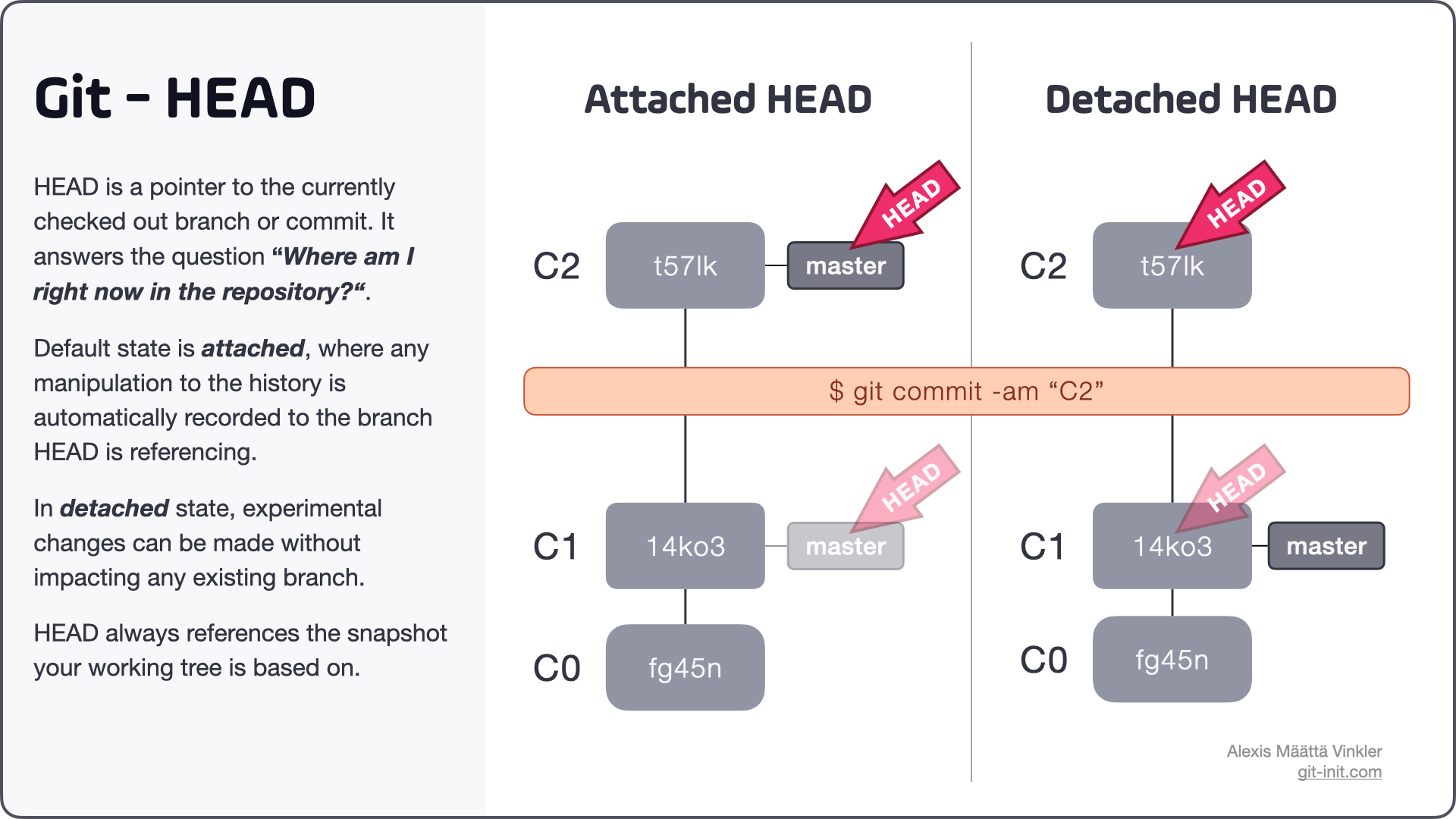
Before we can understand a detached HEAD, we first need to understand HEAD itself. In Git, HEAD is simply a pointer. It answers the question, "Where am I right now in my project's history?"
Normally, HEAD points to a branch name (like main or feature/login). The branch, in turn, points to the latest commit. When you make a new commit, the branch pointer moves forward to the new commit, and HEAD moves along with it. This is called an "attached HEAD" because HEAD is attached to a branch.
The first part of this video provides a great visual explanation of how HEAD works in the normal, attached state.
WTF is a detached HEAD in git?
The video 'WTF is a detached HEAD in git?' from the Philomatics channel offers a concise explanation of HEAD.
Watch the first 43 seconds. Notice how HEAD is just a file that points to your current branch and moves automatically as you make new commits.
2. What is a Detached HEAD?
A detached HEAD state occurs when HEAD is not pointing to a branch, but is instead pointing directly to a specific commit hash.
This happens when you explicitly tell Git to move to a historical point, for example:
- Checking out a specific commit hash:
git checkout 1a4fdc3 - Checking out a tag (as we saw in the last lesson):
git checkout v1.0.0 - Checking out a remote branch directly:
git checkout origin/main
This is useful for inspecting the state of your code at a specific moment in the past. You can look around, run tests, and investigate when a bug was introduced.
The following article explains the concept clearly and shows a diagram of HEAD pointing to a commit instead of a branch.
Recovering from the Git detached HEAD state
The article 'Recovering from the Git detached HEAD state' from CircleCI provides a solid definition and visual aids.
Please read the sections 'What does detached HEAD mean?' and 'Scenarios that can cause a detached HEAD state'. Pay attention to the diagrams that illustrate the difference between the normal and detached states.
3. The Problem: Committing in a Detached State
Exploring history in a detached state is safe. The danger arises if you start making new commits.
Because HEAD isn't attached to a branch, any new commits you create are "floating" — they don't belong to any branch. If you then switch back to an existing branch (e.g., git switch main), your new commits will seem to have vanished!
They are not immediately deleted, but they are now considered "orphaned." With no branch pointing to them, Git's automatic garbage collection process will eventually discard them permanently.
Let's see this in action.
WTF is a detached HEAD in git?
Continuing with the 'WTF is a detached HEAD in git?' video, the next segment clearly demonstrates the problem of making commits in this state.
Watch from 01:11 to 02:16. Observe how the new commit is created on top of the detached HEAD, but then 'disappears' from the log once the user switches back to the main branch.
4. The Solution: Saving Your Work from a Detached HEAD
So, what do you do if you've accidentally made important changes while in a detached HEAD state? The solution is straightforward: create a new branch.
Creating a new branch from your current detached position gives the "floating" commit a permanent home. The new branch pointer will point to your latest commit, and HEAD will become attached to this new branch. Your work is now safe.
Step-by-Step Guide to Saving Your Work
-
Stay where you are. Do not switch branches yet. You are at the commit you want to save.
-
Create and switch to a new branch. The modern command for this is
git switch -c. This command does two things: it creates a new branch (-c) and switches to it.# Let's say you want to save your work on a branch called 'temp-fix' git switch -c temp-fix(You may also see the older command
git checkout -b temp-fix, which does the same thing.)
That's it! Your HEAD is now attached to temp-fix, and the commit you made is now the first commit on this new branch. It's no longer orphaned and won't be deleted. From here, you can continue working on this branch or merge it back into main as you would with any other feature branch.
The final part of the video and the CircleCI article walk through this exact solution.
Recovering from the Git detached HEAD state
The CircleCI article provides a detailed, step-by-step guide with diagrams on how to save your changes.
Read the section 'How to save changes in a detached HEAD'. Follow the three steps: Create a new branch, commit the changes (if you haven't already), and merge the branch.
Test your understanding!
You used git checkout v1.2.0 to investigate an old release. While exploring, you found a critical bug and fixed it with a single commit. You are still in a detached HEAD state.
What is the single, most efficient Git command to both save your work on a new branch called hotfix/bug-in-v1.2 and get out of the detached state?
Show answer
The command is:git switch -c hotfix/bug-in-v1.2
This command creates the new branch pointing to your current commit and switches to it, attaching HEAD to the new branch in one step.
What if I want to discard the changes?
If your changes were purely experimental and you don't want to keep them, the solution is even simpler. Just switch back to any existing branch.
git switch main
The orphaned commits will be left behind and eventually cleaned up by Git.
5. Advanced Recovery: The reflog Safety Net
What if you didn't realize you were in a detached HEAD, made commits, and already switched back to main? Your commits seem lost.
Git has a powerful safety net for this: git reflog. This command shows a log of every move HEAD has made. You can find the commit hash of your "lost" commit in the reflog, check it out again, and then create a branch to save it.
We won't go deep into reflog today, but knowing it exists is an essential piece of advanced Git knowledge. The CircleCI article we've been using has an excellent section on this titled "Advanced recovery: Using git reflog" (LINK, section 3) if you're curious to learn more.
Conclusion
You have now mastered one of the most initially confusing, yet powerful, features of Git. You can confidently navigate your project's history, and you have the skills to recover any work you do along the way.
Key Takeaways:
HEADis Git's pointer to your current location.- A detached
HEADoccurs whenHEADpoints directly to a commit instead of a branch, usually after checking out a tag or an old commit hash. - Commits made in a detached state are orphaned and can be permanently lost if you switch away without saving them.
- To save your work, create a new branch from the detached state using
git switch -c <branch-name>. - To discard your work, simply switch back to an existing branch like
git switch main. - The
git reflogcommand is your safety net for finding "lost" commits.
This lesson concludes our module on collaborating with GitHub. You've learned everything from forking and pull requests to versioning with tags and now, safely navigating history.
In our next module, Advanced Git and Collaborative Workflows, we will build on these skills. Our first lesson will tackle how to resolve divergent branches using merge and rebase, which is the logical next step after creating and working on a feature branch.