Hello! Welcome to your next lesson in the Linux System Administration Essentials module.
In our previous lesson, we explored systemd unit files, the blueprints that systemd uses to manage services. We saw how ExecStart defines the command to run a service. But what if you don't want a command to run constantly? What if you need to run a task at a specific time, either once or on a repeating schedule?
This is where task scheduling comes in. It's a cornerstone of automation in any IT environment, especially in DevOps. Today, we'll master the two primary tools for this in Linux. Our learning outcome is to schedule automated tasks using cron and at commands. You'll learn how to automate everything from daily backups and weekly report generation to simple one-off reminders.
1. Recurring Tasks: The Power of cron
The most common type of automation is the recurring task. In Linux, this is handled by a daemon called cron. It wakes up every minute, checks a set of configuration files called "crontabs," and executes any tasks scheduled for that minute.
As a DevOps engineer, you will use cron constantly for tasks like:
- Running backup scripts every night.
- Cleaning up temporary files or old logs every week.
- Checking the health of a web service every five minutes.
- Syncing data between servers at off-peak hours.
The crontab Command
Each user on the system can have their own list of scheduled jobs. This list is managed using the crontab command:
crontab -e: Edit your user's crontab file. This will open the file in your default text editor.crontab -l: List the jobs currently in your crontab.crontab -r: Remove your entire crontab file. Use this with extreme caution, as it will delete all your scheduled jobs without confirmation.
Understanding cron Syntax
The most challenging part of using cron is its unique syntax for defining a schedule. A crontab entry consists of two parts: the schedule and the command to run.
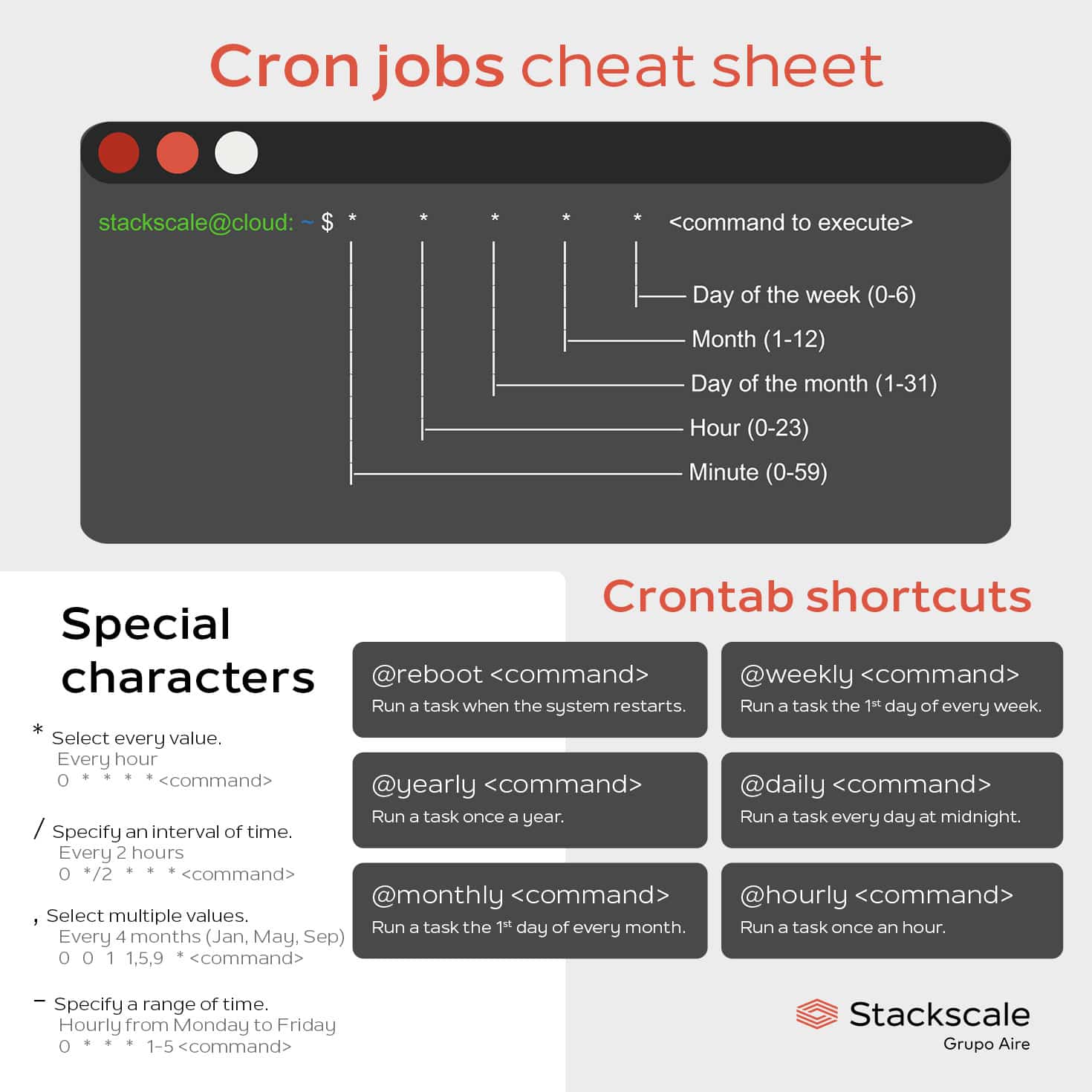
Let's break down those five fields:
* * * * * command_to_be_executed┬ ┬ ┬ ┬ ┬│ │ │ │ ││ │ │ │ └─── day of week (0 - 6) (Sunday to Saturday; some systems also accept 7 for Sunday)│ │ │ └──────── month (1 - 12)│ │ └───────────── day of month (1 - 31)│ └────────────────── hour (0 - 23)└─────────────────────── minute (0 - 59)
An asterisk (*) acts as a wildcard, meaning "every." So, * * * * * means "every minute of every hour of every day..."
To get a comprehensive understanding of this syntax and its powerful operators, the following video by Corey Schafer is an excellent, detailed guide.
Linux/Mac Tutorial: Cron Jobs - How to Schedule Commands with crontab
This video provides a step-by-step walkthrough of how to create cron jobs. We'll start with the basics of the syntax and then move on to the special operators that give you fine-grained control over your schedules.
Please watch from the beginning until 13:26. The video is structured as follows: 00:00 - 04:19: Introduction to crontab and the basic five-field syntax. 04:19 - 07:27: Using specific numbers for exact times (e.g., at 5:30 AM on the 1st of the month). 07:27 - 13:26: Using special operators to define more complex schedules: The comma (,) for multiple values. The forward slash (/) for step values or intervals (e.g., every 10 minutes). The hyphen (-) for ranges (e.g., from 9 AM to 5 PM).
Syntax Summary and Examples
| Operator/Value | Example | Description |
|---|---|---|
* |
* * * * * |
Every minute (wildcard) |
| Specific Value | 30 2 * * * |
At 2:30 AM every day. |
, (List) |
0 0 1,15 * * |
At midnight on the 1st and 15th of every month. |
- (Range) |
0 9-17 * * 1-5 |
At the top of every hour from 9 AM to 5 PM, Monday to Friday. |
/ (Step) |
*/15 * * * * |
Every 15 minutes. |
For convenience, cron also supports special strings for common schedules:
| String | Equivalent | Description |
|---|---|---|
@reboot |
Run once, at startup. | |
@yearly / @annually |
0 0 1 1 * |
Run once a year, on Jan 1st at midnight. |
@monthly |
0 0 1 * * |
Run once a month, on the 1st at midnight. |
@weekly |
0 0 * * 0 |
Run once a week, on Sunday at midnight. |
@daily / @midnight |
0 0 * * * |
Run once a day, at midnight. |
@hourly |
0 * * * * |
Run once an hour, at the beginning of the hour. |
Example: @daily /usr/local/bin/backup.sh is a much more readable way to schedule a daily script.
Test your understanding!
Write the cron schedule expression for a script that needs to run at 2:15 AM every Monday.
Show answer
15 2 * * 1
15: at 15 minutes past the hour2: during the 2 AM hour*: on any day of the month*: in any month1: on a Monday
A Practical DevOps Example: Log Rotation
Let's say you have an application that writes to /var/log/my-app/app.log. This file can grow very large over time. You want to archive the current log and start a fresh one every day at midnight.
-
Create a script: First, you'd create a script, let's call it
/opt/scripts/rotate_app_log.sh:#!/bin/bash # Get the current date in YYYY-MM-DD format DATE=$(date +%F) # Move the current log file to an archived name mv /var/log/my-app/app.log /var/log/my-app/app.log.$DATE # Signal the application to reopen its log file (example for a process named 'my-app') # This creates a new, empty app.log killall -HUP my-app(Note: You would also need to make this script executable with
chmod +x /opt/scripts/rotate_app_log.sh) -
Schedule it with
cron: Open your crontab withcrontab -eand add the following line:0 0 * * * /opt/scripts/rotate_app_log.shOr, using a special string:
@daily /opt/scripts/rotate_app_log.sh
Important: Output and Paths
-
Output Redirection: By default, any output from a
cronjob (both standard output and errors) is emailed to the user who owns the crontab. For automated scripts, you usually want to handle this differently. It's a best practice to redirect output to a log file or discard it.- Append all output to a log:
>> /var/log/my-cron-job.log 2>&1 - Discard all output:
> /dev/null 2>&1
Example:
0 0 * * * /opt/scripts/rotate_app_log.sh >> /var/log/my-app/rotation.log 2>&1 - Append all output to a log:
-
Absolute Paths:
cronruns commands in a very minimal environment, which often doesn't have the samePATHvariable as your interactive shell. This is a very common reason why scripts that run perfectly in your terminal fail incron. Always use absolute paths for your scripts and any commands within them.
2. One-Time Tasks with at
What if you only need to run a command once in the future? For example, "reboot this server in 10 minutes" or "run a resource-intensive report at 2 AM tonight." For this, Linux provides the at command.
The at utility is simpler than cron but very powerful for one-off tasks.
First, let's ensure at is installed and its daemon (atd) is running. This is a one-time setup.
Linux at Command: Syntax, Options, Examples
The at command may not be installed by default on all systems. This resource explains how to install it and enable the necessary background service.
Please read the sections 'Install at Command' to learn how to install the package and 'sudo systemctl enable --now atd' to ensure the service is running.
Using at
You can schedule a job with at in two main ways:
-
Interactive Mode: Type
atfollowed by a time. The command will then wait for you to enter the commands you want to run. PressCtrl+Dwhen you're done.$ at now + 5 minutes warning: commands will be executed using /bin/sh at> echo "This is a one-time alert." > /tmp/alert.txt at> <Ctrl+D> job 1 at Mon Nov 13 14:30:00 2023 -
Piping a Command: This is more common for scripting. Use
echoto pipe your command directly toat.echo "sudo reboot" | at 2:00This will schedule a reboot for 2 AM. If it's already past 2 AM, it will schedule it for tomorrow.
Time Specifications
One of the best features of at is its flexible, human-readable time format. The same resource we used for installation also provides an excellent overview of the different ways you can specify time.
Linux at Command: Syntax, Options, Examples
The at command understands many different time formats, from exact times to relative intervals. This makes it very intuitive to use.
Please read the section 'Linux at Command and Specifying Times' and its subsections ('Specific Times', 'Customary Times', 'Relative Times', 'Days of the Week', 'Dates'). This will show you the full range of time expressions you can use.
Managing at Jobs
atq: Queue of pending jobs. Lists all your scheduledatjobs with their job numbers.atrm <job_number>: Remove a scheduled job from the queue.
Test your understanding!
You need to run a database maintenance script located at /srv/scripts/db_maint.sh at 11 PM tonight. The script takes about 15 minutes to run and you want to be notified by email when it's done. What is the command to schedule this? (Hint: The -m flag tells at to send an email upon completion).
Show answer
at -m 11pm -f /srv/scripts/db_maint.sh
Alternatively, you could pipe it:echo "/srv/scripts/db_maint.sh" | at -m 11pm
The -f option tells at to read the job from a file, which is often cleaner for scripts.
Conclusion
You've now learned how to control time on your Linux systems! Task scheduling is a fundamental skill that separates manual administration from true automation. By mastering cron for recurring tasks and at for one-time jobs, you can ensure that critical maintenance, backups, and reports happen reliably without any manual intervention.
Key Takeaways:
- Use
cronfor tasks that need to run on a repeating schedule. - Manage your recurring tasks with
crontab -e(edit) andcrontab -l(list). - The
cronsyntax has five time/date fields followed by the command. Remember:minute, hour, day-of-month, month, day-of-week. - Always use absolute paths in your crontab entries to avoid
PATHissues. - Use
atfor tasks that need to run only once at a specific time in the future. atuses a human-friendly time format (e.g.,now + 1 hour,10pm tomorrow).- Manage one-time tasks with
atq(list) andatrm(remove).
In our next lesson, we will cover how to analyze system logs using journalctl and traditional log files in /var/log. This is the perfect follow-up topic, as checking logs is the primary way you'll verify that your scheduled cron jobs have run successfully and troubleshoot them if they haven't.