Hello! Let's get started on our next lesson.
In our last session, we covered how to monitor your system's CPU, memory, and disk usage. This is crucial for identifying when something is wrong. For instance, your monitoring might show that a critical application has stopped running. Today, we'll learn how to take action.
This lesson addresses the learning outcome: Use systemctl to manage the state (start, stop, enable, disable, status) of systemd services. This is a fundamental skill for any DevOps engineer. When an application server, database, or any other critical background process fails, systemctl is the tool you will use to diagnose and control it, ensuring your systems are reliable and available.
1. What are Services and systemd?
On a Linux system, many programs run in the background to provide core functionality. These are called services or daemons. Examples you'll encounter constantly in DevOps include:
sshd: The SSH service that allows you to connect to the server remotely.nginxorapache2: Web servers that serve websites and applications.docker: The service that manages your containers.
The master program that controls all these services is called systemd. It's the very first process that starts when the system boots (giving it Process ID 1), and its job is to manage everything else. You interact with systemd using the command-line tool systemctl.
To get a clear overview of systemd and its role, let's watch the beginning of the following video.
Systemd Explained: How to Manage Linux Services Easily
The video 'Systemd Explained' from Learn Linux TV introduces the core concepts of systemd as an init system and explains the relationship between 'units' and 'services'.
Watch the first six minutes of the video (00:00 - 05:57). Focus on understanding: What an 'init system' is and why it's PID 1. The role of systemd in managing other processes. The concept of a 'unit' and how a 'service' is one type of unit.
The key takeaway is that systemd is the manager, services are the workers, and systemctl is the command you use to give orders to the manager.
2. The Core systemctl Commands
Now for the hands-on part. We're going to learn the six most essential systemctl commands for managing services. To make this practical, we'll install a web server and use systemctl to control it.
First, install the Apache web server. As we learned in a previous lesson, the command depends on your distribution:
- On Ubuntu/Debian:
sudo apt update && sudo apt install apache2 - On CentOS/RHEL/Fedora:
sudo yum install httpd
Once installed, you have a new service to manage. The service name is typically the same as the package name (apache2 or httpd).
Let's now use this service to learn the systemctl commands. The same video provides a perfect, step-by-step walkthrough.
Systemd Explained: How to Manage Linux Services Easily
We'll continue with the 'Systemd Explained' video, which now demonstrates the essential commands for managing the Apache service we just installed.
Please watch the following sections, and feel free to pause and try the commands on your own system. Remember to replace httpd with apache2 if you are on a Debian/Ubuntu system. Check Status (status) (07:48 - 09:32): This shows how to check if a service is running. Pay attention to the Active: and Loaded: lines in the output. The Loaded: line will show whether the service is enabled or disabled to start at boot. Start and Stop (start, stop) (09:32 - 11:40): This demonstrates how to start and stop a service. The video cleverly shows the effect by trying to access the web server from a browser, which is a great way to confirm your actions. Restart (restart) (11:40 - 12:36): This explains the restart command, which is a convenient shortcut for stop followed by start. This is commonly used after changing a service's configuration file. Enable and Disable (enable, disable) (12:36 - 15:12): This is a critical concept. This section explains how to configure a service to start automatically when the system boots (enable) or prevent it from doing so (disable). Recap (15:12 - 15:45): A quick summary of the six commands you just learned.
Command Summary
Here's a quick summary of the commands and their purpose:
| Command | Purpose |
|---|---|
systemctl status <service> |
Checks the current status: Is it running? Is it enabled? Shows recent log entries. |
sudo systemctl start <service> |
Starts the service in the current session. |
sudo systemctl stop <service> |
Stops the service in the current session. |
sudo systemctl restart <service> |
Stops and then starts the service. Useful for applying configuration changes. |
sudo systemctl enable <service> |
Configures the service to start automatically at the next system boot. |
sudo systemctl disable <service> |
Prevents the service from starting automatically at boot. |
Here is an example of what you see after stopping a service and checking its status.
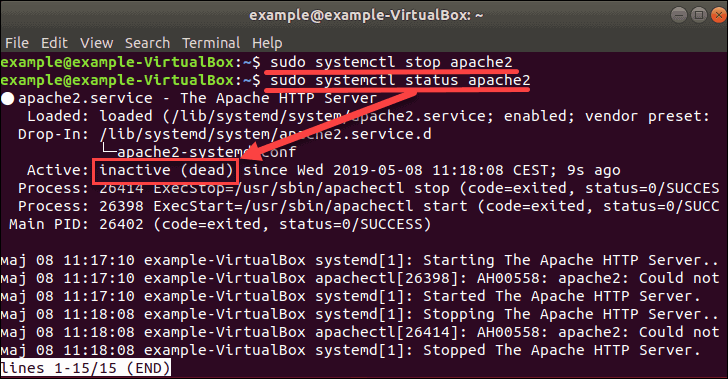
The difference between start/stop and enable/disable is fundamental:
startandstopare immediate actions that affect the current session only. They do not survive a reboot.enableanddisableare future actions. They configure the service's behavior for the next time the system boots.
Test your understanding!
You have just deployed a new version of your application that runs as a service named my-app.service. You need to make sure it's running now and will also start automatically if the server reboots. What two commands would you run to achieve this?
Show answer
You would run these two commands:
-
sudo systemctl start my-app.service- This starts the service immediately.
-
sudo systemctl enable my-app.service- This ensures the service will start automatically on the next boot.
Alternatively, you can combine these with the --now flag:sudo systemctl enable --now my-app.service
This single command both enables and starts the service at the same time.
3. Reinforce Your Knowledge
The concepts we've covered are central to Linux system administration. To help solidify your understanding, please read the following short article from Red Hat. It recaps the commands in a clear, concise format and serves as an excellent reference.
How to use systemctl to manage Linux services
The article 'How to use systemctl to manage Linux services' by Damon Garn for Red Hat provides a professional summary of the commands you've just seen in action.
Read the first four main sections of the article: Introduction and 'Restart a service' 'Stop and start a service' 'Control whether the service starts with the system' Focus on how the article explains the distinction between restart vs. start/stop, and the difference between immediate actions and boot-time configuration (enable/disable).
Conclusion
Congratulations! You can now perform one of the most common and critical tasks in system administration: managing services. You have moved from simply observing the system with monitoring tools to actively controlling its state.
Key Takeaways:
systemdis the service manager for modern Linux systems.systemctlis the command-line tool used to interact withsystemd.statusis your first-stop command for diagnosing a service.start,stop,restartcontrol the immediate state of a service.enable,disablecontrol the boot-time behavior of a service.
In our next lesson, we will look at what makes this all possible. We'll answer the question, "How does systemd know what a service is and how to manage it?" This will lead us to the learning outcome: Describe the purpose and basic structure of a systemd unit file.