Hello! Welcome back to our journey through Django.
In our last lesson, we explored the "why" behind Class-Based Views (CBVs), establishing that they provide a structured, reusable, and organized way to handle requests, especially when compared to Function-Based Views (FBVs). You learned that Django's generic CBVs are designed to solve common problems with minimal code.
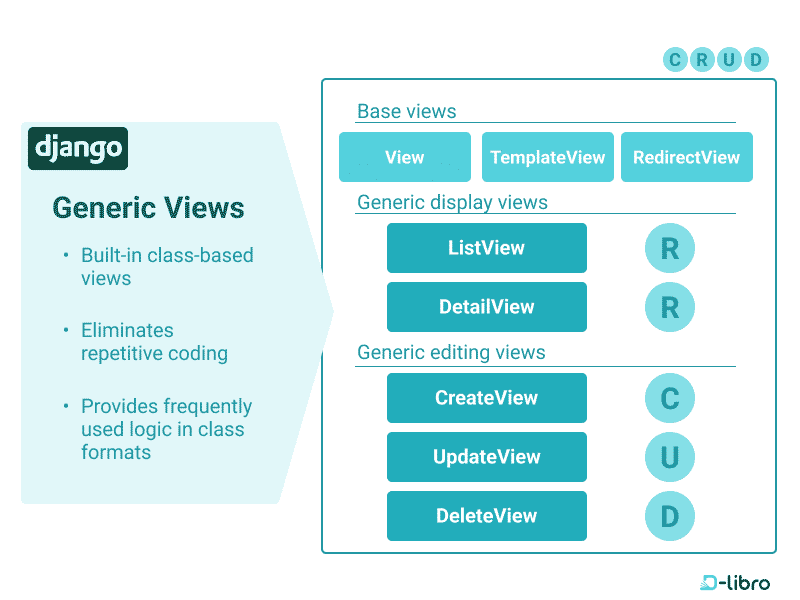
Today, we move from "why" to "how." This lesson is designed to help you implement list and detail pages using generic CBVs (ListView and DetailView). These two views handle the most fundamental "Read" operations in any web application: displaying a collection of items and showing the details of a single one.
Given your background in Python, you'll find that using these generic views feels very natural—it's essentially about inheriting from a base class and configuring its attributes to suit your needs.
Implementing ListView: Displaying a Collection of Objects
The ListView is your go-to tool for creating any page that displays a list of database records, such as a blog's homepage, a product catalog, or a list of articles.
The core idea is simple: you tell ListView which model you want to display, and it handles the rest.
The Minimal ListView
Let's start with the most basic implementation. Imagine you have a Book model in an app named catalog. To display a list of all books, your views.py would look like this:
# catalog/views.py
from django.views import generic
from .models import Book

class BookListView(generic.ListView):
    model = Book
That's it. By defining the model attribute, you've given ListView all the information it needs to perform its "magic":
- Query the Database: It automatically runs
Book.objects.all()to retrieve everyBookrecord. - Determine the Template: It looks for a template at a specific path:
catalog/templates/catalog/book_list.html. The pattern is<app_name>/<model_name>_list.html. - Pass the Context: It renders that template, passing the list of books in a context variable. By default, you can access this list in your template using either
object_listorbook_list(the pattern is<model_name>_list).
To connect this view, your urls.py would use the .as_view() method we discussed in the last lesson:
# catalog/urls.py
from django.urls import path
from . import views

urlpatterns = [
    # ...
    path('books/', views.BookListView.as_view(), name='books'),
]
To see a complete, practical example of setting up the URL, view, and template, please review the following guide.
Django Tutorial Part 6: Generic list and detail views
The Mozilla Developer Network (MDN) provides an excellent, step-by-step tutorial on creating a book list page using ListView. It clearly explains the defaults Django uses.
Read the section titled 'Book list page'. Focus on how the URL is mapped, how the view class is defined, and how the template iterates over the book_list context variable.
Customizing ListView
While Django's defaults are convenient, you'll often want to override them. You can easily do this by setting attributes on your view class. The two most common attributes you'll change are template_name and context_object_name.
template_name: Explicitly defines the path to the template you want to use.context_object_name: Sets a custom name for the list of objects in the template's context.
Here's our BookListView with these customizations:
# catalog/views.py
class BookListView(generic.ListView):
    model = Book
    template_name = 'books/all_books.html'  # Our custom template
    context_object_name = 'all_the_books'   # Our custom context variable name
Now, in your all_books.html template, you would loop through all_the_books instead of object_list.
For a visual walkthrough of these customizations, the following video is very clear.
What are Django class based views & should you use them?
Dennis Ivy demonstrates how to override the default template name and context object name in a ListView.
Watch the segment from 29:17 to 31:35. Pay attention to how he defines template_name and context_object_name and how that changes the template file and the variable used within it.
Test your understanding!
You are building a ProjectListView for a Project model in an app called portfolio.
- Without any customization, what template file will Django look for?
- What would the default context variable be called in that template?
- How would you modify the class to use the template
portfolio/project_gallery.htmland name the context variableprojects?
Show answer
- Django would look for
portfolio/templates/portfolio/project_list.html. - The context variable would be
project_list(or the genericobject_list). - You would add the
template_nameandcontext_object_nameattributes:class ProjectListView(generic.ListView): model = Project template_name = 'portfolio/project_gallery.html' context_object_name = 'projects'
Implementing DetailView: Displaying a Single Object
While ListView shows a collection, DetailView is designed to display a single, specific object. The key difference is that DetailView needs to know which object to fetch. It does this by expecting a primary key (pk) or another unique identifier from the URL.
The Minimal DetailView
A typical URL pattern for a detail page looks like this, capturing an integer and naming it pk:
# catalog/urls.py
path('book/<int:pk>/', views.BookDetailView.as_view(), name='book-detail'),
The view itself is just as simple as the ListView:
# catalog/views.py
class BookDetailView(generic.DetailView):
    model = Book
This simple definition powers the following "magic":
- Get the Object: It extracts the
pkvalue from the URL and runsBook.objects.get(pk=pk). If no object is found, it automatically raises a 404 Not Found error. - Determine the Template: It looks for a template at
catalog/templates/catalog/book_detail.html. The pattern is<app_name>/<model_name>_detail.html. - Pass the Context: It passes the single fetched book object to the template. You can access it using either
objectorbook(the pattern is<model_name>).
The MDN guide provides another clear, step-by-step walkthrough for DetailView.
Django Tutorial Part 6: Generic list and detail views
This section of the MDN guide explains how to set up the URL pattern with a primary key, create the DetailView, and build the corresponding template.
Read the section 'Book detail page'. Focus on the URL pattern path('book/<int:pk>/', ...) and the explanation of how DetailView expects to receive a parameter named pk.
Customizing DetailView
Just like ListView, you can customize DetailView using template_name and context_object_name.
Perhaps more importantly, you can also change the name of the URL parameter that DetailView looks for. By default, it's pk. But what if your URL pattern uses a different name, like book_id?
path('book/<int:book_id>/', ...)
If you do this without telling the view, Django will raise an error. The solution is to use the pk_url_kwarg attribute to tell DetailView the name of the keyword argument in your URL that contains the primary key.
# catalog/views.py
class BookDetailView(generic.DetailView):
    model = Book
    pk_url_kwarg = 'book_id' # Tell DetailView to look for 'book_id' in the URL
The following video provides an excellent demonstration of this exact scenario—first showing the error, and then showing how pk_url_kwarg fixes it.
Django - Generic & Class-Based Views! (an alternative to functions)
This video from BugBytes clearly demonstrates the common issue of mismatching URL parameter names and how to solve it with pk_url_kwarg.
Watch the segment from 08:50 to 11:25. Observe what happens when the URL pattern uses question_id instead of the default pk, and how setting pk_url_kwarg = 'question_id' resolves the error.
Advanced Customization: Overriding Methods
While setting attributes covers most use cases, sometimes you need more dynamic logic. Since CBVs are classes, you can override their methods. This aligns perfectly with your Python background.
For example, to filter the objects shown in a ListView, you can override the get_queryset() method:
from django.utils import timezone

class RecentBooksListView(generic.ListView):
    model = Book
    context_object_name = 'recent_books'
    template_name = 'books/recent_list.html'

    def get_queryset(self):
        """Return books published in the last year."""
        return Book.objects.filter(
            pub_date__gte=timezone.now() - timezone.timedelta(days=365)
        )
This is far more powerful than setting a static queryset attribute, as it allows for logic based on the current user, URL parameters, or other request-time information. You can find more details on this in the official Django documentation under "Dynamic filtering."
Conclusion
In this lesson, you've moved beyond the theory and put Class-Based Views into practice. You now have the skills to build the most common types of read-only pages in a Django application efficiently and cleanly.
Key Takeaways:
ListViewis used to display a list of objects. It queries the database and renders a..._list.htmltemplate with anobject_listcontext variable by default.DetailViewis used to display a single object. It uses apkcaptured from the URL to fetch the object and renders a..._detail.htmltemplate with anobjectcontext variable.- Both views can be easily customized by setting attributes like
model,template_name, andcontext_object_name. - For
DetailView, you can usepk_url_kwargto specify a custom name for the primary key variable captured in your URL pattern. - For more dynamic behavior, you can override methods like
get_queryset()inListViewto customize the data being displayed.
Now that you can display data, the next logical step is to allow users to create and edit it. In our next lesson, we will explore CreateView and UpdateView, which involves another key Django component: forms. We'll learn how to create a form directly from a model using ModelForm.