Hello! Welcome back.
In our last lesson, we built a ModelForm to create a bridge between our database models and a user-facing form. We then wrote the logic to handle form submissions manually inside a function-based view, complete with the if request.method == 'POST' boilerplate.
This lesson builds directly on that foundation. We will now explore how Django's Class-Based Views (CBVs) can abstract away that repetitive logic, making your code cleaner and more maintainable. Our goal is to implement create and update functionality using the generic form-handling CBVs: CreateView and UpdateView.
You'll see how your experience with Python classes makes understanding these views intuitive. They use inheritance and configuration-over-code to provide powerful functionality with just a few lines.
From Manual Logic to Generic Views
Remember the form-handling pattern from our last lesson?
# The pattern we used in our function-based view
def create_project(request):
    if request.method == 'POST':
        form = ProjectForm(request.POST)
        if form.is_valid():
            form.save()
            return redirect('some_success_url')
    else:
        form = ProjectForm()

    context = {'form': form}
    return render(request, 'portfolio/project_form.html', context)
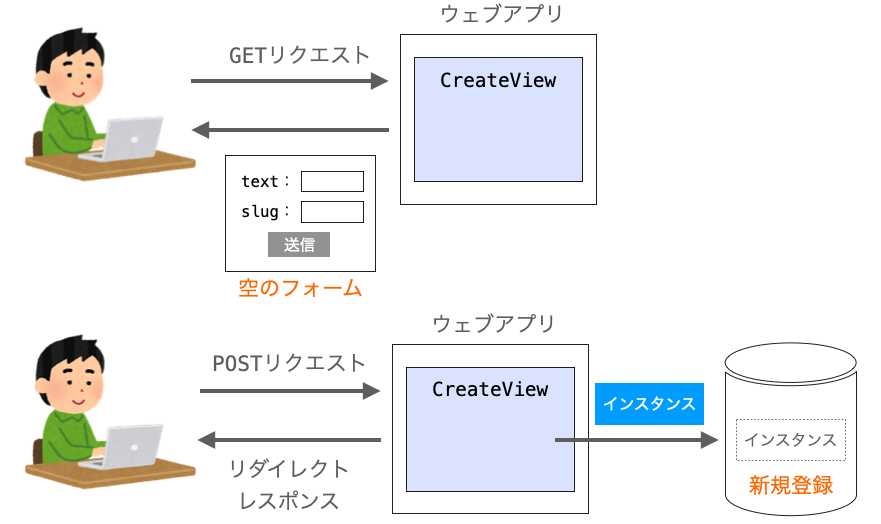
This "display form on GET, process data on POST" cycle is extremely common. The Django core developers recognized this and created a set of generic views to handle it automatically.
CreateView and UpdateView are two of the most important "generic editing views".

Let's dive into how to use them.
1. Creating Objects with CreateView
CreateView is designed for one specific job: presenting a blank form to create a new object and saving that object to the database upon submission. It handles the entire GET/POST cycle for you.
To see how CreateView simplifies the process compared to a FormView (which is conceptually similar to our manual function-based view), watch the following video.
Learn Django Class Based Views - CreateView - Theory and Examples
This video from Very Academy clearly explains the purpose of CreateView and contrasts it with FormView, highlighting how it reduces code. It then provides a practical demonstration.
Watch from 01:17 to 06:25. First, focus on the conceptual difference between FormView and CreateView—specifically, that CreateView has the object-saving logic built-in. Then, observe how the view is implemented with minimal code by setting class attributes.
Implementing ProjectCreateView
Let's refactor our create_project function from the last lesson into a CreateView. In your views.py, you would write:
# portfolio/views.py
from django.urls import reverse_lazy
from django.views.generic.edit import CreateView
from .models import Project
from .forms import ProjectForm  # Assuming you have a ProjectForm

class ProjectCreateView(CreateView):
    model = Project
    form_class = ProjectForm
    template_name = 'portfolio/project_form.html'
    success_url = reverse_lazy('project-list') # URL name for your project list page
That's it! This class replaces the entire create_project function. Let's break down the attributes:
model = Project: Tells the view which model it will be creating instances of.form_class = ProjectForm: Specifies theModelFormto use. Alternatively, you can omitform_classand usefields = ['title', 'description', ...]to have Django create aModelFormfor you on the fly. Since we already createdProjectForm, usingform_classis appropriate.template_name = 'portfolio/project_form.html': Specifies which template to render. If you omit this, Django will look for a template namedproject_form.html(the model's name in lowercase, followed by_form.html).success_url = reverse_lazy('project-list'): Defines where to redirect the user after the form is successfully submitted.reverse_lazyis used instead ofreversebecause the URL patterns might not be loaded yet when this class is defined.
Your URLconf would point to this view like so:
# portfolio/urls.py
from django.urls import path
from .views import ProjectCreateView

urlpatterns = [
    # ... other urls
    path('project/create/', ProjectCreateView.as_view(), name='project-create'),
]
Notice the .as_view() method, which is required to use a class-based view in a URL pattern.
2. Editing Objects with UpdateView
UpdateView is the sibling of CreateView. It's designed to display a form pre-filled with an existing object's data and to save the changes upon submission.
The main difference is that UpdateView needs to know which specific object to edit. This is typically done by passing a primary key (pk) or a slug in the URL.
The following video explains this core difference and walks through a full implementation.
Learn Django Class Based Views - UpdateView - Theory and Examples
This follow-up video from Very Academy focuses on UpdateView. It clearly explains the key difference from CreateView and shows how to set up the URL and view to handle editing an existing object.
Watch the introduction (00:00 - 01:48) to understand the concept. Then, watch the practical example (03:47 - 10:53) to see the implementation of the URL, view, and template. Finally, watch the explanation of get_object() (10:53 - 14:47) to understand how the view fetches the correct object from the database using the URL parameter.
Implementing ProjectUpdateView
An UpdateView is configured almost identically to a CreateView, but it's linked to a URL that captures the object's identifier.
Step 1: The URL
Your URL pattern needs to capture the primary key of the project you want to edit.
# portfolio/urls.py
path('project/<int:pk>/update/', ProjectUpdateView.as_view(), name='project-update'),
The <int:pk> part is crucial. It tells Django to match an integer in the URL and pass it to the view as a keyword argument named pk. The view uses this pk to fetch the correct Project object.
Step 2: The View
The view itself looks very familiar.
# portfolio/views.py
from django.views.generic.edit import UpdateView

class ProjectUpdateView(UpdateView):
    model = Project
    form_class = ProjectForm
    template_name = 'portfolio/project_form.html'
    success_url = reverse_lazy('project-list')
This view will:
- On a
GETrequest, use thepkfrom the URL to retrieve the correspondingProjectobject. - Populate an instance of
ProjectFormwith this object's data. - Render the
project_form.htmltemplate with the pre-filled form. - On a
POSTrequest, it does the same, but also validates the submitted data and saves the changes to the existing object before redirecting.
One of the most elegant parts of this system is that you can use the exact same template (project_form.html) for both creating and updating objects. CreateView passes an empty form to it, while UpdateView passes a pre-filled one.
Test your understanding!
You are using an UpdateView for a BlogPost model. The URL is /blog/12/update/. How does the UpdateView know which BlogPost to load into the form?
Show answer
The UpdateView uses the primary key (pk) captured from the URL (12 in this case). It performs a database lookup on the BlogPost model, something like BlogPost.objects.get(pk=12), to retrieve the specific object and populate the form with its data.
3. A Complete Text-Based Example
Videos are great for seeing things in action, but a complete, documented code example is essential for reference. The MDN web docs provide an excellent tutorial that puts all these pieces together.
Django Tutorial Part 9: Working with forms - MDN Web Docs
This MDN guide provides a comprehensive tutorial on using Django's generic editing views. It will reinforce what you've just seen and provide a solid textual reference.
Read the section titled 'Generic editing views'. It walks through creating views, URL configurations, and templates for CreateView, UpdateView, and DeleteView. Focus on the AuthorCreate and AuthorUpdate examples; they directly map to what we've just discussed.
4. A More DRY Approach: get_absolute_url()
You might have noticed that we repeated the success_url in both ProjectCreateView and ProjectUpdateView. Django provides a more elegant way to handle this, adhering to the "Don't Repeat Yourself" (DRY) principle.
You can define a get_absolute_url() method on your model. This method tells Django how to calculate the canonical URL for an object. CreateView and UpdateView will automatically use this URL for redirection upon success, allowing you to remove the success_url attribute from your views.
Form handling with class-based views
The official Django documentation explains this best practice. This short reading will show you how to define get_absolute_url on your model.
Read the section under the 'Model forms' heading. Start from where it says 'You don’t even need to provide a success_url...' and review the code examples for adding get_absolute_url() to the model and the simplified CreateView that follows.
Here's how you'd apply it to our Project model:
# portfolio/models.py
from django.db import models
from django.urls import reverse

class Project(models.Model):
    # ... your fields ...

    def get_absolute_url(self):
        """Returns the URL to access a detail record for this project."""
        return reverse('project-detail', args=[str(self.id)])
With this method on your model, your views become even leaner:
# portfolio/views.py

class ProjectCreateView(CreateView):
    model = Project
    form_class = ProjectForm
    template_name = 'portfolio/project_form.html'
    # success_url is no longer needed!

class ProjectUpdateView(UpdateView):
    model = Project
    form_class = ProjectForm
    template_name = 'portfolio/project_form.html'
    # success_url is also no longer needed! It will redirect to the object's detail page.
Conclusion
In this lesson, you've moved from manual form processing to leveraging Django's powerful generic editing views. This is a significant step toward writing professional, maintainable Django code.
Key Takeaways:
CreateViewandUpdateViewabstract away the common logic for handling form submissions.- They are configured via class attributes like
model,form_class(orfields), andtemplate_name. UpdateViewrequires an identifier (like<int:pk>) in the URL pattern to fetch the correct object for editing.- You can often use the same template for both
CreateViewandUpdateView. - Defining a
get_absolute_url()method on your model is a best practice that makes your views more concise by automatically handling the success redirect.
You now have a solid foundation for creating and updating data. In our next lesson, we will explore how to process form submissions and handle validation within CBVs, which allows you to run custom logic when a form is saved, such as associating the newly created object with the currently logged-in user.