Hello! Welcome to the next lesson in our course on AI in Software Testing.
In our last lesson, we explored NumPy and learned how to perform fast numerical operations on arrays. This was a crucial first step into the world of data manipulation in Python. While NumPy is excellent for handling raw numbers, it lacks the context of column headers and row labels that make data truly understandable.
Today, we'll build directly on that foundation by introducing pandas, the most important library for data analysis in Python.
What You'll Learn in This Lesson
This lesson focuses on the learning outcome: Read, filter, and select data from pandas DataFrames. Pandas provides two main data structures, the Series and the DataFrame, which allow you to work with labeled, tabular data—think of a spreadsheet or a database table, but with the full power of Python.
This is a fundamental skill for nearly all AI and machine learning tasks. In software testing, you might use pandas to analyze:
- Test execution results from a CSV file.
- Bug report data exported from a tracking system.
- API performance metrics logged over time.
We will cover:
- The basic structures:
DataFrame(a table) andSeries(a column). - How to select specific columns of data.
- How to select specific rows and columns using
.loc(label-based) and.iloc(position-based). - How to filter your data based on single or multiple conditions to find exactly what you need.
Let's begin.
1. The Core of pandas: DataFrames and Series
At its heart, pandas is built on top of NumPy. A pandas DataFrame is a two-dimensional table with labeled rows and columns. Each column in a DataFrame is a pandas Series—a one-dimensional, labeled array.
You can think of a DataFrame as a dictionary of Series objects, where the keys are the column names and the values are the columns themselves. Given your programming experience, this mental model is a great starting point.
To get a solid grasp of these concepts and see how they're created, let's watch a section of a tutorial from Corey Schafer.
Python Pandas Tutorial (Part 2): DataFrame and Series Basics - Selecting Rows and Columns
This video explains the relationship between DataFrames and Series and demonstrates how to create a DataFrame from a Python dictionary.
Watch from 00:42 to 08:12. This will cover: The conceptual model of a DataFrame as rows and columns. How a DataFrame relates to a Python dictionary of lists. Creating your first DataFrame and seeing the Series object that makes up a single column.
As the video shows, creating a DataFrame is straightforward. Let's create one that represents a small set of test results.
import pandas as pd


# Data for our test cases
test_data = {
    'test_id': ['TC-001', 'TC-002', 'TC-003', 'TC-004'],
    'component': ['Login', 'Login', 'Dashboard', 'Logout'],
    'status': ['Pass', 'Fail', 'Pass', 'Pass'],
    'exec_time_sec': [5.2, 7.8, 12.1, 3.5]
}


# Create the DataFrame
df = pd.DataFrame(test_data)


# Display the DataFrame
print(df)
Output:
  test_id  component status  exec_time_sec
0  TC-001      Login   Pass            5.2
1  TC-002      Login   Fail            7.8
2  TC-003  Dashboard   Pass           12.1
3  TC-004     Logout   Pass            3.5
This is our DataFrame. It's a structured, labeled table that's easy to read and, as we'll see, easy to query.
2. Selecting Subsets of Data
Often, you're not interested in the entire dataset at once. You might want to examine only the test statuses or look at the results of a specific test run. Pandas offers several ways to do this.
Selecting Columns
This is the most common selection you'll perform.
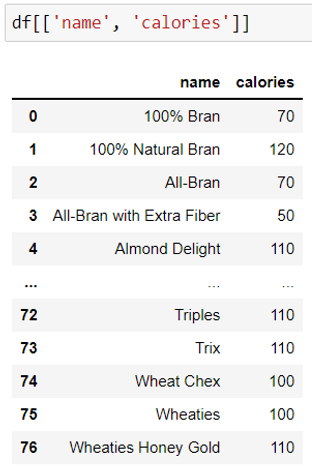
- To select a single column, use square brackets
[]with the column name. This returns aSeries. - To select multiple columns, use double square brackets
[[]]with a list of column names. This returns aDataFrame.
# Select the 'status' column (returns a Series)
statuses = df['status']
print("--- Status Column (Series) ---")
print(statuses)
print(f"\nType: {type(statuses)}")


# Select the 'test_id' and 'status' columns (returns a DataFrame)
test_outcomes = df[['test_id', 'status']]
print("\n--- Test ID and Status Columns (DataFrame) ---")
print(test_outcomes)
print(f"\nType: {type(test_outcomes)}")
Selecting Rows and Columns with .loc and .iloc
For more advanced selection, pandas provides two powerful indexers:
.loc: Selects data by label. You use the row index labels and column names..iloc: Selects data by integer position. You use the integer indices for both rows and columns (starting from 0).
The syntax for both is df.loc[rows, columns].
Let's continue with Corey Schafer's video to see how loc and iloc work in practice.
Python Pandas Tutorial (Part 2): DataFrame and Series Basics - Selecting Rows and Columns
This segment clearly demonstrates the difference between label-based selection with .loc and integer-based selection with .iloc.
Watch from 15:35 to 22:07. Focus on how to select: A single row using its index. Multiple rows by passing a list. Both rows and specific columns simultaneously.
Let's apply this to our test data DataFrame:
# --- Using .loc (labels) ---


# Get the row with index label 1
test_case_row_1 = df.loc[1]
print("--- Row with index 1 ---")
print(test_case_row_1)


# Get rows 0 and 2, and only the 'component' and 'status' columns
specific_data = df.loc[[0, 2], ['component', 'status']]
print("\n--- Specific rows and columns with .loc ---")
print(specific_data)


# --- Using .iloc (integer positions) ---


# Get the first row (at position 0)
first_row = df.iloc[0]
print("\n--- First row with .iloc ---")
print(first_row)


# Get the first two rows (positions 0, 1) and the last two columns (positions 2, 3)
# Slicing works here: :2 means rows 0, 1. 2: means columns from position 2 to the end.
subset = df.iloc[:2, 2:]
print("\n--- Slice of rows and columns with .iloc ---")
print(subset)
3. Filtering Data with Conditions
Selecting specific rows is useful, but the real power comes from filtering data based on its content. For example, "show me all the failed tests" or "show me all tests that took longer than 10 seconds."
This is done using a technique called boolean masking. Here's how it works:
- You write a condition (e.g.,
df['status'] == 'Fail'). - Pandas evaluates this condition for every row, producing a
SeriesofTrueandFalsevalues. - You pass this boolean
Seriesback into theDataFrameinside square brackets[]. - The
DataFramereturns only the rows where the booleanSerieshad aTruevalue.
The following video is entirely dedicated to filtering and is an excellent guide to mastering this crucial skill.
Python Pandas Tutorial (Part 4): Filtering - Using Conditionals to Filter Rows and Columns
This comprehensive tutorial by Corey Schafer covers everything you need to know about filtering, from simple conditions to complex ones involving text searches.
This video is dense with information. I recommend watching the following sections: 00:00 - 04:47: The core concept of boolean masking and applying a simple filter. 06:18 - 08:32: Combining multiple conditions with & (AND) and | (OR). 08:32 - 09:36: Negating a filter with ~ (NOT). 13:51 - 15:50: Using .isin() to filter for rows matching any value in a list. 15:50 - 18:56: Using .str.contains() for text-based filtering (extremely useful!).
Let's put these techniques into practice with our test results DataFrame.
Single Condition
Find all tests that failed.
failed_tests = df[df['status'] == 'Fail']
print("--- Failed Tests ---")
print(failed_tests)
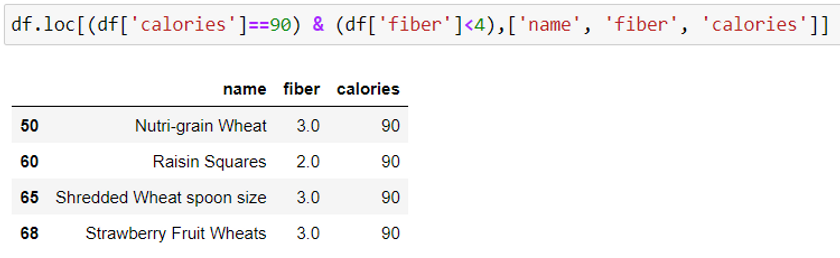
Multiple Conditions
Find all tests for the 'Login' component that passed. Remember to wrap each condition in parentheses (). Use & for AND and | for OR.
passed_login_tests = df[(df['component'] == 'Login') & (df['status'] == 'Pass')]
print("\n--- Passed Login Tests ---")
print(passed_login_tests)
Filtering with .isin()
Find all tests related to the UI ('Login' or 'Dashboard').
ui_components = ['Login', 'Dashboard']
ui_tests = df[df['component'].isin(ui_components)]
print("\n--- UI Component Tests ---")
print(ui_tests)
This is much cleaner than writing (df['component'] == 'Login') | (df['component'] == 'Dashboard').
To solidify your understanding, please take a few minutes to read through the official pandas tutorial on this topic. It provides concise examples and reinforces what you've just seen in the videos.
How do I select a subset of a DataFrame?
This page from the official pandas documentation, 'How do I select a subset of a DataFrame?', is an excellent written summary of the selection and filtering methods we've discussed.
Read through the first three main sections: 'How do I select specific columns...?', 'How do I filter specific rows...?', and 'How do I select specific rows and columns...?'. This will reinforce the concepts of column selection, boolean filtering, and using .loc/.iloc.
Conclusion
Excellent work today! You've learned the fundamental skills for exploring and querying data with pandas. Being able to slice, dice, and filter data is the first step in any data analysis or machine learning project. These techniques will be your bread and butter as we move forward.
Key Takeaways
- DataFrame and Series: The two primary data structures in pandas. A
DataFrameis a 2D table, and each of its columns is aSeries. - Column Selection: Use single brackets
df['col']for aSeriesand double bracketsdf[['col1', 'col2']]for aDataFrame. - Label vs. Position Selection: Use
.locfor label-based selection (e.g.,df.loc[0, 'status']) and.ilocfor integer position-based selection (e.g.,df.iloc[0, 2]). - Boolean Masking: The core of filtering. Create a
SeriesofTrue/Falsevalues from a condition and use it to select rows from aDataFrame. - Combining Filters: Use
&(AND) and|(OR) with parentheses to create complex filters. Methods like.isin()and.str.contains()provide powerful shortcuts.
What's Next?
We now know how to work with data once it's inside a pandas DataFrame. But how do we get it there in the first place? In the next lesson, we will cover how to read and write data using common file formats like CSV and JSON. This will bridge the gap between your raw test data and the powerful analytical capabilities of pandas.