Welcome to the lesson. In our previous session, we focused on the essential Cisco IOS commands for viewing IP configurations, such as show ip interface brief. You learned how to check the status of an interface and see its assigned IP address.
Now, we will build directly on that foundation. Knowing how to look at a configuration is the first step; knowing what to look for is the art of troubleshooting. This lesson is dedicated to diagnosing three of the most common IP addressing errors you'll encounter: incorrect subnet masks, misconfigured default gateways, and duplicate IP addresses. Mastering the ability to quickly spot these issues is crucial for the efficiency of your project and a core skill in network engineering.
Let's begin by examining the problems that arise when your traffic can't leave its local network.
1. The "Local Works, Remote Fails" Problem
A classic network troubleshooting symptom is when a device can communicate with others in its own subnet but fails to reach any device on a different network (like the internet or a server in another department). This almost always points to an issue with either the default gateway or the subnet mask.
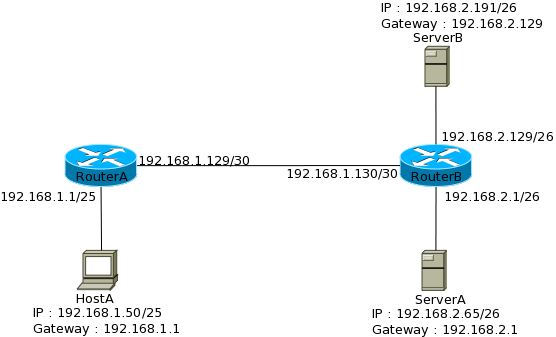
Misconfigured Default Gateway
The default gateway is the IP address of the router interface that a host uses to send traffic to any destination outside of its local network. If this is incorrect, the traffic has no path to the outside world.
Symptoms:
- You can
pingother hosts in your immediate IP subnet. For example, in the diagram above, HostA (10.10.10.10) couldpinga hypothetical PC at10.10.10.15. - You cannot
pingany host on another network. HostA cannotpingServerA (10.10.20.10). traceroutefails immediately after the first hop (or shows the packet going to the wrong router).
Let's see this in action. The following video demonstrates a troubleshooter working through a Packet Tracer lab.
17.7.7 Packet Tracer - Troubleshoot Connectivity Issues
This video from Tech Acad provides a practical walkthrough of identifying and correcting common IP configuration errors.
Watch these two clips to see how a misconfigured default gateway is diagnosed: On a PC: From this section, observe how the ipconfig command on PC-02 reveals an incorrect default gateway. The PC can't communicate outside its LAN until this is fixed. On a Router: The problem can also be on the router itself. From this longer clip, notice that PC-A has the correct gateway configured, but pings to remote devices still fail. The troubleshooter correctly deduces the problem must be with the gateway device (router R1). By connecting to the router and using show ip interface brief, they discover the router's own interface has the wrong IP address, preventing it from serving as a gateway for that subnet.
Incorrect Subnet Mask
The subnet mask defines the size of the local network. A host uses its own IP and subnet mask to determine if a destination IP is "local" or "remote".
- If the destination is local, the host sends an ARP request for the destination's MAC address.
- If the destination is remote, the host sends the packet to the MAC address of its default gateway.
An incorrect mask causes the host to make the wrong decision. For example, if a host has a mask that is too restrictive (e.g., 255.255.255.128 or /25 instead of 255.255.255.0 or /24), it might wrongly classify a local device as remote and send the packet to the gateway, which will likely discard it. Conversely, a mask that is too permissive can cause a host to try and ARP for a remote device, which will fail.
The reading below provides a checklist for what to verify when you suspect these kinds of Layer 3 issues.
Network Troubleshooting - howtonetwork.com
This section from a howtonetwork.com guide outlines a systematic approach to verifying IP connectivity.
Please read the section titled "IP Addressing Troubleshooting". Pay close attention to the checklist for the user workstation at the end: correct IP address, correct subnet mask, correct default gateway, and correct DNS server. This forms the foundation of IP troubleshooting on an end device.
2. The Intermittent Connectivity Problem: Duplicate IP Addresses
A duplicate IP address is one of the more disruptive misconfigurations. It occurs when two devices on the same local network are assigned the same IP address.
Symptoms:
- Highly erratic or intermittent network connectivity for the affected devices.
- One or both devices may display an "IP address conflict" error message.
- Pinging the duplicated IP address might get replies from one device, then the other, or time out completely.
This happens because of a conflict in the ARP tables of other devices and the MAC address table of the switch. When a router needs to send a packet to the duplicated IP, it sends an ARP request. Both conflicting devices reply. The router's ARP table may end up with an entry that flips back and forth between the two MAC addresses. The switch will also see the same MAC address appearing on two different ports, a condition known as "MAC flapping," which causes instability.
How Devices Detect Duplicates
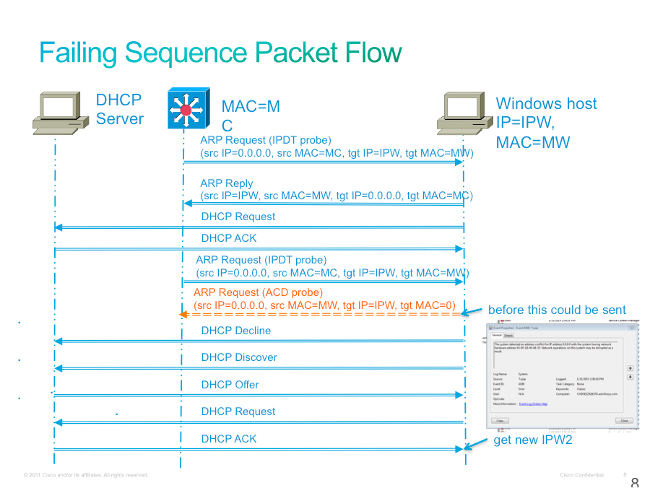
Modern operating systems and network devices have a built-in mechanism to prevent this. Before accepting and using an IP address (whether static or from DHCP), a device sends an ARP probe (sometimes called a Gratuitous ARP). This is an ARP request for its own IP address.
- If no reply is received, the device assumes the address is free and begins using it.
- If a reply is received, it means another device is already using that IP. The new device will report an error and will not use the address.
The following resource explains this process and how to find the source of a duplicate IP.
Troubleshoot Routers and Switches - howtonetwork.com
This article details the causes, effects, and resolution methods for duplicate IP addresses.
Read the section "Troubleshooting Duplicate IP Addresses". Focus on how ARP is central to the problem and the solution. Note the practical advice: ping the address and then check the ARP table (arp -a on Windows/Linux, show arp on a Cisco router) to find the MAC address of the offending device. You can then use the MAC address to find the switch port it's connected to.
To visualize the ARP detection mechanism, the next video provides a simulation. While the audio is not in English, the on-screen actions in Packet Tracer clearly demonstrate the concept.
How Duplicate IP address gets detected in a Network - Interview Questions and Answer # 3
This video from SivakumarNetLabs simulates how duplicate IP detection works using ARP.
Your focus here is on the visual flow of packets. First, watch how a device checks if an IP is available from this segment. It sends an ARP request for the IP it wants to use. Since no other device has it, it receives no reply and can safely use the address. Now, watch the conflict scenario from this point. A PC tries to use an IP that is already assigned to a router. The PC sends its ARP probe, and this time, the router replies. The PC sees the reply and flags the IP as a duplicate, preventing a conflict.
This process of ARP probes and DHCP declines when a conflict is found is summarized visually in the diagram below.
Conclusion
In this lesson, we moved from simply viewing configurations to actively diagnosing common errors. By recognizing specific symptoms, you can quickly narrow down the cause of a connectivity failure.
Key Takeaways:
- Symptom: Can connect to local devices but not remote ones.
- Likely Cause: Incorrect default gateway or subnet mask.
- Action: Verify the IP, mask, and gateway settings on the host and the gateway router itself using
ipconfig,show ip interface brief, andping.
- Symptom: Intermittent connectivity, "IP address conflict" errors.
- Likely Cause: Duplicate IP address on the local network.
- Action: Use
pingand check ARP tables (arp -aorshow arp) to identify the conflicting MAC addresses. Trace the MACs back through the switch's MAC address table to find the physical devices.
In our next lesson, we will tie all our troubleshooting skills together by exploring systematic methodologies like the top-down and bottom-up approaches. This will provide you with a structured framework to solve any network problem you encounter efficiently.