Hello! Welcome to the first lesson in our new module, Containerization and CI/CD.
In the last module, we successfully built a distributed system of microservices. You learned how to make them resilient and, crucially, how to observe their behavior using distributed tracing. Now, the question becomes: how do we get these services from our local development machine into a production environment reliably and consistently?
This lesson is the first step in answering that question. We will focus on the learning outcome: Explain the core concepts of containerization using Docker (images, containers, Dockerfile). We'll explore how Docker packages an application and all its dependencies into a single, portable unit, solving the classic "it works on my machine" problem once and for all. This foundational knowledge is essential for modern backend development and deployment.
By the end of this lesson, you will understand:
- The problems containerization solves.
- The difference between a Docker image and a Docker container.
- How to define a custom application image using a
Dockerfile. - How to find and use pre-built images from a public registry like Docker Hub.
Let's dive into the world of containers.
1. Why Docker? Solving Environment Inconsistency
Imagine you've finished developing a new feature for your order-service. It works perfectly on your machine. You hand it over to the operations team (or a colleague), but when they try to run it, it fails. The cause could be anything: a different version of Java, a missing environment variable, or a conflicting library on their system. This is a classic and frustrating problem in software development.
Containerization provides the solution by bundling your application code along with all its dependencies—runtime, system tools, libraries, and settings—into a single package called a container. This package is isolated from the host environment, ensuring that the application runs identically, regardless of where the container is deployed.
To get a clear overview of the problems Docker solves in both development and deployment, the following video is an excellent starting point.
Docker Crash Course for Absolute Beginners [NEW]
The video 'Docker Crash Course for Absolute Beginners' by TechWorld with Nana provides a fantastic introduction to the 'why' behind Docker.
Watch from 02:41 to 11:09. This section explains the challenges of setting up development environments and deploying applications traditionally, and how containers simplify this entire process.
The official Docker documentation also provides a concise summary of its purpose.
The official documentation provides a high-level overview of Docker's platform and its benefits.
Read the introductory section and 'The Docker platform' section. These reinforce the core idea of separating your application from the underlying infrastructure.
2. How Do Containers Work? A Look Under the Hood
You might be wondering how this isolation is achieved. Are containers just lightweight virtual machines (VMs)? Not quite.
While a VM virtualizes an entire hardware stack and runs a full guest operating system, a container virtualizes the operating system itself. Containers run as isolated processes on the host machine's kernel. This makes them significantly more lightweight and faster to start.
This isolation is made possible by two key features of the Linux kernel:
- Namespaces: This feature isolates a process's view of the system. For example, a process in one namespace can't see or interact with processes in another. It can also have its own private view of the network stack, filesystem mounts, etc.
- Control Groups (cgroups): This feature limits and accounts for the resource usage of a set of processes. It ensures that a single container can't consume all of the host's CPU, memory, or I/O bandwidth.
Essentially, a container is just a normal process (or group of processes) on your host machine, but with a set of namespace and cgroup restrictions applied to it by the Docker engine.
The following video gives a clear, technical explanation of these underlying concepts.
What is a Container? | What is an Image? | Docker Containers and Images | Geekific
The video 'What is a Container?' from Geekific breaks down the OS-level features that make containerization possible.
Watch from 00:31 to 04:21 to understand how the OS kernel, namespaces, and control groups work together to create a container. Then, watch the segment from 05:16 to 06:24, which explains the practical detail of how Docker runs on Windows or Mac by using a lightweight Linux VM.
3. The Core Concepts: Images and Containers
In the world of Docker, the terms "image" and "container" are central. It's crucial to understand the distinction between them.
-
Image: An image is a read-only, inert template. It's like a blueprint or a class in object-oriented programming. It contains the application code, a runtime (like the Java JRE), required libraries, environment variables, and configuration files. Images are used to create containers.
-
Container: A container is a runnable, live instance of an image. It's the actual running process with its own isolated filesystem, network, and process space. You can have many running containers created from the same single image, just like you can create many objects from a single class.
The Sematext article provides a good analogy.
How to Use Docker to Containerize Java Web Applications
This article, 'How to Use Docker to Containerize Java Web Applications,' offers a straightforward definition of images and containers.
Read the 'Benefits of Docker Containers' section, which likens a container image to a lightweight, standalone package.
Now, let's watch a video that reinforces this key distinction and explains how an image is used to launch a container.
Docker Crash Course for Absolute Beginners [NEW]
These segments from the 'Docker Crash Course' and 'What is a Container?' videos will solidify your understanding of images and containers.
First, watch the 'Docker Crash Course' from 21:24 to 24:22. It clearly explains that a container is a running instance of an image.
What is a Container? | What is an Image? | Docker Containers and Images | Geekific
Next, watch the 'What is a Container?' video from 04:21 to 05:16. This part visually demonstrates how the file snapshot from an image is used to create the isolated filesystem for a new container.
Test your understanding!
You have a Docker image for PostgreSQL. You run three separate commands to start three independent database containers for three different projects. Which of the following statements is true?
- You have created three Docker images and three containers.
- You have one Docker image and one container that manages three databases.
- You have one Docker image and three separate, isolated containers.
- You have three Docker images and one container.
Show answer
The correct answer is 3. You have one Docker image and three separate, isolated containers.
The image is the template (postgres), and you used it to create three distinct, running instances (the containers). Each container has its own isolated filesystem and process, so data in one is not visible to the others by default.
4. Creating Your Own Image: The Dockerfile
So far, we've discussed using existing images. But how do we create an image for our own Spring Boot application? We do this by writing a set of instructions in a special text file named Dockerfile.
The Dockerfile is a recipe that Docker reads to build an image automatically. Each instruction in the Dockerfile creates a "layer" in the image. This layered approach is very efficient; when you rebuild an image after a code change, Docker only rebuilds the layers that have changed.
Here are some of the most common instructions:
FROM: Specifies the base image to start from. For a Java application, you'd typically start from a base image that already has a specific version of Java installed (e.g.,eclipse-temurin:17-jdk-jammy).WORKDIR: Sets the working directory for any subsequentRUN,CMD,COPY, andADDinstructions.COPY: Copies files or directories from your local filesystem into the image's filesystem. You'll use this to get your application's JAR file into the image.CMD: Provides the default command to execute when a container is started from the image. For a Spring Boot app, this would bejava -jar your-app.jar.
The following video provides an excellent, step-by-step demonstration of writing a Dockerfile. Although the example uses a Node.js application, the principles and commands are exactly the same for a Java application.
Docker Crash Course for Absolute Beginners [NEW]
The 'Docker Crash Course' provides a practical walkthrough of creating a Dockerfile from scratch.
Watch from 49:05 to 58:43. Pay close attention to the purpose of each instruction (FROM, WORKDIR, COPY, RUN, CMD). Try to imagine how you would adapt this for your Spring Boot application's .jar file instead of the Node.js files shown.
To bridge this to our Java context, here is what a simple Dockerfile for one of our Spring Boot microservices might look like:
# 1. Start from a base image containing Java 17
FROM eclipse-temurin:17-jdk-jammy

# 2. Set the working directory inside the container
WORKDIR /app

# 3. Copy the executable JAR file from our local 'target' directory into the container's '/app' directory
COPY target/order-service-0.0.1-SNAPSHOT.jar order-service.jar

# 4. Tell Docker to run this command when the container starts
CMD ["java", "-jar", "order-service.jar"]
This simple file is all you need to define a portable, self-contained image for your order-service. We'll practice building and running an image from this file in the next lesson.
5. Finding and Sharing Images: Docker Registries
You don't always have to create images from scratch. The Docker ecosystem thrives on sharing. A Docker Registry is a storage and distribution system for Docker images.
The largest and most well-known public registry is Docker Hub. It hosts thousands of official images for databases (PostgreSQL, MySQL, Redis), programming languages (OpenJDK, Python, Node), and other services. When you write FROM postgres:14 in a Dockerfile, Docker knows to download that official image from Docker Hub by default.
Docker Crash Course for Absolute Beginners [NEW]
Let's return to the 'Docker Crash Course' to learn about registries.
Watch from 26:30 to 30:51. This section explains what a Docker registry is, shows you the Docker Hub website, and introduces the concept of image tags for versioning (e.g., postgres:14 vs. postgres:15).
Visual Summary
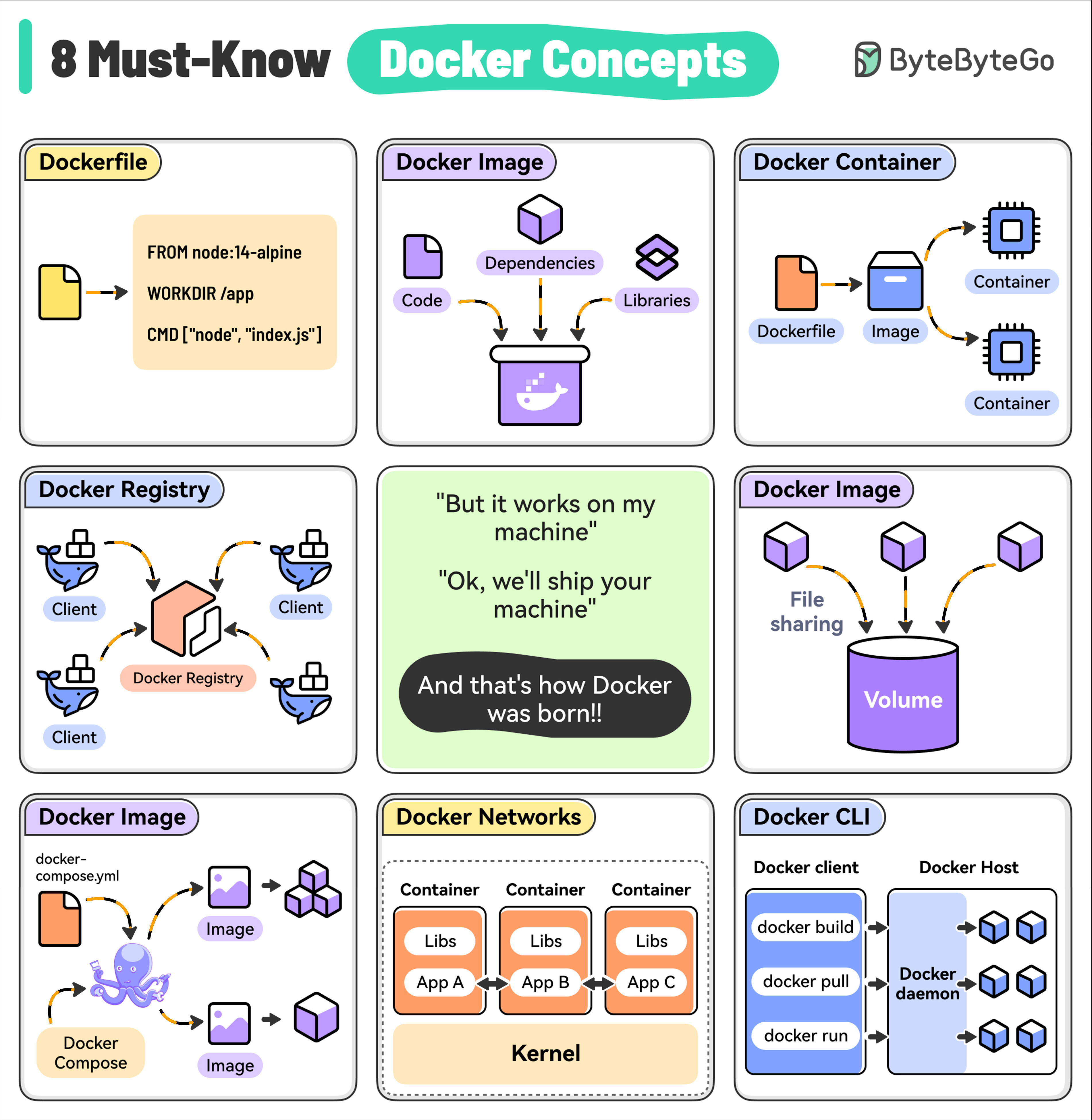
The following diagram provides a great visual summary of the core concepts we've discussed in this lesson.
Conclusion
In this lesson, you've been introduced to the fundamental concepts of containerization with Docker. You now have the theoretical foundation needed to start packaging your applications for modern, reliable deployment.
Key Takeaways:
- Containerization solves the "it works on my machine" problem by packaging an application with all its dependencies into an isolated unit.
- Containers are lightweight because they share the host OS kernel and use namespaces and cgroups for isolation and resource management.
- An Image is a read-only template or blueprint for your application.
- A Container is a live, running instance of an image.
- A
Dockerfileis a text file with instructions for building a custom Docker image. - Docker Hub is a public registry where you can find and share thousands of pre-built images.
What's Next?
Theory is great, but practice is better. In the next lesson, Write a Dockerfile to containerize a Spring Boot application, you'll take the concepts you've learned today and apply them directly. We will write a Dockerfile for one of the microservices we built earlier, build a Docker image from it, and run it as a container on your machine.