Welcome back! In our recent lessons, you've mastered Azure Service Bus, implementing both point-to-point messaging with queues and the powerful one-to-many publish-subscribe pattern with topics. Now, we're going to explore Azure's other primary queueing service: Azure Queue Storage.
This lesson focuses on the practical skills needed to use this service. You will learn to implement basic queueing operations (send, receive, and delete) using Azure Queue Storage with the .NET SDK. This service offers a simpler, often more cost-effective alternative to Service Bus for certain scenarios. Understanding how to use it is essential for the AZ-204 exam and for making informed architectural decisions.
Let's begin by understanding the fundamental role of a queue in decoupling application components.
1. The Role of a Simple Queue
At its core, a queue acts as a buffer between different parts of an application, allowing them to communicate asynchronously. The producer adds work to the queue, and one or more consumers can process that work at their own pace. This decouples the components, making the overall system more resilient and scalable.
The following video explains this concept well, using a practical video processing example.
AZ-204 - Develop for Azure Storage - Storage Accounts - Queue Service
Alan Rodrigues from "Alan Rodrigues" provides a clear illustration of why you would use a queue to decouple a web front-end from a back-end processing service.
Watch the section explaining the benefit of a queue. This will help you visualize how a queue improves system architecture by isolating producers and consumers and managing processing failures.
Unlike Service Bus, which is a standalone messaging service, Azure Queue Storage is a component of an Azure Storage Account. This means it shares the same infrastructure as Blob, File, and Table storage.
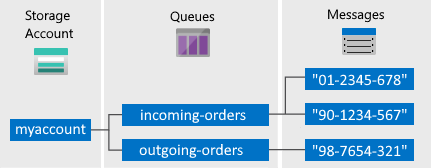
2. Core Queue Operations with the .NET SDK
Now, let's get hands-on and write some C# code to interact with a queue. The pattern will be straightforward:
- Send a message to the queue.
- Receive the message from the queue. This makes the message temporarily invisible to other consumers.
- Delete the message after it has been successfully processed.
We will use the official Microsoft quickstart as our main guide for this exercise. It provides a complete, modern .NET example.
Quickstart: Azure Queue Storage client library - .NET
This official quickstart is the perfect guide for our hands-on work. It covers all the core operations we need to learn, using modern .NET practices including passwordless authentication.
Work through the guide to build a simple console application. You will need an Azure Storage Account; you can create a new one or use an existing one. Focus on these key sections: Install the packages: Create a new console app and add the Azure.Storage.Queues and Azure.Identity NuGet packages. Authorize access and create a client object: Read through both the Passwordless (Recommended) and Connection String tabs. You're familiar with both patterns from our Service Bus lessons. For this exercise, using the connection string is quickest for local testing. Create a queue: Use the CreateIfNotExistsAsync method on the QueueClient object. This is a common and convenient pattern. Add messages to a queue: Implement the SendMessageAsync call to add one or more string messages to your queue. Note the message size limit of 64 KB. Receive messages from a queue: Implement the ReceiveMessagesAsync call. This retrieves messages from the queue and makes them invisible for a default period of 30 seconds. Delete messages from a queue: This is the critical final step. Implement the DeleteMessageAsync call within your processing loop, using the MessageId and PopReceipt from the received message to confirm its deletion. You can skip the sections on peeking, updating, and getting the queue length for now, as our focus is on the core send-receive-delete workflow.
3. The Receive-Process-Delete Pattern
As you saw in the quickstart, interacting with Queue Storage follows a distinct two-step retrieval process.
- Receive: When you call
ReceiveMessagesAsync, you don't actually remove the message. The service marks it as "in-flight" by making it invisible for a specific duration, known as the visibility timeout. - Delete: Your application processes the message. If processing is successful, you must call
DeleteMessageAsyncto permanently remove it. If you fail to delete it (e.g., your application crashes), the visibility timeout will expire, and the message will become visible again for another consumer to process.
This ensures "at-least-once" delivery and is fundamental to building reliable workers with Queue Storage. The video below reinforces how the DeleteMessageAsync call completes this cycle.
AZURE QUEUE STORAGE From ASP NET Core | Getting Started With ASP.NET Core Series
Rahul Nath demonstrates this pattern within an ASP.NET Core background service, showing how it fits into a realistic application.
Watch the segment on deleting a message. Notice how DeleteMessageAsync is called after the message is processed, using the MessageId and PopReceipt. This is the exact pattern you just implemented in the console app.
4. Peeking vs. Receiving
There is another way to view messages without starting the processing workflow: peeking.
ReceiveMessagesAsyncretrieves messages and makes them invisible (starts the visibility timeout). It's used when you intend to process and delete a message.PeekMessagesAsyncretrieves messages but does not change their visibility. The messages remain in the queue, fully visible to other consumers. This is useful for monitoring or inspection purposes where you want to see what's in the queue without committing to processing it.
The following short video segment clarifies this distinction.
AZ-204 - Develop for Azure Storage - Storage Accounts - Queue Service
This video provides a concise explanation of the difference between peeking and receiving.
Watch from peeking vs. receiving. This will solidify your understanding of when to use each method.
Conclusion
In this lesson, you've implemented the fundamental operations for working with Azure Queue Storage. You now have practical experience with the send-receive-delete workflow that is central to building reliable solutions with this service.
Here are the key takeaways:
- Core SDK Class: The
Azure.Storage.Queues.QueueClientis the primary object for all interactions with a specific queue. - Fundamental Operations: The main methods you'll use are
SendMessageAsync,ReceiveMessagesAsync, andDeleteMessageAsync. - At-Least-Once Delivery: The receive-process-delete pattern, governed by the visibility timeout, ensures that messages are not lost if a consumer fails during processing.
- Simplicity: Queue Storage provides a simple, highly scalable, and REST-based interface for queueing, integrated directly into Azure Storage Accounts.
Now that you've worked with both Azure Service Bus and Azure Queue Storage, our next lesson will be dedicated to comparing them side-by-side. We'll analyze their features, guarantees, and pricing to help you decide which service is the right choice for different scenarios—a critical skill for the AZ-204 exam.