Hello! Let's continue our journey through Azure's container solutions.
In our last lesson, we configured auto-scaling for our Azure Container App. A key point we touched on was that any change to the scaling configuration results in the creation of a new, immutable revision. Today, we'll dive deep into that concept. Mastering revisions is fundamental to managing application versions effectively and is a cornerstone of modern deployment strategies.
This lesson focuses on managing application versions in Azure Container Apps using revisions and traffic splitting. You'll learn how to enable and manage multiple active versions of your application and control how user traffic is distributed among them. This capability is essential for implementing safe and controlled rollout strategies like blue-green deployments and A/B testing, which are crucial skills for the AZ-204 exam and for professional cloud development.
Understanding Revisions
In Azure Container Apps, a revision is an immutable snapshot of a specific version of your container app. Think of it as a point-in-time, unchangeable record of your app's configuration and container image. When you first deploy your app, Azure creates the initial revision. Subsequent updates can create new revisions.
A critical concept to grasp is what triggers the creation of a new revision. Not all changes are equal. Changes are categorized into two scopes:
-
Revision-scope changes: These are changes to the core template of your application that result in a new revision. This includes modifications to:
- The container image or its tag
- Environment variables
- CPU/memory resource allocations
- Scaling rules
- Health probes
-
Application-scope changes: These are changes to the overall configuration that do not create a new revision. They apply across all existing revisions. This includes:
- Secrets (though a new revision is needed to use a new secret)
- Ingress settings (like traffic splitting rules, which we'll cover shortly)
- The revision mode itself (single vs. multiple)
To see a detailed breakdown and demonstration of these concepts, the following video is an excellent resource.
Azure Container Apps - Revisions Explained | Step by Step
This video, "Azure Container Apps - Revisions Explained," provides a thorough walkthrough of what revisions are, what triggers them, and how they fit into the application lifecycle.
Please watch the following segments: What is a revision?: This introduces the core concept of a revision as an immutable snapshot. Revision vs. Application Scope: Focus on the distinction between the template section (revision scope) and the configuration section (application scope) in the app's underlying template. This is key to understanding why some changes create new revisions and others don't. Application Lifecycle: This briefly covers the deployment, update, and deactivation stages, putting revisions into the context of your app's lifecycle.
As the video explained, any modification to properties within the template definition of your container app will produce a new revision. This design ensures that each version is self-contained and predictable, which is essential for stable deployments.
Enabling Multiple Revisions and Traffic Splitting
By default, a container app operates in single revision mode. When you deploy an update that creates a new revision, Azure automatically deactivates the old one and routes 100% of the traffic to the new one. This is a simple update strategy, but it lacks the control needed for more advanced deployment scenarios.
To unlock strategies like A/B testing and blue-green deployments, you need to switch to multiple revision mode. This mode allows several revisions to be active simultaneously, each accessible via a unique URL and capable of receiving a percentage of the main application traffic.
This is where traffic splitting comes in. Once in multiple revision mode, you can define rules that distribute incoming HTTP requests across your active revisions based on assigned weights (percentages).
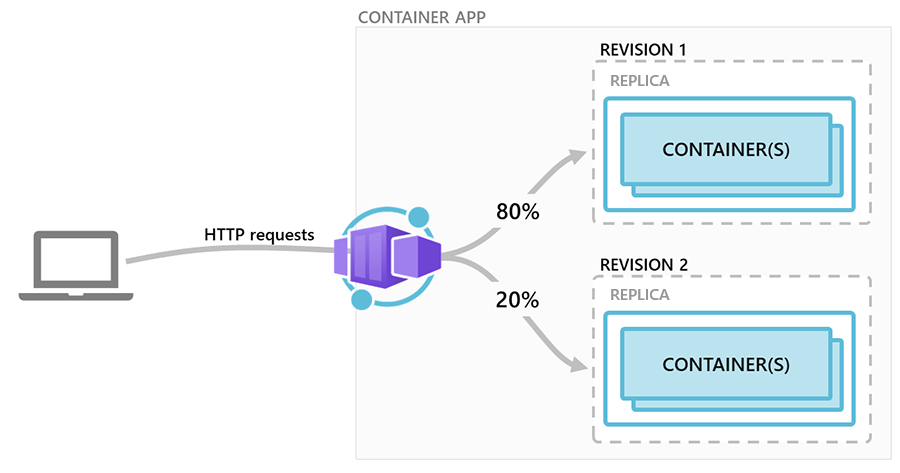
This powerful feature allows you to:
- Perform A/B Testing: Direct a small portion of users to a new revision to test a new feature.
- Execute Canary Releases: Gradually roll out a new revision to a small subset of users, monitor its performance and stability, and then slowly increase the traffic share.
- Implement Blue-Green Deployments: Deploy a new "green" revision alongside the current "blue" production revision. After internal testing (via the revision's direct URL), you can switch 100% of the traffic from blue to green instantly for a seamless cutover.
Configuring Traffic Splitting
You can manage revisions and traffic splitting through the Azure Portal or programmatically using the Azure CLI.
Traffic splitting in Azure Container Apps | Microsoft Learn
This official Microsoft Learn documentation provides concise instructions for configuring traffic splitting.
Please read the following sections: Start from the beginning of the article to understand the purpose of traffic splitting. Review the "Configure traffic splitting" section to see the az containerapp ingress traffic set command. Follow the steps in the guide for configuring via the Azure portal to familiarize yourself with the UI.
As you've just read, the process involves two main steps:
- Switch to Multiple Revision Mode: This is a one-time change for your container app.
- Define Traffic Weights: Assign a percentage of traffic to each active revision. The total must always add up to 100%.
Here is the Azure CLI command for setting traffic weights. You can identify revisions by their full name or by assigning them easier-to-remember labels.
# Example: Splitting traffic 80% to a 'production' revision and 20% to a 'canary' revision
az containerapp ingress traffic set \
  --name my-dotnet-app-aca \
  --resource-group <YourResourceGroupName> \
  --label-weight production=80 canary=20
And here's how it looks in the Azure Portal, which provides a very intuitive visual interface for managing the split:

To see this in action, let's return to the video demonstration.
Azure Container Apps - Revisions Explained | Step by Step
This part of the "Azure Container Apps - Revisions Explained" video demonstrates a practical traffic splitting scenario.
Watch the segment from the demo. The presenter switches the container app to multiple revision mode and configures a 50/50 traffic split between two versions of the application. Observe how refreshing the main application URL returns responses from both revisions.
Advanced Revision Management
Beyond basic traffic splitting, there are a few other management features to be aware of for the exam.
- Labels: As shown in the CLI command above, you can apply a friendly text label to a revision (e.g.,
production,staging,v2-beta). This makes managing traffic rules much easier than using the long, auto-generated revision names. - Revision Suffix: When creating a revision, you can provide a custom suffix to create a more readable revision name. However, be aware that revision names must be unique. If you redeploy with a revision-scope change but forget to update the suffix, the deployment will fail.
- Zero-Downtime Deployments: Even in single-revision mode, Container Apps provides zero-downtime deployments. When you trigger an update, Azure provisions the new revision and ensures it's healthy before deactivating the old one and switching the traffic. This prevents dropped requests during an update.
Conclusion
You've now learned how to manage application versions and implement sophisticated deployment strategies in Azure Container Apps. This is a significant step up from simple deployments and is a key skill for building reliable, modern cloud applications.
Here are the key takeaways from this lesson:
- Revisions are Immutable Snapshots: Each revision is a complete, unchangeable version of your app.
- Revision-Scope Changes Trigger New Revisions: Updates to the container image, environment variables, or scaling rules will create a new revision.
- Multiple Revision Mode is Required for Traffic Splitting: To have more than one active revision, you must enable this mode.
- Traffic Splitting Enables Controlled Rollouts: You can distribute traffic by percentage across active revisions to perform A/B testing, canary releases, or blue-green deployments.
- The Key CLI Command: Use
az containerapp ingress traffic setto manage traffic distribution programmatically. - Labels and Suffixes: Use these features to make your revisions easier to identify and manage.
In the next lesson, we will shift our focus to another container service on Azure: Azure Container Instances (ACI). We'll explore its use cases and deploy a container to it, comparing its features and ideal scenarios with those of Azure Container Apps.