Welcome back! In our last lesson, you learned to distinguish between Azure Event Hubs for data streaming and Azure Event Grid for event routing. We established that Event Grid is the cornerstone of building reactive, event-driven applications in Azure by using a push-based, publish-subscribe model.
Today, we'll put that theory into practice. This lesson is focused on a core, hands-on skill for the AZ-204 exam: creating an Event Grid subscription to react to Azure resource events. You will learn how to configure Azure to automatically trigger a piece of code—like an Azure Function—in response to an event, such as a file being uploaded to Blob Storage. This is a fundamental pattern for automating workflows and integrating services across the platform.
1. System Topics: The Voice of Azure Resources
In the previous lesson, we discussed "topics" as the endpoints where publishers send events. When the publisher is an Azure service itself (like Storage, Key Vault, or a Resource Group), Event Grid uses a special kind of topic called a system topic.
A system topic is essentially a built-in topic that represents an event source in Azure. You don't publish to it directly; instead, Azure manages it and emits events to it automatically when the state of the associated resource changes. For example, a system topic for a Storage Account will automatically emit events like Microsoft.Storage.BlobCreated when a new file is uploaded.
To react to these events, you create an event subscription on that system topic.

Many Azure services can act as event sources. The following article provides a brief definition of system topics and lists some of the most common services that support them.
How to Create Azure Event Grid System Topics for Azure Resource ...
This blog post from oneuptime.com clearly defines system topics and provides a helpful list of Azure services that can generate events.
Read the sections "What Are System Topics?" and "Which Azure Services Support System Topics?". This will give you a concrete idea of the breadth of events you can react to.
2. Creating an Event Subscription in the Azure Portal
The most common way to create an event subscription for a resource is directly from the resource's blade in the Azure portal. When you do this for the first time on a resource, Azure automatically creates the underlying system topic for you.
Let's walk through the canonical example: triggering an Azure Function when a blob is uploaded to a storage container. The following video provides a complete end-to-end demonstration. It shows the setup of the source (Storage Account), the handler (Azure Function), and the subscription that connects them.
AZ-204 - Connect and Consume Services - Azure Event Grid
In his video, Alan Rodrigues demonstrates the entire process of subscribing to storage events. This is a great practical walkthrough of the concepts.
Watch the segment from the demo. As you watch, focus on these key steps: The Handler: An Azure Function with an EventGridTrigger is created. This function is designed to receive and log event data. The Source: A standard Azure Storage Account. The Subscription: On the Storage Account's Events page, a new Event Subscription is created. Configuration: During subscription, notice the key settings: the event types to listen for (Blob Created, Blob Deleted), and the endpoint, which is set to the Azure Function created in step 1. Testing: A file is uploaded, which triggers the function, and the event payload is visible in the logs.
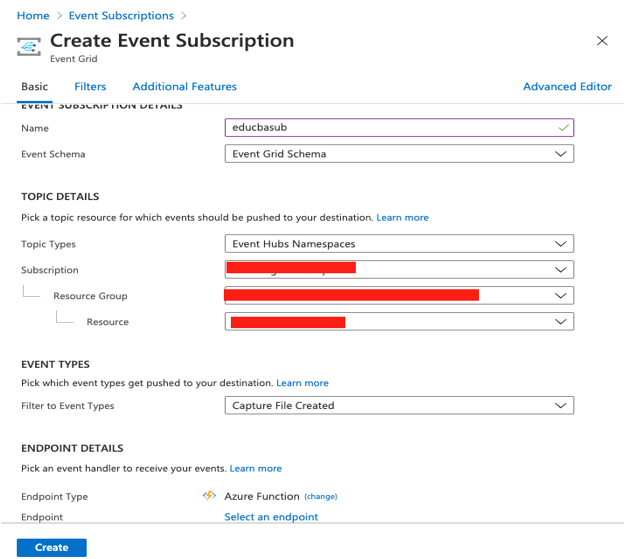
This process connects a source to a handler. The "Create Event Subscription" page in the portal, as shown in the video and the image below, is where you define this connection.
3. Filtering Events for Precision
In a real-world scenario, you rarely want to react to every single event from a source. Executing your handler unnecessarily costs money and adds noise. Event Grid provides powerful filtering capabilities to ensure your handlers only run when they should.
There are two primary types of filters you'll configure in a subscription:
- Event Type Filtering: This lets you subscribe to specific event types. In the video, you saw
Blob CreatedandBlob Deletedwere selected. You could choose to only subscribe to one of them. - Subject Filtering: This allows you to filter based on the
subjectfield of the event data, which typically contains the path to the resource that triggered the event. This is extremely useful. For example, you can filter for blobs uploaded to a specific container or for files with a specific extension.
The next segment of the video demonstrates how to apply subject filters to an existing subscription.
AZ-204 - Connect and Consume Services - Azure Event Grid
This part of the video shows how to refine your subscription using subject filters.
Watch the demonstration from on filters. Pay attention to the two examples: Subject ends with: Using .jpg to only trigger for image files. Subject begins with: Using the path to a specific container (/blobServices/default/containers/data/) to only trigger for uploads into that container, ignoring others.
4. Creating Subscriptions Programmatically with Azure CLI
While the portal is great for learning and one-off tasks, in a professional development environment, you'll manage infrastructure as code. As a senior engineer familiar with Azure DevOps, you know the importance of repeatable, automated deployments. The Azure CLI is an excellent tool for this.
Let's look at how you would create the same subscription for blob storage events using the CLI. This approach is more declarative and scriptable.
How to Create Azure Event Grid System Topics for Azure Resource ...
This section of the oneuptime.com article provides the CLI commands to achieve what was just shown in the portal.
Review the code blocks under the "Creating a System Topic" heading. Don't worry about running the commands now, but understand their purpose: az storage account create: Standard command to create the source resource. az storage account show: Retrieves the resource ID of the storage account, which is needed as the source for the event topic. az eventgrid system-topic create: Explicitly creates the system topic. This is an alternative to having the portal create it implicitly. You provide a name and link it to the source storage account ID. az eventgrid system-topic event-subscription create: Creates the subscription. Here you specify the system topic to subscribe to, the endpoint details (like an Azure Function's resource ID), and the event types to include (Microsoft.Storage.BlobCreated).
This CLI approach is powerful and directly relevant to what you might see on the AZ-204 exam, which tests your ability to manage resources using various tools, not just the portal. You can also create subscriptions for broader scopes, such as an entire resource group, to monitor all resource changes within it for auditing purposes.
Conclusion
In this lesson, you've moved from theory to practice, learning how to create an event-driven workflow in Azure. You now have a practical understanding of how to make Azure services react to one another.
Here are the key takeaways:
- System Topics are Azure-managed topics that emit events from Azure resources like Storage Accounts, Resource Groups, and Key Vaults.
- An Event Subscription connects a system topic to an event handler (like an Azure Function or a Logic App).
- You can create subscriptions easily through the Azure Portal on a resource's "Events" blade, or programmatically using the Azure CLI for automation.
- Filtering by event type and subject is crucial for creating precise, efficient, and cost-effective event-driven solutions.
So far, we've focused on reacting to events that Azure services generate. But what if you want your own application to be an event source? In the next lesson, we will cover exactly that. You will learn how to publish custom events to an Azure Event Grid topic using the .NET SDK, a powerful pattern for integrating your own microservices.