Welcome back! In our previous lesson, we assembled our digital toolkit by learning how to configure SkPaint objects—the "brushes" that define how we draw. We now know how to set color, style, and anti-aliasing to achieve a professional look.
Now it's time to put those brushes to canvas. This lesson focuses on the "what" and "where" of drawing. Your goal is to learn how to render both basic geometric shapes and arbitrarily complex paths. We will start by using the SkCanvas object's convenient functions for drawing primitives like rectangles and circles. Then, for maximum flexibility, we will dive into SkPath, a powerful object that lets you define any shape imaginable, from a simple triangle to the intricate curves of a user's freehand stroke. This is a fundamental step toward bringing your whiteboard to life.
Drawing with SkCanvas: The Primitives
The SkCanvas object is your drawing surface. While it can draw anything you describe, it provides a set of highly optimized, built-in functions for common geometric primitives. These are your foundational building blocks.
Imagine you have the strokePaint we configured in the last lesson:
SkPaint strokePaint;
strokePaint.setAntiAlias(true);
strokePaint.setColor(SK_ColorBLUE);
strokePaint.setStyle(SkPaint::kStroke_Style);
strokePaint.setStrokeWidth(3.0f);
strokePaint.setStrokeCap(SkPaint::kRound_Cap);
strokePaint.setStrokeJoin(SkPaint::kRound_Join);
You can use this paint to draw various shapes directly onto the canvas:
- Rectangles:
canvas->drawRect(SkRect::MakeXYWH(10, 10, 100, 160), strokePaint); - Ovals and Circles:
canvas->drawOval(SkRect::MakeXYWH(120, 10, 80, 160), strokePaint); - Rounded Rectangles:
canvas->drawRRect(SkRRect::MakeRectXY(SkRect::MakeXYWH(220, 10, 100, 160), 15, 15), strokePaint);
These functions are straightforward and efficient for rendering standard shapes. Combining different paints with these drawing calls allows for a wide variety of visual output.

Describing Complex Geometry with SkPath
What happens when you need to draw something that isn't a simple rectangle or circle, like a star, a country's outline, or a user's signature? For this, Skia provides SkPath.
An SkPath is a data object that stores a sequence of geometric commands, or "verbs." These commands describe how to move a virtual pen across the canvas. A path is composed of one or more contours. A contour is simply a continuous sequence of segments, which can be lines or curves, starting with a moveTo command.
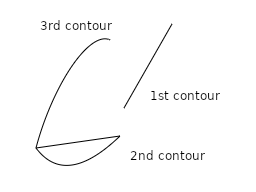
The SkPath documentation provides a good overview of this concept.
This official documentation from Skia introduces the core concepts of SkPath.
Please read the Detailed Description. Focus on understanding the relationship between paths, verbs, and contours.
Building a Path Step-by-Step
You construct a path by calling a series of methods that add these verbs and their associated coordinates to the path object. The fundamental verbs are:
moveTo(x, y): Lifts the virtual pen and starts a new contour at the point (x, y).lineTo(x, y): Adds a straight line from the current point to (x, y).quadTo(x1, y1, x2, y2): Adds a quadratic Bézier curve from the current point to (x2, y2), using (x1, y1) as the control point.cubicTo(...): Adds a cubic Bézier curve, which offers more complex curvature.close(): Adds a line from the current point back to the start of the contour, closing the shape.
Let's build a simple triangle to see this in action:
#include <SkPath.h>
#include <SkCanvas.h>
#include <SkPaint.h>

SkPath trianglePath;
// Start a new contour at the top point
trianglePath.moveTo(150.0f, 50.0f);
// Draw a line to the bottom-right point
trianglePath.lineTo(250.0f, 200.0f);
// Draw a line to the bottom-left point
trianglePath.lineTo(50.0f, 200.0f);
// Close the shape by drawing a line back to the start
trianglePath.close();

// Now, draw the path we just created onto the canvas
canvas->drawPath(trianglePath, somePaint);
This is the core workflow: define the geometry in an SkPath, configure the style in an SkPaint, and then render it using SkCanvas::drawPath().
For a deeper look at the path-building API, consult the official documentation.
This part of the API reference details the core functions for building paths segment by segment.
In the "Public Member Functions" table, find and familiarize yourself with the descriptions for: moveTo lineTo quadTo cubicTo close Notice that many functions have "r" versions (e.g., rMoveTo), which use relative coordinates instead of absolute ones.
A Practical Example: Creating a Star
Building paths programmatically allows for incredible complexity. A great example of this is a function that generates a star shape. The following resource contains a C++ file with a complete SDL2/Skia application. Inside, you'll find a function that procedurally generates a five-pointed star.
skia-c-examples/SkiaSDLExample.cpp at main · HinTak/skia-c-examples
This GitHub file contains a well-structured example of a Skia application. We will focus on how it builds and draws a complex path.
First, locate the function create_star. Analyze how it uses a loop and a rotation matrix to calculate the star's points, then connects them using moveTo and lineTo calls. This is a perfect demonstration of generating geometry on the fly. Next, find the main application loop inside the main function. Look for the call to drawPath. This shows how the generated path is rendered to an offscreen canvas.
The design of SkPath is highly performant. By encapsulating geometry in a path object, you create a reusable asset. This is conceptually analogous to defining vertex data in a buffer in lower-level APIs like OpenGL or Vulkan. The geometry is defined once—potentially with significant computation like in the create_star example—and can then be drawn many times with different paints or transformations. This is far more efficient than recalculating the geometry from scratch for every frame.
Path Helpers
Finally, it's worth noting that SkPath also includes helper methods to add primitive shapes directly to a path object, such as addRect(), addCircle(), and addOval(). These are useful when you want to combine several simple shapes into a single, more complex SkPath object, perhaps to apply a single graphical effect to the whole group or to create a cutout.
This section of the documentation lists the convenience functions for adding primitive shapes to a path.
Quickly review the functions starting with "add" in the public member functions list, such as addRect, addOval, and addCircle. This knowledge will be useful when you need to construct composite shapes.
Conclusion
You have now made the leap from preparing to draw to actually drawing. You can render both simple, standard primitives and complex, custom-defined shapes. This is the heart of 2D graphics programming and the foundation upon which your whiteboard's rendering engine will be built.
Key Takeaways:
SkCanvasprovides direct drawing methods for primitives likedrawRect,drawOval, anddrawCircle.SkPathis the object used to describe arbitrary 2D geometry using a sequence of commands (verbs) likemoveTo,lineTo, andclose.- You can build an
SkPathprogrammatically and render it to a canvas usingcanvas->drawPath(). - Creating a path object is an efficient way to represent complex geometry that can be reused, which is a key pattern for high-performance graphics.
In the next lesson, we will explore how to manipulate the canvas's coordinate system. This will enable us to implement essential whiteboard features like panning and zooming by applying transformations to all the shapes and paths we've learned to draw today.