Welcome to the final module of our course. Having built a robust system for saving and loading your whiteboard's entire state in a custom binary format, we now turn to sharing your work with the outside world. This lesson focuses on exporting your drawings into a standard, high-quality format that is universally recognized.
Today, you will learn how to export a selection of drawn strokes to a vector-based SVG file using Skia's SVG canvas backend. Scalable Vector Graphics (SVG) is an XML-based format for describing two-dimensional graphics. Unlike raster formats (like PNG or JPEG), SVGs are resolution-independent, meaning they can be scaled to any size without loss of quality. This makes them ideal for inclusion in documents, web pages, and for your specific goal of generating LaTeX handouts.
We will tap into Skia's powerful, flexible architecture, which allows us to redirect drawing commands from the screen to a different "backend"—in this case, one that translates those commands into an SVG file.
What is SVG?
At its core, an SVG file is a text file containing XML markup that defines shapes, paths, colors, and text. A rendering engine (like a web browser) reads this file and reconstructs the image. This is fundamentally different from a raster image, which stores a grid of pixels.
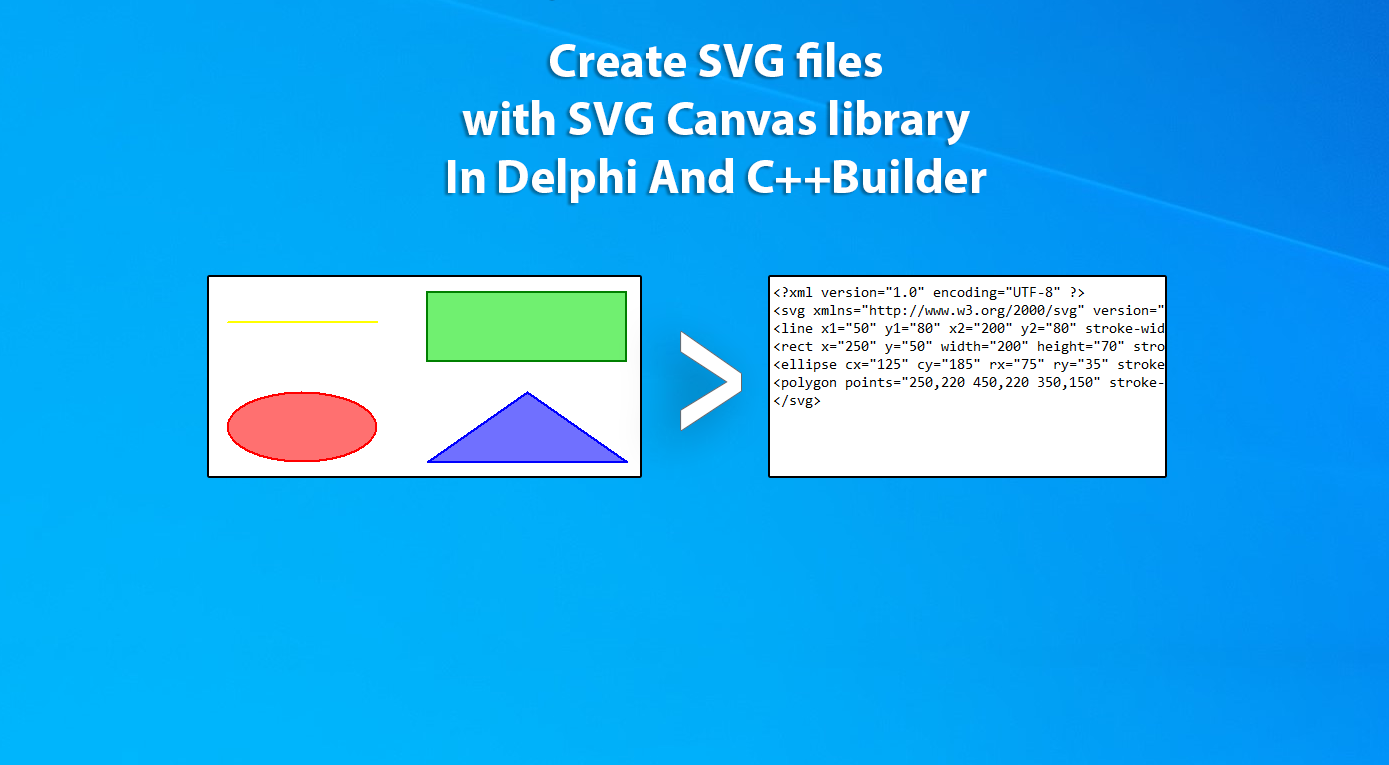
Given your background in system programming, you can think of this as a form of serialization, but instead of a custom binary format, we are serializing drawing commands into a standardized, human-readable text format.
The SkSVGCanvas Backend
Skia is designed to be a versatile 2D graphics library, capable of rendering to various surfaces. You've been using a GPU-accelerated surface for real-time display, but Skia can also target a PDF document, a software rasterizer, or, for our purposes, an SVG file. This is achieved by using a different implementation of the SkCanvas abstract base class.
The official Skia documentation provides a concise example of how to create an SkSVGCanvas.
This official Skia documentation page shows how to create canvases for various backends. We are interested in the SkSVG section.
Read the section titled SkSVG. Pay close attention to the three main components required: an SkStream for output, an SkXMLWriter to handle the XML formatting, and the SkSVGCanvas::Make factory function itself.
The example demonstrates the key components:
SkFILEWStream: A writable stream that targets a file on disk. Skia provides various stream implementations for writing to memory, files, etc.SkXMLStreamWriter: An object that wraps the stream and provides an interface for writing well-formed XML. TheSkSVGCanvasuses this internally.SkSVGCanvas::Make: A static factory method that constructs the canvas, tying together the desired output bounds and the XML writer.
Once you have an SkSVGCanvas instance, you can use it just like any other SkCanvas*. The same drawPath, drawRect, and other drawing calls you've been using will now output SVG elements instead of rendering pixels to the screen.
Step 1: Configuring the Build System
The SVG backend is considered an "extra" in Skia and may not be compiled into the library by default. You will likely need to explicitly add its source files to your CMake build process to avoid linker errors.
The files needed are part of the Skia source tree and handle the translation of draw calls to XML.
Forking Chrome to turn HTML into SVG - Fathy Boundjadj
This blog post, while about a much larger project, contains some excellent practical details about using Skia's SVG backend. The author ran into the same build issues we need to solve.
In the article, find the section discussing a "Linking error". The code block shows the necessary source files that need to be added to the build. Look for the list containing these files. You'll also see a dependency on expat, an XML parsing library that Skia uses.
Based on the article, you'll need to locate these files within your Skia dependency and add them to the list of sources in your CMakeLists.txt file where you define your Skia library target. The essential files are:
src/svg/SkSVGCanvas.cppsrc/svg/SkSVGDevice.cppsrc/xml/SkDOM.cppsrc/xml/SkXMLParser.cppsrc/xml/SkXMLWriter.cpp
Your CMakeLists.txt might look something like this (assuming SKIA_SOURCES is a list of Skia source files):
# ... other skia sources
list(APPEND SKIA_SOURCES


    # ...
    "${skia_dir}/src/svg/SkSVGCanvas.cpp"
    "${skia_dir}/src/svg/SkSVGDevice.cpp"
    "${skia_dir}/src/xml/SkDOM.cpp"
    "${skia_dir}/src/xml/SkXMLParser.cpp"
    "${skia_dir}/src/xml/SkXMLWriter.cpp"
)


# You may also need to link expat if it's not done automatically
# find_package(expat REQUIRED)
# target_link_libraries(your_project_name PRIVATE skia expat)
Step 2: Implementing the Export Function
Let's write a function that takes a list of strokes and exports them.
A critical detail of SkSVGCanvas is that it writes the closing XML tags (like </svg>) in its destructor. If the SkSVGCanvas object is not destroyed before you try to use the generated file, the file will be incomplete and invalid. This is a classic RAII pattern.
Forking Chrome to turn HTML into SVG - Fathy Boundjadj
The author of the Chrome-forking article discovered this exact issue.
Read the section where the author gets an error about missing closing tags. The solution is to ensure the SkSVGCanvas's destructor is called before the program proceeds. Using std::unique_ptr or a simple {} scope block elegantly solves this.
Here is a complete function that demonstrates the correct usage, incorporating proper resource management and the drawing logic.
#include "include/core/SkStream.h"
#include "include/svg/SkSVGCanvas.h"
#include "include/utils/SkXMLWriter.h"
#include <vector>
#include <string>

// Assume Stroke and PaintPalette are defined as before
// struct Stroke { ... };
// using PaintPalette = std::vector<SkPaint>;

void exportStrokesToSVG(
    const std::string& path,
    const std::vector<Stroke>& strokes,
    const PaintPalette& palette,
    const SkRect& bounds)
{
    // 1. Create a stream to write to the file.
    SkFILEWStream svg_stream(path.c_str());
    if (!svg_stream.isValid()) {
        // Handle error: couldn't open file
        return;
    }

    // 2. Create an XML writer and the SVG canvas.
    // We use unique_ptr to ensure RAII. When svg_canvas goes out of scope,
    // its destructor is called, which finalizes the SVG file by writing closing tags.
    auto xml_writer = std::make_unique<SkXMLStreamWriter>(&svg_stream);
    auto svg_canvas = SkSVGCanvas::Make(bounds, xml_writer.get());

    // 3. Draw the strokes to the SVG canvas.
    // The drawing commands are identical to what you'd use for the screen.
    for (const auto& stroke : strokes) {
        if (stroke.paint_id >= palette.size()) continue; // Safety check

        const SkPaint& paint = palette[stroke.paint_id];

        // Reconstruct the SkPath from our SoA data
        SkPath path;
        if (!stroke.positions_x.empty()) {
            path.moveTo(stroke.positions_x[0], stroke.positions_y[0]);
            for (size_t i = 1; i < stroke.positions_x.size(); ++i) {
                path.lineTo(stroke.positions_x[i], stroke.positions_y[i]);
            }
        }

        // NOTE: SkSVGCanvas does not directly support variable-width paths
        // from a single SkPath object in the same way a raster backend might.
        // It will render the path with the single stroke width defined in the SkPaint.
        // For this lesson, we will use the base paint style.
        // A more advanced implementation might decompose a variable-width stroke
        // into a filled polygon, but for now, this is a direct export.

        svg_canvas->drawPath(path, paint);
    }

    // 4. Finalize the file.
    // When this function returns, svg_canvas goes out of scope. Its destructor
    // is called, which tells the xml_writer to finish up, and then the stream is flushed.
    // No explicit close() or flush() is needed due to RAII.
}
This function can be called from your UI, for example, when a user clicks an "Export" button. You would first need to determine which strokes are selected and calculate their collective bounding box to pass to the bounds parameter. A simple way to calculate the bounds would be to iterate through all points of all selected strokes and find the min/max X and Y coordinates.
Conclusion
In this lesson, you have learned how to harness Skia's flexible backend architecture to export your whiteboard drawings to the high-quality, standard SVG format. This is a significant step toward making your application's content portable and ready for professional documentation.
Key Takeaways:
- Skia's Multi-Backend Design: Skia can render to various surfaces, including SVG files, by using different
SkCanvasimplementations likeSkSVGCanvas. - SVG Export Process: The procedure involves creating a file stream (
SkFILEWStream), anSkXMLWriter, and passing them toSkSVGCanvas::Make. Drawing commands remain unchanged. - Build System Configuration: Using features like the SVG canvas may require adding its source files to your CMake project to resolve linker errors.
- RAII is Critical: The
SkSVGCanvaswrites final closing tags in its destructor. Usingstd::unique_ptror other RAII techniques is essential to ensure a valid and complete SVG file is generated.
You are now equipped to generate vector assets from your application. In our next and final lesson, we will take this one step further. You will write a function to programmatically generate a .tex file that can interleave text extracted from a PDF with the SVG images you now know how to create, completing a major feature of your notebook application.