Introduction
Hello! In our last lesson, we explored the roles of hubs, switches, and routers, clarifying how data is guided between different devices and across networks. You learned that routers, operating at the Network Layer, use IP addresses to get packets to the correct computer on the internet.
But this brings up a new question: once a packet arrives at your computer, which might be running a web browser, a video game, and an email client simultaneously, how does the operating system know which application should receive the data?
This is where the Transport Layer and port numbers come in. This lesson will explain the crucial role of port numbers in identifying specific applications on a host. Understanding this concept is the key to seeing how a single internet connection can support dozens of different conversations at once.
1. The "Address Within an Address"
Think of an IP address as the street address of a large apartment building. A router's job is to deliver a package (your data packet) to the correct building address. However, once the package arrives at the front desk, the building manager (your computer's operating system) needs an apartment number to deliver it to the right resident (the application).
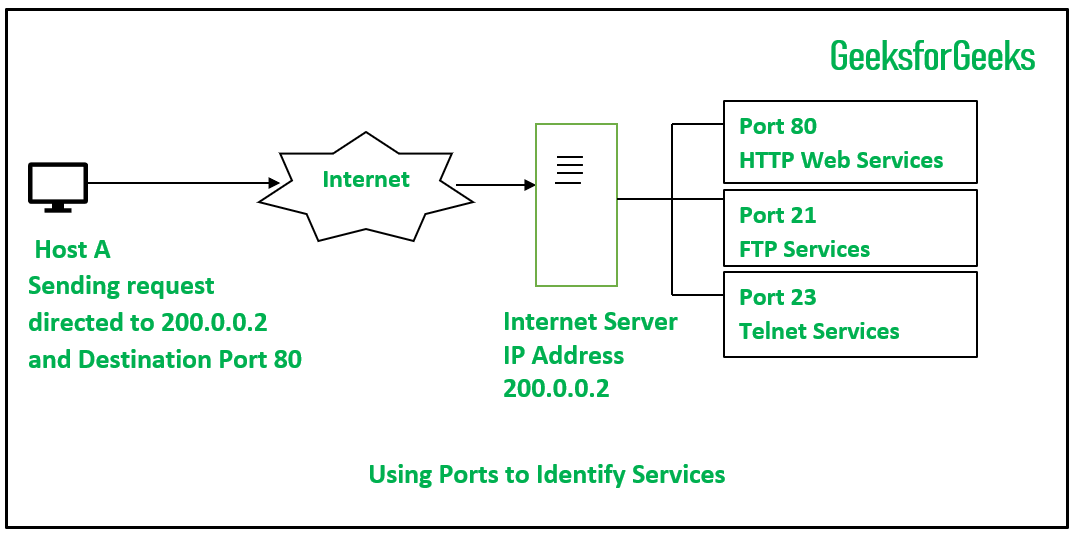
A port number is that apartment number. It's a logical, not physical, point that directs data to a specific application or service running on the host machine.
To get a feel for this concept, let's start with a short video that uses a similar analogy.
Port Numbers Explained | Cisco CCNA 200-301
This clip from CertBros uses a letterbox analogy to explain why port numbers are necessary to get data to the correct service on a computer.
Watch from 0:34 to 2:36. Pay attention to how the server uses predefined, well-known port numbers to distinguish between requests for its web server, mail server, and file server.
2. Sockets: The Endpoints of Communication
The combination of an IP address and a port number creates a unique endpoint for communication. In networking, this endpoint is called a socket.
For example, if a web server has an IP address of 198.51.100.10 and is running its web service on port 80, the socket for that service is 198.51.100.10:80.
This concept is fundamental to network programming. When you write a C program to communicate over the network (as we will later in this course), you will create and connect to these sockets.
8. The Transport Layer – Telecommunications and Networking
For a formal definition, let's turn to a text resource. This section clearly defines port numbers and their role in creating sockets.
Read the section titled 'Common Ports and Services'. Focus on the definitions of a port number and a socket. We'll discuss the port number ranges mentioned here in a moment.
3. Source and Destination Ports
A single network connection involves a pair of sockets—one on the client and one on the server. This means every TCP or UDP segment contains both a source port and a destination port.
Here's how it works:
-
The Request: When your browser wants to connect to
google.com, it knows Google's web server is listening on the well-known port for HTTPS, which is port 443. So, the packets your browser sends have a destination port of 443. Your computer's OS also picks a temporary, high-numbered port for this specific connection—for example, port 51234. This becomes the source port.- Request:
[Your IP]:51234->[Google's IP]:443
- Request:
-
The Response: When Google's server replies, it flips the source and destination. The reply packets are sent from its port 443 and to your port 51234.
- Response:
[Google's IP]:443->[Your IP]:51234
- Response:
This mechanism allows your computer to handle multiple connections simultaneously. If you open another browser tab to a different website, your OS will assign it a different source port (e.g., 51235), ensuring the returning traffic for each tab goes to the right place.

The temporary ports used by the client are called ephemeral ports.
4. Port Number Ranges
As you saw in the reading, the Internet Assigned Numbers Authority (IANA) divides the 65,536 available port numbers (from 0 to 65535, a 16-bit number) into three ranges:
-
Well-Known Ports (0-1023): These are reserved for common, system-level services. Administrative or root privileges are typically required to run a service on these ports. You've already seen some of these:
- 21: FTP (File Transfer Protocol)
- 22: SSH (Secure Shell)
- 25: SMTP (Simple Mail Transfer Protocol)
- 53: DNS (Domain Name System)
- 80: HTTP (Hypertext Transfer Protocol)
- 443: HTTPS (HTTP Secure)
-
Registered Ports (1024-49151): These are registered by companies and developers for specific applications. For example, the MySQL database server commonly uses port 3306.
-
Dynamic/Private Ports (49152-65535): This is the range from which operating systems choose ephemeral ports for client-side applications.
5. Hands-On: Finding Ports with netstat
Now let's bridge theory and practice. You can see all the active connections and listening ports on your own computer using a command-line tool called netstat (network statistics). This is a fantastic way to see which applications are using which ports in real time.
Finding what Applications use what Port
This guide from Chipkin Automation Systems provides a perfect, step-by-step tutorial on using netstat on Windows to map ports to their applications. Since you use a variety of operating systems, the principles here are directly applicable, though the specific commands may vary slightly.
Read the sections 'Using Netstat to List Active Ports' and 'Mapping Ports to Applications Using Task Manager'. Focus on the meaning of the netstat -ano command and the process of using the PID (Process Identifier) to find the application.
Let's Try It
Follow these steps to see this for yourself.
-
Open a few browser tabs to different websites (e.g., wikipedia.org, a news site).
-
Open your command-line interface:
- On Windows, open Command Prompt or PowerShell.
- On macOS or Linux, open the Terminal.
-
Run the
netstatcommand. The flags are slightly different across operating systems:- Windows:
netstat -ano-a: shows all connections and listening ports.-n: displays numerical addresses and ports.-o: shows the owning process ID (PID).
- macOS/Linux:
netstat -anp(You may need to runsudo netstat -anpon Linux to see all process information).-a,-n: same as Windows.-p: shows the PID and name of the program.
- Windows:
-
Analyze the output. You will see a list with columns like
Proto,Local Address,Foreign Address,State, andPID.- Local Address: This is your computer's IP address and the ephemeral source port, like
192.168.1.10:51234. - Foreign Address: This is the remote server's IP address and the destination port, like
104.18.32.201:443. A destination port of443indicates a connection to a secure web server (HTTPS). - PID: This is the Process ID of the application on your computer that is handling this connection.
- Local Address: This is your computer's IP address and the ephemeral source port, like
-
Map the PID to an Application:
- On Windows, open Task Manager, go to the Details tab, and find the process with the matching PID. You'll see it belongs to your web browser (
chrome.exe,firefox.exe, etc.). - On macOS/Linux, the
-pflag often shows the process name directly in the output.
- On Windows, open Task Manager, go to the Details tab, and find the process with the matching PID. You'll see it belongs to your web browser (
By doing this, you've just traced a connection from the abstract concept of a port number all the way to a running process on your system.
Conclusion
In this lesson, you moved up the network stack to the Transport Layer and uncovered the vital role of port numbers. You now understand how a single computer can manage countless simultaneous internet conversations.
Key Takeaways:
- IP addresses get data to the correct computer, while port numbers get data to the correct application on that computer.
- A socket, the combination of an IP address and a port number, forms a unique endpoint for network communication.
- Connections use a source port (usually a high-numbered ephemeral port on the client) and a destination port (usually a well-known port on the server).
- Port numbers are categorized into well-known (for servers), registered (for specific apps), and dynamic (for clients) ranges.
- The
netstatcommand is a powerful tool for observing active connections and mapping ports to processes on your own machine.
Preview of the Next Lesson:
Now that you know how applications are identified, we'll dive into how they communicate. The Transport Layer is dominated by two protocols: TCP and UDP. In the next lesson, we will begin with TCP and examine the famous three-way handshake (SYN, SYN-ACK, ACK), the process every TCP connection uses to get started reliably.