Hello! Welcome back to our module on Interactive Querying and Data Lake Governance.
In our previous lesson, we focused on optimizing Athena from the data-up. You learned how to use partitioning, columnar formats like Parquet, compression, and bucketing to minimize the amount of data Athena needs to scan from S3. This is fundamental to improving query performance and reducing costs.
Today, we shift our focus from optimizing the data to managing the users and their query behavior. This lesson will teach you how to configure Athena workgroups for cost control and query access management. While your experience with Athena gives you a great foundation, this lesson will provide the structured knowledge needed for the certification exam by focusing on how to build a secure, cost-effective, and multi-tenant analytics environment.
What is an Athena Workgroup?
Think of an Athena workgroup as a logical container that isolates users, teams, or applications from one another. By default, you have a primary workgroup, but creating custom workgroups is a best practice for any real-world data lake. They allow you to:
- Isolate workloads: Prevent ad-hoc exploratory queries from a data science team from interfering with scheduled, business-critical reporting queries.
- Manage access: Control which IAM users or roles can run queries.
- Enforce configuration: Mandate specific settings, like where query results are stored and whether they are encrypted.
- Control costs: Set explicit limits on data usage to prevent budget overruns.

Configuring a Workgroup for Isolation and Governance
Let's walk through the key settings you'll configure when creating a workgroup. These settings are the primary tools you'll use to enforce governance and segregate your users.
To understand the specific options available, please review the official AWS documentation on creating a workgroup.
Create a workgroup - Amazon Athena
This guide from the AWS documentation details the process and options for creating an Athena workgroup. We will discuss the most critical settings for the exam here.
Please read the introduction and skim the main table of options to get familiar with the settings. Pay close attention to the descriptions for 'Location of query result', 'Encrypt query results', and 'Override client-side settings'. We will be focusing on these.
Based on that reading, here are the most important settings to master:
-
Query Result Location: This is a crucial setting for workload isolation. You can specify a unique S3 path for each workgroup. For example:
s3://my-athena-results/reporting-team/s3://my-athena-results/data-science-team/
This prevents teams from seeing or accidentally overwriting each other's query results and simplifies cost allocation by organizing outputs by team.
-
Encrypt Query Results: You can enforce server-side encryption (SSE-S3, SSE-KMS, or CSE-KMS) for all query results generated by a workgroup. Because this setting is per-workgroup, you can enforce stricter encryption standards for teams handling sensitive data.
-
Override Client-Side Settings: This is a powerful governance feature. When enabled, it forces all queries in the workgroup to use the settings you've defined (like result location and encryption). It prevents users from specifying their own output locations via the API or JDBC/ODBC drivers, ensuring all results land in the designated, controlled S3 bucket. For the exam, remember that this is the key to enforcing your workgroup's configuration.
Cost Control: Setting Data Usage Limits
One of the most important functions of a workgroup is to act as a financial safety net. Athena provides two distinct mechanisms for this, which you must be able to differentiate for the exam.
Configure per-query and per-workgroup data usage controls
This documentation explains the two types of cost controls you can implement. Understanding the difference between a per-query limit and a workgroup-wide limit is essential.
Please read the introductory section defining the two limit types, and then read the step-by-step guides for creating a per-query control and a per-workgroup alert. Focus on the action taken when each limit is breached.
Let's summarize the key differences:
1. Per-Query Data Usage Limit
- What it does: Sets a maximum amount of data (e.g., 50 GB) that a single query can scan.
- Action when breached: The query is automatically canceled by Athena.
- Cost implication: You are still charged for the amount of data scanned before the query was canceled.
- Use case: A hard stop to prevent analysts from accidentally running extremely large, costly queries (e.g.,
SELECT *from a huge, non-partitioned table).
2. Workgroup-Wide Data Usage Limit
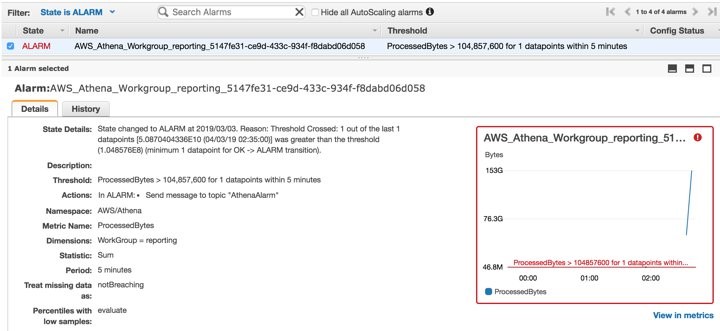
- What it does: Sets an aggregate data scan threshold (e.g., 1 TB) for all queries in the workgroup over a specific time period (e.g., per hour or per day).
- Action when breached: Triggers an Amazon CloudWatch Alarm. This alarm typically sends a notification to an Amazon SNS topic. It does not automatically cancel queries or disable the workgroup.
- Use case: A monitoring and alerting mechanism to notify administrators of high usage patterns. The SNS notification can be used to trigger automated actions, like invoking a Lambda function to disable the workgroup if cost-saving is critical.
Test your understanding!
A finance team is using Athena for ad-hoc analysis. Their manager has two requirements:
- No single query should ever cost more than $0.25 (assuming the standard Athena price of $5/TB).
- The team's total daily data scan should not exceed 2 TB. If it does, the department head needs to be notified via email.
How would you use Athena workgroup features to implement this?
Show answer
- Create a 'finance' workgroup.
- Per-Query Limit: To keep costs under $0.25, you need to limit the data scanned. $0.25 / ($5/TB) = 0.05 TB, which is 50 GB. You would set the per-query data usage limit to 50 GB. This will automatically cancel any query that exceeds this scan size.
- Workgroup-Wide Limit: You would configure a workgroup-wide data usage alert with a threshold of 2 TB over a 24-hour period. The action for this alert would be to publish a message to an SNS topic. The department head would be subscribed to this SNS topic via email to receive the notification.
Access Management: Integrating with IAM
Finally, workgroups are the cornerstone of access control in Athena. You separate users by assigning them to different workgroups and then use AWS Identity and Access Management (IAM) to control what they can do within that workgroup.
The mechanism is straightforward:
- You create an IAM policy that specifies permissions.
- You attach this policy to the IAM role or user that needs access.
- The key is to scope the policy's
Resourceto the ARN of a specific workgroup.
An IAM policy to allow a user to run queries in a reporting-team workgroup would look like this:
{
    "Version": "2012-10-17",
    "Statement": [
        {
            "Effect": "Allow",
            "Action": [
                "athena:StartQueryExecution",
                "athena:GetQueryExecution",
                "athena:GetQueryResults"
            ],
            "Resource": [
                "arn:aws:athena:us-east-1:123456789012:workgroup/reporting-team"
            ]
        },
        {
            "Effect": "Allow",
            "Action": [
                "s3:GetObject",
                "s3:ListBucket"
            ],
            "Resource": [
                "arn:aws:s3:::the-data-lake-bucket/*",
                "arn:aws:s3:::the-data-lake-bucket"
            ]
        },
        {
            "Effect": "Allow",
            "Action": [
                "s3:PutObject",
                "s3:GetObject"
            ],
            "Resource": [
                "arn:aws:s3:::my-athena-results/reporting-team/*"
            ]
        },
        {
            "Effect": "Allow",
            "Action": [
                "glue:GetTable",
                "glue:GetDatabase",
                "glue:GetPartitions"
            ],
            "Resource": ["*"]
        }
    ]
}
This policy grants permissions to run queries (athena:StartQueryExecution) only on the reporting-team workgroup. It also includes the necessary permissions to read data from the S3 data lake, write results to the workgroup's specific S3 output location, and access metadata from the AWS Glue Data Catalog.
Conclusion
You've now seen how Athena workgroups serve as the central point for managing query execution, cost, and access. By moving beyond the default primary workgroup, you can build a robust, secure, and cost-effective analytics platform.
Key Takeaways:
- Workgroups isolate users and workloads. They are fundamental for multi-tenant environments.
- Key configurations include setting a unique query result location and enforcing it with override client-side settings.
- Cost control is achieved through two distinct mechanisms:
- Per-query limits set a hard cap and cancel queries that exceed it.
- Workgroup-wide limits are aggregate thresholds that trigger CloudWatch alarms for notification.
- Access management is handled by scoping IAM policies to specific workgroup ARNs, granting principals like users and roles the permission to run queries only within their assigned workgroup.
Next Up:
In this lesson, we controlled who can run queries and how much data they can scan. In our next lesson, we will go a level deeper into data governance. We will explore AWS Lake Formation, a service that allows you to centrally manage and enforce fine-grained permissions—not just on who can query, but on which tables, columns, and even rows of data they are allowed to see.