Hello! Welcome to the next lesson in our journey through AWS data services.
In our last session, we dove into the mechanics of producing and consuming data from Kinesis Data Streams. You saw that while producing can be straightforward with the SDK or KPL, building a robust consumer application often involves the complexity of the Kinesis Client Library (KCL) to manage state, scaling, and fault tolerance.
Today, we'll explore a service that eliminates the need to write consumer code for one of the most common streaming use cases: loading data into a data lake, data warehouse, or analytics service. The learning outcome for this lesson is to implement a Kinesis Data Firehose delivery stream to Amazon S3, Redshift, or OpenSearch. Firehose acts as a fully managed "consumer," simplifying your architecture and reducing operational overhead.
1. What is Kinesis Data Firehose?
Kinesis Data Firehose is a fully managed service designed to reliably capture, optionally transform, and deliver streaming data to various destinations. Think of it as a serverless ETL service for streaming data.
To get a high-level overview, let's start with a short introduction from AWS.
Introduction to Kinesis Data Firehose | Amazon Web Services
This video, 'Introduction to Kinesis Data Firehose' from Amazon Web Services, provides a concise explanation of where Firehose fits into a streaming architecture.
Watch the video from the beginning until 3:43. Pay close attention to the five stages of stream processing described at the start, and note which of these stages Firehose handles. Also, take note of the key destinations it supports.
As the video explained, Firehose manages several key steps for you. Here’s a breakdown of its core components:
- Source: Data can be sent to Firehose from various sources, including:
- Direct PUT: Applications can send data directly to the Firehose endpoint using the AWS SDK, similar to how a producer works with Kinesis Data Streams.
- Kinesis Data Stream: Firehose can subscribe to a Data Stream, acting as a managed consumer. This is a powerful pattern that decouples data ingestion from data delivery.
- Transformation (Optional): Firehose can transform data in-flight using an integrated AWS Lambda function. We'll touch on this briefly today and cover it in detail in our next lesson.
- Destination: Firehose delivers data to destinations like Amazon S3, Amazon Redshift, Amazon OpenSearch Service, Splunk, and other custom HTTP endpoints.
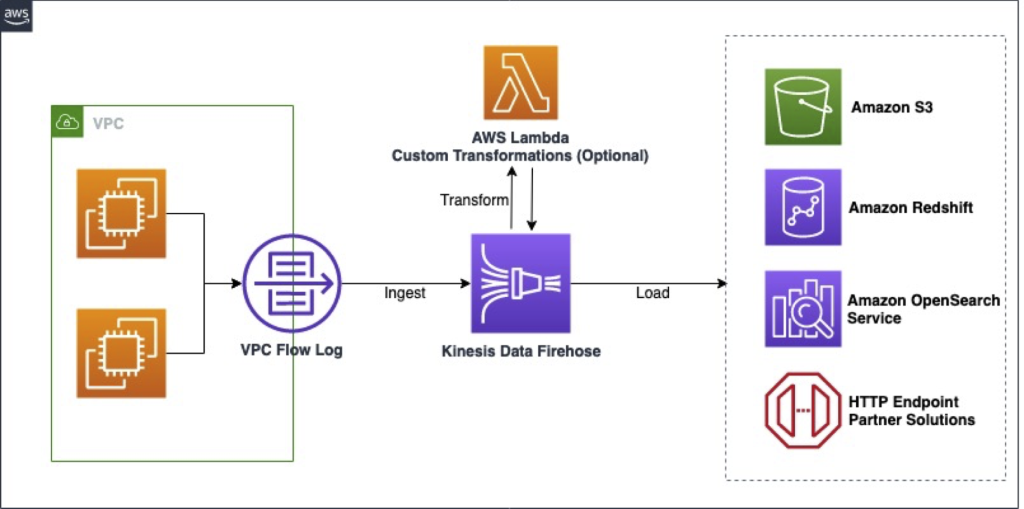
A critical concept in Firehose is buffering. Firehose batches incoming records based on either time or size before delivering them. This is crucial for optimizing writes to the destination, reducing API calls, and creating larger, more manageable files in services like S3.
2. Delivering Streaming Data to Amazon S3
Amazon S3 is the most common destination for Kinesis Data Firehose. It's the standard way to land raw streaming data into a data lake for archival, batch processing, or interactive querying with services like Athena, which you're already familiar with.
Let's walk through the steps to configure a delivery stream to S3.
Configuration Steps
- Source: Choose either "Direct PUT" or "Kinesis Data Stream."
- Destination: Select "Amazon S3."
- S3 Bucket and Prefix: You'll specify the destination S3 bucket. A key feature here is the ability to configure an S3 prefix. This allows you to automatically partition your data by time, which is essential for efficient querying in a data lake. A common prefix pattern is
data/year=!{timestamp:yyyy}/month=!{timestamp:MM}/day=!{timestamp:dd}/hour=!{timestamp:HH}/. - Buffer Conditions: You must set Buffer hints by specifying a
Buffer size(1-128 MB) and aBuffer interval(60-900 seconds). Firehose will deliver data to S3 whenever either of these thresholds is met first. - Compression and Encryption: You can enable GZIP, Snappy, or ZIP compression to save storage costs and improve query performance. You can also enable server-side encryption for the data at rest in S3.
- IAM Role: Firehose needs permissions to write objects to your S3 bucket. You can let the console create a new IAM role with the necessary permissions for you.
The following video provides a practical, step-by-step walkthrough of this entire process.
AWS Kinesis Firehose to S3 Tutorial | Step by Step Setup Guide
The video 'AWS Kinesis Firehose to S3 Tutorial' from the channel Be A Better Dev is an excellent hands-on guide to creating your first delivery stream.
Watch from 0:18 to 8:35. Pay special attention to the explanation of S3 buffer conditions (size and interval) from 3:12 to 5:01, as this is a fundamental concept for the exam. The video also demonstrates how to test the stream and verify the output in S3.
As an alternative to the video, or for a different perspective, the following text-based tutorial demonstrates a similar flow but uses a Kinesis Data Stream as the source, which directly builds upon our last lesson.
AWS Hands-On | Kinesis Data Streams & Data Firehose
The article 'AWS Hands-On | Kinesis Data Streams & Data Firehose' by Issack Paul provides a clear, screenshot-guided tutorial.
Read 'Part 2 : Delivery Streams' and 'Part 3 : Flow test' (from Step 10 to Step 17). This will walk you through creating a Firehose stream that consumes from a Kinesis Data Stream and delivers to S3. This shows how the two Kinesis services work together.
Test your understanding!
You are ingesting sensor data at a rate of approximately 2 MB per minute. Your goal is to create partitioned Parquet files in S3 that are roughly 64 MB each for optimal query performance with Athena. How would you configure your Firehose delivery stream's buffer hints?
Show answer
You would set the Buffer size to 64 MB and the Buffer interval to the maximum value of 900 seconds.
Reasoning:
- The primary goal is to create files of a specific size (64 MB). Setting the buffer size to 64 MB ensures Firehose will batch records until this size is reached.
- Since the data rate is 2 MB/minute, it will take 32 minutes (1920 seconds) to accumulate 64 MB of data.
- The buffer interval acts as a timeout. By setting it to 900 seconds (15 minutes), you ensure that if the data stream slows down, you still get data delivered at least every 15 minutes. In this scenario, with a steady stream, the 64 MB size threshold will always be met before the 15-minute interval, achieving the desired file size.
3. Delivering Streaming Data to Amazon Redshift
Another primary destination is Amazon Redshift, which allows you to load streaming data directly into your data warehouse for analysis.
The mechanism for Redshift delivery is slightly different and is a crucial architectural point to remember for the exam. Firehose does not write directly to Redshift. Instead, it follows these steps:
- Firehose delivers the incoming streaming data to an intermediate S3 bucket that you specify.
- Once the data is in S3, Firehose triggers an Amazon Redshift
COPYcommand to load the data from the S3 bucket into your target Redshift table.
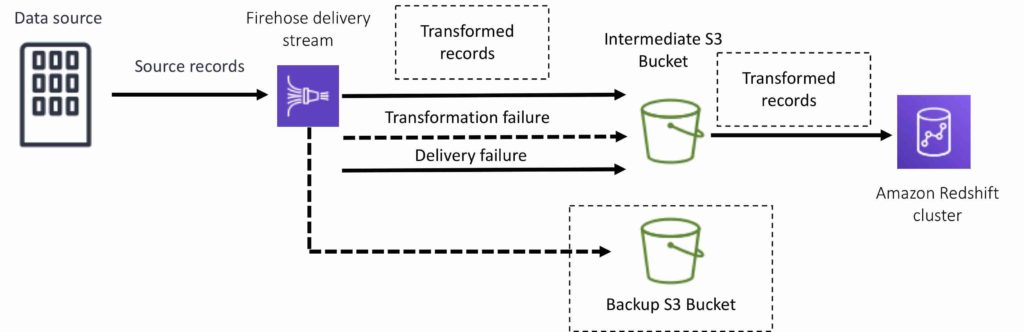
To implement this, you'll need a few prerequisites, which the following guide covers well.
Streaming using Kinesis Data Firehose and Redshift | by fact
The article 'Streaming using Kinesis Data Firehose and Redshift' provides a complete walkthrough of setting up a pipeline from a data source to a Redshift table.
Please read the following sections from the article: 'Creating Redshift cluster' 'Creating database, schema and table in Redshift' 'Creating a S3 bucket to hold streaming data' 'Creating Kinesis delivery stream' Focus on how the Redshift cluster, S3 bucket, and Firehose stream are configured to work together. Pay close attention to the 'Intermediate S3 destination' setting in the Firehose configuration.
The key configuration settings for a Redshift destination include:
- Redshift cluster details, DB name, and user credentials.
- The target table name (
schema.table_name). - The intermediate S3 bucket.
COPYcommand options, which allow you to specify data format (e.g., JSON, CSV), delimiters, and other loading parameters.
4. Delivering Streaming Data to Amazon OpenSearch Service
The third major destination is Amazon OpenSearch Service (formerly Elasticsearch Service). This is ideal for use cases like near real-time log analytics, full-text search, and application monitoring.
When delivering to OpenSearch, Firehose buffers incoming records and then uses the OpenSearch Bulk API to index multiple records in a single request, which is highly efficient.
The configuration is analogous to the other destinations:
- Destination: Select "Amazon OpenSearch Service."
- OpenSearch Domain: Specify the domain you want to send data to.
- Index: Define the OpenSearch index where records will be stored. A common practice is to use index rotation based on time (e.g., hourly, daily, weekly) to manage data lifecycle. For example, you could set the index name to
my-logs-!{timestamp:yyyy-MM-dd}. - Retry and Backup: You'll also configure retry duration and a backup S3 bucket. If Firehose fails to index records into OpenSearch, it will deliver them to the specified S3 bucket for later analysis or reprocessing.
While we don't have a dedicated resource for this, the process in the AWS console is very similar to what you saw in the S3 and Redshift tutorials. The key takeaway is understanding the use case (analytics/search) and the concept of index rotation.
Conclusion
In this lesson, you've learned how Kinesis Data Firehose acts as a managed delivery service, removing the need for you to write and manage custom consumer applications for loading data into common AWS data stores.
Key Takeaways:
- Firehose simplifies data delivery: It's a fully managed service for capturing, buffering, and loading streaming data.
- Three key destinations: The primary destinations to know for the exam are Amazon S3 (for data lakes), Amazon Redshift (for data warehousing), and Amazon OpenSearch Service (for log analytics and search).
- Buffering is fundamental: Firehose performance and cost-effectiveness are driven by its
Buffer sizeandBuffer intervalsettings. Delivery is triggered when the first threshold is met. - Redshift has an intermediate step: Remember that Firehose uses an intermediate S3 bucket and the
COPYcommand to load data into Redshift.
Now that you know how to configure a delivery stream, you might be wondering how to clean or reshape the data before it lands in its destination. In our next lesson, we will focus on exactly that: configuring data transformation in Kinesis Firehose using Lambda functions.