Hello! Welcome to your next lesson on Amazon Redshift.
In our previous lesson, we explored Redshift Spectrum, which allows you to query vast amounts of data directly in your S3 data lake. This powerful feature enables a "lake house" architecture but also introduces a new challenge: managing a mix of different query types. Your cluster might now be handling fast, targeted queries on local tables simultaneously with complex, I/O-intensive queries against external S3 data. How do you ensure that business-critical dashboard queries don't get stuck waiting behind a long-running ETL job?
This lesson directly addresses that challenge. We will focus on the learning outcome: Configure workload management (WLM) queues for query prioritization and resource allocation. Mastering WLM is essential for maintaining consistent performance and meeting service-level agreements (SLAs) in a busy data warehouse environment, a core competency for a data engineer.
1. Understanding Workload Management (WLM)
At its core, Workload Management (WLM) is about managing your Redshift cluster's resources (memory and CPU) to ensure that different types of queries can coexist efficiently. A typical Redshift cluster serves a mixed workload:
- ETL/ELT Jobs: Data loading and transformation, often resource-intensive.
- BI/Dashboard Queries: Short, frequent queries that need to return results quickly.
- Ad-hoc Analysis: Unpredictable, often complex queries run by data analysts or scientists.
Without WLM, these queries compete for resources in a first-in, first-out manner, which can lead to poor and unpredictable performance. WLM allows you to define rules that route queries to different queues, where you can control their priority and access to resources.
To get a high-level overview of this process, let's examine a flowchart that illustrates the entire WLM decision tree.
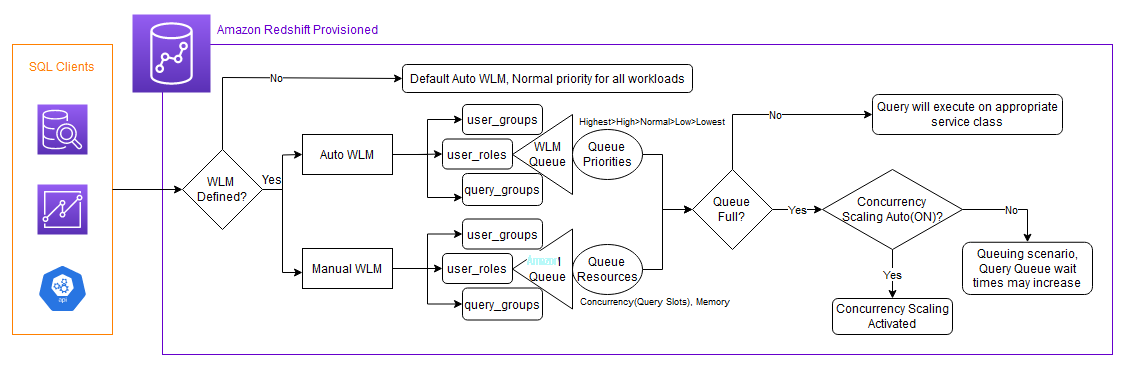
The fundamental choice you'll make when configuring WLM is between two modes: Automatic WLM and Manual WLM.
2. Automatic WLM vs. Manual WLM
Amazon Redshift provides two distinct modes for managing workloads. The mode you choose depends on the predictability of your workload and the level of control you require.
The AWS Big Data Blog provides an excellent article that compares these two modes.
Manage your workloads better using Amazon Redshift ...
To understand the core differences between Automatic and Manual WLM, we will consult the blog post 'Manage your workloads better using Amazon Redshift Workload Management'.
Please read the section 'Auto vs. manual WLM'. As you read, focus on the key characteristics and ideal use cases for each mode. Pay close attention to the diagram that visually contrasts the two.
Let's summarize the key points from the reading.
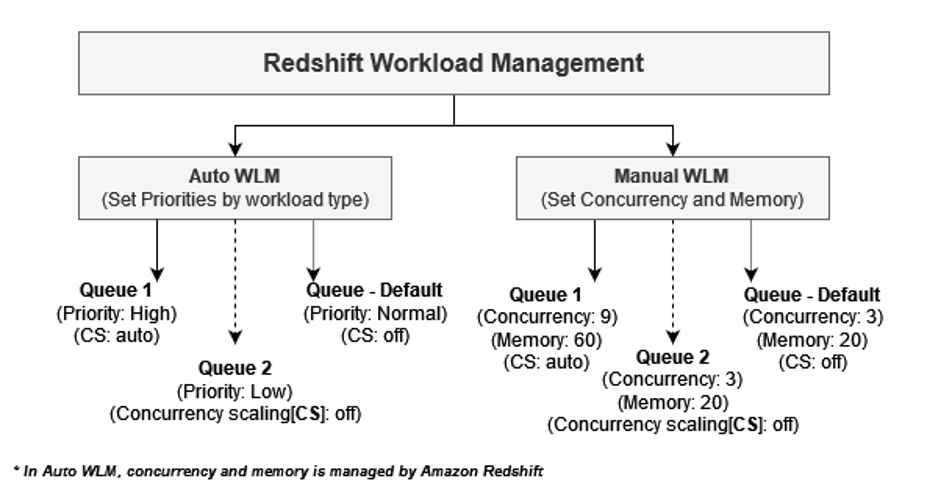
Automatic WLM (Recommended)
- How it works: Redshift dynamically manages memory allocation and concurrency based on the workload. You simply assign a priority to each queue (e.g.,
Highest,High,Normal,Low,Lowest). Higher-priority queries are given preferential access to resources. - Best for: Most use cases, especially those with unpredictable or mixed workloads. It simplifies management and is generally more efficient.
- Configuration: Changes are dynamic, meaning they take effect immediately without a cluster reboot.
Manual WLM
- How it works: You have explicit control. For each queue, you define the concurrency level (the number of queries that can run simultaneously) and the memory percentage allocated to that queue.
- Best for: Predictable workloads where you need granular control to guarantee resource allocation. For example, you might want to strictly limit resources for ad-hoc queries to protect ETL jobs.
- Configuration: Some changes are static, requiring a cluster reboot to take effect. This makes it less flexible than Auto WLM.
Given that your background includes Athena, which is fully managed, you can think of Auto WLM as being more aligned with the "let AWS handle the complexity" philosophy, which is the modern and recommended approach.
3. Key WLM Features for Performance and Stability
Beyond the basic queuing mechanism, Redshift offers several powerful features that work with WLM to enhance performance and protect your cluster.
Let's watch a segment from a deep-dive session that introduces these critical features.
AWS re:Invent 2020: Deep dive on best practices for Amazon Redshift
This video from an AWS re:Invent conference provides concise explanations of three key features that complement WLM: Short Query Acceleration, Concurrency Scaling, and Query Monitoring Rules.
Watch the video from 17:35 to 20:22. Focus on understanding the problem that each feature solves and how it works: Short Query Acceleration (SQA): How does it prevent short queries from getting stuck? (17:35 - 18:00) Concurrency Scaling: How does it handle sudden spikes in query volume? (18:00 - 19:27) Query Monitoring Rules (QMR): How do they protect the cluster from runaway queries? (19:27 - 20:22)
Let's recap these essential features:
-
Short Query Acceleration (SQA): Automatically identifies short-running queries (like those for dashboards) and moves them to a dedicated, express queue, so they don't wait behind long-running jobs. SQA is enabled by default with Auto WLM.
-
Concurrency Scaling: When query demand exceeds your cluster's capacity and queries start to queue up, this feature automatically adds one or more transient "concurrency scaling clusters" for a short period. This provides a burst of horizontal scaling capacity to handle spiky workloads. You get free credits for this feature daily, making it very cost-effective.
-
Query Monitoring Rules (QMR): These are your safety nets. You can define rules based on metrics (e.g., query execution time, data scanned, rows returned). If a query breaches a threshold, WLM can take an automated action, such as:
- Log: Record the query for later analysis.
- Abort: Terminate the runaway query.
- Hop: Move the query to a different queue (e.g., a low-priority queue).
- Change Priority: Dynamically change the query's priority (in Auto WLM).
4. Configuring WLM Queues in Practice
Now let's put it all together. How do you actually configure these queues? Configuration is managed through Parameter Groups associated with your Redshift cluster.
The following video provides a practical demonstration of setting up Auto WLM with different priority queues.
Managing Concurrent Workloads with Amazon Redshift
This video from Amazon Web Services demonstrates how to configure and observe the effects of query priorities in Auto WLM.
Watch the sections that demonstrate the configuration and impact of WLM: Setting up Queues (01:21 - 02:39): Observe how to create a new WLM configuration and add three queues (for report, datascience, and dashboard query groups) with different priorities. Demonstrating Impact (02:39 - 05:38): Follow the demo as the presenter first runs a workload with normal priority for all queues and then changes the priorities (high for data science, low for dashboards) to show how throughput changes. Configuring QMR (05:38 - 07:03): See how to create a Query Monitoring Rule to automatically demote a query to a lower priority if it runs for too long.
To summarize the process, whether you use the console or the AWS CLI:
- You create a new Parameter Group or modify an existing one.
- Within the WLM section, you switch to your desired mode (Auto or Manual).
- You add queues and define how queries are routed to them. The most common methods are by:
- User Group: All queries from users in a specific group (e.g.,
etl_users) go to this queue. - Query Group: A label that can be temporarily applied to a session. For example, you can
SET query_group TO 'dashboards';before running a series of dashboard queries. - User Role: Similar to user groups but leverages newer Redshift role-based access control.
- User Group: All queries from users in a specific group (e.g.,
- You configure the queue's behavior: priority for Auto WLM, or concurrency/memory for Manual WLM.
- Optionally, you add Query Monitoring Rules to the queues.
Test your understanding!
Imagine you are the data engineer for a company with a Redshift cluster running in Auto WLM mode. The cluster serves three main workloads:
- Nightly ETL: Runs under the
etl_user_group. These jobs are critical and should have high priority, but only run overnight. - BI Dashboards: Users in the
bi_user_grouprun these. They must be fast. - Ad-hoc Analysis: Run by the
analyst_user_group. These queries can be complex and long-running and should not impact the BI dashboards.
Describe the WLM configuration you would implement. Specify the queues, the user groups assigned, their priorities, and any other WLM features you would use to meet these requirements.
Show answer
Here is an effective WLM configuration for this scenario:
-
Queue 1: BI Dashboards
- User Group:
bi_user_group - Priority:
Highest - Rationale: This ensures that interactive dashboard queries always get top priority for resources, providing a responsive user experience.
- User Group:
-
Queue 2: Nightly ETL
- User Group:
etl_user_group - Priority:
High - Rationale: This gives ETL jobs the resources they need to complete efficiently, but keeps them from interfering with the
Highestpriority dashboard queries if their runtimes overlap.
- User Group:
-
Queue 3: Ad-hoc Analysis
- User Group:
analyst_user_group - Priority:
NormalorLow - Rationale: Assigning a lower priority ensures that these potentially resource-intensive and unpredictable queries do not slow down the more critical ETL and BI workloads.
- User Group:
Additional Features:
- Concurrency Scaling: I would enable Concurrency Scaling and set the mode to
auto. This will automatically handle periods of high query volume from BI users, preventing queues and maintaining performance. - Short Query Acceleration (SQA): Since we are using Auto WLM, SQA is on by default and will automatically help accelerate the BI dashboard queries.
- Query Monitoring Rules (QMR): I would add a QMR to the "Ad-hoc Analysis" queue. For example:
- Rule: If a query in this queue runs for more than 1 hour (
execution_time > 3600). - Action:
abort. This protects the cluster from runaway queries written by analysts that could consume excessive resources for prolonged periods.
- Rule: If a query in this queue runs for more than 1 hour (
Conclusion
In this lesson, you've learned how to tame the complexity of mixed workloads in Amazon Redshift. By configuring WLM, you can ensure that your data warehouse performs reliably and meets the diverse needs of your users, from data scientists to business analysts.
Key Takeaways:
- WLM is crucial for managing concurrent queries by routing them to different queues.
- Auto WLM is the recommended mode, using priorities to dynamically manage resources for unpredictable workloads.
- Manual WLM offers fine-grained control over concurrency and memory for predictable workloads.
- Features like Concurrency Scaling and Short Query Acceleration (SQA) provide powerful, automated performance boosts for spiky and short-lived queries.
- Query Monitoring Rules (QMR) act as a safety net, protecting your cluster from resource-hogging or runaway queries.
Next Up:
We've covered loading data, querying it, and managing performance. Now, we'll turn our attention to a critical and frequently tested topic: security. In the next lesson, we will focus on how to "Secure a Redshift cluster using encryption, IAM roles, and network controls."