Hello! In our last lesson, we navigated the complexities of merging branches and resolving conflicts. You even learned a crucial "undo" command, git merge --abort, which lets you safely back out of a problematic merge. Mistakes, however, aren't limited to merges. They can happen at any stage of your workflow.
This lesson completes your foundational Git toolkit by focusing on how to correct those mistakes. We will cover how to undo changes in your working directory, staging area, or previous commits using git checkout, reset, and revert. Mastering these commands will give you the confidence to experiment and work efficiently, knowing you can always fix a wrong turn. This is an essential safety net, especially when preparing to contribute to a live open-source project.
A Mental Model for Undoing Changes
To understand where each "undo" command fits, it helps to visualize the journey of a change in Git. As we've discussed, your work moves through distinct stages.

We will structure this lesson around undoing changes in each of the first three areas:
- The Working Directory: Files you've modified but not yet staged.
- The Staging Area: Changes you've added with
git addbut not yet committed. - The Local Repository: Changes you have already committed.
1. Undoing Changes in the Working Directory
This is the most straightforward scenario. You've made some edits to a file, but you decide you want to discard them and go back to the version from your last commit.
For this, you can use git checkout.
# This command will discard all local modifications to the file
git checkout -- <file-name>
Important: As the official Git documentation warns, this command is destructive. Your local changes are gone for good. There's no confirmation prompt. Use it only when you are certain you want to discard your work.
To learn more about this and a newer, more intuitive command for the same purpose (git restore), please read the following sections from the official Git documentation.
2.4 Git Basics - Undoing Things
The official Pro Git book provides a clear explanation for discarding local modifications. Pay attention to how git status itself often tells you the exact command you need.
First, read the section titled 'Unmodifying a Modified File' to understand the git checkout -- <file> command. Then, read 'Unmodifying a Modified File with git restore' to learn about the more modern git restore <file> command, which achieves the same goal with a clearer syntax.
As you saw, git restore <file-name> is now the recommended command for this operation in modern versions of Git, as its name more clearly communicates its function.
2. Undoing Changes in the Staging Area (Unstaging)
Let's say you've staged a file with git add, but then you realize you weren't ready to include it in the next commit. You need to "unstage" it, moving it from the Staging Area back to the Working Directory. The modifications themselves will remain in the file.
The classic command for this is git reset.
# This unstages the file, but its changes remain in your working directory
git reset HEAD <file-name>
Just as before, modern Git has introduced a more descriptive command for this.
2.4 Git Basics - Undoing Things
Let's return to the Pro Git book to see how to unstage a file.
Read the section 'Unstaging a Staged File' to see how git reset HEAD <file> works. Then, read 'Unstaging a Staged File with git restore' to learn about the git restore --staged <file> command.
So, you have two options for unstaging: git reset HEAD <file> or git restore --staged <file>. Both get the job done.
3. Undoing Commits
This is where things get more interesting and require more caution. Undoing a commit means altering the project's history. How you do this depends heavily on one question: Has the commit been pushed to a shared remote repository?
Amending the Most Recent Commit
Let's start with a simple case. You just made a commit, but you realize you misspelled something in the commit message or forgot to include a file. You can "amend" the previous commit.
# Stage any forgotten files
git add forgotten_file.py

# Amend the previous commit
git commit --amend
This opens your text editor, allowing you to change the commit message. When you save and close it, Git replaces your previous commit with a new one that includes both the original changes and any new staged changes. It's not so much editing the old commit as it is replacing it entirely.
Crucial Rule: Only amend commits that have not been pushed to a remote branch that others are using. Since it rewrites history, it can cause major problems for your collaborators.
The Safe Undo: git revert
When to use it: To undo a commit that has already been pushed and shared publicly.
git revert does not delete any commits. Instead, it figures out the changes in a specific commit and creates a brand new commit that does the exact opposite. If the old commit added a line, the new "revert commit" removes that line.
This is the safest way to undo changes on a collaborative project because it doesn't rewrite history. It adds to it, preserving a clear record of what happened.
The following video demonstrates this process clearly.
Beginner Git and GitHub #5 - Undo Changes (checkout, revert, reset)
Let's watch a practical demonstration of git revert to see how it creates a new commit to undo a previous one.
Watch from 02:41 to 06:05. Notice how after running git revert, the original commit still exists in the history (git log), but a new commit has been added on top of it to reverse its changes.
The Powerful (and Dangerous) Undo: git reset
When to use it: To discard one or more commits on your local, private branch that you have not pushed.
git reset is a powerful command that moves the current branch's pointer back to a previous commit, effectively erasing the commits that came after it. This rewrites the project history.
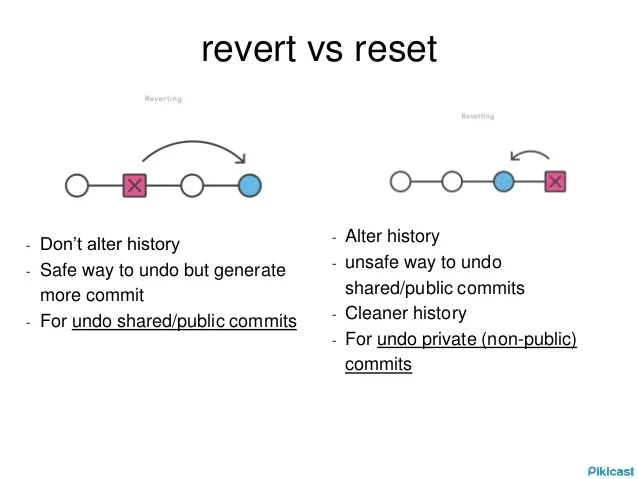
git reset has three primary modes of operation, which control what happens to the changes from the discarded commits:
--soft: The commits are gone, but the changes from them are kept in your Staging Area.--mixed(default): The commits are gone, and the changes are kept in your Working Directory.--hard: The commits are gone, and the changes are completely discarded. This is destructive and your work will be lost. Be very careful with this!
This next video offers an excellent breakdown of these three modes.
Git Tutorial #34: How to Use Git Reset Soft, Mixed, and Hard | Learn Git
The video "How to Use Git Reset Soft, Mixed, and Hard" by GitKraken provides a fantastic conceptual overview of the three main reset modes.
Watch from 01:20 to 03:07. This will clearly explain the difference between --soft, --mixed, and --hard resets and what happens to your files in each case.
Test your understanding!
You pushed a commit to a feature branch on GitHub that you are sharing with a colleague. Later, you realize this commit introduced a bug. You need to undo the changes from that commit. Which command should you use and why?
git reset --hard HEAD~1followed bygit push --forcegit revert <commit-hash>followed bygit push
Show answer
The correct answer is #2: git revert <commit-hash>.
Since the commit was already pushed to a shared branch, you must not rewrite history. git reset rewrites history by removing the commit, which would cause significant issues for your colleague. git revert is the safe choice because it creates a new commit that undoes the buggy one, preserving the project history for everyone.
Bonus: Inspecting a Previous State with git checkout
Finally, what if you don't want to undo a commit, but just want to look at the state of your project at that point in time? For this, you can use git checkout with a commit hash.
# This will take you to a 'detached HEAD' state at that commit
git checkout <commit-hash>
This is like being a time-traveling observer. Your files will revert to how they were at that commit, but you're not on any branch. You can look around, but if you make new commits here, they'll be lost once you switch back to a branch. To get back to the present, you simply check out your branch again (git checkout main).
Summary
You now have a complete set of tools for correcting mistakes in Git. The key is to choose the right tool for the job, depending on where the change is and whether it's been shared.
For easy reference, this table from Atlassian's excellent guide summarizes the common use cases.
| Command | Scope | Common use cases |
|---|---|---|
git reset |
Commit-level | Discard commits in a private branch or throw away uncommitted changes |
git reset |
File-level | Unstage a file (git reset HEAD <file>) |
git checkout |
Commit-level | Switch between branches or inspect old snapshots |
git checkout |
File-level | Discard changes in the working directory (git checkout -- <file>) |
git revert |
Commit-level | Undo commits in a public branch |
git revert |
File-level | (N/A) |
Conclusion
Congratulations on completing the first module! You have built a solid foundation in Git and GitHub, from creating repositories and making commits to collaborating with branches, resolving conflicts, and now, fixing mistakes with confidence.
Key Takeaways:
- To discard local, un-staged changes, use
git restore <file>orgit checkout -- <file>. - To unstage a file, use
git restore --staged <file>orgit reset HEAD <file>. - To fix the last local commit, use
git commit --amend. - To undo a public, shared commit, use the safe
git revertcommand, which creates a new commit. - To undo private, local commits, use the powerful
git resetcommand, which rewrites history.
Preview of the next lesson:
With your Git skills established, it's time to put them into practice. In our next module, "Finding and Selecting an Open Source Project," we will move from theory to action. You'll learn how to use GitHub's search tools to discover projects that match your interests in security and AI/ML, how to evaluate if a project is beginner-friendly, and how to find your very first issue to work on. The journey to your first open-source contribution begins now