Hello and welcome to your first lesson. We're kicking off your journey into C mastery by building a foundational skill that every serious programmer needs: controlling the compiler directly from the command line. While modern IDEs often hide these details, understanding how to use gcc with specific flags gives you precise control over your code and is the first step toward writing professional, robust programs.
This lesson directly addresses the first learning outcome of our course: compiling C programs with standard warning flags. We'll start with a simple "Hello, World!" to get our bearings, but we'll quickly move beyond the basics to see what the compiler is doing under the hood. You'll learn how to turn the compiler into a powerful ally that helps you catch bugs before you even run your code. This is the bedrock upon which all our future work, including your game programming projects, will be built.
The C Compilation Pipeline
Before we write our first command, let's establish a mental model of what happens when you ask the computer to "compile" your C code. The command you'll use, gcc, is actually a driver program that orchestrates a sequence of tools in a process often called the compilation pipeline.
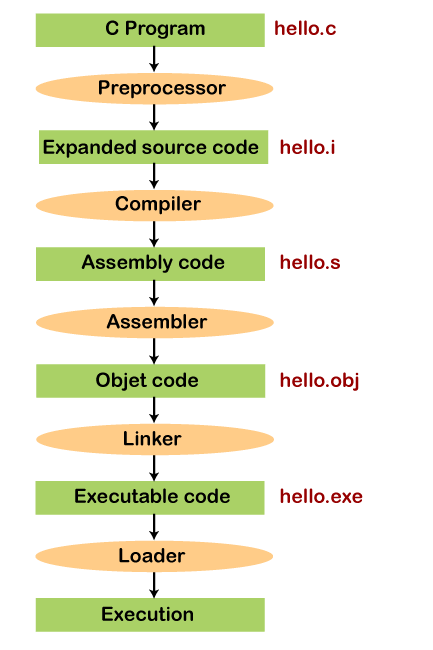
Here's a brief overview of the key stages:
- Preprocessor: This tool scans your code for lines beginning with a
#, such as#include <stdio.h>or#define. It's a text-replacement tool. It replaces#includedirectives with the contents of the specified header files and substitutes any defined macros. The output is still C code, just an "expanded" version. - Compiler: This is the core of the process. It takes the preprocessed C code and translates it into a lower-level language called assembly code, which is specific to your CPU's architecture. This is where most of the code analysis and optimization happens.
- Assembler: This tool takes the assembly code and translates it into machine code—the raw binary instructions (ones and zeros) that the CPU can execute. This output is stored in what's known as an object file (usually with a
.oor.objextension). - Linker: Your program almost certainly uses functions from C's standard library (like
printf). The object file for your code contains a reference toprintf, but not its actual machine code. The linker's job is to find the pre-compiled object file for the standard library, locate the machine code forprintf, and combine it with your object file to produce the final, runnable executable file.
You don't need to memorize every detail of this process right now, but keeping this pipeline in mind is crucial. It demystifies compilation and helps you understand why we need different compiler flags to control these stages.
Your First Command-Line Compilation
Let's put theory into practice. You already have VS Code and gcc set up, so open your terminal. Create a new file named hello.c and add the following classic program:
#include <stdio.h>

int main(void) {
    printf("Hello, World!\n");
    return 0;
}
Now, let's compile it. To see a clear demonstration of the basic command, watch this short segment from the "CMake Tutorial for Absolute Beginners" video.
CMake Tutorial for Absolute Beginners - From GCC to CMake including Make and Ninja
This video provides a clear, practical demonstration of compiling a simple C program with gcc and explains the essential -o flag.
Watch the section from compiling the code. The presenter uses gcc to compile a hello w.c file. Pay attention to the command structure and the purpose of the -o flag.
As shown in the video, you can compile your hello.c file by running the following command in your terminal:
gcc hello.c -o hello
Let's break this down:
gcc: The command to invoke the compiler driver.hello.c: The input source file.-o hello: A flag that specifies the name of the output file. We're naming our executablehello. If you omit this,gccwill create a default executable nameda.out.
After running the command, you should see a new file named hello in your directory. You can run it from your terminal like this:
./hello
You should see "Hello, World!" printed to your console. Congratulations, you've just compiled and run your first C program from the command line.
Turning the Compiler into a Vigilant Assistant
Compiling is one thing, but writing correct code is another. C gives you a lot of power, which also means it gives you many ways to shoot yourself in the foot. A common beginner mistake is to assume that if code compiles, it must be correct. This is false. The compiler, by default, is quite permissive.
To demonstrate, let's create a new file named buggy.c with a subtle bug.
#include <stdio.h>

int main(void) {
    int score;
    // We forgot to initialize 'score' to a value.
    printf("Your score is: %d\n", score);
    return 0;
}
If you compile this with gcc buggy.c -o buggy, your compiler might issue a warning, or it might compile silently. If it runs, it will print a garbage value. This is a trivial example, but in a large program, such uninitialized variables can cause unpredictable crashes and are difficult to trace.
This is where warning flags come in. We can instruct the compiler to be much stricter and to warn us about "questionable" code that, while syntactically valid, is likely a programming error.
Essential Warning Flags: -Wall, -Wextra, and -Werror
There are three flags that you should consider non-negotiable for any C project:
-Wall: This flag enables a large set of common and useful warnings. Despite its name, it does not enable all warnings, but rather a curated set that the GCC developers consider highly valuable and easy to fix. This will catch things like unused variables.-Wextra: This enables another set of useful warnings that are not covered by-Wall, such as warning about unused function parameters.-Werror: This is the most important flag. It treats every compiler warning as a compilation-stopping error. This forces you to fix warnings immediately, preventing them from accumulating into "warning fatigue" where important alerts get lost in the noise.
Let's see these flags in action. First, read the following article sections, which explain the philosophy behind these essential flags.
The GCC warning flags every C programmer should know ...
This article from Costa Paraskevopoulos on Medium provides an excellent high-level summary of why these flags are considered essential for any serious C programmer.
Read the section on essential flags. Focus on the author's explanation of what -Wall, -Wextra, and -Werror each accomplish.
Now, try to compile our buggy.c file with these new flags:
gcc -Wall -Wextra -Werror buggy.c -o buggy
This time, the compilation should fail. You'll see an error message similar to this:

The compiler explicitly states error: 'score' is used uninitialized. Because of -Werror, this warning has been promoted to a fatal error, preventing the creation of a broken executable.
To drive this point home, watch this short clip where the speaker strongly advocates for this practice. The video uses C++, but the flags and the philosophy are identical for C.
Common compilation flags and debugging a C++ program
The presenter in this "Code for yourself" video gives a strong, clear rationale for always using -Werror.
Watch the segment from the discussion on warnings. Note the emphasis on how -Werror prevents you from ignoring warnings that will "bite you in the back afterwards."
Fix the bug in buggy.c by initializing score (e.g., int score = 0;) and compile again with the same flags. This time, it should compile without any errors or warnings. This is the gold standard for your workflow: clean, warning-free compilation.
Additional Good Practices
As you build more complex programs, two other flags will become very useful.
-
-std=c17(or-std=c11,-std=c99): This flag tellsgccwhich version of the C language standard to adhere to. Different versions of GCC might default to different standards, which can affect which features are available or how certain code is interpreted. Explicitly setting a standard, like-std=c17(a recent standard), makes your builds predictable and your code more portable across different machines and compilers. -
-g: This flag tells the compiler to include extra debugging information in the executable file. This information maps the machine code back to your original source code (e.g., file names and line numbers). This is absolutely essential for using a debugger like GDB, which we will cover in Module 2. It's a good habit to use-gfor all your development builds.
A professional development compilation command therefore looks like this:
gcc -Wall -Wextra -Werror -std=c17 -g my_program.c -o my_program
Conclusion
In this lesson, we've pulled back the curtain on the compilation process. You've moved from simply writing code to taking control of the tools that transform your code into a working program.
Here are the key takeaways:
- Compilation is a multi-stage process: Preprocessing, Compiling, Assembling, and Linking.
gccmanages this entire pipeline. - The basic command
gcc <source.c> -o <executable>compiles a single file, with-onaming the output. - Using
-Walland-Wextraenables a wide range of checks that help identify potential bugs. - Using
-Werroris a critical best practice that forces you to address all warnings, leading to higher-quality code. - Adding flags like
-std=c17and-gfurther professionalizes your workflow for future development and debugging.
In our next lesson, we will explore how to organize larger programs. As projects grow beyond a single file, managing them effectively becomes crucial. You'll learn how to separate your C program into multiple source (.c) and header (.h) files, a practice that improves organization, reusability, and build times. The compiler skills you've learned today will be the foundation for compiling these more complex, multi-file projects.