Welcome to the next lesson in our journey to build an AI Tutor. In our last session, you successfully created an ingestion pipeline that loaded SQL documentation, chunked it, and stored it as embeddings in a persistent ChromaDB vector store. You essentially built the long-term memory for our AI.
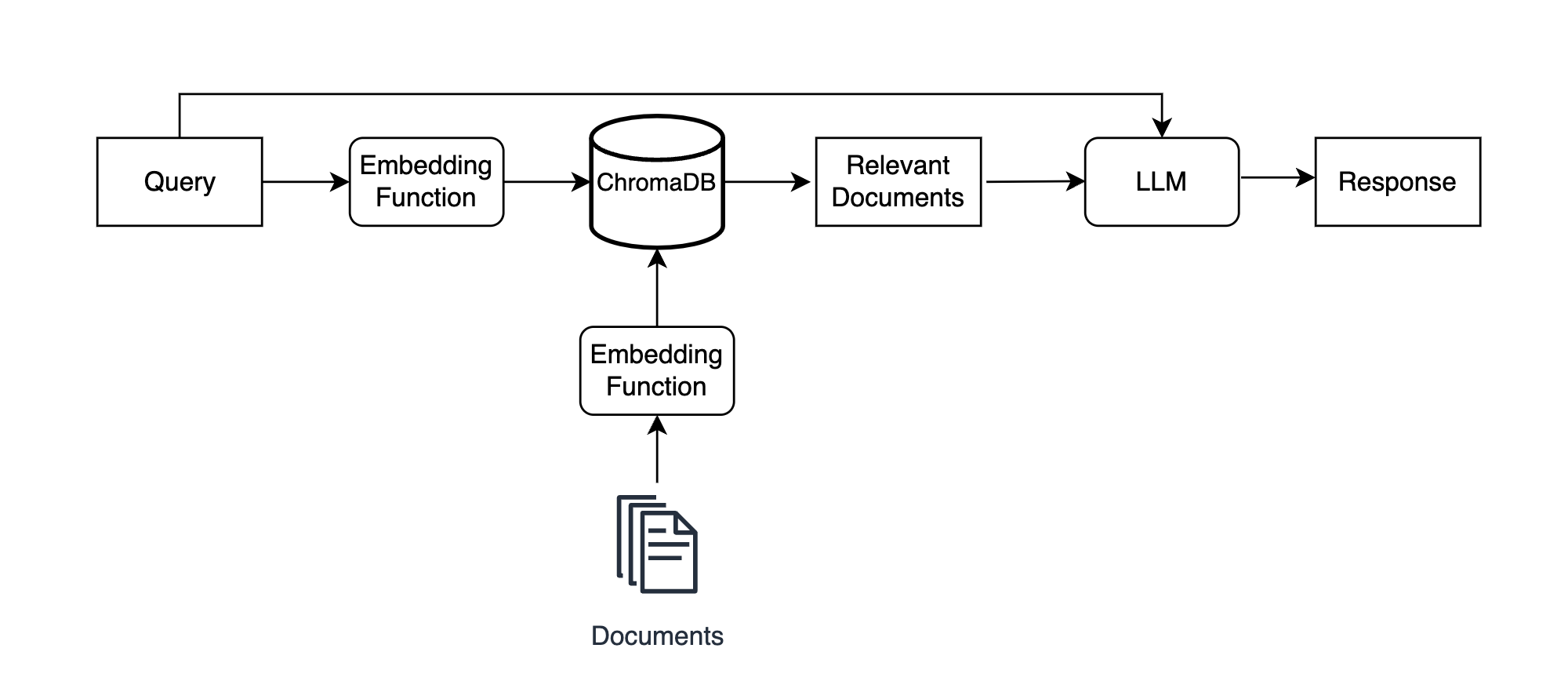
Today, we'll teach our AI how to access that memory. Our learning outcome is to perform semantic search by converting a query to an embedding and retrieving the most similar vectors. This is the "Retrieval" in Retrieval-Augmented Generation (RAG), and it's the core mechanism that allows our tutor to find relevant information to answer questions.
1. The Core Idea: Semantic Search
Traditional search, like using Ctrl+F, is based on keyword matching. It's fast but brittle. If you search for "combine tables" and the document only says "joining datasets," a keyword search will fail.
Semantic search, on the other hand, searches for meaning. It works because our embeddings capture the semantic essence of the text. The process is elegantly simple:
- A user asks a question (e.g., "How do I group rows based on a column?").
- We use the exact same embedding model from our ingestion pipeline to convert this query into a vector.
- The vector database then calculates the "distance" between the query's vector and all the chunk vectors it has stored.
- The chunks with the "closest" vectors are returned. These are the chunks whose meaning is most similar to the query's meaning.
This entire process of transforming text into vectors and finding the nearest neighbors is the essence of semantic search.
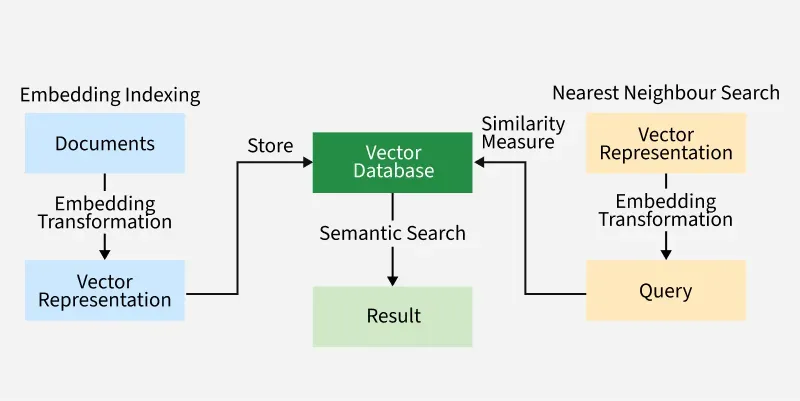
Under the hood, "closeness" is typically measured using cosine similarity, which calculates the angle between two vectors. A smaller angle means the vectors are pointing in a more similar direction, indicating higher semantic similarity. For a quick, intuitive explanation of this concept, the following reading is excellent.
Embeddings and Vector Databases With ChromaDB
This article from Real Python provides a fantastic, non-mathematical explanation of vector similarity.
Read the section titled "Vector Similarity". Focus on understanding the interpretation of the cosine similarity score: 1 (similar), 0 (unrelated), and -1 (opposite). This will build your intuition for how the database ranks search results.
2. Implementing Retrieval in Python
With the concepts clear, let's put them into practice. We will write a new script, query_data.py, to interact with the database you created in the last lesson with ingest.py.
Given your experience with Python, you'll find the code straightforward. We will use the LangChain library again, which provides a high-level similarity_search method that handles the process of embedding the query and searching the database for us.
Step 1: Create the Query Script
Create a new file named query_data.py in your project directory.
Step 2: Add the Retrieval Code
Paste the following code into your query_data.py file. This script will load your existing database, take a query, and retrieve the most relevant document chunks.
import argparse
from langchain_community.vectorstores import Chroma
from langchain_community.embeddings import OpenAIEmbeddings


# --- Configuration ---
# Ensure your OPENAI_API_KEY environment variable is set.
CHROMA_DB_PATH = "chroma_data"

def main():
    """
    Main function to query the vector database.
    """


    # Set up a command-line argument parser
    parser = argparse.ArgumentParser(description="Query the vector database.")
    parser.add_argument("query_text", type=str, help="The text to query.")
    args = parser.parse_args()
    query_text = args.query_text


    # 1. Prepare the database
    embedding_function = OpenAIEmbeddings()
    db = Chroma(
        persist_directory=CHROMA_DB_PATH,
        embedding_function=embedding_function
    )


    # 2. Perform a similarity search
    print(f"\n🔍 Searching for results similar to: '{query_text}'")


    # By default, similarity_search returns the 4 most similar documents.
    results = db.similarity_search(query_text, k=3)

    if not results:
        print("No results found.")
        return


    # 3. Print the results
    print(f"\nFound {len(results)} relevant chunks.\n")
    for i, doc in enumerate(results):
        print(f"--- Result {i+1} ---")
        print(f"Source: {doc.metadata.get('source', 'N/A')}")
        print(f"Content:\n{doc.page_content}")
        print("------------------\n")

if __name__ == "__main__":
    main()
This script does three things:
- Loads the Database: It connects to the persistent
chroma_datadirectory you created earlier. It's crucial to use the sameOpenAIEmbeddings()function so that the query is converted to a vector in the same way as the documents were. - Performs Search: It calls
db.similarity_search(), passing the user's query. This single command performs all the steps we discussed: embedding the query and finding the most similar chunks. We've setk=3to retrieve the top 3 results. - Displays Results: It prints the content and source metadata of the retrieved chunks.
Step 3: Run Your First Semantic Search
Now, let's test it. Open your terminal in the project directory. Remember to have your OpenAI API key set as an environment variable.
Run the script with a query about SQL. For example:
python query_data.py "how do I combine two tables?"
You should see an output showing 3 chunks of text from your knowledge_base files that are semantically related to combining tables, likely mentioning JOIN clauses. Try other queries like:
python query_data.py "how to filter results"python query_data.py "how can I calculate averages for categories?"
You've just performed your first semantic search!
3. A Deeper Look at Querying
The code we wrote uses a high-level abstraction. To see the mechanics in more detail, the following video provides a practical code-along that demonstrates how to query a ChromaDB collection, first by letting the database handle the query embedding and then by generating the query embedding yourself.
Semantic Search with Open-Source Vector DB: Chroma DB | Pinecone Alternative | Code
This video, "Semantic Search with Open-Source Vector DB: Chroma DB," by Pradip Nichite, offers a clear, hands-on demonstration of querying a vector database.
Focus on these two key segments: Querying with Text: This shows the simplest form of querying, where you provide plain text and ChromaDB finds the most similar documents. This is analogous to what LangChain's similarity_search does for you. Querying with Embeddings: This is the most important part. It demonstrates the core process: taking a query, explicitly converting it to an embedding, and then using that query embedding to search the database. This directly illustrates today's learning outcome.
4. Refining Your Search with Filters
Sometimes, semantic similarity alone isn't enough. You might want to narrow your search to a specific source or topic. Vector databases allow you to filter results based on the metadata stored with each chunk.
In our ingest.py script, the DirectoryLoader automatically added a source key to each chunk's metadata, indicating the original file it came from. LangChain's Chroma integration allows us to use a where clause to filter on this metadata, much like in SQL.
To implement this, you can modify the similarity_search call in query_data.py:
# Example of a search with a metadata filter
results = db.similarity_search(
    query_text,
    k=3,
    filter={"source": "knowledge_base/02_joins.txt"}
)
This would restrict the semantic search to only consider chunks that originated from the 02_joins.txt file. This is an incredibly powerful technique for building more sophisticated RAG systems where you might want to search only specific documents or chapters.
Conclusion
In this lesson, you have successfully bridged the gap between storing knowledge and retrieving it. You've moved from a static database to a dynamic retrieval system capable of understanding and acting on user queries.
Key Takeaways:
- Semantic Search vs. Keyword Search: Semantic search finds results based on conceptual meaning, not just identical words, by comparing the vector representations of a query and documents.
- The Retrieval Process: A query is converted into an embedding, which is then used to find the most similar document embeddings in the vector store based on a distance metric like cosine similarity.
- Practical Implementation: The
similarity_searchmethod in LangChain provides a simple yet powerful way to perform retrieval from a ChromaDB vector store. - Refining Search: You can control the number of retrieved documents with the
kparameter and narrow the search space using metadata filters.
You have now implemented both the "ingestion" and "retrieval" components of our RAG system. The final piece of the puzzle is "generation."
In our next lesson, we will complete the RAG loop. You'll learn how to take the user's original question and the relevant chunks you just retrieved, combine them into a carefully crafted prompt, and send them to a Large Language Model to generate a final, context-aware answer.