Introduction
In our last session, we moved from analyzing digital manipulation tactics to proactively shaping your own information environment. We designed a personal "content diet," establishing a framework for conscious and goal-oriented content consumption. However, a plan is only as good as its execution. Today, we shift from planning to implementation by building the guardrails that will help you stick to that diet.
This lesson addresses the learning outcome: Configure platform and device settings to set screen time limits and encourage mindful content consumption. From your experience in operations research, you understand that an optimal policy requires enforcement mechanisms. Think of today's tools as the control systems and hard constraints that ensure your "attention inventory" is deployed according to the plan you've designed, rather than being depleted by random, low-value demands from the digital environment.
The Principle of Environmental Design
Relying solely on willpower to manage digital habits is an inefficient strategy. It’s like managing a complex inventory system by manually approving every single transaction—exhausting and prone to error. A more robust approach, rooted in behavioral science and systems engineering, is to design your environment to make desired behaviors easier and undesired behaviors harder. By setting up automated rules on your devices, you offload the cognitive burden of constant self-regulation, freeing up your mental bandwidth for more important tasks like your design work or relationship analysis.
App-Level Controls: Your First Line of Defense
Before diving into system-wide settings, let's look at the tools available within the very applications that command most of your attention. Instagram, being a highly visual platform, is likely central to both your lingerie brand and your community presence. It offers its own set of basic controls to help you manage your time.
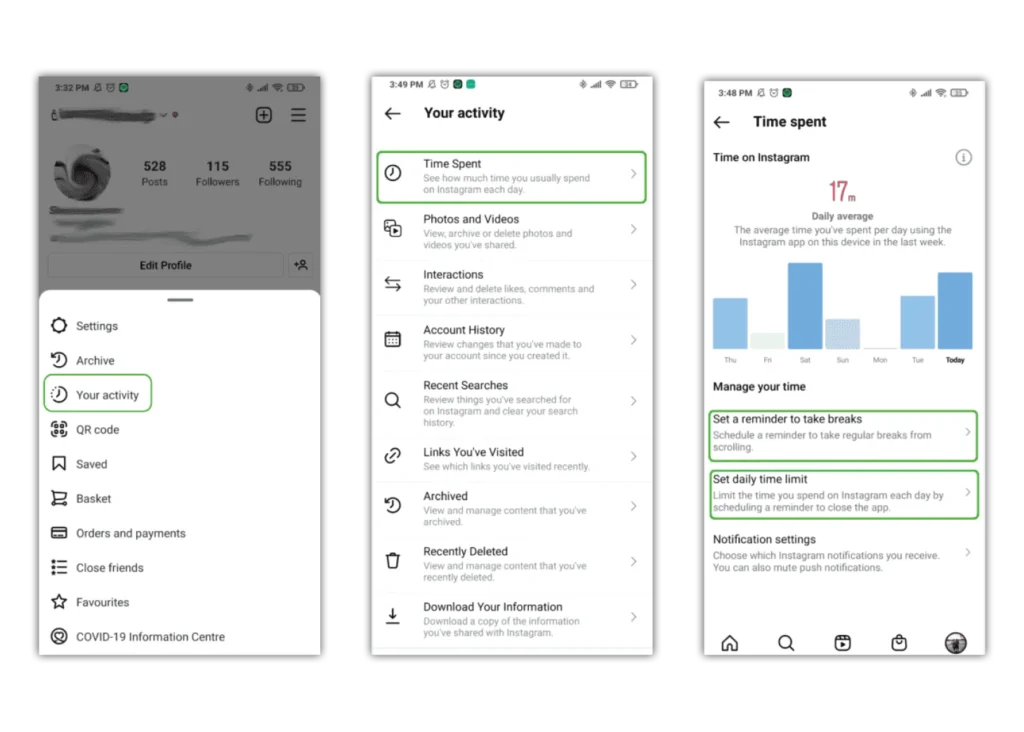
You can access these tools by navigating to your profile, tapping the menu icon (☰), and selecting "Your Activity." Here you will find two key features:
- Set a reminder to take breaks: This is a "soft nudge." You can set it to remind you every 10, 20, or 30 minutes. This is perfect for preventing a focused session of browsing for design inspiration from unintentionally turning into an hour of mindless scrolling.
- Set daily time limit: This is a "hard stop." When you reach your self-imposed limit (e.g., 45 minutes), the app will display a full-screen notification, reminding you to close it. This transforms your Instagram use from an open-ended activity into a focused task with a clear deadline, compelling you to be more efficient with your time on the platform.
These in-app tools are a good starting point, but for more comprehensive control across your entire device, we need to turn to the operating system itself.
OS-Level Controls: System-Wide Policies
Your phone's operating system (Android or iOS) provides a powerful, centralized suite of tools to manage your digital habits. These settings override individual apps and can enforce stricter, more holistic rules for your content consumption.
For Android Users: Digital Wellbeing
If you use an Android device, your primary tool is the "Digital Wellbeing" suite. It provides a detailed dashboard of your activity and a set of powerful control features.
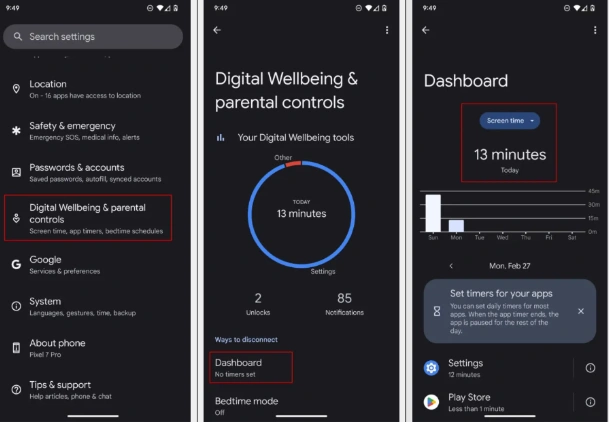
The following article from WIRED offers a great narrative walkthrough of how one user leveraged these tools to significantly reduce their screen time and regain focus.
Use Android's Built-In Settings to Cut Your Phone Usage Time in Half
This article provides a practical and relatable account of using Android's Digital Wellbeing features. It demonstrates how seemingly small changes can lead to a significant recovery of time and attention.
Please read the entire article. Pay particular attention to the three main strategies discussed: Using app timers to enforce hard limits on specific applications. Leveraging Bedtime mode, which turns the screen to greyscale to make it less appealing. Using the 'face down' gesture to automatically enable Do Not Disturb mode.
To see exactly how to implement these features, the short video below provides a clear, step-by-step demonstration.
How to View Screen Time & Set App Timer Limits on Samsung/Android
This video, "How to View Screen Time & Set App Timer Limits on Samsung/Android," walks you through the practical steps of using the Digital Wellbeing dashboard.
Watch these key segments to understand the workflow: First, see how to locate the Digital Wellbeing settings. Next, learn how to analyze your usage data to identify which apps consume the most time. Pay close attention to the process of setting a specific app timer. Finally, observe what happens when a timer expires and the options you have.
By combining these tools, you can create a robust system. For instance, you could set a strict timer on a community forum app to manage your exposure to potentially draining "moral policing" debates. This allows you to engage constructively for a planned period, after which the system intervenes, preserving your emotional and cognitive energy for your creative work.
For iOS Users: Screen Time
On an iPhone, the equivalent suite of tools is called "Screen Time." The functionality is very similar to Android's, focusing on providing usage data and enabling limits.
The following video provides an excellent guide to setting up app limits for self-control. A critical takeaway here is the importance of setting a separate passcode for Screen Time. This creates necessary friction, preventing you from easily overriding your own rules in a moment of weakness.
How To Set a Time Limit For ANY App on iPhone/iPad!
This video, "How To Set a Time Limit For ANY App on iPhone/iPad!", gives a clear walkthrough of setting up limits for yourself.
Focus on these crucial steps: First, learn how to navigate to Screen Time in your settings. Watch carefully as the presenter explains how to create a specific Screen Time passcode. This step is key to making the limits effective. See the process of adding a limit to a specific app (Instagram, in this case) or a category of apps. Finally, understand what happens when the limit is reached and how the passcode is required to get more time.
For a comprehensive written reference on all the features available, you can consult Apple's official support documentation.
Set up Screen Time for a family member on iPhone - Apple Support
While this official guide is framed for setting up parental controls for a child, the features described—Downtime, App Limits, and Communication Limits—are identical when setting them for yourself. You can disregard the "Family Sharing" context and focus on the mechanics of the settings.
Read the section titled "Set up Screen Time for a child". Focus on understanding the purpose of the key features listed: Schedule time away from your device (Downtime): This allows you to block almost all apps during specific hours (e.g., overnight). Set limits for app use (App Limits): This is the feature for setting daily time allowances for specific apps or categories. Set a Screen Time passcode: As emphasized in the video, this is what makes your limits stick.
Using "Downtime" to block social and entertainment apps after 10 PM, for example, can help you create a protected window to disengage from your public persona. This is particularly valuable when your online presence involves "provocative" content or navigating complex community dynamics, as it enforces a clear boundary between your public-facing work and your private time for rest and recovery.
From Control to Mindfulness
It's important to reframe your perspective on these tools. They are not punishments or signs of failure. Each time an app timer notification appears, it is simply a data point. It's a programmed interruption that forces a moment of conscious choice: "Is this how I intend to be spending my attention right now?"
From your background in statistics and simulation, you can view this as introducing a controlled, periodic sampling process into your own behavior. You are collecting data on your own habits in real-time. Over time, the goal is for these external controls to be internalized, building a stronger, more automatic habit of mindful consumption. You become your own efficiency expert, not just for clients, but for the management of your own most valuable resource: your attention.
Conclusion
Today, we've translated the abstract concept of a 'content diet' into concrete, actionable steps. By configuring the settings on your devices, you are not merely restricting yourself; you are proactively designing an environment that supports your goals and protects your cognitive resources.
Key Takeaways:
- Environmental design is more effective than willpower. Automate good habits by using the tools built into your devices.
- Use a combination of app-level controls (like Instagram's reminders) for soft nudges and OS-level controls (Digital Wellbeing/Screen Time) for hard, system-wide rules.
- The most powerful features at your disposal are App Timers, Downtime/Bedtime Mode (especially with greyscale), and robust notification management.
- These tools transform your abstract intention to be more mindful into an enforceable policy, bridging the gap between planning and execution.
This lesson concludes our module on Cognitive and Algorithmic Distortion Loops. Having established robust controls for your content consumption, we will now turn our focus to the challenges of content creation. In our next module, we will begin exploring the complex pressures of maintaining an online identity. Our first topic will be the 'authenticity paradox,' a concept especially relevant for creators like you, whose personal brand is deeply intertwined with niche lifestyles and aesthetics.