Hello! In our last lesson, we had a direct conversation with Python using its interactive shell, evaluating expressions on the fly. This was a great way to experiment with basic commands and see immediate results. Now, we're ready to take the next step: creating something more permanent.
Today, you will learn how to write, save, and run your first complete Python program. While the interactive shell is like a scratchpad for quick tests, writing a script is like authoring a set of instructions that can be saved, shared, and run anytime. We'll focus on the print() function, the fundamental tool for making your programs display messages, results, and other information to the user. This lesson marks your transition from a user of Python's shell to a creator of Python programs.
From Interactive Shell to Program Files
In the previous lesson, you used the interactive shell. Every time you typed an expression and pressed Enter, Python evaluated it and showed you the result. This is perfect for trying out small pieces of code. However, programs are rarely just one line long. Furthermore, you'll want to save your work. This is where script files come in.
A Python script is a simple text file containing Python code, which you save with a .py extension. Instead of running one line at a time, the Python interpreter reads the entire file from top to bottom and executes all the instructions in order. This allows you to build more complex programs that you can run again and again.
Your First Instruction: The print() Function
The first and most essential command for making your program communicate is print(). The print() function tells Python to display something on the screen. The traditional first program for any new language is one that prints the message "Hello, World!".
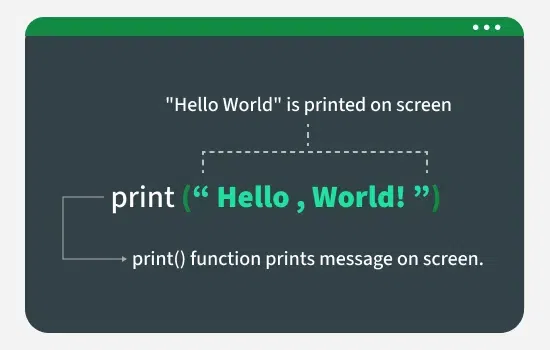
The text inside the parentheses is the information, or argument, you are giving to the function. When the argument is text, you must enclose it in quotes, either single (') or double (").
Let's read a short section about this tradition.
Python for Kids - Fun Tutorial to Learn Python Programming - GeeksforGeeks
This article from GeeksforGeeks introduces the "Hello, World!" program, a classic starting point for learning any new programming language.
Please read the sections titled "Python Syntax" and "First Python Program". Focus on understanding what a statement is and how the print() function is used to create the "Hello, World!" program. You can ignore the initial parts about installation.
Writing and Running Your First Script
Now it's time to create your own script. We will continue using IDLE, which you were introduced to in the previous lesson. IDLE includes both the interactive shell and a text editor for writing script files.
The following video provides a clear, step-by-step guide on how to use the IDLE editor to write, save, and run a Python script. It also shows how the process of running a script is different from using the interactive shell, which directly connects to what we've just discussed.
Python Tutorial #1: Write your First Program using IDLE (for beginners) 🐍
This video from Professor Hank Stalica demonstrates the complete workflow for creating and running a Python program in IDLE.
Please watch these segments carefully: Writing your first program: This part shows you how to open the IDLE editor, type the print() command, save the file with a .py extension, and run it. Follow along on your own computer! Editing your program: This part demonstrates how to reopen your saved file, add more code, and run it again. This highlights the benefit of saving your code in a script. The Shell vs. the Script: This final segment reinforces the difference between running commands interactively in the shell and executing a saved script file.
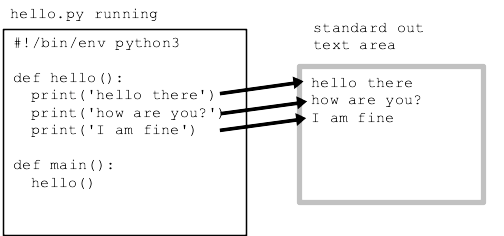
After following the video, you should have successfully run your first Python script. You'll notice that each print() command in your script corresponds to a new line of output in the shell window.
Controlling Your Output
The print() function is more versatile than it first appears. You can control the format of your output in several useful ways, such as adding line breaks or tabs, or even printing text that spans multiple lines.
The following video explores these techniques. It's packed with information, so we'll focus on a few key skills.
Python Print Function: Visually Explained | #Python Course 4
This visually-driven video from "Data with Baraa" explains several powerful features of the print() function.
Please watch the following parts to learn how to add more structure to your text output: Single vs. Double Quotes: Watch the section from here to understand that you can use single or double quotes for your strings, as long as you are consistent. Including Quotes in Text: What if you want to print a quote? Learn how to "escape" characters from this section. The backslash (\) tells Python that the following character is part of the string, not a syntax element. Adding New Lines and Tabs: Learn about special "escape sequences" for formatting. Watch the explanation for \n (newline) from this part and for \t (tab) from this part. Multi-line Strings: A cleaner way to write text that spans multiple lines is with triple quotes ("""). See how it works from this segment. Why print() is a Key Tool: Finally, watch from this part to understand how print() is used in real projects to check the program's flow and debug problems. This connects directly to your goal of developing problem-solving skills.
Your Turn to Practice
Now, apply what you've learned. Create a new Python script named aboutme.py.
In this script, write code to print the following information to the screen:
- Your name.
- A short, one-sentence description of a hobby or interest.
- Your favorite quote.
Make sure each piece of information appears on its own line. Try to achieve this in two different ways in your script:
- First, by using three separate
print()statements. - Second, by using a single
print()statement that includes the\nnewline character.
Experiment with the \t tab character as well to see how it indents your text.
Conclusion
Fantastic work today! You have made the leap from simply interacting with Python to writing and running your own programs. This is a crucial milestone in your programming journey.
Here are the key takeaways from this lesson:
- Python scripts are text files with a
.pyextension that store programs for repeated use. - The
print()function is used to display output on the screen. - You can write, save, and run Python scripts using the IDLE editor.
- Special character sequences like
\n(newline) and\t(tab) allow you to format your text output. - Using
print()is a fundamental technique for understanding what your program is doing as it runs, which is essential for problem-solving and debugging.
In our next lesson, we will introduce one of the most important concepts in programming: variables. You'll learn how to create containers to store data like numbers and text, which will allow your programs to become dynamic and much more powerful.