In our last lesson, we explored the TCP/IP model, establishing how network communication is structured in layers. We saw that the Transport Layer uses ports to pass data up to the correct application, and the Application Layer is where protocols like HTTP and DNS live. Today, we'll zoom in on this crucial relationship.
Our goal is to identify common network protocols and the standard port numbers they use. For an ethical hacker, this is fundamental reconnaissance. When you first approach a target system, one of the first things you'll do is check which ports are open. Each open port is a potential "door" into the system, representing a service that might be vulnerable. By the end of this lesson, you'll be able to look at a port number like 22, 80, or 443 and know exactly what service is likely running behind it.
What is a Port?
In the previous lesson, we established that the Internet Layer uses IP addresses to get data packets to the correct computer on the internet. But once a packet arrives at that computer, how does the computer know which application to give it to? Your machine could be running a web browser, an email client, and a music streaming service all at once.
This is where ports come in. A port is a logical, numbered endpoint for a specific service or process.
A great analogy is to think of an IP address as the street address of a large apartment building. The port number is the specific apartment number. The street address gets the mail carrier to the right building, but the apartment number ensures the letter reaches the correct resident (the application).
To get a clearer picture of this, let's watch a short animated explanation.
The video "Network Ports Explained" by PowerCert Animated Videos provides an excellent conceptual overview.
Please watch from the beginning until the example. Focus on the distinction between a physical and a logical connection, and how the combination of an IP address and a port number directs traffic to a specific service on a server.
As the video explained, port numbers aren't arbitrary. They are organized into three main categories.
Common Ports Cheat Sheet for Cybersecurity Exams and Hacking
This article from HackingLoops explains the categories of ports clearly.
Read the section titled The Three Port Neighborhoods. This will introduce you to the concepts of Well-Known, Registered, and Dynamic ports.
For our purposes as aspiring ethical hackers, the Well-Known Ports (0-1023) are the most important to memorize. These are the standardized ports for essential network services, and they are the first things you'll scan for on a target.
A Tour of Essential Protocols and Ports
Now, let's explore some of the most common protocols and their associated well-known ports. We'll examine what each protocol does and, importantly, see what its traffic looks like on the network.
The following video from network analyst Chris Greer is an excellent resource. It uses Wireshark, a network protocol analyzer you'll learn to use later, to demonstrate what these protocols look like "on the wire." This will give you a practical feel for the theory. We will go through it section by section.
The Network's Foundation: DNS and DHCP
Before your computer can do almost anything on the internet, it needs two things: an IP address and a way to translate human-readable names (like google.com) into IP addresses. DHCP and DNS provide these services.
- DHCP (Dynamic Host Configuration Protocol): Automatically assigns an IP address and other network configuration settings to your computer when it joins a network. It uses UDP ports 67 (server) and 68 (client).
- DNS (Domain Name System): Translates domain names to IP addresses. It's the internet's phone book. It primarily uses UDP port 53, but can use TCP on the same port for larger queries.

The Top 15 Network Protocols and Ports Explained // FTP, SSH, DNS, DHCP, HTTP, SMTP, TCP/IP
Let's watch the segments on DNS and DHCP from "The Top 15 Network Protocols and Ports Explained."
First, watch the explanation of DNS, noting its role and its use of UDP. Then, watch the segment on DHCP. Pay attention to the four-step "DORA" process (Discover, Offer, Request, Acknowledge).
Web Traffic: HTTP and HTTPS
These two protocols are the backbone of the World Wide Web.
- HTTP (Hypertext Transfer Protocol): The original protocol for fetching web pages. It is unencrypted, meaning all data, including any submitted passwords or personal information, is sent in plain text. It uses TCP port 80.
- HTTPS (HTTP Secure): The modern standard. It's simply HTTP traffic wrapped in an encryption layer (TLS/SSL) to protect the data from eavesdropping. It uses TCP port 443.
From a hacking perspective, the difference is night and day. If you can intercept HTTP traffic, you can read it. If you intercept HTTPS, you just see scrambled data.
The Top 15 Network Protocols and Ports Explained // FTP, SSH, DNS, DHCP, HTTP, SMTP, TCP/IP
Now let's see HTTP and HTTPS in action.
Watch the segment on HTTP. Notice how the demonstrator can read the content of the web traffic. Then, watch the segment on HTTPS and see how the initial handshake is visible, but the subsequent data is encrypted.
Remote Administration: Telnet and SSH
These protocols are used to log in to and manage remote systems via a command-line interface.
- Telnet: An old protocol that provides remote access. Like HTTP, it is unencrypted. Any commands you type and any credentials you enter are sent in plain text. It uses TCP port 23.
- SSH (Secure Shell): The modern, secure replacement for Telnet. All communication, including the login process, is encrypted. It uses TCP port 22.
Finding an open Telnet port on a modern system is a significant security finding, as it implies an insecure method of remote management.
The Top 15 Network Protocols and Ports Explained // FTP, SSH, DNS, DHCP, HTTP, SMTP, TCP/IP
Let's compare the insecure and secure ways to access a remote shell.
First, watch the walkthrough of SSH. Note that the traffic is encrypted. Then, watch the demonstration of Telnet. The most important part is where the presenter uses the "Follow TCP Stream" feature in Wireshark to reveal the username and password in plain text.
File Transfer: FTP and SMB
These protocols are used for transferring files across a network.
- FTP (File Transfer Protocol): A standard protocol for file transfer. Like Telnet, it's an older protocol that sends credentials and data in clear text. It uses two ports: TCP port 21 for commands (control connection) and TCP port 20 for the data transfer itself.
- SMB (Server Message Block): Primarily used for file sharing, printer sharing, and other network services in Windows environments. It typically uses TCP port 445. Vulnerabilities in SMB have been responsible for some of the most widespread network attacks in history.
The Top 15 Network Protocols and Ports Explained // FTP, SSH, DNS, DHCP, HTTP, SMTP, TCP/IP
Let's examine these two critical file sharing protocols.
Start with the segment on FTP. Again, notice how the login credentials are sent in clear text. Then, skip to the end and watch the brief overview of SMB.
Email Protocols: SMTP, POP3, and IMAP
A set of three protocols handles most email communication.
- SMTP (Simple Mail Transfer Protocol): Used for sending email from a client to a server, and for routing email between servers. It traditionally uses TCP port 25.
- POP3 (Post Office Protocol v3): Used for retrieving email. It downloads emails from the server to the client, often deleting them from the server. It uses TCP port 110.
- IMAP (Internet Message Access Protocol): A more modern protocol for retrieving email. It syncs with the server, allowing messages to be managed and viewed from multiple devices. It uses TCP port 143.
Like the other older protocols, these traditionally operate in clear text, but have secure, encrypted versions that run on different ports (e.g., IMAPS on port 993).
The Top 15 Network Protocols and Ports Explained // FTP, SSH, DNS, DHCP, HTTP, SMTP, TCP/IP
Finally, let's look at the protocols that handle email.
Watch the segment on SMTP, which shows both an unencrypted and an encrypted (TLS) session. Then watch the part covering POP3 and IMAP, which also discusses their secure counterparts.
Your Quick Reference Guide
Memorizing all these ports takes time. The infographic and cheat sheet below are excellent resources to keep handy as you study.
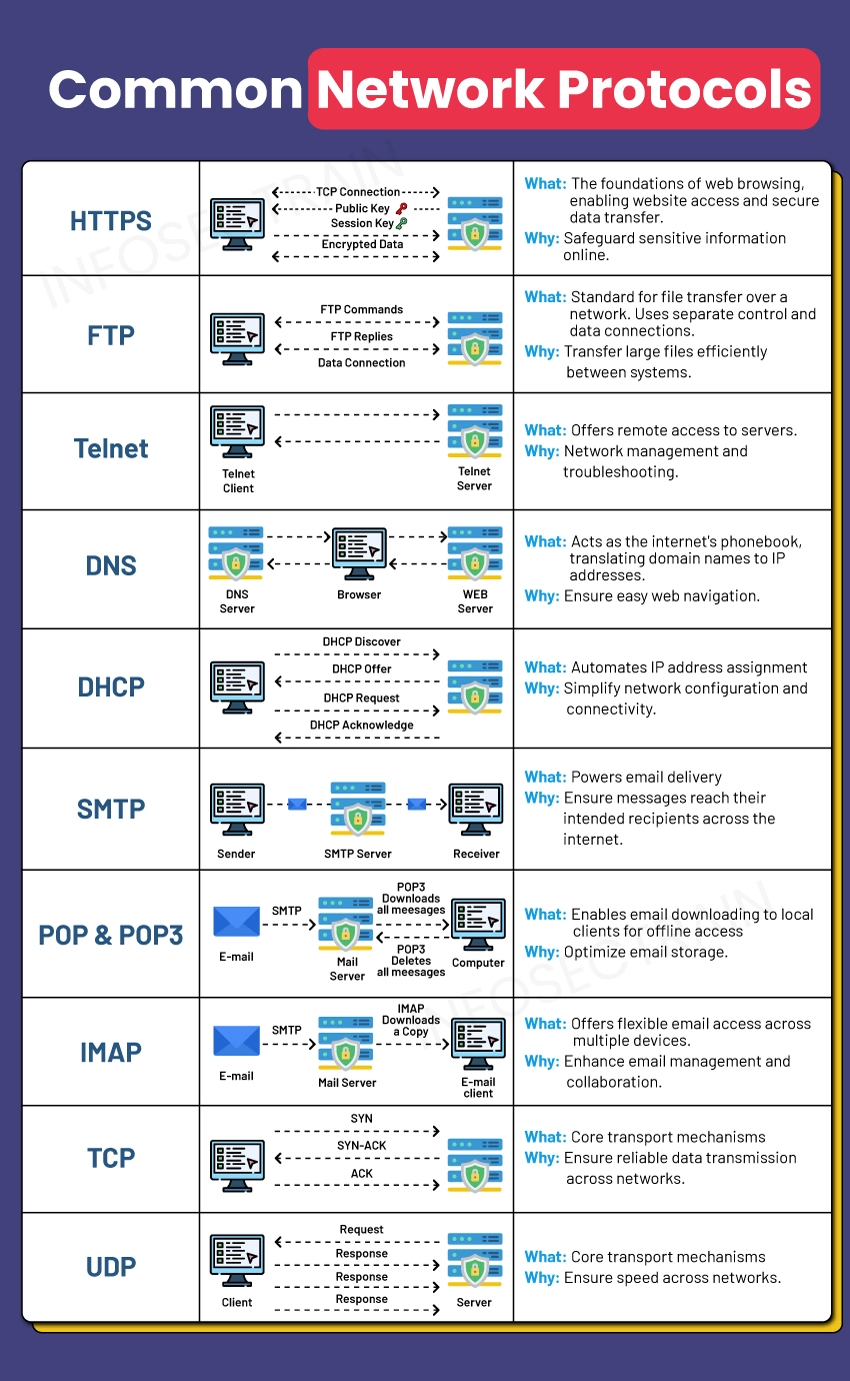
For a more comprehensive list that you can use for studying, the "HackingLoops" article provides an excellent cheat sheet.
Common Ports Cheat Sheet for Cybersecurity Exams and Hacking
This article provides a list of essential ports and a table that's perfect for studying.
Review the section The Essential 20, and then look over the table under The Complete Port Reference. Don't worry about memorizing all of them at once; focus on the ones we've discussed in this lesson.
Conclusion
You've now taken a crucial step in learning to map out a network from an attacker's perspective. Understanding what services correspond to which ports is a non-negotiable skill in ethical hacking. It allows you to interpret scan results and formulate a plan of attack.
Key Takeaways:
- An IP address gets data to the right computer; a port number gets it to the right application.
- Ports 0-1023 are Well-Known Ports for standard system services.
- Knowing a service's port number is the first step to identifying potential vulnerabilities.
- Key Ports to Memorize:
- 22/TCP: SSH (Secure Remote Access)
- 23/TCP: Telnet (Insecure Remote Access)
- 25/TCP: SMTP (Email Sending)
- 53/UDP & TCP: DNS (Domain Name Resolution)
- 67 & 68/UDP: DHCP (IP Address Assignment)
- 80/TCP: HTTP (Unsecured Web)
- 110/TCP: POP3 (Email Retrieval)
- 143/TCP: IMAP (Email Retrieval)
- 443/TCP: HTTPS (Secure Web)
- 445/TCP: SMB (Windows File Sharing)
In our next lesson, we will shift our focus from the logical rules of communication to the physical and virtual devices that enforce them. We will explore the functions of core network hardware like firewalls, routers, and switches, and understand the role each one plays in controlling the flow of traffic.