Welcome to your first lesson in the Go course! As a DevOps engineer, you're used to setting up environments and managing dependencies to get services and tools running. This lesson mirrors that experience, focusing on the foundational setup required for any Go development.
Today, you will learn how to install Go and set up a project with Go modules. This is the essential starting point for building the backend services and automation utilities you're aiming to create. We'll cover installing the Go toolchain and then use Go's modern dependency management system, modules, to initialize your first project.
1. Installing the Go Toolchain
First, you need to install the Go compiler and tools on your system. The process is straightforward and involves downloading an installer or package and ensuring the Go command is available in your system's PATH.
For detailed, step-by-step instructions for your specific operating system (Windows, macOS, or Linux), please read the following guide. It also explains key environment variables like GOPATH and GOROOT, which is useful context for anyone managing system environments.
A Comprehensive Guide to Setting Up Your Go Development Environment
This guide from Leapcell provides clear, step-by-step instructions for installing Go on all major operating systems.
Please read sections '1. Installing Go' and '2. Understanding Go Environment Variables'. Follow the installation instructions for your operating system and then read the explanation of the environment variables.
After following the installation steps, you must verify that it was successful. Open a new terminal window and run:
go version
You should see output indicating the installed Go version, for example: go version go1.22.2 linux/amd64.
If you prefer a video walkthrough, this resource also covers the installation process.
Golang installation and hello world
This video from Hitesh Choudhary provides a visual guide to installing Go on different platforms.
Watch the beginning of the video for a walkthrough of the download and installation process. You can stop when the instructor begins creating a project directory.
2. Setting up a Go Project with Modules
In modern Go, projects are organized as modules. A module is a collection of Go packages that are released together. You might find this concept similar to Python's packages managed with pip and pyproject.toml or Node.js packages with package.json.
A file named go.mod at the root of your project directory defines the module, its dependencies, and their versions.
Creating Your First Module
Let's create your first Go project. The process involves creating a directory and then initializing it as a Go module. The official Go documentation provides the most direct instructions for this.
This is the official 'Getting Started' tutorial from the Go team. It provides the authoritative guide to creating your first Go module.
Please follow the steps under the headings 'Write some code' and 'Enable dependency tracking for your code'. This will guide you through creating a directory and running go mod init.
To summarize the key steps from the tutorial:
-
Create a project directory:
mkdir my-first-tool cd my-first-tool -
Initialize the module:
go mod init example.com/my-first-tool
The go mod init command creates the go.mod file. The argument, example.com/my-first-tool, is the module path. It acts as a unique identifier for your module. By convention, this path corresponds to the location where the source code is hosted, such as github.com/your-username/your-repo. For now, using a placeholder like example.com/... is fine.
Your project directory should now look like this:
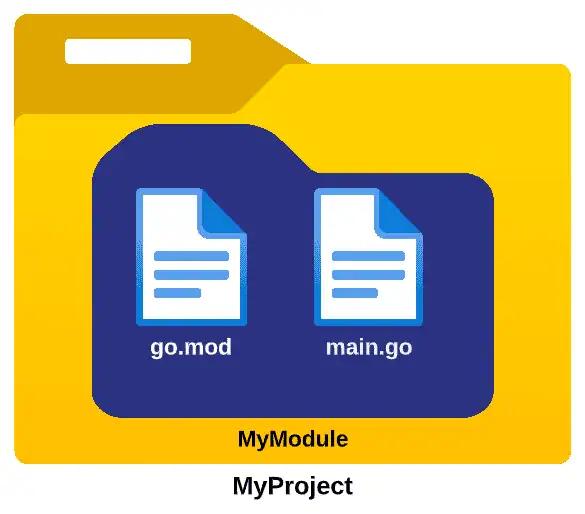
Since you expressed interest in the GoLand IDE, it's worth noting that it automates this process. When you create a new project in GoLand, it handles the directory creation and go mod init step for you behind the scenes.

Test your understanding!
You are starting a new project for a command-line tool that automates cloud infrastructure cleanup. You plan to host the code on GitHub under your username devops-pro. What command would you run inside your new project directory, cloud-sweeper, to initialize it as a Go module?
Show answer
go mod init github.com/devops-pro/cloud-sweeper
This command correctly uses the convention of host/username/project for the module path, which is best practice for projects intended to be shared or versioned in a repository.
3. Writing and Running Your First Program
Now that your project is set up, let's create and run a "Hello, World!" program. This provides immediate feedback and confirms your environment is working correctly.
- Inside your
my-first-tooldirectory, create a new file namedmain.go. - Add the following code to
main.go:
package main

import "fmt"

func main() {
    fmt.Println("Setup complete. Ready to build DevOps tools with Go!")
}
Let's break this down:
package main: Declares that this file belongs to themainpackage. Themainpackage is special in Go; it's the entry point for an executable program.import "fmt": Imports the standardfmtpackage, which provides functions for formatting and printing output, similar to Python's f-strings or theechocommand in Bash.func main(): Defines themainfunction. This function is executed when you run the program.
To run your program, navigate to your project directory in the terminal and use the go run command:
go run .
The . tells Go to run the main package in the current directory. You should see the following output:
Setup complete. Ready to build DevOps tools with Go!
Congratulations! You have successfully installed Go, set up your first project, and run your first program.
Key Takeaways
- Go installation is done via official installers or package managers, and you verify it with
go version. - The
PATHenvironment variable must include Go'sbindirectory for thegocommand to be accessible system-wide. - Modern Go projects are structured as modules, which are initialized with the
go mod init <module-path>command. - The
go.modfile at the project root defines the module and its dependencies. - The
go run .command compiles and executes themainpackage in the current directory.
Next Up
In the next lesson, we'll dive deeper into the Go command line by exploring the difference between go run and go build, and you'll learn how to compile your program into a standalone executable binary—a key practice for distributing the command-line tools you'll be building.