Hello! In our last lesson, we put the finishing touches on our project's foundation by organizing our files and folders into a professional structure. You now have a my-landing-page folder containing an index.html file, a styles folder with style.css inside, and an empty images folder ready for assets.
Today, we transition from creating files to tracking them. We're about to introduce one of the most important tools in a developer's toolkit: version control. This is the first step in our "Version Control: Git and GitHub Essentials" module.
1. What We Are Learning
Today's lesson is purely conceptual, designed to build a strong mental model before we touch any new tools. Our goal is to explain version control using a design analogy you're already an expert in: Figma's version history.
We'll cover:
- What version control is and why it's essential.
- How the way you save and track versions in Figma is almost identical to how developers track versions in code.
- Key version control terms (
repository,commit,branch) translated into design concepts.
2. Why This Matters
As a designer, you've likely experienced the chaos of managing files for a big project. You might have folders filled with names like:
landing-page_v1.figlanding-page_v2_feedback.figlanding-page_v3_final.figlanding-page_v3_final_REAL_use-this-one.fig
This system is fragile. It's easy to lose track of the latest version, accidentally overwrite important work, or struggle to remember what changed between v2 and v3.
Version control systems were created to solve these exact problems. They provide a structured, automated way to save snapshots of your work, see who changed what, and safely explore new ideas without fear of breaking the main project. Understanding this is a cornerstone of professional development and collaboration.
Let's start by reading a short article that frames this problem from a designer's point of view.
How I Implemented Version Control in Design: A Practical Guide for ...
This article, 'How I Implemented Version Control in Design', perfectly captures the 'why' behind this practice. It addresses the common pain points that designers face with file management.
Please read the first two sections, 'Why Version Control Matters in Design' and 'Collaboration That Actually Works'. Focus on how it solves the problem of 'file chaos' by providing a 'single source of truth'.
3. Step-by-Step: From Figma History to Code History
The good news is you already understand version control intuitively. You just use it in a design context.
Step 1: The Concept You Already Know — Figma's Version History
Figma's version history is your design project's "time machine." It automatically saves changes and allows you to view or restore previous states of your work. This is version control in its most visual form.
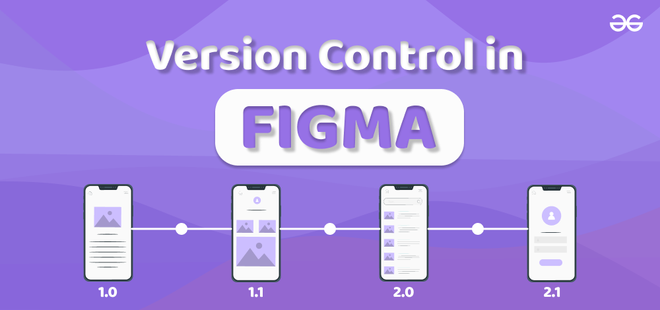
Let's read a quick overview that connects this feature to the broader concept of version control.
Figma's Advanced Version Control Explained
This article, 'Figma's Advanced Version Control Explained', directly links the features you use every day to the core principles of version control.
Read the introduction and the section 'Understanding Figma's Version History'. The author describes it as a 'time machine' for your designs, which is a perfect way to think about it.
Step 2: Translating Design Terms to Developer Terms
The tool developers use for version control is called Git. The concepts in Git have direct parallels to features in Figma. Let's build a small dictionary.
-
Repository (Repo):
- In Design: This is your main Figma file for a project (e.g.,
landing-page.fig). It contains all your pages, components, and history. - In Code: This is your main project folder (e.g.,
my-landing-page). It contains all your files (index.html,style.css) and their entire history.
- In Design: This is your main Figma file for a project (e.g.,
-
Commit:
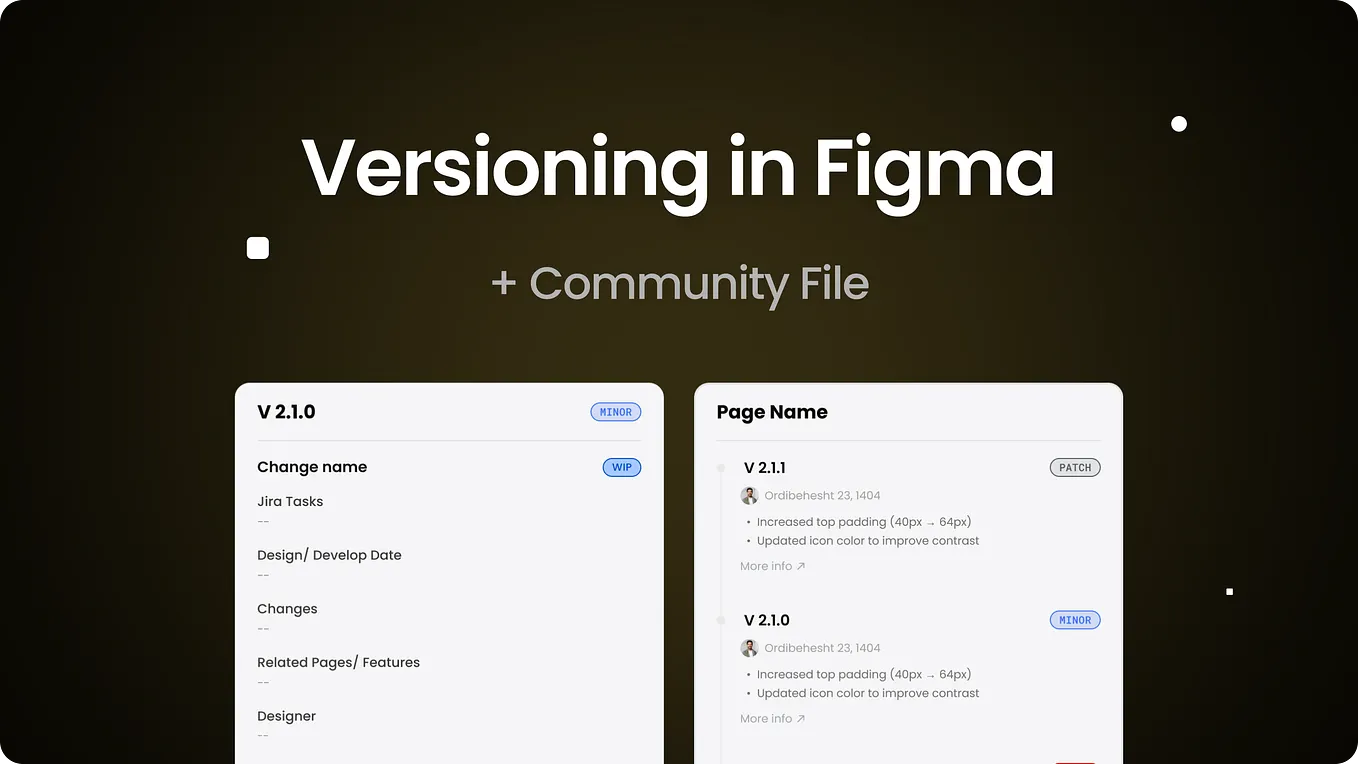
- In Design: This is when you manually add a version to Figma's history with a name and description, like "V 2.1.0: Increased header padding for better spacing." This is a deliberate "save point."
- In Code: This is a saved "snapshot" of your repository at a specific moment. Each commit has a unique ID and a message explaining what changed (e.g., "feat: Add hero section button").
-
Branch:
- In Design: Imagine you want to test a radical new navigation bar. Instead of messing up your main design, you can create a "branch" in Figma. The article you read called this an "alternate reality" for your design. You can experiment freely in this branch.
- In Code: This is exactly the same. A developer creates a branch to work on a new feature (e.g., a branch named
new-contact-form) or fix a bug without affecting the main, live version of the code.
-
Merge:
- In Design: After experimenting in your branch, you and your team decide the new navigation bar is a success. You then "merge" it, making it part of the main design file.
- In Code: Once the code for the new feature is finished and tested in the branch, the developer merges it back into the main codebase.
This article provides a fantastic summary of these core concepts.
How I Implemented Version Control in Design: A Practical Guide for ...
Let's return to the 'How I Implemented Version Control in Design' article. This section explicitly defines the key terms we just discussed.
Read the 'Central Concepts' section. Notice how the definitions for Master/Main, Branches, Commits, and Merges map directly to the design workflow we just described.
4. What Could Go Wrong (Common Misconceptions)
Since this is a conceptual lesson, let's address some common points of confusion early on.
-
"Isn't this just like Dropbox or Google Drive?"
Not quite. File-syncing services like Dropbox are great for backups and sharing the current version of a file. A version control system like Git, however, tracks the entire history of changes. It knows who changed what line of code, when, and why. It's built for structured collaboration with features like branching and merging, which Dropbox doesn't have. -
"I'm working alone, so I don't need this."
Version control is incredibly valuable even for solo projects. It gives you the freedom to experiment without fear. If you make a mistake, you can rewind time to a working version instantly. It also serves as a perfect log of your work. The FAQ in the article you read makes this exact point. -
"This sounds complicated and technical."
The concepts are what matter, and you already know them from Figma. The tools have a learning curve, but that's why we're taking it one step at a time. We will use VS Code's visual interface to handle most of the work, minimizing the need for complex commands.
5. Mini Exercise (Thought Experiment)
There's no code to write today. Instead, let's solidify these concepts using your own experience.
- Open a recent, multi-page project of yours in Figma.
- Go to
File > Show version history. - Scroll through the history. Find a point where you made a significant change (e.g., changed the color palette, redesigned a component).
- Reflection 1: If you were to give that change a "commit message," what would it be? (e.g., "Updated primary button style to be more accessible").
- Reflection 2: Think of a time you wanted to try a completely different layout for a page. How did you do it? Did you duplicate the frame? How would the concept of a "branch" (a safe, separate copy) have made that process cleaner and safer?
This exercise is just for you—to connect the formal terms commit and branch to actions you already take as a designer.
6. Checklist Before Moving Ahead
- I can explain what version control is using the analogy of Figma's version history.
- I can describe a "commit" as a saved snapshot and a "branch" as a safe space to experiment.
- I understand the key difference between a simple backup (like Dropbox) and a version control system (like Git).
- I know that Git is the industry-standard version control system we will be using for our code project.
That's it for today! We've laid the conceptual groundwork for one of the most powerful practices in modern digital product development. You've learned that you already possess the mental model for version control; you just call it by a different name.
A Look Ahead: In our next lesson, we will move from theory to practice. You will install Git on your computer and use it to create your very first repository, officially placing our my-landing-page project under version control.