Hello! In the last lesson, we successfully connected our HTML and CSS files. To test that connection, you added a line of CSS that changed the page's background color. It worked, which is great!
Today, we're going to zoom in on that exact line of code. We'll dissect it piece by piece so you understand the "grammar" of CSS.
1. What We Are Learning
This lesson is dedicated to the learning outcome: Write a single CSS rule to change a property, like the background color.
We will break down the structure of a CSS rule into its core components: the selector, the property, and the value. By the end, you'll not only have written a rule but will understand why it's written that way.
2. Why This Matters
Think of a CSS rule as a single, explicit instruction in a style guide. In Figma, you might define a style like: "All primary buttons have a blue fill (#0D99FF)."
CSS formalizes this into a language the browser can understand:
- Who/What to style? (e.g., all primary buttons) — This is the Selector.
- Which characteristic to change? (e.g., the fill color) — This is the Property.
- What should it be? (e.g., blue, #0D99FF) — This is the Value.
Mastering this simple structure is the first step toward "code literacy." It allows you to give precise visual instructions and, importantly, to read and validate the code that AI tools will generate for you later.
3. Step-by-Step Instructions
In the last lesson, you added this code to your styles/style.css file:
body {
    background-color: #f0f8ff;
}
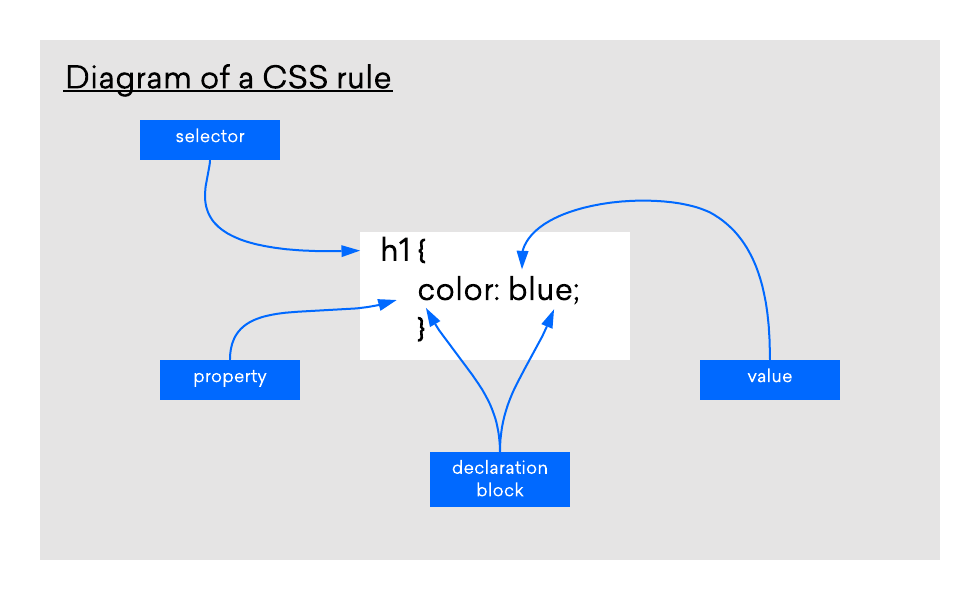
This is a CSS Rule. Let's break down its anatomy.
-
Selector (
body)
The selector's job is to target an HTML element. It answers the question, "What do I want to style?" In this case, we're targeting the<body>element—the main container holding all the visible content of your page. -
Declaration Block (
{ ... })
The curly braces{}create a "declaration block." This block contains one or more style declarations for the chosen selector. Think of it as a container for all the style instructions for that one element. -
Property (
background-color)
Inside the block, we have the property. This is the specific visual aspect you want to change. It’s the equivalent of "Fill," "Stroke," or "Font Size" in a design tool. Here, we're changing thebackground-color. -
Value (
#f0f8ff)
The value specifies the setting for that property. It's preceded by a colon (:). Forbackground-color, the value can be a named color (likered), a HEX code (like#f0f8ff), or an RGB value—formats you're likely very familiar with from Figma. -
Semicolon (
;)
Finally, the semicolon;marks the end of the declaration. This is crucial because it allows you to add more property-value pairs inside the same declaration block, like this:body { background-color: #f0f8ff; font-family: sans-serif; /* A second declaration */ }
To see this in action, let's watch a short video. The instructor will walk through writing this exact kind of rule and explain the syntax as he goes.
HTML & CSS for Absolute Beginners: Creating and linking to a CSS file
In this clip, Kevin Powell demonstrates how to write your first CSS rule to change the background color of the body. This will reinforce the concepts of selector, property, and value.
Watch from 02:43 to 03:57. Focus on how he targets the body, adds the background-color property, and sets a value to test that the styles are working.
As you can see, this simple selector { property: value; } pattern is the fundamental building block of all CSS.
4. What Could Go Wrong
CSS is very particular about its syntax. A single missing or incorrect character will cause the rule to fail. Here are the most common mistakes:
- Missing Semicolon: Forgetting the
;at the end of a declaration. While it might work with only one rule, it will break as soon as you add a second one. It's a critical habit to build. - Missing or Mismatched Braces: Forgetting the opening
{or closing}. VS Code helps by automatically adding the closing brace when you type the opening one. - Colon vs. Semicolon: Using a colon where a semicolon should be, or vice-versa. Remember: a colon (
:) separates a property from its value, and a semicolon (;) separates declarations from each other. - Typo in Property/Selector: Spelling
background-colorasbackground-colourorbodyasboody. The names must be exact. VS Code's autocompletion and syntax highlighting will be a huge help here—if a property isn't colored correctly, it's likely misspelled.
5. Mini Exercise
Let's modify the rule you already have. We'll change the background to a dark gray and, as a challenge, set the text color to white to ensure it's still readable.
-
Make sure your page is still running in the browser via "Open with Live Server". If you closed it, right-click
index.htmland launch it again. -
In VS Code, open your
styles/style.cssfile. -
Modify the existing
bodyrule. Change thebackground-colorvalue from#f0f8ffto a dark gray, like#2a2a2a. -
Challenge: The default black text is now nearly invisible. On a new line inside the curly braces, add a second declaration to change the text color. The property is
color, and you can set its value to a light gray, like#eeeeee. -
Your final CSS rule should look like this:
body { background-color: #2a2a2a; color: #eeeeee; } -
Save the
style.cssfile (Ctrl+SorCmd+S).
Look at your browser. Thanks to Live Server, the page should have instantly updated to show a dark background with light text. You've just edited your first stylesheet!
6. Checklist Before Moving Ahead
- I can identify the selector, property, and value in a basic CSS rule.
- I understand that the selector (
body) targets an element in my HTML. - I know that the
property: valuepair defines a specific style to apply. - I have successfully changed the background and text color of my page by editing my CSS file.
Excellent work! You've now deciphered the fundamental grammar of CSS. This knowledge is the bedrock upon which all styling is built, whether you're writing it yourself or directing an AI.
A Look Ahead: You've seen how Live Server instantly reflects your saved changes in the browser. In the next lesson, we'll take a moment to understand what Live Server is actually doing "under the hood" and why it's an indispensable tool for modern front-end development.