Welcome to our new module on Modern Network Architectures. In the previous module, we focused on controlling traffic at the packet level with Quality of Service. Now, we will zoom out to explore the high-level designs and technologies that define contemporary networks. This lesson begins that journey by looking inside the modern data center.
Our goal is to tackle the first learning outcome for this module: to explain the concepts of server virtualization, hypervisors, and virtual switching. These three interconnected ideas form the bedrock of cloud computing and software-defined networking. Understanding them is essential for any network engineer working with today's infrastructure.
The Shift from Physical to Virtual
Traditionally, data centers operated on a "one server, one application" model. If you needed a web server, an email server, and a database server, you bought three separate physical machines. This approach is simple to understand but highly inefficient, leading to wasted hardware resources, high power consumption, and significant physical space requirements.
Server virtualization completely changes this paradigm. It allows a single physical server to be partitioned into multiple isolated "virtual machines" (VMs), each running its own operating system and applications.
The following video from Jeremy's IT Lab provides an excellent introduction to this concept, contrasting the old physical model with the new virtualized one.
Free CCNA | Virtualization & Cloud | Day 54 (part 1) | CCNA 200-301 Complete Course
This video introduces the fundamental concepts of virtualization and its benefits.
First, watch the segment that contrasts traditional servers with the virtualized approach. Then, jump to the section explaining the key advantages of virtualization, such as resource partitioning, isolation, and cost reduction.
To reinforce this, the following article provides a concise written explanation of the same concepts.
What is Server Virtualization? Importance & Benefits - Study CCNA
This article from Study CCNA explains the core idea behind server virtualization and its benefits.
Please read the first two sections of the article, from the introduction down to the end of the section on "Server Virtualization". This will solidify your understanding of how virtualization improves resource efficiency.
The Hypervisor: The Engine of Virtualization
The magic of virtualization is made possible by a specialized software layer called the hypervisor. The hypervisor's job is to abstract the server's physical hardware (CPU, RAM, storage, network cards) and present a virtualized version of that hardware to each virtual machine. It manages the allocation of these physical resources, ensuring that the VMs can run simultaneously without interfering with one another.
There are two main categories of hypervisors, and it's crucial to understand their differences.
-
Type 1 (Bare-Metal) Hypervisor: This type is installed directly onto the physical server's hardware, acting as the machine's operating system. Because it has direct access to the hardware, it is extremely efficient and is the standard for data center and cloud environments. Common examples include VMware ESXi, Microsoft Hyper-V, and KVM.
-
Type 2 (Hosted) Hypervisor: This type runs as an application on top of a conventional operating system (like Windows, macOS, or Linux). It is less efficient because it has to go through the host OS to access hardware resources. This makes it ideal for development, testing, or running applications from another OS on a personal computer, but not for production server workloads. Common examples include VMware Workstation, Oracle VirtualBox, and Parallels Desktop.
The video and article you just reviewed both explain these two types. Let's revisit them with a specific focus on this distinction.
Free CCNA | Virtualization & Cloud | Day 54 (part 1) | CCNA 200-301 Complete Course
This segment from Jeremy's IT Lab clearly differentiates between Type 1 and Type 2 hypervisors.
Watch the section from the introduction to VMs and hypervisors. Pay close attention to the diagrams illustrating where each type of hypervisor sits in the software stack.
For a more hands-on perspective, Keith Barker's video shows a real-world lab setup using both types, which can help make these abstract concepts more concrete.
The Hype about Hypervisors | Cisco CCNA 200-301
In this video, Keith Barker demonstrates the practical difference between a Type 2 hypervisor on his desktop and a Type 1 hypervisor running on a dedicated server.
First, watch his explanation of a Type 2 hypervisor, using VMware Workstation as an example. Next, see how he describes a Type 1 (bare-metal) hypervisor, which is installed directly on the hardware. Finally, watch his demonstration of logging into his ESXi server (a Type 1 hypervisor) to see the running virtual machines. This gives you a glimpse of a real data center environment.
Virtual Switching: Networking in the Virtual World
Now that we have multiple VMs running on a single physical host, how do they communicate with each other and with the outside world? This is where virtual switching comes in.
The hypervisor includes a software-based virtual switch (vSwitch) that functions much like a physical Ethernet switch. Each VM is equipped with one or more virtual Network Interface Cards (vNICs), which connect to ports on the vSwitch.
This virtual network has several key components, as illustrated below.
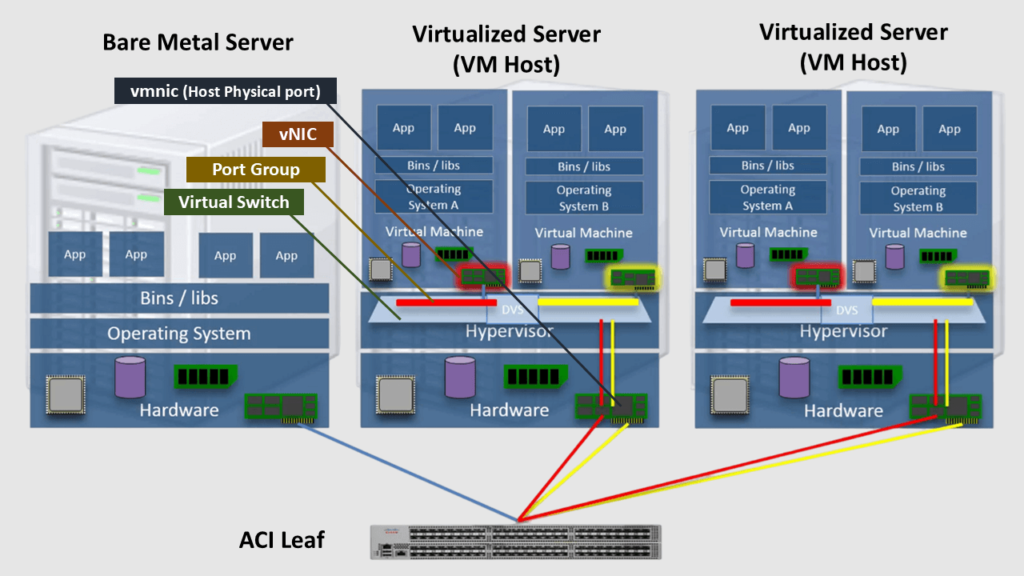
Let's break down the components shown in the diagram:
- Virtual Machine (VM): An isolated guest operating system with its own applications.
- vNIC (Virtual Network Interface Card): The VM's network interface, which connects to the vSwitch.
- Port Group: A group of ports on a vSwitch that share common configuration settings. This is directly analogous to assigning switch ports to a specific VLAN in the physical world. For example, you can create a port group for "VLAN 10 - Servers" and another for "VLAN 20 - Databases". Any VM connected to the "VLAN 10" port group will have its traffic tagged for VLAN 10 when it leaves the physical host.
- Virtual Switch (vSwitch): A software switch that forwards traffic between VMs and to the physical network.
- vmnic / pNIC (Physical Network Interface Card): The physical network port on the server that connects the vSwitch to the physical network (e.g., an ACI Leaf switch in the diagram). This connection is typically a trunk link, carrying traffic for multiple VLANs.
The following brief video segment summarizes how these components work together.
Free CCNA | Virtualization & Cloud | Day 54 (part 1) | CCNA 200-301 Complete Course
This part of the video explains how vSwitches connect VMs and link to the physical network.
Watch the short explanation on virtual networks. Notice how it mentions the use of VLANs and the connection to the physical NICs.
Just as there are different types of physical switches, there are different types of virtual switches. In the popular VMware environment, the two main types are the Standard vSwitch and the Distributed vSwitch (dvSwitch).
- Standard vSwitch: Configured and managed individually on each physical host. It's simple but can become difficult to manage at scale.
- Distributed vSwitch: A single logical switch that spans across multiple hosts, managed centrally by a platform like VMware vCenter. This ensures consistent network configuration for VMs, no matter which physical host they are running on.
The following reading provides more detail on these virtual networking components.
Data Center Virtualization — VMware Networking, vSwitch
This article from Networkers Home provides a great overview of hypervisors and a more detailed look at VMware's virtual switching.
First, read the introductory section on Hypervisors & Virtual Switches to reinforce their basic functions. Next, read the section VMware vSphere Networking, which compares the Standard vSwitch and the Distributed vSwitch. Finally, read the section VLAN Trunking to ESXi. Given your background in VLANs, this will connect familiar concepts to the virtual environment, explaining how port groups map to VLAN IDs.
The diagram below shows a more complex virtual networking environment, including a virtual firewall (NGFWv), multiple vSwitches, and connections to the physical network. This illustrates how sophisticated network topologies can be built entirely in software.

Conclusion
In this lesson, we have laid the groundwork for understanding modern network architectures. You've learned how server virtualization allows for the efficient use of hardware by running multiple VMs on a single physical host. We explored the role of the hypervisor as the core enabling technology and differentiated between the Type 1 hypervisors used in data centers and the Type 2 hypervisors used on personal computers. Finally, we examined how virtual switching creates a network inside the server, connecting VMs to each other and to the physical world using concepts like vNICs, port groups, and vSwitches.
Key Takeaways:
- Server Virtualization breaks the one-to-one relationship between physical hardware and an operating system, enabling resource efficiency, cost savings, and operational agility.
- A Hypervisor is the software layer that creates, runs, and manages virtual machines.
- Type 1 (Bare-Metal) Hypervisors run directly on hardware and are used in production data centers for maximum performance.
- Type 2 (Hosted) Hypervisors run as an application on a host OS and are used for development and testing.
- Virtual Switching uses software-based switches (vSwitches) to connect VMs. Port groups are used to segment traffic, often by mapping them to VLANs that are then carried over a trunk link via the server's physical NICs.
In our next lesson, we will build upon this foundation. We'll compare the traditional three-tier network design with the modern spine-leaf architecture that is prevalent in the data centers where this virtualization technology lives.