Hello! In our previous lesson, we dove deep into Astro's client directives, giving you granular control over when interactive components load to minimize your site's JavaScript footprint. We've tackled script optimization, and now it's time to address another critical asset for performance: fonts.
This lesson focuses on a key aspect of user experience and Core Web Vitals: layout stability. By the end of our session, you will be able to configure font loading strategies to prevent Cumulative Layout Shift (CLS). Unstable layouts, where text and other elements jump around as the page loads, can feel jarring and unprofessional—exactly what we want to avoid for the premium accounting website you're building.
Let's begin by understanding the problem we're trying to solve.
1. Understanding Cumulative Layout Shift (CLS)
Cumulative Layout Shift (CLS) is a Core Web Vital that measures the visual stability of a page. A high CLS score means elements on the page are moving around unexpectedly after they have been initially rendered, which is a frustrating experience for users.
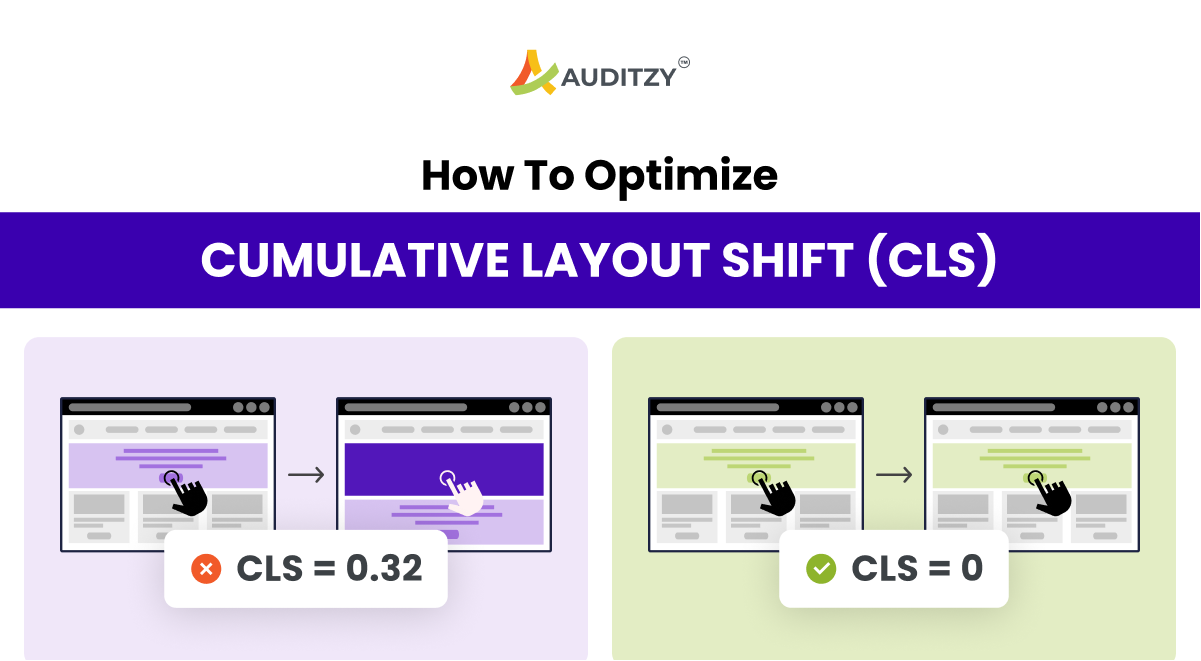
One of the most frequent culprits behind CLS is the loading of web fonts. When a browser first renders text, it might use a system default font (a "fallback" font). When your custom web font finally downloads, the browser swaps it in. If the custom font has different dimensions than the fallback, the text reflows, causing other elements on the page to shift. This results in two undesirable effects:
- Flash of Invisible Text (FOIT): The text is hidden until the custom font loads.
- Flash of Unstyled Text (FOUT): The text first appears in a fallback font, then visibly swaps to the custom font, often causing a layout shift.
Our goal is to eliminate or minimize this shift.
2. Core Strategies for Font Loading
The key to controlling font loading behavior lies in the CSS @font-face rule and its font-display descriptor. This property tells the browser how to handle the period between needing a font and that font being fully loaded.
To get a solid grasp of these strategies, let's explore the best practices for font optimization.
Asset Optimization | Astro Vault
The 'Astro Vault' provides an excellent guide on asset optimization. We'll focus on the sections covering font loading strategies, which are fundamental to preventing CLS.
Please read the following sections from the article: Start with 'Self-Hosting vs. CDN' to understand why we prefer hosting fonts locally for performance. Then, read 'font-display Strategies'. Pay close attention to the table comparing the different values. This is the most important part. Next, read 'Fallback Font Matching' to see how we can minimize the shift even when a swap occurs. Finally, review 'Preloading Fonts' to learn how to prioritize critical font loading.
Synthesizing the Strategies
From the reading, we can identify a hierarchy of font loading strategies, each with different trade-offs between performance and visual consistency.
-
Self-Host Your Fonts: As the article recommends, self-hosting fonts in your project's
public/directory gives you complete control. It eliminates an external request to a service like Google Fonts, improving your Time to First Byte (TTFB) and ensuring user privacy. For your project, this is the recommended approach. -
Choose a
font-displayStrategy: This is your primary tool for combating CLS.block: The browser hides text for up to 3 seconds. Causes FOIT and is poor for user experience. Avoid.swap: The browser shows the fallback font immediately, then swaps in the web font once it loads. This causes FOUT and is a direct cause of CLS. While common, it's not ideal.fallback: A compromise. The browser briefly hides text (~100ms), then shows the fallback. It will only swap if the web font loads very quickly (within ~3s).optional: The browser briefly hides text, then shows the fallback. It will only swap if the font is already cached or downloads almost instantly (~100ms). Otherwise, it keeps the fallback font for that page view. This is the best option for preventing CLS, as it prioritizes a stable layout over displaying the custom font.
-
Create a Size-Adjusted Fallback Font: If you choose to use
font-display: swap, you can still drastically reduce the layout shift. TheFallback Font Matchingtechnique described in the article uses modern CSS properties (size-adjust,ascent-override, etc.) to tweak a local fallback font (likeArial) to match the metrics of your custom web font. This makes the swap nearly seamless. -
Preload Critical Fonts: For fonts used in critical, above-the-fold content (like your main heading or body text), you can tell the browser to start downloading them as early as possible using
<link rel="preload">. This makes it more likely the font will be ready before the browser needs to render the text, preventing a swap altogether.
Manually implementing all of these optimizations—especially calculating fallback font metrics—can be tedious. Fortunately, the Astro ecosystem provides tools to automate this.
3. Practical Implementation with an Astro Integration
Given your preference for practical application, let's look at how to implement these strategies easily in our Astro project using the @gamesome/astro-font integration. This tool automates the best practices we just discussed.
This package will:
- Easily integrate fonts from Fontsource, a project that provides self-hosted fonts as NPM packages.
- Automatically calculate and generate size-adjusted fallbacks to minimize CLS.
- Inline the necessary
@font-faceCSS into the<head>for the fastest possible application. - Provide a simple way to configure which fonts to preload.
Here's how you'd set it up for your accounting website.
Step 1: Install the Integration and Fonts
First, add the integration and the fonts you want to use. Let's say you've chosen "Inter" for body text and "Playfair Display" for headings. We'll use the variable versions for flexibility.
npm install @gamesome/astro-font @fontsource-variable/inter @fontsource-variable/playfair-display
Step 2: Configure astro.config.mjs
Next, you'll add and configure the integration in your astro.config.mjs file.
// astro.config.mjs
import { defineConfig } from 'astro/config';
import astroFont from '@gamesome/astro-font';

export default defineConfig({
  integrations: [
    astroFont({
      // The first font is applied to `html` by default.
      families: [
        {
          name: 'Inter Variable', // Must match the font-family name
          // Import the CSS files for the weights/styles you need
          imports: [
            '@fontsource-variable/inter/wght.css',
            '@fontsource-variable/inter/wght-italic.css',
          ],
        },
        {
          name: 'Playfair Display Variable',
          type: 'serif', // Helps generate a better fallback (e.g., Georgia, Times)
          // Tell the integration where to apply this font family
          applyFontFamilyToSelector: 'h1, h2, h3, h4, h5, h6',
          imports: [
            '@fontsource-variable/playfair-display/wght.css',
            '@fontsource-variable/playfair-display/wght-italic.css',
          ],
        },
      ],
    }),
  ],
});
Step 3: Add the Component to Your Layout
Finally, add the <AstroFont /> component inside the <head> of your main layout file (e.g., src/layouts/BaseLayout.astro). This component is responsible for injecting the generated CSS and <link> tags.
// src/layouts/BaseLayout.astro
import AstroFont from '@gamesome/astro-font/AstroFont.astro';
---
<html lang="en">
  <head>
    <meta charset="utf-8" />
    <meta name="viewport" content="width=device-width" />
    <title>{Astro.props.title}</title>
    <AstroFont />
  </head>
  <body>
    <slot />
  </body>
</html>
With this setup, the integration automatically handles generating size-adjusted fallbacks for both fonts, significantly reducing CLS. By default, it will also preload the first import of the first font family.
Step 4: Explicitly Configure Preloading
To gain more control, you can specify exactly which fonts to preload. Since your main page heading (H1) and body text are above the fold, you should preload both "Inter" and "Playfair Display". You don't need to preload the italic variants if they aren't used above the fold.
// astro.config.mjs (updated)
import { defineConfig } from 'astro/config';
import astroFont from '@gamesome/astro-font';

export default defineConfig({
  integrations: [
    astroFont({
      families: [
        {
          name: 'Inter Variable',
          imports: [
            // Preload the regular weight since it's used above the fold
            { css: '@fontsource-variable/inter/wght.css', preload: true },
            // Don't preload italic if it's not needed immediately
            { css: '@fontsource-variable/inter/wght-italic.css', preload: false },
          ],
        },
        {
          name: 'Playfair Display Variable',
          type: 'serif',
          applyFontFamilyToSelector: 'h1, h2, h3',
          imports: [
            // Preload the heading font as well
            { css: '@fontsource-variable/playfair-display/wght.css', preload: true },
            { css: '@fontsource-variable/playfair-display/wght-italic.css', preload: false },
          ],
        },
      ],
    }),
  ],
});
This configuration gives you a robust, production-ready font loading strategy that actively prevents Cumulative Layout Shift. For further details on all the configuration options, you can refer to the documentation on the package's NPM page.
The official NPM page for @gamesome/astro-font contains detailed documentation on all configuration options, such as customizing fallbacks, preloading for different locales, and more. It's a useful reference for advanced customization.
You don't need to read this entire document now, but skim through the 'Configuration' section to see the available options like FontFamily, FontImport, and FallbackFont. This will give you an idea of the fine-grained control you have.
Test your understanding!
You decide to add a special monospace font, "Fira Code", for all <code> and <pre> blocks on your blog. These code blocks typically appear well below the fold within blog post articles.
Based on performance best practices, how should you configure the imports for "Fira Code" in astro.config.mjs? Specifically, should you set preload: true or preload: false? Why?
Show answer
You should configure it with preload: false.
Reasoning: Preloading is reserved for critical, above-the-fold assets. Since the code blocks using "Fira Code" appear far down the page, there is no performance benefit to loading this font during the initial page render. Forcing it to preload would unnecessarily consume bandwidth and delay the loading of more critical resources. The browser will download it when it encounters the CSS rule, and the size-adjusted fallback provided by @gamesome/astro-font will prevent CLS when the swap eventually happens.
Conclusion
You've now learned how to tackle one of the most common sources of poor web performance and user frustration. By understanding the causes of CLS and implementing a robust font loading strategy, you are well on your way to achieving the high-performance, professional website you set out to build.
Key Takeaways:
- Unoptimized web fonts are a primary cause of Cumulative Layout Shift (CLS).
- Self-hosting fonts gives you the control needed to implement advanced loading strategies.
- The
font-displayCSS property is the core mechanism for controlling font loading behavior, withoptionalbeing the best choice for preventing CLS. - Size-adjusted fallbacks and preloading critical fonts are key techniques for ensuring a smooth, stable layout.
- Astro integrations like
@gamesome/astro-fontautomate these best practices, making it easy to implement a production-grade solution.
Up Next:
We've now covered optimization strategies for the three main asset types: JavaScript, images, and fonts. In the final lesson of this module, we will learn how to quantify our success. We will explore how to use Lighthouse to measure and analyze site performance against Core Web Vitals benchmarks, providing you with the data to prove your site is as fast as it feels.