Hello! Let's dive back into our task manager project.
In the last lesson, you implemented robust filtering and search capabilities. Your users can now find specific tasks with ease. However, as the number of tasks grows, the task list page will become very long and slow to load. This lesson tackles that exact problem by implementing pagination.
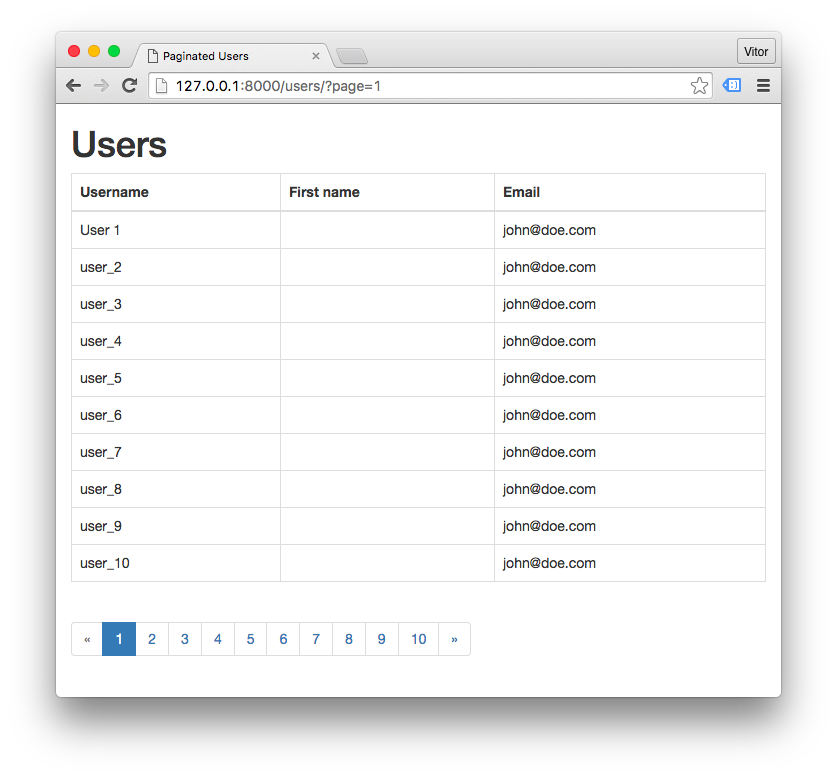
Today's goal is to add pagination to your long list of tasks to improve usability. We'll break the single, long list of tasks into multiple, manageable pages with navigation controls, just like you see in most professional web applications.
By the end of this lesson, you'll have a clean pagination widget at the bottom of your task list, allowing users to navigate through pages of their tasks.
1. The Backend: Enabling Pagination in Your ListView
One of the great advantages of using Django's Class-Based Views, which you're already using with TaskListView, is that common features like pagination are built-in and incredibly simple to enable.
All you need to do is add a single attribute to your TaskListView class in your_app_name/views.py.
- Open your
views.pyfile. - Find your
TaskListViewclass. - Add the
paginate_byattribute and set it to a number, like10. This number determines how many tasks will appear on each page.
Your TaskListView should now look something like this:
# In your_app_name/views.py

class TaskListView(LoginRequiredMixin, ListView):
    model = Task
    context_object_name = 'tasks'
    template_name = 'task_list.html'
    paginate_by = 10  # Add this line!

    # ... your get_queryset and get_context_data methods remain here ...
That's it for the backend! By adding paginate_by, Django's ListView automatically does the following for you:
- It slices the full queryset into pages containing 10 items each.
- It figures out which page to show based on a
?page=parameter in the URL. - It passes special pagination-related objects to your template, which we'll use next.
The following video demonstrates this simplicity and explores the underlying Paginator object that Django uses.
Python Django Tutorial: Full-Featured Web App Part 11 - Pagination
Watch this section from Corey Schafer's 'Python Django Tutorial' to see how paginate_by works and to get a quick interactive overview of the Paginator object.
Watch from 04:23 to 10:41. The first part (until 07:59) is an interactive shell demo that introduces key concepts like num_pages, has_next, and page_range. The second part (from 07:59) shows exactly what you just did: adding paginate_by to a ListView and testing it by manually changing the URL.
If you run your server now and you have more than 10 tasks, you'll see only the first 10. If you manually add ?page=2 to your browser's URL bar, you'll see the next 10. It's working, but users need a way to navigate without typing in the URL.
2. The Frontend: Building the Pagination Controls
Now, let's build the navigation links in the template. Django passes two important variables to the template when you use paginate_by:
is_paginated: A boolean that isTrueif there is more than one page.page_obj: An object representing the current page, with lots of useful attributes and methods for building navigation.
We'll add a new section at the bottom of task_list.html to display the pagination controls. We'll wrap it in a check for is_paginated so it only appears when needed.
Copy this code block and place it at the bottom of your task_list.html template, after the </table> tag.
<!-- In your_app_name/templates/your_app_name/task_list.html -->
... your table of tasks ends here ...
</tbody>
</table>
{% if is_paginated %}
<nav aria-label="Page navigation">
<ul class="pagination justify-content-center">
{% if page_obj.has_previous %}
<li class="page-item">
<a class="page-link" href="?page=1">« First</a>
</li>
<li class="page-item">
<a class="page-link" href="?page={{ page_obj.previous_page_number }}">Previous</a>
</li>
{% endif %}
{% for num in page_obj.paginator.page_range %}
{% if page_obj.number == num %}
<li class="page-item active"><a class="page-link" href="?page={{ num }}">{{ num }}</a></li>
{% else %}
<li class="page-item"><a class="page-link" href="?page={{ num }}">{{ num }}</a></li>
{% endif %}
{% endfor %}
{% if page_obj.has_next %}
<li class="page-item">
<a class="page-link" href="?page={{ page_obj.next_page_number }}">Next</a>
</li>
<li class="page-item">
<a class="page-link" href="?page={{ page_obj.paginator.num_pages }}">Last »</a>
</li>
{% endif %}
</ul>
</nav>
{% endif %}
This snippet uses Bootstrap classes (pagination, page-item, page-link) that you'll likely integrate later, but it will be functional even without CSS.
For a detailed text-based breakdown of all the page_obj attributes we just used, this resource is excellent.
Pagination for a User-Friendly Django App
Read this article from Real Python to get a clear explanation of each part of the template logic we just added.
Skim through the section 'Pagination in Django Templates'. Pay attention to the subsections 'Current Page', 'All Pages', 'Previous and Next', and 'First and Last'. Notice how the code snippets match the logic in the block you just added to your template. This will solidify your understanding of variables like page_obj.number, page_obj.has_previous, and page_obj.paginator.num_pages.
Test your understanding!
A user navigates to your task list and manually enters ?page=999 in the URL, but there are only 5 pages of tasks. Based on the video and what you know about ListView, what will Django most likely show the user?
Show answer
Django will raise an EmptyPage error, which by default results in a "404 Not Found" page. This is the correct behavior, as it signals to the user that the requested page does not exist.
3. Making It Work: Integrating Pagination with Search & Filters
There's a subtle but critical problem with our current implementation. Try this:
- Filter your tasks by a status, like "In Progress".
- The URL will become something like
/?status=in_progress. - Now, click the "Next" page link in your new pagination control.
What happened? The URL changed to /?page=2, and your filter was lost! The page now shows all tasks, not just the "In Progress" ones.
This happens because our pagination links only set the page parameter. We need to modify them to preserve any other existing URL parameters (like q for search or status for filtering).
Here’s how we can fix this in two steps.
Step 1: Pass the other parameters from the view to the template
Modify the get_context_data method in your TaskListView to create a URL-encoded string of all GET parameters except for the 'page' parameter.
# In your_app_name/views.py

# ... inside your TaskListView class ...

    def get_context_data(self, **kwargs):
        context = super().get_context_data(**kwargs)
        context['filterset'] = self.filterset
        context['search_query'] = self.request.GET.get('q', '')

        # Add this logic to preserve other GET parameters
        other_params = self.request.GET.copy()
        if 'page' in other_params:
            del other_params['page']
        context['other_params'] = other_params.urlencode()

        return context
Now, a new context variable other_params is available in your template. It will contain a string like q=mysearch&status=todo.
Step 2: Update the links in the template
Now, we'll update the href attributes in our pagination snippet to include these other parameters.
Find the pagination block you added to task_list.html and update all the href attributes. You just need to add &{{ other_params }} after the ?page=... part.
Here is the corrected pagination block:
<!-- In your_app_name/templates/your_app_name/task_list.html -->
{% if is_paginated %}
<nav aria-label="Page navigation">
<ul class="pagination justify-content-center">
{% if page_obj.has_previous %}
<li class="page-item">
<a class="page-link" href="?page=1&{{ other_params }}">« First</a>
</li>
<li class="page-item">
<a class="page-link" href="?page={{ page_obj.previous_page_number }}&{{ other_params }}">Previous</a>
</li>
{% endif %}
{% for num in page_obj.paginator.page_range %}
{% if page_obj.number == num %}
<li class="page-item active"><a class="page-link" href="?page={{ num }}&{{ other_params }}">{{ num }}</a></li>
{% else %}
<li class="page-item"><a class="page-link" href="?page={{ num }}&{{ other_params }}">{{ num }}</a></li>
{% endif %}
{% endfor %}
{% if page_obj.has_next %}
<li class="page-item">
<a class="page-link" href="?page={{ page_obj.next_page_number }}&{{ other_params }}">Next</a>
</li>
<li class="page-item">
<a class="page-link" href="?page={{ page_obj.paginator.num_pages }}&{{ other_params }}">Last »</a>
</li>
{% endif %}
</ul>
</nav>
{% endif %}
Now, if you filter by status and click "Next", the URL will correctly become /?status=in_progress&page=2, and your application state will be preserved across pages.
Conclusion
Excellent work! You've successfully added a crucial usability feature to your application. Not only did you implement pagination, but you also addressed the real-world challenge of making it work seamlessly with existing features like search and filtering.
Key Takeaways:
- You can enable pagination in a
ListViewsimply by setting thepaginate_byattribute. - Django provides
is_paginatedandpage_objin the template context to build navigation controls. - The
page_objcontains helpful attributes like.has_previous,.next_page_number, and.paginator.num_pages. - To make pagination work with other GET-based features (like search and filters), you must ensure the pagination links preserve existing URL parameters.
Preview of the Next Lesson:
Your task manager is becoming very functional! In the next lesson, we'll enhance it further by allowing users to attach files to their tasks. You will learn how to use Django's FileField to handle file uploads and associate them with your Task model.