Hello! Welcome to the final lesson of our Python Fundamentals Refresher module.
In our last session, we learned how to make our code more robust by handling exceptions with try...except blocks. We saw how a finally clause can be used to guarantee that "cleanup" code, like closing a file, always runs. However, writing try...finally for every file operation can be a bit repetitive.
Today, we'll learn a more elegant and "Pythonic" way to work with files that handles all the cleanup for us automatically. This lesson covers the learning outcome: Read from and write to files using the with statement. This is a fundamental skill for any developer, as you'll constantly need to read configuration files, save user data, or write logs in your web applications.
Let's get started.
1. Why We Need a Better Way to Handle Files
Properly managing external resources like files is crucial. If you open a file but forget to close it, your program could hold onto system resources unnecessarily, or worse, data you intended to write might not be saved completely.
As we saw in the previous lesson, you can use a try...finally block to ensure a file is always closed:
# The "old" way
file = open("my_data.txt", "w")
try:
    file.write("This is important data!")
finally:
    file.close()
While this works, it's not very concise. Python provides a much cleaner solution: the with statement. To understand the transition from try...finally to with, let's begin with a short reading.
Python's with Statement: Manage External Resources Safely
This article from Real Python explains the common problems in resource management and how the with statement was designed to solve them. It's a perfect bridge from our last lesson on exception handling.
Please read the sections titled 'Managing External Resources in Python' and 'The with Statement'. Pay attention to how the with statement simplifies the try...finally pattern.
2. The with Statement: Automatic Resource Management
As you just read, the with statement creates a "context manager" that automatically handles the setup and teardown phases of working with a resource. When you use it with open(), it guarantees that the file will be closed as soon as you exit the with block, even if an error occurs.
The syntax is simple and clean:
with open("hello.txt", "w") as file:
    # We are now "inside" the with block
    file.write("Hello, World!")
# Once we exit the block, the file is automatically closed.
This is the recommended way to handle files in Python. Let's watch a video that reinforces why this is considered a best practice.
Python Tutorial: File Objects - Reading and Writing to Files
Corey Schafer provides a clear, concise explanation of why the with statement is the preferred method for file handling and how it protects you from common mistakes.
Watch from 03:06 to 05:41. Focus on the benefits of the context manager and how it ensures the file is closed automatically.
Now that you understand the "why," let's dive into the "how."
3. Reading From Files
When you open a file, you need to specify a mode. The default mode is 'r' for reading plain text.
There are a few common ways to read content from a file inside a with block:
-
Iterating over the file object (Most common and memory-efficient):
This is the best way to process a text file line by line.with open("config.txt", "r") as file: for line in file: print(line.strip()) # .strip() removes leading/trailing whitespace, including the newline character -
Reading the entire file at once (
.read()):
Useful for small files where you need the whole content as a single string.with open("small_file.txt", "r") as file: content = file.read() print(content) -
Reading all lines into a list (
.readlines()):
This reads the entire file and returns a list of strings, where each string is a line from the file.with open("requirements.txt", "r") as file: lines = file.readlines() print(lines) # Output might be: ['django\n', 'gunicorn\n', 'whitenoise\n']
4. Writing to Files
To write data, you open the file in a different mode. The two most important write modes are:
-
'w'(Write Mode):- If the file does not exist, it will be created.
- If the file does exist, its contents will be completely overwritten. Be careful with this!
-
'a'(Append Mode):- If the file does not exist, it will be created.
- If the file does exist, new data will be added to the end of the file.
Let's see these modes in action.
# Using 'w' to write to a new file (or overwrite an existing one)
tasks = ["Design the database schema", "Implement user authentication"]
with open("todo.txt", "w") as file:
    for task in tasks:
        file.write(task + "\n") # .write() does not add a newline, so we add it manually

# Using 'a' to append a new task to the list
with open("todo.txt", "a") as file:
    file.write("Create the task list view\n")
After running this code, todo.txt will contain:
Design the database schema
Implement user authentication
Create the task list view
Test your understanding!
You are building a logging feature for your application. Each time an important action happens, you want to record a message with a timestamp to a file called app.log. You need to make sure that new log messages are added to the end of the file without deleting the old ones.
Which mode should you use to open app.log?
Show answer
You should use append mode, 'a'. This will ensure that new log entries are always added to the end of the file, preserving the existing log history.
import datetime

def log_action(message):
    timestamp = datetime.datetime.now().isoformat()
    with open("app.log", "a") as log_file:
        log_file.write(f"[{timestamp}] - {message}\n")

# Example usage:
log_action("User logged in.")
log_action("Task 'Finish report' created.")
5. Practical Example: Reading, Processing, and Writing
To tie all these concepts together, let's watch a complete walkthrough that covers reading from one file, processing the data, and writing the results to another.
How to Read and Write Files in Python | File Handling Tutorial in Python
This video from techTFQ provides a fantastic, practical demonstration of reading, writing, and appending. It culminates in an example that feels like a real-world data processing task.
Watch the following segments: Context Manager (Reading): 02:45 - 05:00 Writing Files ('w'): 07:16 - 09:10 Appending Files ('a'): 09:10 - 10:24 Full Example: 10:24 - 13:17 The final example is the most important part, as it combines everything we've learned.
The example in the video is a great model for many tasks you'll perform as a developer: extracting useful information from a source and saving it in a new, structured format.
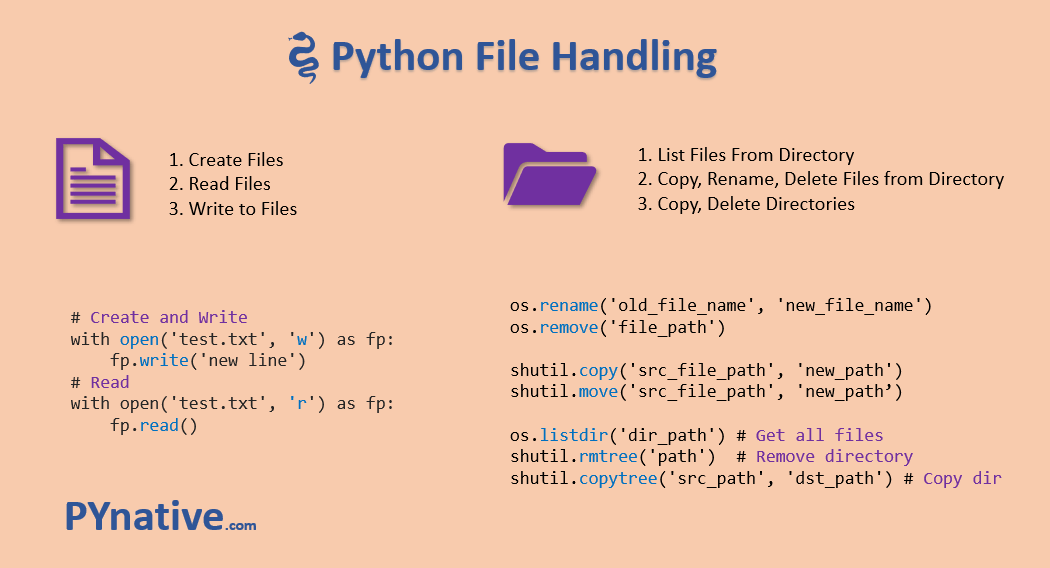
Here is a visual summary of the basic file operations we've covered.
Conclusion
Great job completing the Python Fundamentals Refresher module! You now have a solid command of the core Python skills needed to start building web applications with Django.
Key Takeaways from this Lesson:
- The
with open(...) as file:syntax is the standard, safe way to work with files in Python. - It automatically closes the file for you, preventing resource leaks, even if errors occur.
- Use the correct mode for your goal:
'r'to read (the default).'w'to write (overwrites existing files).'a'to append (adds to the end of existing files).
- You can read files line-by-line using a
forloop, or all at once with.read()or.readlines(). - The
file.write()method writes a string to a file, but you must add newline characters (\n) manually if you want them.
In our next lesson, we will begin Module 2: Object-Oriented Python Essentials. We'll start by learning how to define classes with attributes and methods, which is the foundation for creating your own custom data structures and is central to how frameworks like Django are built.