Hello! Let's continue building your shell scripting skills.
In the last lesson, you learned the essentials of making scripts dynamic: using variables to store data, quoting to handle text safely, and command substitution to capture real-time information. You can now write a script that stores and manipulates data.
Today, we'll give your scripts the ability to think and repeat. This lesson focuses on the learning outcome: Implement conditional statements (if/then/else) and loops (for, while) in scripts. You will learn how to make your scripts execute different commands based on specific conditions and how to automate repetitive tasks. This is where your scripts will transform from simple command lists into powerful automation programs.
1. Making Decisions with Conditional Statements
The most fundamental way to add logic to a script is with an if statement. It allows your script to ask a question and perform an action based on the answer. The basic structure is:
if [ condition ]; then
  # command(s) to run if the condition is true
fi
The if statement checks the "condition." In Bash, a condition is essentially a command. If the command succeeds (returns an exit code of 0), the condition is considered "true," and the code inside the then...fi block is executed.
Let's watch a video that breaks this down.
How To Write Bash Scripts In Linux - Complete Guide (Part 5 - If Statements)
This video from Learn Linux TV introduces the concept of if statements and demonstrates the basic syntax, including how to perform a numerical comparison. Pay close attention to the if, then, and fi keywords, and especially the spaces required inside the square brackets [ ].
Watch from 00:50 to 05:20. Focus on how the if statement is constructed to test the value of a variable.
Adding an else Block
What if the condition is false? You can provide an alternative set of commands using an else block. This creates an "if this, then that; otherwise, do this other thing" structure.
if [ condition ]; then
  # code to run if true
else
  # code to run if false
fi
This is more efficient than writing two separate if statements. The next part of the video explains this clearly.
How To Write Bash Scripts In Linux - Complete Guide (Part 5 - If Statements)
This segment shows how to add an else block to handle cases where the if condition is not met.
Watch from 07:21 to 09:08. Notice how a single if/else structure can handle both true and false outcomes.
Conditional Operators: The Heart of the Condition
The "condition" inside the [ ... ] is where you perform tests. You can compare numbers, check strings, or verify file properties. There are different operators for each purpose.
To get a comprehensive overview of the most common operators you'll use, please review the tables in the following article. You don't need to memorize them all now, but it's crucial to know what's possible and where to look them up.
Shell Scripting Basics: Bash, Variables, Conditionals & Loops
This article from Penguin-GTM Linux provides excellent, concise reference tables for conditional operators.
In the article, find the section titled '3. Conditionals' and review the tables under 'Numeric Comparison', 'String Comparison', and 'File Tests'. These tables are invaluable references for scripting.
For example:
[ $count -gt 10 ]: Is the value ofcountgreater than 10?[ "$username" = "root" ]: Is the value ofusernameequal to "root"? (Remember to quote your variables!)[ -f "/etc/hosts" ]: Does the regular file/etc/hostsexist?
A Practical Example: Checking for Files
One of the most common uses for if statements in system administration scripts is to check for the existence of files or directories before trying to act on them. This prevents errors and makes scripts more robust.
The video below demonstrates this by checking if a file or command exists and then taking action. This is a very practical skill.
How To Write Bash Scripts In Linux - Complete Guide (Part 5 - If Statements)
Here, you'll see a real-world application of if statements: checking if a file exists, and then checking if a command is available before trying to run it.
Watch from 11:46 to 15:15 to see how to check for a file (-f) and a directory (-d). Then continue watching from 15:15 to 29:08 for a more advanced script that checks if a program is installed and, if not, installs it. This demonstrates the real power of conditional logic.
Test your understanding!
Write a simple script that checks if a directory named /tmp/my_app exists.
- If it exists, the script should print "Directory /tmp/my_app already exists."
- If it does not exist, it should print "Creating directory /tmp/my_app..." and then create it using the
mkdircommand.
(Hint: Use the -d operator for directories.)
Show answer
Here is a correct script:
#!/bin/bash

APP_DIR="/tmp/my_app"

if [ -d "$APP_DIR" ]; then
  echo "Directory $APP_DIR already exists."
else
  echo "Creating directory $APP_DIR..."
  mkdir "$APP_DIR"
fi
2. Automating Repetitive Tasks with Loops
Loops are for when you need to perform the same action multiple times. Instead of writing the same command over and over, you can put it in a loop. We'll cover the two main types: for and while.
The for Loop: Iterating Over a List
A for loop is perfect for when you have a known set of items (like a list of files, servers, or usernames) and you want to do something with each one.
The basic syntax is:
for variable_name in item1 item2 item3; do
  # command(s) to run for each item
  # use $variable_name to access the current item
done
Let's see this in action.
How To Write Bash Scripts In Linux - Complete Guide (Part 9 - For Loops)
This video from Learn Linux TV introduces the for loop, starting with a simple example of iterating through a list of numbers.
Watch from 00:34 to 05:57. This will cover the basic concept of a for loop and show you a more efficient way to create a sequence of numbers using brace expansion (e.g., {1..10}).
A more practical use is to iterate over files. You can use wildcards (like *) to generate the list of items dynamically.
How To Write Bash Scripts In Linux - Complete Guide (Part 9 - For Loops)
Now for a powerful, real-world example. This segment shows how to use a for loop to find all log files in a directory and compress each one.
Watch from 05:57 to 10:48. This demonstrates how a for loop combined with wildcards (*.log) can automate a common system administration task.
The while Loop: Looping Based on a Condition
A while loop is used when you want to repeat a block of code as long as a certain condition remains true. You might not know how many iterations are needed beforehand.
The syntax is:
while [ condition ]; do
  # command(s) to run as long as the condition is true
  # IMPORTANT: Something inside the loop must eventually make the condition false!
done
The resource below provides a clear, simple example of a while loop that uses a counter.
Bash Scripting Tutorial for Beginners
Since the videos focus on for loops, let's turn to a text resource for while loops. This section from a LinuxConfig.org tutorial gives a perfect example of a while loop that executes a set number of times.
Read the short section titled 'While Loop'. Focus on how the counter variable is initialized before the loop, checked in the while condition, and incremented inside the loop. This last step is crucial to prevent an infinite loop.
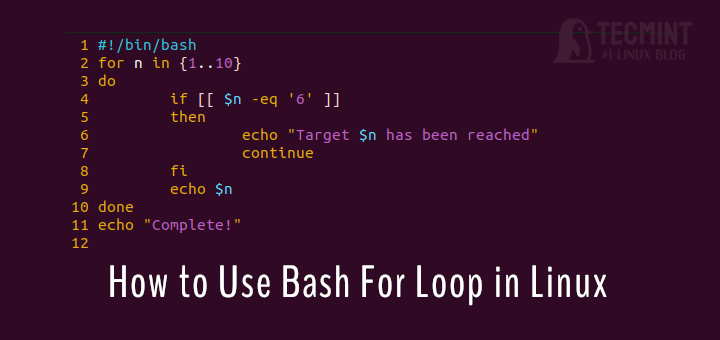
Loop Control: break and continue
Sometimes you need to alter the flow of a loop.
break: Exits the loop immediately.continue: Skips the rest of the current iteration and starts the next one.
Test your understanding!
Write a script that uses a for loop to iterate through all files in the current directory ending with the .log extension. For each file, it should print the message "Processing [filename]...".
(Hint: Use a wildcard like *.log in your for loop.)
Show answer
A correct script would be:
#!/bin/bash

for logfile in *.log; do
  # Check if the file actually exists to avoid errors if no .log files are found
  if [ -f "$logfile" ]; then
    echo "Processing $logfile..."
  fi
done
The if [ -f "$logfile" ] check is a good practice. If no .log files exist, the wildcard *.log remains a literal string, and the check prevents the script from trying to process a file named "*.log".
Conclusion
You have now learned the fundamental control structures that give your scripts logic and power. With conditionals and loops, you can create scripts that adapt to different situations and automate complex, repetitive tasks.
Key Takeaways:
if [ condition ]; then ... fi: Use for decision-making. Addelseorelif(else if) for more complex logic.- Conditional Operators: Use operators like
-gt(numeric),=(string), and-f(file) inside the[ ... ]to perform tests. for item in list; do ... done: Use to iterate over a known set of items, like files or a range of numbers.while [ condition ]; do ... done: Use to loop as long as a condition is true, especially when the number of iterations is not known in advance.breakandcontinue: Use to control the flow from within a loop.
Preview of the Next Lesson:
Our scripts can now make decisions and repeat tasks, but they are still self-contained. In the next lesson, we will learn how to "Accept and process user input and command-line arguments in scripts." This will allow you to pass information into your scripts when you run them, making them interactive and even more versatile. For example, instead of hardcoding a directory path, you could provide it as an argument, allowing the same script to work on any directory you choose.