Hello! Welcome back to our module on Process, Service, and Task Management.
In the last lesson, we explored how to monitor processes in real-time using top and htop. You saw that both tools provide a way to terminate misbehaving processes by sending them a "kill signal" (k in top, F9 in htop). This lesson will expand on that concept.
Our learning outcome is to send signals to processes using the kill and killall commands. We will demystify what "signals" are, learn about the most important ones you'll encounter, and master the command-line tools designed specifically for this task. This is a core skill for any Linux user, especially when you need to manage unresponsive applications or control background tasks.
1. Understanding Process Signals
Before we start terminating processes, it's essential to understand that the kill command's name is a bit misleading. Its actual purpose is to send a signal to a process. A signal is a standardized message the operating system uses to tell a process that a specific event has occurred. While some signals tell a process to terminate, others have different functions entirely.
Kill Signals! (Linux+ Objective 1.4.3)
To start, let's get a clear overview of what signals are and which ones are most important for the CompTIA Linux+ exam. This video from Shawn Powers is tailored specifically for this objective.
Watch from 00:35 to 06:02. This segment explains the concept of signals and then details the three you absolutely must know: SIGTERM, SIGKILL, and SIGHUP.
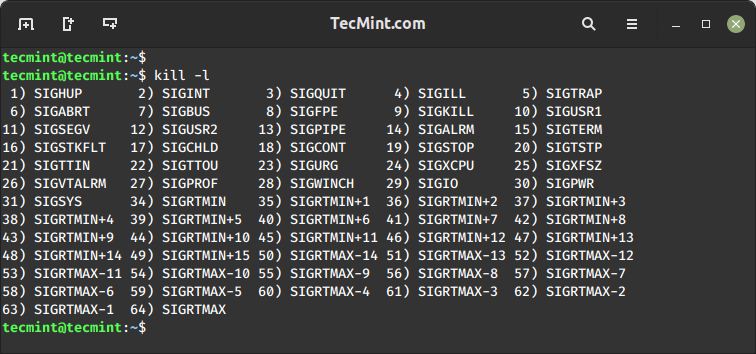
As the video explains, there are many signals, but for termination and general process control, you need to be very familiar with these three:
-
SIGTERM(Signal 15): This is the default signal sent bykillandkillall. It's a polite request asking the process to terminate. A well-behaved application will catch this signal, perform cleanup tasks (like saving open files or closing network connections), and then exit gracefully. You should always try this signal first. -
SIGKILL(Signal 9): This is the "sledgehammer." It's a forceful, non-ignorable instruction to the kernel to terminate the process immediately. The process gets no chance to clean up, which can lead to corrupted files or other issues. You should only useSIGKILLas a last resort when a process is completely unresponsive and ignoresSIGTERM. -
SIGHUP(Signal 1): The "hang-up" signal. Historically, this signal was sent to a user's processes when their terminal connection was lost (or "hung up"). Today, its most common use has been adapted by many services and daemons to mean "reload your configuration file." This is a very useful way to apply configuration changes without fully restarting a service.
You can see a full list of signals on your system by running the command kill -l (lowercase L) or kill -L.
2. The kill Command: Targeting by Process ID (PID)
The kill command sends a specified signal to a process identified by its Process ID (PID). You already know how to find a PID using commands like ps, pgrep, top, and htop.
The basic syntax is:kill -<SIGNAL> <PID>
Let's break down how to use it.
-
Start a sample process: Open your terminal and run a command that will run for a long time in the background. The
sleepcommand is perfect for this. The&symbol sends the process to the background.sleep 1000 &Your shell will likely print the PID of the new background process.
-
Find the PID (if you don't know it): You can use
pidoffor a quick lookup by name.pidof sleepThis should return the PID of your running
sleepprocess. -
Send the
SIGTERMsignal (the polite way):# Replace <PID> with the actual ID from the previous step kill <PID>Since
SIGTERMis the default, you don't need to specify it. You will see a "Terminated" message. -
Send the
SIGKILLsignal (the forceful way):
Let's try again. Start another sleep process:sleep 1000 &Now, find its PID and send signal 9. You can specify the signal by its number or its name. Both of these commands do the exact same thing:
# Using the signal number
kill -9 <PID>

# Using the signal name (without the 'SIG' prefix is also common)
kill -SIGKILL <PID>
This time you will see a "Killed" message, indicating the more abrupt termination.
3. The killall Command: Targeting by Name
Looking up a PID can be tedious. If you know the name of the process you want to signal, the killall command is often more convenient. It sends a signal to all processes that match the given name.

The syntax is very similar to kill, but you use the process name instead of a PID:killall -<SIGNAL> <process_name>
Let's try it:
-
Start multiple processes:
sleep 2000 & sleep 2000 & -
Use
killall: Now, you can terminate both of them with a single command.killall sleepThis sends the default
SIGTERMsignal to every process namedsleep. You should see two "Terminated" messages.
Test your understanding!
A web server application on your system has frozen. You want to shut it down. What is the first command you should try, and what command should you use as a last resort? Explain the reason for your choice.
Show answer
First command: killall <web_server_name> or kill <PID_of_web_server>.
Reasoning: This sends the SIGTERM (15) signal. This is a polite request that gives the web server a chance to shut down gracefully, closing active connections and saving any necessary state. This minimizes disruption and risk of data corruption.
Last resort: killall -9 <web_server_name> or kill -9 <PID_of_web_server>.
Reasoning: This sends the SIGKILL (9) signal. It should only be used if the application does not respond to SIGTERM. SIGKILL forces the process to stop immediately, which can leave behind temporary files, open sockets, or corrupted data.
4. Practical Demonstration and pkill
The distinction between process name and executable name can sometimes be tricky. The killall command requires an exact match of the process name. What if you don't know the exact name, or you only know part of it? This is where pkill comes in.
pkill works like killall but uses pattern matching (like grep) to find processes, making it more flexible.
Kill Signals! (Linux+ Objective 1.4.3)
Let's watch a practical demonstration that ties all these concepts together. This segment shows the use of kill with different signals and then illustrates a scenario where killall fails but the more flexible pkill succeeds.
Watch from 10:19 to 15:06. Pay close attention to the Firefox example, where the actual process name (firefox-esr) is different from what one might expect (firefox), causing killall to fail but pkill to work.
As the video demonstrated, the subtle difference between commands can be significant:
killall firefox: Fails if the actual process is namedfirefox-esr. It requires an exact name match.pkill firefox: Succeeds because it finds any process whose name contains "firefox".
This makes pkill very powerful, but also potentially more dangerous. A broad pattern could accidentally terminate more processes than you intended.
Conclusion
You now have a solid command of the fundamental tools for controlling processes on Linux. Being able to correctly and safely terminate an application is an indispensable skill for troubleshooting and system management.
Key Takeaways:
- Signals are messages sent to processes. The most common for termination are
SIGTERM(15) andSIGKILL(9). - Always attempt a graceful shutdown with
SIGTERMbefore resorting to a forceful termination withSIGKILL. - The
killcommand sends a signal to a process using its PID. - The
killallcommand sends a signal to all processes matching an exact process name. - The
pkillcommand is a more flexible alternative that sends signals to processes matching a pattern.
Preview of the Next Lesson:
We have now covered how to view, monitor, and terminate processes. In the next lesson, we will shift our focus from stopping processes to influencing how they run. We will learn how to adjust process priority using the nice and renice commands. This will allow you to tell the Linux kernel which processes are more important and deserve a larger share of the CPU's attention.