Hello! Welcome to the next lesson in your preparation for the CompTIA Linux+ exam.
In the previous module, we covered managing system processes and scheduling automated tasks with cron and at. We are now beginning a new module focused on Storage and Filesystem Management. This is a critical area for any Linux administrator, as everything on your system ultimately resides on a storage device.
Today's lesson addresses the learning outcome: Identify block devices and explain partitioning concepts (MBR vs. GPT). This is the foundational knowledge you need before you can perform any practical tasks like creating partitions or filesystems. We will start by understanding how Linux sees and names storage hardware, and then we will explore the two main methods for organizing the space on that hardware.
1. What are Block Devices?
In Linux, a block device is a type of file that represents a mass storage device, such as a hard disk drive (HDD), a solid-state drive (SSD), a USB flash drive, or a CD/DVD-ROM drive. These devices transfer data in fixed-size blocks, allowing for random access to any part of the device.
Your operating system needs a consistent way to name and refer to these devices. In Linux, all device files reside in the /dev directory. The specific name a device gets depends on the type of hardware and how it's connected to the computer.
To learn about these naming conventions, the following video provides a clear and comprehensive explanation.
Switching to Linux: Drives & Partitions
Let's watch a section from the 'Switching to Linux: Drives & Partitions' video by ExplainingComputers. It clearly breaks down the naming conventions for different types of drives.
Watch from 07:43 to 11:42. Pay close attention to the prefixes used for different storage types (sd, nvme, mmcblk) and how partitions are numbered (e.g., sda1, nvme0n1p1).
Summary of Device Naming Conventions
As you saw in the video, the naming scheme is very logical. Here is a quick summary:
| Device Type | Prefix | Example Device Name | Example Partition Name |
|---|---|---|---|
| SATA, SCSI, SAS, and USB drives | sd (SCSI disk) |
/dev/sda (first disk), /dev/sdb (second disk) |
/dev/sda1 (first partition) |
| NVMe (Non-Volatile Memory Express) SSDs | nvme |
/dev/nvme0n1 (first drive on first controller) |
/dev/nvme0n1p1 (first partition) |
| SD cards, eMMC storage | mmcblk |
/dev/mmcblk0 |
/dev/mmcblk0p1 |
| Optical Drives (CD/DVD) | sr (SCSI ROM) |
/dev/sr0 |
(not typically partitioned) |
The letter for sd devices (a, b, c) and the numbers for other devices (0, 1, 2) are assigned by the kernel at boot time based on the order in which it discovers the hardware.
2. Identifying Block Devices on Your System
Knowing the naming convention is one thing; finding the actual devices on your system is the next step. The primary command-line tool for this is lsblk (list block devices).

Let's see a practical demonstration of this command.
Switching to Linux: Drives & Partitions
The lsblk command is the best way to get a quick overview of all block devices. Let's see it in action in the same video from ExplainingComputers.
Watch from 13:37 to 16:13. The presenter demonstrates lsblk on two different systems, showing how it lists SATA drives (sda), NVMe drives (nvme0n1), and their partitions.
To give you a textual reference you can refer back to, the following article provides more detail on lsblk and introduces a related command, blkid, which is useful for viewing attributes like filesystem type and unique identifiers (UUIDs).
How to use the lsblk and the blkid commands on Linux
For a detailed reference on lsblk and to learn about a related command, blkid, please read the following article from LinuxForDevices.
Read the sections 'Block Devices: What are they?', 'Command Syntax and options' for lsblk, and 'The blkid command'. This will reinforce what a block device is and show you another tool for inspecting device attributes.
Test your understanding!
You run lsblk and see the following lines in the output:
nvme0n1     259:0    0   476.9G  0 disk
├─nvme0n1p1 259:1    0     512M  0 part /boot/efi
└─nvme0n1p2 259:2    0   476.4G  0 part /
Based on this output, what is the device name for the physical SSD, and what is the device name for the partition that contains the root filesystem (/)?
Show answer
- The physical SSD is
/dev/nvme0n1. - The partition containing the root filesystem (
/) is/dev/nvme0n1p2.
3. Partitioning Concepts: MBR vs. GPT
Once you have a physical disk, you can't just start writing files to it. You first need to partition it. Partitioning is the act of dividing a single physical disk into one or more logical sections. Each section, or partition, can then be formatted with a filesystem and used by the operating system.
The "map" that defines how a disk is partitioned is called the partition table or partitioning scheme. For decades, the standard was MBR (Master Boot Record). Modern systems have largely moved to a new standard called GPT (GUID Partition Table). Understanding the difference is crucial for the Linux+ exam and for managing modern hardware.
Now that we can identify physical disks, we need to understand how they are organized internally. The two standards you must know are MBR and GPT. This video from ITFreeTraining provides an excellent overview.
Watch from the beginning to 05:19. The video will cover: What a partition table is. The structure and limitations of the older Master Boot Record (MBR) scheme. The features and requirements of the modern GUID Partition Table (GPT) scheme.
Visualizing MBR vs. GPT
The video explained the structural differences, which can be easier to grasp with a diagram.
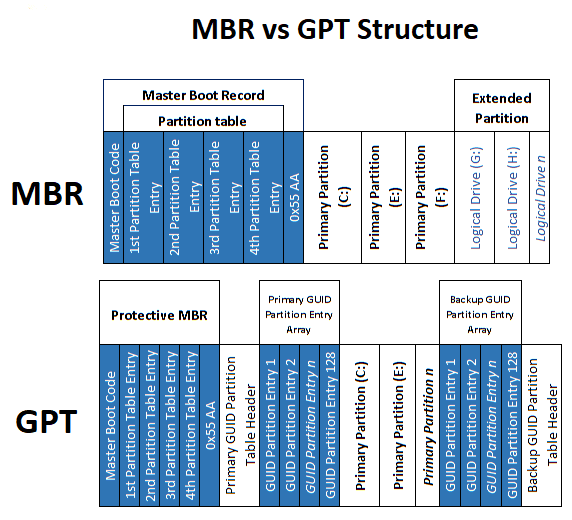
MBR vs. GPT: A Summary
Let's summarize the key differences in a table.
| Feature | MBR (Master Boot Record) | GPT (GUID Partition Table) |
|---|---|---|
| Max Disk Size | 2 Terabytes (TB) | Effectively unlimited (measured in Zettabytes) |
| Max Partitions | 4 primary partitions (or 3 primary + 1 extended) | 128 partitions by default on most systems |
| Boot Firmware | Legacy BIOS (Basic Input/Output System) | UEFI (Unified Extensible Firmware Interface) |
| Resilience | Partition data stored in one place (the MBR); vulnerable to corruption. | Partition data is stored at the start and end of the disk; includes error checking (CRC32). |
To bring all this theory together and understand the practical implications for a Linux administrator, the following article provides excellent context.
The classic MBR vs. the modern GPT in the Linux world
To solidify your understanding and see how these concepts apply specifically within the Linux world, read the following article from FOSSLinux. It does a great job of summarizing the pros, cons, and real-world use cases for each scheme.
Read the following sections: 'Enter the MBR (Master Boot Record)' 'The new kid on the block: GPT (GUID Partition Table)' 'MBR vs. GPT for Linux: The verdict' 'Best practices summary' 'Real-world use cases...' 'Frequently Asked Questions (FAQs)...' This will give you a comprehensive understanding of when and why you would choose one over the other.
Conclusion
In this lesson, we laid the essential groundwork for disk management in Linux. You now have the theoretical knowledge required to work with storage devices.
Key Takeaways:
- Block devices are storage devices like HDDs and SSDs, represented by device files in
/dev. - Linux uses a logical naming scheme for devices based on their type (e.g.,
/dev/sda,/dev/nvme0n1). - The
lsblkcommand is the primary tool for listing and identifying block devices and their partitions. - A partition table is required to organize a disk into usable sections.
- MBR is the older standard, limited to 2TB disks and 4 primary partitions. It is used with legacy BIOS systems.
- GPT is the modern standard, supporting very large disks and many partitions. It is used with modern UEFI systems and offers better data integrity.
- For any modern system, GPT is the recommended choice.
Preview of the Next Lesson:
Now that you can identify disks and understand the theoretical differences between MBR and GPT, our next lesson will be a hands-on lab. You will learn how to partition disks using fdisk or parted, putting the concepts you learned today into practice.