Hello! In this first module, you will establish a dedicated SharePoint site for an event before building its pages and publishing materials. The starting point is to understand what each SharePoint component is for. A homepage, a presentation file, and a set of links may appear together to an attendee, but they do not all live in the same place.
This lesson gives you a practical way to distinguish sites, pages, document libraries, and web parts. By the end, you should be able to look at a piece of event content and decide whether it needs a home, a page, file storage, or a way to appear on a page. Allow about 35–40 minutes, including the video and reading.
The site is the event’s home; pages give its content shape
A SharePoint site is a workspace with its own address, navigation, appearance, and access settings. For an event, the site brings attendee-facing information and materials together under one recognizable destination. It is not simply the homepage you first see when you open it.
A page is one view within that site. The homepage might answer the attendee’s most urgent questions: What is happening? When? Where do I find the agenda? Other pages can give a session enough room for its summary, speaker information, and related materials without making the homepage excessively long. Pages are stored in the site’s Site Pages library, which is distinct from the document library you would use for presentation files.
A web part is a component placed on a page to present content or provide a function. A Text web part can show a session summary; Quick Links can present attendee shortcuts; a News web part can display updates. The page is the canvas, while web parts are the components arranged on it. Some web parts show content held elsewhere in SharePoint rather than becoming that content’s storage location.
Watch SharePoint Maven’s explanation with this distinction in mind. The presenter covers sites, web parts, and pages; we will add document libraries explicitly in the next section.
Watch “Sites vs. Web Parts vs. Pages” by SharePoint Maven to see the three components in a working SharePoint environment.
Watch sites for the idea of a distinct workspace, then web parts for the components displayed on it. Continue with pages, focusing on the demonstration that a new page remains inside the existing site and can be found in Site Pages. Stop at 13:20: the subsequent discussion simplifies permissions more than is useful for planning access.
The communication-site image below makes the distinction visible. You are looking at one page within a site. The labeled Hero, News, Quick links, and other areas are ways to present information on that page—not separate sites.
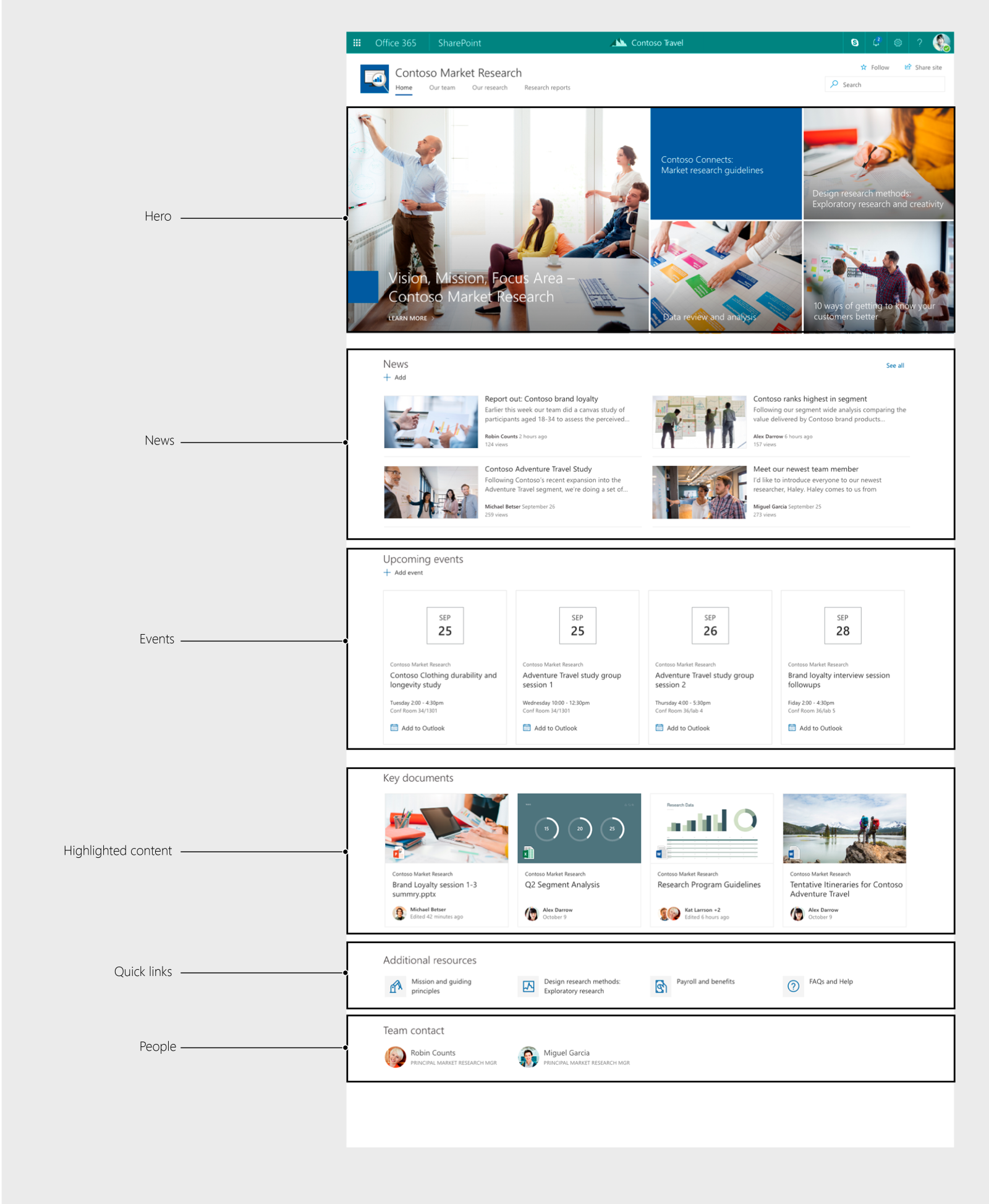
Communication sites are commonly suited to sharing information with a wider readership; team sites are oriented toward collaboration among members. That is a useful distinction for an attendee-facing event site, although your organization’s approved setup and access rules will determine what you can create. We will check those requirements before creating a site in later lessons.
A document library holds files; a page helps people find them
Suppose a speaker sends you a PowerPoint presentation and a PDF handout. The files need a durable location where authorized people can find and manage them. A document library serves that purpose: it is a collection of files inside a site. A site can have more than one document library.
An attendee might encounter a presentation through a link on a session page or through a web part displaying selected documents. In either case, distinguish where the file is held from where it is presented. Placing a link to a deck on a page does not turn the deck into page text; adding a document-display web part does not, by itself, create a new library.
Microsoft Support’s short guide shows the separate actions for adding a library, adding a page, and adding a web part. Read those sections for the different objects they create, rather than trying to memorize the clicks yet.
Create a site in SharePoint | Microsoft Support
Read Microsoft Support’s “Create a site in SharePoint” to compare how a library, page, and web part are added to an existing site.
In “Add a list or document library,” read the library steps from the first numbered instruction through the naming step, then note the final Create instruction. Next, in “Add a page,” read the page steps from its first instruction through the explanation of what goes on the page. Finally, in “Add a web part,” read the web-part steps and the examples immediately following them. Notice that a web part is inserted into a page.
The Site contents view offers another way to see these objects. In the image below, “Documents” is identified as a document library, while “Site Pages” is identified as a page library. Both belong to the same site, but they hold different kinds of content.

The screenshot also shows lists. A list stores structured entries rather than presentation files—for example, one entry per agenda session with its time and speaker. You do not need to build one now; it becomes relevant when we create the event agenda later in the course.
Decide by asking what the content needs to do
Your information-architecture experience is useful here because the choice is not primarily about what SharePoint can display. It is about the content’s role in the attendee journey: Is this a destination, an explanation, a managed file, or a way to surface something?
| If the event needs… | Choose… | Why |
|---|---|---|
| One recognizable destination for the event | A site | It brings the event’s pages and materials together under a shared address and access framework. |
| An attendee-facing explanation, such as a session overview | A page | It gives that topic its own readable destination within the site. |
| A PowerPoint deck, PDF handout, or other managed file | A document library | It holds the file so it can be managed and linked from relevant pages. |
| Links, text, news, or selected content shown on a page | A web part | It controls how that content appears or works on the page. |
These are not competing choices for every item. A session presentation can involve all four: it belongs to the event site, is held in a document library, is linked from a session page, and may be displayed there using a suitable web part. Each component answers a different question.
Consider the proposed event homepage. Its job is to orient attendees and prioritize their next action, not to contain every session detail and every file. A separate session page provides room for detail. Presentation files remain in a library even when the page makes them easy to reach. A web part can draw attention to important links or selected materials without changing their underlying location.
One caution will matter throughout the course: visibility on a page is not the same as access to the underlying content. A visitor might be able to open a session page yet be unable to open a file linked from it if that file’s access differs. Conversely, putting a link on a page does not make restricted content safe to share. We will examine site and file permissions directly in later lessons; for now, keep storage, presentation, and access as separate design questions.
Takeaways
A site is the event’s workspace. Pages are readable destinations within it. Document libraries hold files, while web parts place content or functionality on pages. When deciding where event content belongs, ask first what it is and what attendees need to do with it; then distinguish its storage location from the way people will encounter it.
Next, you will check whether your account can create a site and whether your organization requires approval or administrator assistance before you begin the build.