Hello! Last time, you separated the event’s site from the pages and files it will contain. Before you create that site, there is a practical question: can your account create it, and does your organization want you to?
In this lesson, you will check the SharePoint interface for signs of site-creation access, distinguish a technical block from an approval requirement, and identify what to ask an administrator or site owner for. Allow about 30–40 minutes, including time to check your own account. You will not need to create a site yet.
Check what your account can see
Sign in to Microsoft 365 with the work or school account you would use for the event site, then open SharePoint in a desktop browser. Microsoft’s instructions describe two interface paths you might encounter: on the SharePoint home page, look for Build, then a Site card under Start building; in another layout, look for + Create site. The wording and placement can vary, so the question is whether your account is offered a usable site-creation option—not whether your screen matches a screenshot exactly.
Read the relevant parts of Microsoft Support’s Create a team site in SharePoint. Although the guide demonstrates a team site, its access checks are useful before creating the communication site planned for this course. Stop at the checks; do not follow the guide through site creation.
Create a team site in SharePoint | Microsoft Support
Microsoft Support shows where site creation appears and what a missing or disabled option may indicate.
In the numbered instructions near the top, find the steps referring to Build and Start building. Read the note beginning where the Site card is greyed out, from the disabled-card warning. Then find the later Steps to create a team site section, which uses + Create site, and read the missing-link warning. In the sign-in step, also read the note about a missing SharePoint tile, from the subscription warning. Focus on what each observation suggests, rather than on the team-site setup steps that follow.
Now check your own account without completing a site-creation form:
- Open the Microsoft 365 app launcher. If SharePoint is not immediately visible, check More apps or search for it before concluding that it is unavailable.
- On the SharePoint home page, look for Build and its Site card, or + Create site.
- If site creation opens, check whether Communication site is offered. You can leave the process there; you are only verifying the available route.
These observations are clues, not a complete policy decision. A missing SharePoint app may call for an account or licensing check. A greyed-out Site card or absent + Create site may mean self-service creation is disabled. If the option opens but Communication site is unavailable, your account may still be unable to create the type needed for an attendee-facing event. In each case, report what you saw to the person who administers SharePoint rather than trying another route to get around the restriction.
Separate the technical setting from organizational approval
Your ability to edit an existing site does not establish that you can create a new one. Likewise, seeing a creation option does not establish that you are approved to make an event site. An organization may require a request, an approved template, a particular site address or classification, or an assigned owner even when self-service creation is technically enabled.
Microsoft Learn’s Manage site creation in SharePoint describes these settings from the administrator’s perspective. You do not need administrator access to read it or to perform the check above.
Manage site creation in SharePoint - SharePoint in Microsoft 365 | Microsoft Learn
Microsoft Learn explains who manages site-creation settings and why a restriction in SharePoint does not necessarily restrict every way a team-related site can arise.
Read the opening paragraph under Manage site creation in SharePoint, particularly the administrator's scope. Then, under Manage site creation in the new SharePoint admin center, read from the instruction about allowing users to create sites through the setting's limits. Notice that this is an admin-center procedure, not a setting you need to change in your own account. Interface labels may differ from those shown in the article.
The administrative screen below illustrates that distinction. It shows site creation blocked from the listed self-service tools while the SharePoint creation experience is set to redirect users to an organization-approved request page. It also states that this control does not determine whether users can create Microsoft 365 groups or teams and their connected sites.
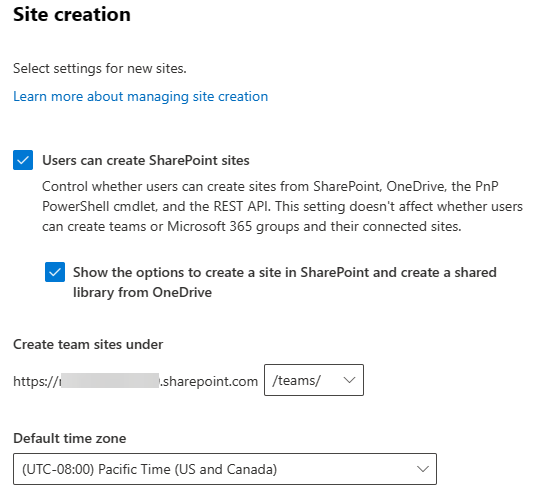
The important conclusion is not “find another way to generate a site.” A group-connected team site appearing through another Microsoft 365 workflow would not automatically give you approval—or the communication site—needed for this event. Follow the organization’s request route if one is provided.
Identify the assistance you need
A useful request connects the access problem to the site you intend to build. Before contacting an administrator or designated site owner, note:
- Your observation: Is SharePoint missing, is the Site card disabled, is + Create site absent, or is the Communication site choice unavailable?
- Your intended use: An attendee-facing event hub with pages, an agenda, presentation files, and, later, recordings.
- The decision you need: May you create a communication site yourself, must you use an approved request process, or must an administrator create it?
- The setup requirements to confirm: Which template is approved, who should own the site, and whether there are rules for its name, address, language, audience, sensitivity, or retention.
For example, a concise request could say: “I’m preparing a SharePoint communication site for an event. In my account, the Site card is greyed out. Is there an approved request process, or can a SharePoint administrator create the site? Please also advise which template and ownership requirements apply.” Replace the observation with what you actually see; do not assume that a missing control has only one cause.
If the creation option is available, the question becomes shorter but still matters: “Is this event site approved for self-service creation, and which template and setup rules should I follow?” That confirmation prevents you from building in a site that later needs to be replaced or moved.
Takeaways
Check site-creation access from your own SharePoint home page, but treat the interface as evidence, not as the whole approval policy. A missing app, disabled creation option, or missing communication-site choice calls for different administrator assistance. Even when creation is available, confirm the approved route and requirements before proceeding.
Next, you will use that approval to create the communication site, choosing its template, name, address, and default language before you commit to creation.