Hello! Welcome back to your course on mastering Notion for businesses.
In our last lesson, we focused on architectural patterns for aggregating data. We saw how to use multi-level relational hierarchies and rollup chains (like Areas → Projects → Tasks) to summarize information across a normalized database structure. We even tackled the "rollup of a rollup" limitation with a formula workaround.
This sets the stage for a crucial challenge in any scaling system: performance. A system that is perfectly structured but slow to load is a system that users will abandon. As your clients' databases grow from hundreds to thousands or even tens of thousands of pages, maintaining a fast, responsive user experience becomes paramount.
Today, we'll address this head-on. Our learning outcome is to apply database optimization strategies using filters and views to improve query performance in large datasets. We will move from designing the structure of data to optimizing the retrieval of data.
The Source of Slowness
Before applying optimizations, it's essential to understand what causes performance degradation in Notion. A slow database isn't a single problem; it's usually a combination of factors that increase the amount of data Notion has to process and render.
Optimize database load times & performance
Notion's official documentation provides a concise overview of the primary factors that impact database performance. Understanding these root causes is the first step toward effective optimization.
Please read the short section titled 'Things that can slow your database down.' This will give you the foundational vocabulary for discussing performance issues.
As you just read, the main culprits are:
- A high number of pages: The more rows in your database, the more data to load.
- A high number of visible properties: Each column in a view adds to the rendering load.
- Complex sorts and filters: Filtering or sorting by properties that require calculation (like
FormulaorRollup) is more demanding than using simple, static properties.
The core principle of optimization, therefore, is to ask Notion to load and display only the absolute minimum amount of data required for a given context.
The Core Strategy: From Data Dumps to Contextual Views
The most common mistake leading to poor performance is displaying a full, unfiltered master database on a dashboard. A far more scalable approach is to use filtered views and linked databases to create focused, contextual "windows" into your master data.
This architectural principle is so fundamental that it forms the basis of many professional Notion frameworks.
Optimize Your Workspace for the Notion API
Let's examine a high-level architectural strategy called the 'Bulletproof Principle.' It reframes the use of databases from simple storage to a dynamic system of contextual access.
Please read the first two sections: 'The Bulletproof Principle' and the details under 'What is it?'. Focus on the CMD+ACT acronym: Centralize in master databases, and Access from contextual templates. This is the strategic mindset we'll be applying today.
The CMD+ACT model is the 'why' behind using filters for optimization. You maintain a single source of truth (the master database) but interact with it almost exclusively through pre-filtered, contextual linked views.
Implementing Contextual Views with Self-Filtering Templates
Now, let's move from strategy to implementation. How do we build these contextual views in a way that is scalable and requires minimal manual effort for the user? The answer lies in self-filtering templates.
Imagine a Project page. Instead of linking to the entire Master Tasks database and forcing the user to filter it manually, we can build a Project template that automatically shows only the tasks related to that specific project.
The following video provides an excellent, step-by-step guide to this entire process, from identifying the problem to implementing the automated solution.
Master 80% of Notion with this ONE Feature
This video by Jeff Su masterfully demonstrates the power of relational filters and self-filtering templates. It walks through the exact architectural pattern we're discussing.
Please watch the following segments: 0:00 - 3:48: Pay attention to how he frames the problem of 'jumbled' data. This is the user experience we are trying to solve with performant design. 3:48 - 7:44: This section shows the manual process of creating a linked view and applying a filter based on a relation. This is the foundational skill. 7:44 - 10:04: This is the most critical part. Watch closely as he builds a 'self-filtering template'. This technique, where a template filters for itself, is one of the most powerful patterns for building scalable systems in Notion.
This self-filtering template pattern is the cornerstone of performant, user-friendly Notion systems. When a user creates a new project from the template, the embedded task list is already perfectly filtered, instantly creating a fast, relevant dashboard for that project.
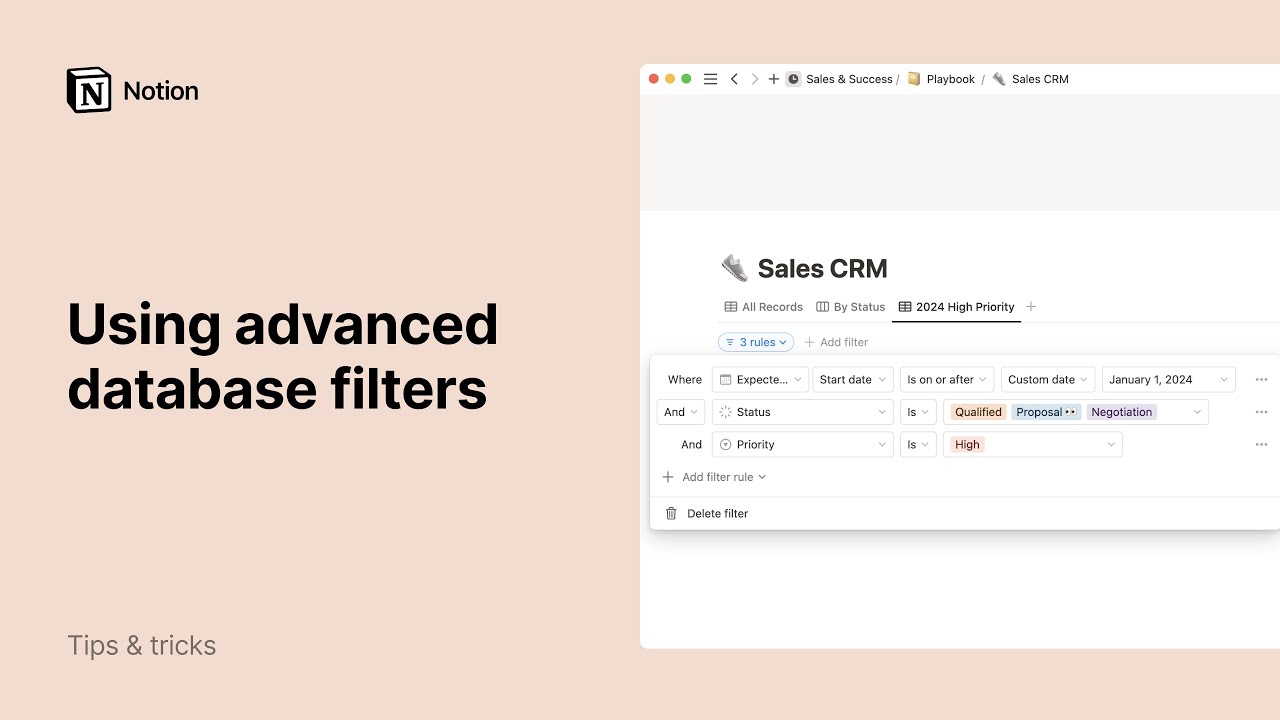
Here are a couple of examples of how these filters look in practice. Notice the use of filter groups (And/Or) to create precise queries.

Test your understanding!
You are designing a system for a consulting firm. You have a Clients master database and a Projects master database, related to each other. A Client page for "Acme Corp" is loading very slowly. You discover it contains a linked view of the entire Projects database, which has over 2,000 entries.
Describe the steps you would take within the Clients database template to ensure that any new client page created will load quickly and show only its relevant projects.
Show answer
- Edit the Template: Go to the
Clientsdatabase and edit its main template (e.g., "New Client Template"). - Insert a Linked View: Inside the template page, type
/linked viewand select theProjectsmaster database. - Create a Self-Referencing Filter: Open the filter menu for this new linked view.
- Create a filter rule where the
Clientrelation property in theProjectsdatabase... - ...is exactly the name of the template you are currently editing (e.g., "New Client Template").
- Create a filter rule where the
- Save the Template: When you exit the template editor, this configuration is saved.
Now, when a user creates a new client page named "XYZ Corp" using this template, the linked view will automatically be filtered to show only projects where the Client relation is "XYZ Corp", ensuring maximum performance.
Additional Optimization Tactics
While self-filtering templates are the primary strategy, several other tactics can further improve performance. These are adjustments you can make to any database view.
Optimize database load times & performance
Let's revisit the Notion documentation to review a checklist of specific, actionable optimization tips.
Please read the sections 'Avoid building too many databases into high-traffic pages,' 'Filter on simple properties,' and 'Hide unnecessary properties.' These are quick wins that can have a significant impact.
Let's summarize these key tactical optimizations:
- Filter on Simple Properties: Whenever possible, base your filters on properties that don't require complex calculations. Filtering on a
Select,Status,Date, orCheckboxproperty is significantly faster than filtering on aFormulaorRollup. Adding a simple filter first can drastically reduce the number of items a more complex filter needs to process. - Hide Unnecessary Properties: Every property (column) you show in a database view adds to the rendering time. In your contextual views, be ruthless. Hide every property that isn't essential for that specific context. This improves not only performance but also clarity.
- Consolidate Views: Instead of placing five different linked databases on a dashboard page, use a single linked database block with five different
views(as tabs). This ensures that only the data for the active tab is loaded initially, rather than all five databases loading at once.
Conclusion
Today you've learned to bridge the gap between a well-designed data structure and a high-performance user experience. For a Notion architect, optimizing query performance is just as important as ensuring data integrity.
Key Takeaways:
- Database slowness is primarily caused by asking Notion to load and render too much data at once.
- The core optimization strategy is the CMD+ACT principle: centralize data in master databases but access it through focused, filtered linked views.
- Self-filtering templates are the key architectural pattern to automate the creation of these performant, contextual views.
- Tactical optimizations like filtering on simple properties, hiding unnecessary columns, and consolidating views into tabs provide additional performance gains.
In our next lesson, we will shift from design to diagnostics. You'll learn how to analyze an existing Notion system to identify performance bottlenecks in relations, rollups, and page structures. This will equip you to audit and improve systems that you didn't build from scratch.