Hello! Welcome back to your second lesson.
In our last session, we did the essential groundwork of setting up your professional Lua development environment. You now have the Lua interpreter (the "engine") and Visual Studio Code (the "workshop") ready to go.
Today, we'll put that setup to use and take our first real step into programming. Our goal is to write and run a simple Lua script that prints text to the console. This is the classic "Hello, World!" program that almost every programmer writes as their very first one. It's a simple but powerful way to confirm that everything is working and to learn the most basic way of getting feedback from your code. You might find it similar to the PRINT command you've used in BASIC.
Understanding Functions and the print() Command
Before we write the code, let's understand the main tool we'll be using: the print() function.
In programming, a function is a named block of code that performs a specific task. You can "call" a function by its name to execute that task. Lua has many built-in functions, and print() is one of the most useful. Its job is simple: to display information on the screen.
The information you want a function to work with is passed to it inside parentheses (). This information is called a parameter or an argument. For the print() function, the parameter is the text you want it to display.
Let's watch a short video that explains this concept clearly.
This video from DevHQLessons explains the concepts of functions, parameters, and how to use the print() function to output text. It's a great introduction to these core ideas.
Watch from the beginning (00:08) to 04:42. Focus on these key points: What a function is and what it means to "call" one. What parameters are. How to write a text value (called a "string") using quotes. The syntax for calling the print() function.
As the video explained, to print a piece of text, you write the text inside quotes (e.g., "Hello") to tell Lua that it's a string. You then place this string inside the parentheses of the print() function.
Writing Your First Lua Script
Now it's time to write your own code.
- Open Visual Studio Code.
- If you still have the project folder from the last lesson open, that's great. If not, go to
File > Open Folder...and select it. - Create a new file by clicking the "New File" icon in the Explorer panel on the left, or by going to
File > New File. - Name the file
hello.lua. The.luaextension is important, as it tells VS Code that this is a Lua script. - In the editor window for
hello.lua, type the following line of code:
print("Hello, Factorio!")

This is what your file should look like in the editor. Notice the syntax highlighting that makes the code easier to read.
Running Your Script
You've written the program. Now, let's run it.
Thanks to our setup from the last lesson, this is very easy. Make sure your hello.lua file is the active file in VS Code, then press the shortcut:
Ctrl+Shift+B
The terminal panel should appear at the bottom of your screen, and you should see the output:
Hello, Factorio!
Congratulations! You have successfully written and executed your first program.
Common Beginner Mistakes
When you're starting out, it's very easy to make small typos that cause errors. This is a normal part of programming! The key is to learn to recognize them.
Here are the two most common mistakes with the print function:
-
Case-Sensitivity: Lua is case-sensitive. This means
print,Print, andPRINTare all different things to Lua. The correct function name is all lowercase:print. If you usePrint("hello"), you will get an error because Lua doesn't know of a function namedPrint. This is a key difference from older versions of BASIC, which were often not case-sensitive. -
Syntax Errors: The "grammar" of a programming language is called its syntax. You must follow it precisely. For
print, this means enclosing your string in matching quotes (""or'') and putting it inside parentheses(). Forgetting a quote or a parenthesis will cause an error.
The image below shows what these errors look like in a Lua console.
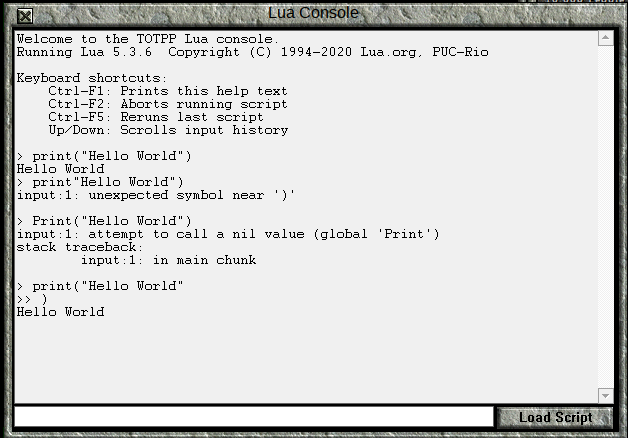
*This image demonstrates:
- A correct
print("Hello World")command. - A syntax error from
print"Hello World"), because the opening parenthesis is missing. - A "nil value" error from
Print("Hello World"), because Lua is case-sensitive and does not recognizePrintwith a capital 'P'.*
Test your understanding!
You want to write a script that greets the user and then states a famous Factorio motto. You write the following code:
print("Welcome, engineer.)
Print("The factory must grow.")
What will happen when you run this script? Will it work? If not, why?
Show answer
It will not work and will produce an error. There are two mistakes:
- In the first line,
print("Welcome, engineer.), the opening quote is a double quote (") but the closing quote is a single quote (') followed by a parenthesis. The string is not properly closed with a matching double quote before the parenthesis. It should beprint("Welcome, engineer."). - In the second line,
Print("The factory must grow."), the function namePrintstarts with a capital letter. Lua is case-sensitive, so the correct function name isprint.
Conclusion
In this lesson, you've crossed a major milestone. You've gone from having a blank editor to writing and running a real program that produces output.
Here are the key takeaways:
- The
print()function is used to display text and other values in the console. - Text data is called a string and must be enclosed in matching double
"or single'quotes. - Lua is case-sensitive, so
printis not the same asPrint. - You can run your currently open Lua file in VS Code using the
Ctrl+Shift+Bshortcut.
You now have the most fundamental skill in programming: making the computer display information. This is essential for testing your code and seeing the results of your work.
Preview of the next lesson: In our next session, we'll learn how to store information for later use. We will explore variables, which act as containers for data like numbers and strings. This will allow our programs to become much more dynamic and useful.