Introduction
In our last lesson, we focused on curating a clean, logical commit history using git rebase --interactive. You learned how to squash, reword, and reorder commits to tell a clear story, which is essential before opening a pull request.
This lesson addresses the next logical question: what do you do with a single, perfectly crafted commit that needs to exist in more than one place? Imagine you've fixed a critical bug on your main development branch, but that fix is also needed immediately in a stable, older release branch currently in production. You can't merge main into the release branch—it's full of unfinished features.
Today, you'll learn how to solve this exact problem. This lesson covers git cherry-pick, a command that allows you to apply a specific commit from one branch to another. This technique, often called "backporting," is a fundamental skill for managing different versions of an application, a common task in DevOps.
What is Git Cherry-Pick?
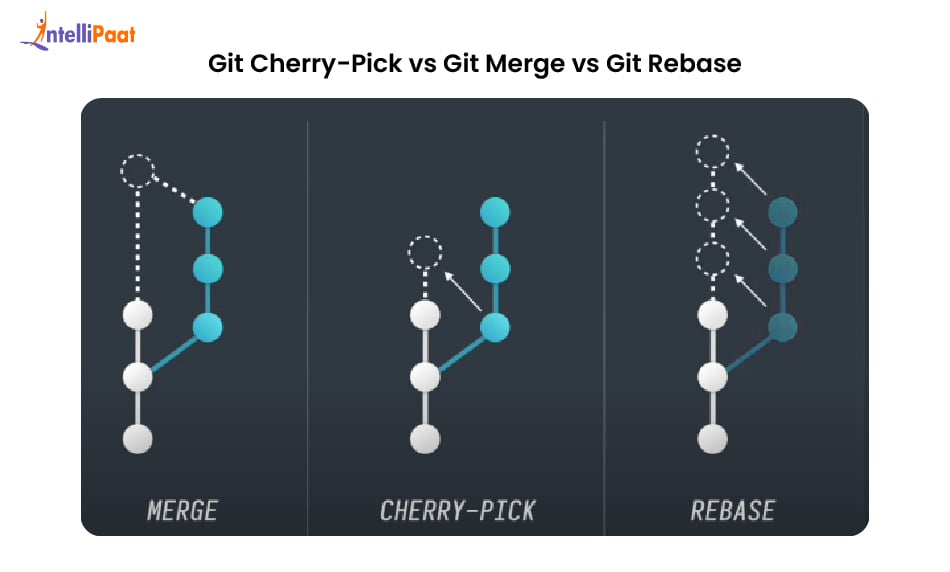
At its core, git cherry-pick takes the changes introduced by a specific commit and applies them to your current branch. Unlike git merge or git rebase, which work with entire branches, cherry-pick gives you surgical precision to select individual commits.
When you cherry-pick a commit, Git creates a new commit on the target branch. This new commit contains the exact same changes as the original, but it will have a different commit hash because it has a different parent and is part of a different history.
The following diagram provides a clear visual distinction between these operations.
To see cherry-pick in action and understand its core purpose, let's start with a short video.
This video from The Modern Coder provides a concise introduction to git cherry-pick, explaining what it is and demonstrating its primary use case.
Watch from the beginning (00:27) until 02:55. This will cover the definition of cherry-picking and walk you through a practical example of applying a bug fix from one branch to another.
The Core Use Case: Backporting a Fix
The most common and critical use for git cherry-pick in a DevOps context is backporting. This is the process of moving a specific change (like a bug fix or security patch) from a more recent branch (e.g., main or develop) to an older, stable release branch.
Let's consider a typical scenario:
- Your team is actively working on
main, which contains features for the upcoming v2.0 release. - The currently deployed application is version v1.2, which is maintained on a
release/v1.2branch. - A developer fixes a critical security vulnerability on the
mainbranch. - You need to apply this security fix to the
release/v1.2branch immediately to patch the production system.
This is the perfect scenario for cherry-pick. You can precisely select the security fix commit from main and apply it to release/v1.2 without pulling in any of the new, unstable v2.0 features.
The articles below both highlight this as a primary use case. The AlgoCademy article specifically mentions "Feature Backporting," while the OneUptime article demonstrates "Backporting Fixes to Release Branches."
The article 'Mastering Git Cherry Pick' provides a solid overview of when to use this command. We'll focus on the specific sections that define its most common applications.
Read the sections 'When to Use Git Cherry Pick' and 'Real-World Examples of Cherry Picking'. Pay special attention to the 'Feature Backport Scenario' which is directly related to our learning outcome.
A Practical Walkthrough
Let's walk through the backporting scenario step-by-step.
Step 1: Identify the Commit to Pick
First, you need the hash of the commit you want to backport. You can find this by looking at the log of the source branch.
# View the commit history of the main branch
git log main --oneline


# Example output:
# a1b2c3d (HEAD -> main) Add user profile settings
# d4e5f6a Fix critical security vulnerability in auth module <-- This is the one we want
# g7h8i9j Start work on new dashboard feature
The commit we need is d4e5f6a.
Step 2: Check Out the Target Branch
Next, switch to the branch where you want to apply the fix.
# Switch to the release branch
git checkout release/v1.2


# Ensure your branch is up-to-date with the remote
git pull origin release/v1.2
Step 3: Execute the Cherry-Pick
Now, use the git cherry-pick command with the commit hash you identified. A best practice is to include the -x flag. This flag automatically appends a line to the new commit message stating (cherry picked from commit <original-hash>), which provides crucial traceability.
git cherry-pick -x d4e5f6a
Step 4: Verify and Push
Git will apply the changes and create a new commit on your release/v1.2 branch. You can verify this with git log.
git log --oneline


# Example output:
# b9c8d7e (HEAD -> release/v1.2) Fix critical security vulnerability in auth module
# ... (older commits on the release branch)
Notice the new commit hash (b9c8d7e). If you inspect the full commit message (git log -1), you will see the (cherry picked from...) line at the bottom.
Finally, push the updated release branch to the remote repository.
git push origin release/v1.2
Handling Conflicts
Cherry-picking isn't always seamless. If the code on the target branch has changed significantly since the original commit was created, you will likely encounter a merge conflict. Git will pause the cherry-pick process and ask you to resolve it.
This process is nearly identical to resolving conflicts during a merge or rebase.
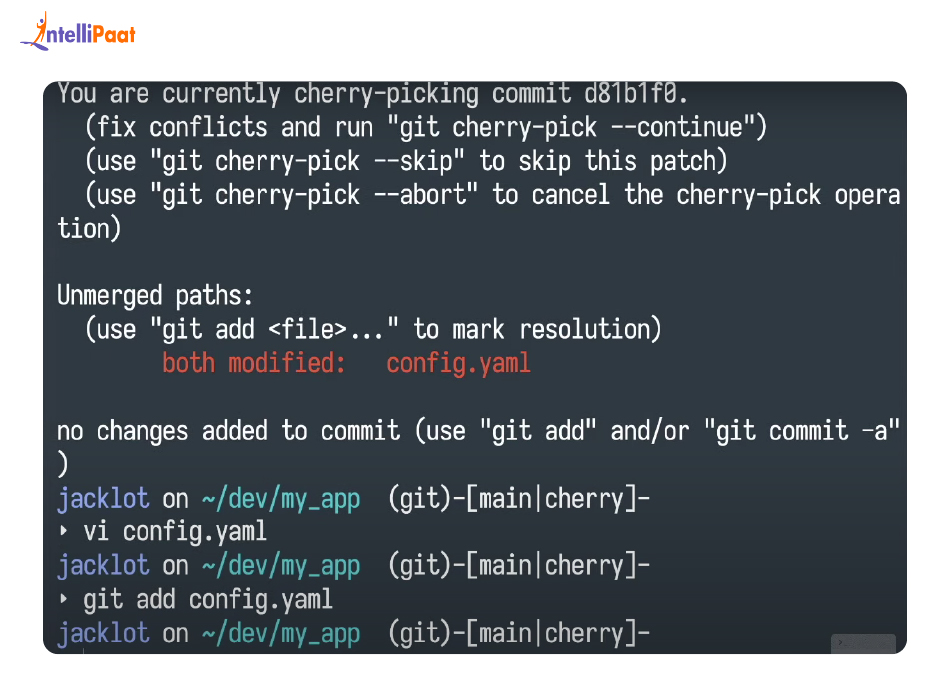
The steps to resolve a conflict are:
- Identify the conflicting files using
git status. - Edit the files to manually resolve the conflicts. You'll need to remove the
<<<<<<<,=======, and>>>>>>>markers and decide what the final code should look like. - Stage the resolved files using
git add <filename>. - Continue the cherry-pick using
git cherry-pick --continue.
If you decide the conflict is too complex or you made a mistake, you can always cancel the operation and return your branch to its original state with git cherry-pick --abort.
The following video provides a detailed, practical walkthrough of this exact process.
Resolve Git Cherry Pick Merge Conflicts
This video, also from The Modern Coder, is a dedicated guide to resolving conflicts that arise during a cherry-pick. It clearly demonstrates how to identify, fix, and continue the operation.
Watch from 00:32 to 04:34. This covers identifying the conflict, manually editing the file to resolve it, and using --continue to finalize the cherry-pick.
Behavioral Interview Tip: Articulating Your Work
In a DevOps interview, you might be asked to describe how you've handled a critical incident. Being able to explain a process like backporting demonstrates both your technical competence and your understanding of operational stability.
Question: "Describe a time you had to deploy an urgent fix to a production environment. What was your process?"
You can use the STAR method to structure your answer:
- Situation: "A critical security vulnerability was discovered in our production application, which was running on a stable
release/v1.2branch. The fix had already been implemented on themainbranch, which contained new, un-tested features for the next major release." - Task: "My task was to deploy the security fix to production immediately without introducing any of the unstable code from
main." - Action: "I identified the specific commit containing the fix on the
mainbranch. I then checked out a new hotfix branch fromrelease/v1.2and usedgit cherry-pick -x <commit-hash>to backport the fix. The-xflag ensured we had a clear audit trail in our history. After the commit was applied, our CI pipeline automatically ran a regression test suite against the hotfix branch." - Result: "The tests passed, and after a code review, the hotfix branch was merged into
release/v1.2and deployed to production, successfully patching the vulnerability within an hour of its discovery. The cherry-pick approach allowed us to act with surgical precision, ensuring production stability while maintaining a clear and traceable commit history."
Conclusion
You have now added another powerful tool to your advanced Git toolkit. While rebase helps you craft the perfect commit, cherry-pick allows you to move that commit to where it's needed most.
Key Takeaways:
git cherry-pickapplies the changes from a specific commit to your current branch, creating a new commit.- Its primary use case is backporting critical fixes or security patches from a development branch to a stable release branch.
- Always use the
-xflag when backporting to maintain a clear audit trail of where the commit originated. - Be prepared to handle merge conflicts using the standard
git addandgit cherry-pick --continueworkflow.
Preview of the Next Lesson:
We've now covered how to fix history (rebase) and how to move a fix across branches (cherry-pick). But what if you know a bug exists, but you have no idea which of the last 100 commits introduced it? Manually checking them would be a nightmare. In our next lesson, we'll explore git bisect, a powerful command that automates the process of finding the exact commit that introduced a bug.