Hello! In our last session, you mastered using the fetch API to request data from a server and learned the crucial pattern for handling both network and HTTP errors. We ended with a Response object and called the .json() method on it, which promised to give us usable JavaScript data.
Today, we'll dive into what that data actually is. This lesson focuses on interpreting the structure of JSON (JavaScript Object Notation), the universal format for data on the web. You will learn how to read its structure and, most importantly, how to access the specific pieces of information you need from it. For a Design Engineer, this skill is the equivalent of reading a blueprint. It allows you to understand the data model you're working with so you can correctly map it to the UI components you've designed in Figma.
From Server Object to Client Object: The Role of JSON
When a server sends data to your application, it can't just send a native object from its own programming language (like Python or Java). Instead, it needs a universal, text-based format that any client—be it a web browser, a mobile app, or another server—can understand. That format is JSON.
The process typically looks like this:
- Server: Has data stored as an object.
- Serialization: The server converts this object into a JSON string (a process called
stringifying). - Transmission: This string is sent across the internet in an HTTP response.
- Client: Your browser receives this JSON string.
- Deserialization: You use a method like
response.json()(which usesJSON.parse()under the hood) to convert the string back into a usable JavaScript object.
This flow is visualized perfectly in the diagram below.
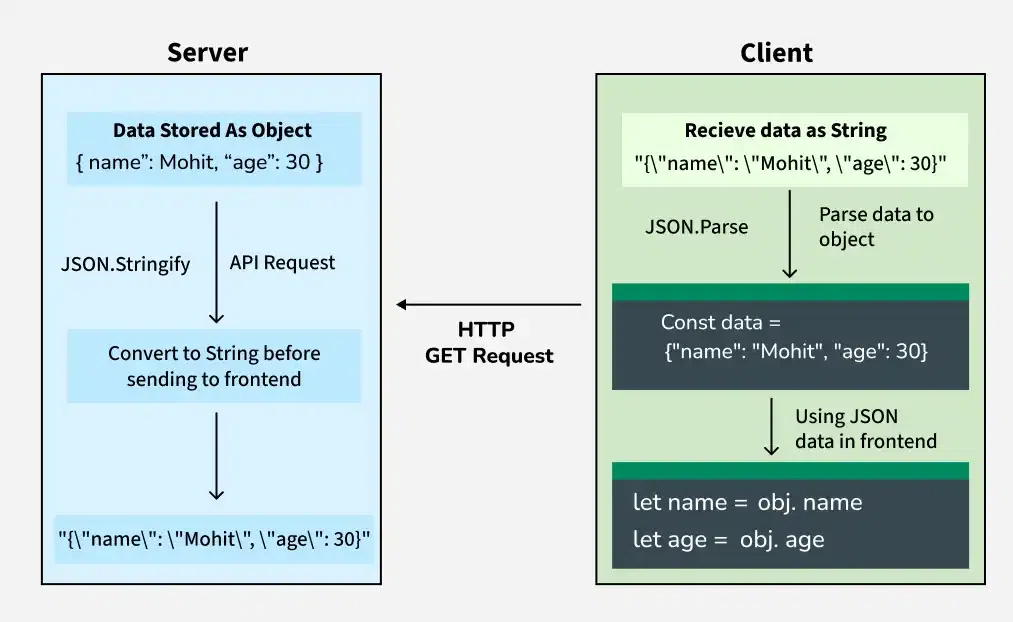
Let's get a formal definition and overview of what JSON is and why it's so fundamental.
Working with JSON - Learn web development | MDN
This MDN article provides a great introduction to JSON. It explains its purpose and relationship to JavaScript objects.
Please read the introduction and the section titled "No, really, what is JSON?". This will solidify your understanding of JSON as a text-based format for representing structured data.
The Anatomy of a JSON Response
Now that you know what JSON is for, let's look at its structure. At its core, JSON is built on two simple ideas:
- A collection of key/value pairs (which we know as an object).
- An ordered list of values (which we know as an array).
The video below gives a quick and clear walkthrough of the basic data types and syntax rules you'll encounter.
This video from Web Dev Simplified breaks down the syntax of JSON into easy-to-understand parts.
Watch the segment from this timestamp. It covers the six supported data types (strings, numbers, booleans, null, arrays, objects) and shows how to combine them to build a complex, nested JSON structure. Pay close attention to the syntax rules, especially the use of double quotes for all keys.
Let's examine a rich example that includes objects, arrays, and nested data. This is exactly the kind of structure you'd expect from a real-world API.
Working with JSON - Learn web development | MDN
We'll return to the MDN article to look at a detailed example and the specific rules of JSON syntax.
Please read the sections on JSON structure, Arrays as JSON, and the critical syntax restrictions. As you read through the "superHeroes" example, try to identify the different data types: The top-level element is an object. squadName is a string. formed is a number. active is a boolean. members is an array of objects. powers is an array of strings.
Accessing Specific Data Points
This is the most critical part of the lesson. Once you call await response.json(), you get a JavaScript object or array. How do you pull out the specific values you need to display in your UI?
You use a combination of dot notation for objects and bracket notation for arrays.
Let's use the superHeroes object from the MDN article as our example data. Assume we've fetched it and parsed it into a variable named superHeroes.
-
To get a simple property from the top-level object: Use dot notation.
const town = superHeroes.homeTown; // "Metro City" -
To get an item from an array: Use bracket notation with the item's index (starting from 0).
const firstHero = superHeroes.members[0]; // The object for "Molecule Man" -
To get a property from a nested object: Chain the notations together.
const firstHeroName = superHeroes.members[0].name; // "Molecule Man" -
To get an item from a nested array: Continue chaining!
const madameUppercutSecondPower = superHeroes.members[1].powers[1]; // "Damage resistance"
This process of "drilling down" into the data is fundamental. The following image from a browser's developer console shows a developer doing exactly this to access a deeply nested value.

The following video provides another excellent demonstration of this process.
JSON Tutorial - Learn in 15 Minutes
This video by Austin Davis clearly demonstrates how to access data within different JSON structures.
First, watch the demonstration of accessing properties from a single, nested object. Then, watch the example of accessing data from an array of objects. This reinforces how to combine dot and bracket notation effectively.
Application in AI Supervision
Now, let's bring this back to your goal of becoming a Design Engineer who supervises AI. When you ask Cursor to build a component that displays data from an API, it will generate code that accesses properties from a JSON response. Your job is to verify that this code is correct.
Imagine an API for random advice gives this JSON response:{"slip": { "id": 129, "advice": "Stop procrastinating."}}
Cursor generates the following code to display the advice:adviceElement.innerHTML = data.slip.advice;
Is this correct?
Yes. data is the parsed object. You use dot notation to get the slip object inside it. Then you use dot notation again to get the advice string from within slip.
This is the kind of rapid verification you'll be doing constantly. The article below provides another practical example of this exact workflow.
API Integration Guide for Frontend Developers
This guide from Frontend Mentor provides a concise, real-world example of fetching data from the Advice Slip API and using it in the UI.
Focus on the section that shows the API response and the corresponding JavaScript code. Notice how the code uses data.slip.id and data.slip.advice to access the nested values from the parsed JSON. This is a perfect, minimal example of the skill you are learning today.
Conclusion
In this lesson, you've demystified the data that comes back from an API. You now understand what JSON is, how it's structured, and how to write the code to extract the exact pieces of information you need. This is a foundational skill that bridges the gap between raw data and the polished user interfaces you design.
Key Takeaways:
- JSON is the standard text-based format for transmitting structured data between a server and a client.
- Data is stringified on the server and parsed (
response.json()) back into a JavaScript object/array on the client. - You navigate parsed JSON data using a combination of:
- Dot notation (
object.property) to access properties of an object. - Bracket notation (
array[index]) to access elements of an array.
- Dot notation (
- Mastering this allows you to accurately map data to your UI and effectively supervise AI-generated code.
In our next lesson, we'll address a critical piece of user experience. Now that you can fetch and access data, what should the user see while the data is being fetched? We'll dive into implementing loading and empty states, applying your UX skills directly to code.