Hello! Let's continue building our movie search application.
In our last lesson, we refactored our app to use the "lifting state up" pattern. The parent App component now acts as the single source of truth for the search query, passing the state and a setter function down to our new SearchBox component. This is a great step towards a clean and scalable architecture.
However, our app is still missing a crucial piece of user experience (UX). When a user searches, the screen might be blank for a moment, and if something goes wrong with the API call, the app fails silently. A professional application should always communicate its status to the user.
That brings us to our learning outcome for this lesson: Implement loading and error states to provide user feedback during API calls. We will add logic to track when the app is fetching data and when an error has occurred, and then display appropriate messages to the user.
Why We Need Loading and Error States
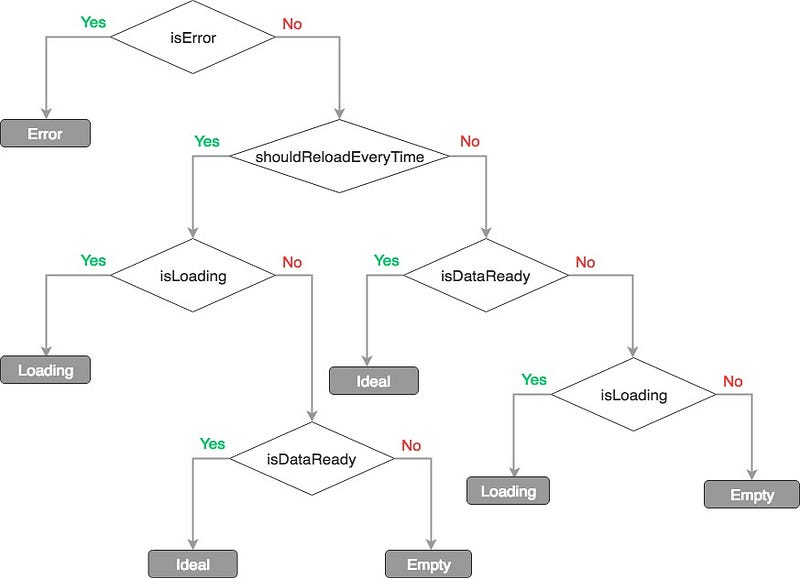
Every time our application requests data from an external API, it enters a brief period of uncertainty. The network could be slow, the API server might be down, or the requested data might not exist. To create a good user experience, we need to handle these three primary states of data fetching:
- Loading: The request is in progress. We should show an indicator (like a spinner or "Loading..." text) to let the user know the app is working.
- Success: The data has been fetched successfully. We can now render the movie list as intended.
- Error: The request failed. We must inform the user that something went wrong and, if possible, what the error was.
This flow ensures the user is never left staring at a blank or unresponsive screen, wondering what's happening.
Step 1: Implementing the Loading State
Let's start by adding a loading indicator. This involves adding a new piece of state to our App component and using conditional rendering in our JSX.
First, add a loading state to your App.js file. We'll initialize it as true to show the loading indicator on the initial page load, and then set it to false once the first batch of movies is fetched.
// src/App.js
const App = () => {
    // ... other states
    const [movies, setMovies] = useState([]);
    const [searchValue, setSearchValue] = useState('');
    const [loading, setLoading] = useState(true); // Add this state

    // ...
};
Next, we need to update our API fetching logic to manage this state.
- Set
loadingtotrueright before you initiate a new search. - Set
loadingtofalseafter the data has been successfully fetched and themoviesstate has been updated.
Let's modify the useEffect hook and the function that handles searching. Since you're using async/await from previous lessons, we'll continue with that pattern. Your getMovieRequest function might look something like this now:
// src/App.js

// ... inside the App component

const getMovieRequest = async (searchValue) => {
    setLoading(true); // Start loading
    const url = `http://www.omdbapi.com/?s=${searchValue}&apikey=YOUR_API_KEY`;

    const response = await fetch(url);
    const responseJson = await response.json();

    if (responseJson.Search) {
        setMovies(responseJson.Search);
    }
    setLoading(false); // Stop loading
};

useEffect(() => {
    getMovieRequest(searchValue);
}, [searchValue]);
Finally, we use conditional rendering in our JSX to display a message while loading is true.
// src/App.js -> inside the return statement

<div className='row'>
    {loading ? (
        <p>Loading...</p>
    ) : (
        <MovieList movies={movies} />
    )}
</div>
With this change, your app will now display "Loading..." while fetching movies, which is a significant UX improvement.
Step 2: Implementing the Error State
Now, let's handle failures. There are two main types of errors we need to catch:
- Network Errors: The
fetchcall itself fails (e.g., the user is offline). Thefetch()promise will reject in this case. - HTTP Errors: The server responds, but with an error status (e.g., 404 Not Found, invalid API key). The
fetch()promise will resolve, but theresponse.okproperty will befalse.
To manage these, we'll add an error state and wrap our fetch logic in a try...catch block.
First, add the new state to App.js:
// src/App.js
const App = () => {
    // ... other states
    const [loading, setLoading] = useState(true);
    const [error, setError] = useState(null); // Add this state

    // ...
};
Now, let's make our getMovieRequest function more robust.
// src/App.js

const getMovieRequest = async (searchValue) => {
    setLoading(true);
    setError(null); // Reset error state on new search

    const url = `http://www.omdbapi.com/?s=${searchValue}&apikey=YOUR_API_KEY`;

    try {
        const response = await fetch(url);
        // Check for HTTP errors
        if (!response.ok) {
            throw new Error(`HTTP error! status: ${response.status}`);
        }
        const responseJson = await response.json();

        // The OMDB API returns an error message in the JSON body for bad searches
        if (responseJson.Response === 'True') {
            setMovies(responseJson.Search);
        } else {
            // This handles cases like "Movie not found!"
            throw new Error(responseJson.Error);
        }
    } catch (e) {
        // This catches network errors and thrown errors
        setError(e.message);
    } finally {
        // This block runs regardless of success or failure
        setLoading(false);
    }
};
Key Changes:
- We wrap the core logic in a
try...catch...finallyblock. setError(null)is called at the beginning of each request to clear any previous errors.- We check
if (!response.ok)to catch server-side errors thatfetchdoesn't automatically reject. - We check
responseJson.Response === 'True'because the OMDB API has its own way of reporting errors (like "Movie not found!"). If the response isn't "True", we treat it as an error. - Any error caught will update our
errorstate viasetError(e.message). - The
setLoading(false)call is moved to afinallyblock to ensure the loading indicator is turned off even if an error occurs.
To learn more about handling different types of fetch errors, the following video provides a clear breakdown.
Full React Tutorial #19 - Handling Fetch Errors
The video 'Full React Tutorial #19 - Handling Fetch Errors' by Net Ninja does an excellent job of distinguishing between network errors and HTTP errors, which is a common point of confusion when using fetch.
Watch the video from the beginning until 7:39. Pay close attention to how it uses a .catch() block for network errors and then adds a check for response.ok to handle server errors. This is the same logic we are implementing with async/await and try...catch.
Step 3: Bringing It All Together in the UI
Now that we have loading and error states, we can create a more sophisticated conditional rendering logic in our App.js JSX. The render order matters: first check for loading, then for an error, and finally, display the movies.
The following article provides a complete, practical example of how to structure the state and the JSX for this exact scenario.
How to build a movie search app using React Hooks
The article 'How to build a movie search app using React Hooks' by Ohans Emmanuel provides a fantastic walkthrough that closely matches our project. It demonstrates how to manage loading, error, and data states together.
First, read the section starting with 'Finally, we will update the App.js file...'. This section (section 2) shows the complete code for an App component with loading, movies, and errorMessage states, and how they are used in the JSX. Then, look at the CSS styles in the section starting with 'And also update our App.css with these styles...' (section 1), specifically for the .errorMessage class, which you can add to your App.css.
Based on the article's approach, your rendering logic can be updated to handle all three states:
// src/App.js -> inside the return statement

<div className='row'>
    {loading && !error ? (
        <span>Loading...</span>
    ) : error ? (
        <div className='errorMessage'>{error}</div>
    ) : (
        <MovieList movies={movies} />
    )}
</div>
Make sure to add the corresponding .errorMessage style from the article to your App.css file to make the error message stand out.
Test your understanding!
What would happen if you structured your conditional rendering like this?
<div className='row'>
    {movies.length > 0 ? (
        <MovieList movies={movies} />
    ) : loading ? (
        <span>Loading...</span>
    ) : (
        <div className='errorMessage'>{error || 'No movies found.'}</div>
    )}
</div>
Consider what the user would see on the initial page load.
Show answer
On the initial page load, movies is an empty array ([]), so movies.length > 0 is false. The component would then check loading, which is true, and correctly display "Loading...".
However, the logic has a flaw. If a search yields no results, movies will be empty and loading will be false. The app would then fall through to the final condition and display an error message, even though no actual error occurred. The original structure (loading -> error -> data) is more robust because it handles each distinct state in a clear, prioritized order.
An Alternative: useReducer for Complex State
As you've seen, we now have three useState hooks (movies, loading, error) that are all related to a single action: fetching data. When state logic becomes more complex and intertwined, a hook called useReducer can be a cleaner and more scalable alternative.
useReducer lets you consolidate related state updates into a single function (a "reducer"). You don't need to implement this now, but it's an important pattern to be aware of as you build larger applications. The same article you just read has an excellent section on refactoring from useState to useReducer. I highly recommend reviewing it to see what a more advanced state management pattern looks like. You can find this in section 3 of the medium.com resource (LINK).
Conclusion
Great work! Your movie search application is now much more robust and user-friendly. By providing clear feedback during API calls, you've taken a big step towards building a professional-quality web application.
Key Takeaways:
- Three Core States: Always consider the loading, success, and error states when dealing with asynchronous operations.
- State Management: Use
useStateto create booleanloadingand string/nullerrorstates to track the status of your API calls. - Robust Fetching: Use
try...catchwithasync/await(or.catch()with.then()) to handle both network and HTTP errors gracefully. Remember to check theresponse.okproperty! - Conditional Rendering: Structure your JSX to render different UI based on the current state, prioritizing the loading and error states before attempting to render data.
In our next lesson, we will add the final feature to our mid-course project: persisting application state across browser sessions by saving and loading data from localStorage. This will allow users to save their favorite movies and see them again even after closing the browser tab.