Hello! In our last lesson, we transformed our movie search application with a polished and responsive user interface, making it look and feel like a professional product. You now have a great-looking app, but there's one significant problem: if you select your favorite movies and then refresh the page, your selections are gone.
This happens because React's state, managed by the useState hook, is stored in memory and resets every time the application reloads. To solve this, we need a way to persist data on the user's computer between sessions.
This lesson addresses the final learning outcome for our mid-course project: add a feature to save favorite movies to localStorage. We will explore the browser's localStorage API to make our "favorites" list persistent, ensuring users don't lose their selections when they close or refresh the browser tab.
The Problem: In-Memory State
Before we dive in, it's crucial to understand why our state disappears.
Save State to LocalStorage & Persist on Refresh with React.js
This brief video from Colby Fayock explains why React state is lost on refresh and introduces localStorage as the solution.
Watch from 01:14 to 01:40 to get a clear, concise explanation of the problem we're solving today.
As the video explains, we need a storage mechanism that lives outside of our application's memory. localStorage is perfect for this.
What is localStorage?
localStorage is a web storage API that allows you to save key-value pairs in a web browser with no expiration date. The data will persist even after the browser window is closed.
You can interact with it using a few simple methods:
localStorage.setItem(key, value): Saves a value associated with a key.localStorage.getItem(key): Retrieves the value for a given key.localStorage.removeItem(key): Deletes a key-value pair.
However, there's a catch: localStorage can only store strings. Our favorites list is an array of objects. To handle this, we must convert our array to a string before saving it and parse it back into an array when we retrieve it. For this, we use two built-in JavaScript functions:
JSON.stringify(object): Converts a JavaScript object or array into a JSON string.JSON.parse(string): Parses a JSON string, constructing the JavaScript value or object described by the string.

Step 1: Saving Favorites to localStorage
Let's start by modifying our application to save the favorites list whenever a new movie is added. We will update our addFavouriteMovie function to not only update the state but also write that new state to localStorage.
The following video provides a practical walkthrough of this exact process within a movie app context.
Watch this segment from the 'React Movie App Tutorial' by Chris Blakely to see how to implement the saving functionality. It demonstrates creating a save function and calling it after a favorite is added.
Watch from 28:48 to 39:56. Pay close attention to: The creation of the saveToLocalStorage function. The use of JSON.stringify() to convert the favorites array into a string. How to use the browser's developer tools to inspect localStorage and confirm your data is being saved.
To apply this to your project, follow these steps in your main App.jsx file:
-
Create a helper function to save data. This keeps your code organized.
const saveToLocalStorage = (items) => {
    localStorage.setItem('react-movie-app-favourites', JSON.stringify(items));
};
Note: Using a specific key like
'react-movie-app-favourites'prevents conflicts with other applications that might also uselocalStorageon the same domain. -
Call this function in
addFavouriteMovie.const addFavouriteMovie = (movie) => { const newFavouriteList = [...favourites, movie]; setFavourites(newFavouriteList); saveToLocalStorage(newFavouriteList); // Add this line };
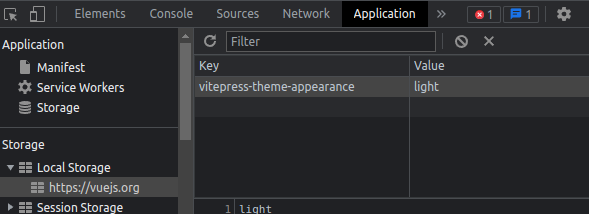
Now, when you add a movie to your favorites, the updated list is immediately saved as a string in localStorage. You can verify this by opening your browser's developer tools, going to the Application tab, and selecting Local Storage.
Step 2: Loading Favorites on Application Start
Saving the data is only half the solution. We also need to retrieve it when the application first loads. To do this, we'll use a useEffect hook with an empty dependency array ([]), which ensures the code inside runs only once when the component mounts.
This next clip from the same tutorial shows how to load the data from localStorage when the app starts.
Watch from 39:56 to 41:47. Focus on how a useEffect hook is used to: Get the item from localStorage using the same key. Use JSON.parse() to convert the string back into an array. Update the favorites state with the loaded data.
Here is the useEffect hook you'll add to your App.jsx:
// In App.jsx, add this useEffect hook
useEffect(() => {
    const movieFavourites = JSON.parse(
        localStorage.getItem('react-movie-app-favourites')
    );

    // It's good practice to check if movieFavourites is not null
    // in case localStorage is empty on the first visit.
    if (movieFavourites) {
        setFavourites(movieFavourites);
    }
}, []); // Empty dependency array means this runs only once on mount
With this in place, refresh your application. You should see your favorited movies appear immediately, loaded directly from localStorage!
Test your understanding!
What would happen if you tried to set the state directly with the string from localStorage.getItem() without using JSON.parse()? For example: setFavourites(localStorage.getItem('...')). What kind of error might you see in your MovieList component, which expects movies to be an array?
Show answer
If you pass a string to setFavourites, your favorites state variable will become a string instead of an array. Your MovieList component, which likely uses favorites.map(...) to render the movies, would then crash. The .map() method only exists on arrays, so calling it on a string would throw an error like favorites.map is not a function. This is why JSON.parse() is essential.
Step 3: Persisting Favorite Removals
Our feature is almost complete. The last step is to ensure that when a user removes a movie from their favorites, that change is also saved. The logic is identical to adding a favorite: after updating the state, we save the new state to localStorage.
Finally, let's see how to update localStorage when a favorite is removed.
Watch from 41:47 to 42:34. This short clip shows the final step: calling the saveToLocalStorage function inside the removeFavouriteMovie function.
Update your removeFavouriteMovie function in App.jsx:
const removeFavouriteMovie = (movie) => {
    const newFavouriteList = favourites.filter(
        (favourite) => favourite.imdbID !== movie.imdbID
    );

    setFavourites(newFavouriteList);
    saveToLocalStorage(newFavouriteList); // Add this line
};
That's it! Your favorites feature now fully persists across browser sessions.
For a complete text-based reference of all the code changes we made, you can review the final section of the freeCodeCamp article that accompanies the video tutorial.
React Movie App Tutorial - Build A Fun Portfolio Project ...
This article, 'How to Save or Remove Movies from Local Storage', provides the final code for the App component, integrating all the localStorage logic for adding, removing, and loading favorites.
Read the section titled 'How to Save or Remove Movies from Local Storage'. Compare the final code block with your own to ensure you've implemented everything correctly.
Conclusion
Congratulations on completing the mid-course project! You've successfully built a functional, stylish, and now persistent movie search application. By adding localStorage, you've learned a fundamental technique for improving user experience by preserving application state on the client side.
Key Takeaways:
- React state is ephemeral. It is lost on page refresh.
localStorageprovides simple client-side persistence for storing data as key-value pairs.- Data stored in
localStoragemust be a string. UseJSON.stringify()to save objects/arrays andJSON.parse()to retrieve them. - Use a
useEffecthook with an empty dependency array ([]) to load data fromlocalStoragewhen the component first mounts. - Always update
localStoragewhenever the state it's supposed to persist changes (e.g., after adding or removing a favorite).
With this project complete, you have a solid foundation in React fundamentals. In the next module, "Advanced React: Routing and State Management," we'll start by learning how to create multi-page applications using React Router. This will enable us to build more complex UIs with distinct pages and navigation, all without the browser doing a full-page reload.