Introduction
In our last lesson, we focused on the crucial first step of any data science project: translating a broad business question into a specific, measurable problem statement. Now that we have a clear idea of what we want to solve, it's time to move from planning to execution. This lesson marks our transition into hands-on coding, where we'll start working with the raw material of data science: the data itself.
Today, we'll dive into the pandas library, the most essential tool for data manipulation in Python. You'll learn how to load a dataset from a standard CSV file into a pandas DataFrame, which is the primary data structure you'll be using throughout this course. We will then cover the fundamental techniques for performing an initial inspection to understand the structure and content of your data—a critical step before any analysis can begin.
From Raw File to Structured Data
At its core, a CSV (Comma-Separated Values) file is just a plain text file where values are separated by commas. While readable by humans, this format isn't suitable for complex analysis. This is where pandas comes in. Its primary function is to parse this raw text and load it into a highly optimized, table-like structure called a DataFrame.
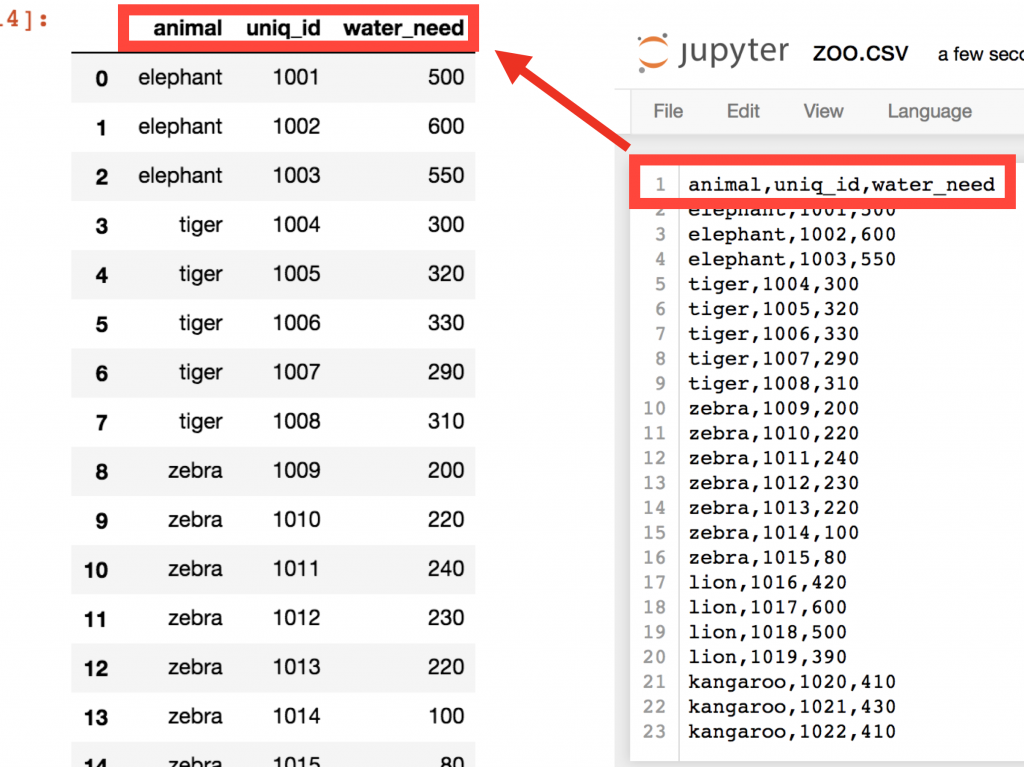
Think of a DataFrame as a smart spreadsheet inside your Python environment, with rows and columns that you can easily manipulate. The image below shows a raw zoo.csv file on the right and the resulting pandas DataFrame on the left. Notice how pandas automatically identifies the first line as the header and uses it to create column names, while also adding a numerical index for the rows.
Loading Your First CSV with Pandas
To begin, you first need to import the pandas library. The community standard is to import it with the alias pd, which you'll see in virtually all data science code.
import pandas as pd
The primary function for loading data from a CSV file is pd.read_csv(). In its simplest form, it takes one argument: the path to the file you want to open.
A common stumbling block when specifying file paths on Windows is the backslash character (\), which can be misinterpreted by Python. In the following video, Alex The Analyst demonstrates a simple and robust way to handle this by prefixing the file path string with an r. This tells Python to treat the string as a "raw" string, ignoring any special characters. He also introduces the standard convention of assigning the newly created DataFrame to a variable, most commonly named df.
Reading in Files in Pandas | Python Pandas Tutorials
This video provides a practical demonstration of loading a CSV file, including a crucial tip for handling file paths correctly.
Please watch these two short segments: Reading a CSV: Watch from the beginning to the first successful load. Pay close attention to how he copies the file path and uses the r'' format to prevent a UnicodeError. Assigning to a Variable: Next, watch the brief clip from assigning to a variable to understand the convention of storing the loaded data in a df variable for future use.
Initial Inspection: What's in the Data?
Once your data is loaded into a DataFrame, the immediate next step is to perform an initial inspection. You need to answer some basic questions before you can proceed with any analysis:
- What do the first few rows look like?
- How large is the dataset (how many rows and columns)?
- What are the column names?
- What data types are in each column (numbers, text, dates)?
- Are there any missing values?
Pandas provides a suite of simple and effective methods to answer these questions. In the next video, Rob Mulla provides a fast-paced tour of these essential inspection commands.
Learning Pandas for Data Analysis? Start Here.
This clip from "Learning Pandas for Data Analysis? Start Here." is a fantastic, high-level overview of the most common methods for exploring a new DataFrame.
Watch the segment from data inspection. As you watch, take note of the function or attribute used to answer each of the following questions: How do you see the first or last few rows? (.head(), .tail()) How do you see a random selection of rows? (.sample()) How do you get a list of all column names? (.columns) How do you get a technical summary of the DataFrame? (.info()) How do you get basic summary statistics for numerical columns? (.describe()) How do you find the dimensions (rows, columns) of the DataFrame? (.shape)
These commands form the foundation of your initial exploratory workflow. You will find yourself using df.head(), df.shape, and df.info() on nearly every dataset you encounter.
Now that you've seen these methods in action, let's solidify your understanding with a quick reading that provides code examples you can reference.
This article provides clear, concise code examples for the inspection techniques we've just discussed. It serves as an excellent practical reference.
Please read the first three sections of the article to reinforce what you learned from the video: Loading in the data: This section recaps the import pandas as pd and pd.read_csv() steps. Checking the shape and size: This covers using .shape, len(), and .size to understand the dimensions of your data. Viewing the data: Here you'll find examples of using .head(), .tail(), and .sample() to preview the data content.
A Glimpse into Advanced Loading
The pd.read_csv() function is incredibly versatile, with dozens of optional parameters that give you fine-grained control over the data loading process. While we won't cover them all now, it's useful to be aware of a few powerful options that you will certainly use in more complex, real-world scenarios.
Read csv file using Pandas read_csv (pd.read_csv)
This article from PyImageSearch highlights some practical, advanced features of pd.read_csv().
Skim through the section on Practical Tips, focusing on two parameters: usecols: This allows you to load only a specific subset of columns from a file. This is extremely useful for memory efficiency when working with very wide datasets where you only need a few columns. index_col: This lets you specify one of the columns in the CSV to be the DataFrame's index (the row labels). This is common when your data includes a unique identifier for each row, like a user_id or transaction_id.
Knowing these options exist will be valuable as you encounter larger and more complex datasets. We will revisit them in future lessons as the need arises.
Conclusion
Congratulations on completing your first hands-on data science lesson! You've successfully bridged the gap from conceptual planning to practical execution by loading and inspecting a dataset. This is the starting point for every data analysis project.
Here are your key takeaways from this lesson:
- The DataFrame is Central: The pandas DataFrame is the primary data structure for data analysis in Python, representing data in a familiar row-and-column format.
- Loading is Easy: The
pd.read_csv('file/path.csv')function is your gateway to importing data. Remember to assign the output to a variable, likedf. - Inspect First, Analyze Second: Always begin by using inspection methods to understand your data. The most critical commands for this are:
df.head()to preview the first few rows.df.shapeto get the number of rows and columns.df.info()to see column names, data types, and null counts.
In our next lesson, we will build directly on this foundation. Now that we have data loaded into a DataFrame, you'll learn how to select, filter, and sort it. This will allow you to isolate specific rows and columns, creating the precise subsets of data needed to answer your analytical questions.