Hello! Welcome to your next lesson in the "Applying AI Builder Models" module.
In the previous lesson, we established a framework for selecting the right AI Builder model for a given business problem. You learned to differentiate between prebuilt and custom models and how to map a business need to one of the four main data categories: Documents, Text, Structured Data, or Images.
Today, we move from theory to practice. Your learning outcome is to create and train a custom AI Builder form processing model to extract data from documents. This is one of the most common and powerful use cases for AI Builder, allowing you to automate tedious data entry from sources like purchase orders, inspection forms, or, as we'll see today, invoices.
For a developer, this skill is equivalent to building a specialized data ingestion service, but instead of parsing a structured format like JSON or XML, you're teaching a model to parse semi-structured visual documents. This lesson will walk you through the entire lifecycle: from creating the model and defining your data schema to training, testing, and publishing.
1. Choosing the Right Document Processing Engine
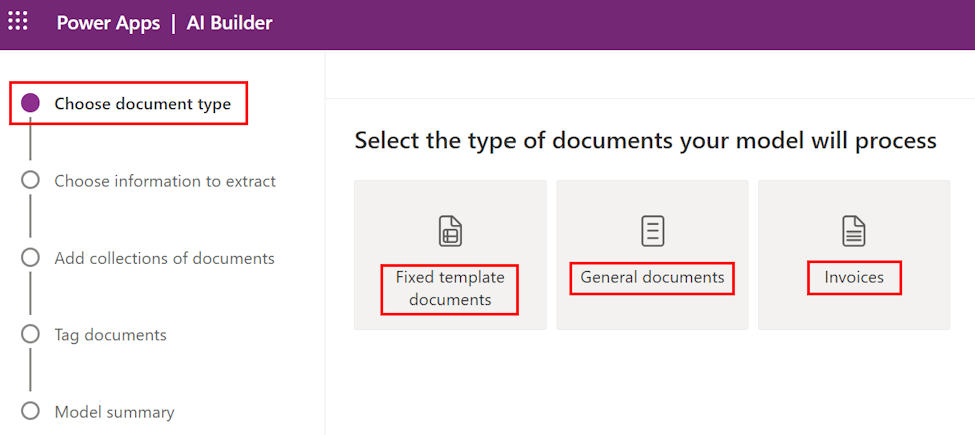
Before you begin building, AI Builder asks you to make a crucial decision about the nature of the documents you'll be processing. This choice optimizes the underlying engine for your specific use case.
Create a document processing custom model in AI Builder
The official Microsoft Learn documentation, 'Create a document processing custom model', clearly explains the three main options. Understanding this is the first step in building an effective model.
Please read the section titled 'Select the type of document'. Focus on the descriptions for 'Fixed template documents', 'General documents', and 'Invoices' to understand the trade-offs.
To summarize the key points:
- Fixed template documents: Use this when your documents have very consistent layouts (e.g., internal forms, documents from a single source). It trains faster but is less flexible.
- General documents: This is the most powerful and flexible option. Use it when you need to process documents with varying layouts (e.g., invoices from multiple vendors) or complex structures. It takes longer to train but yields a more robust model. For most real-world scenarios involving external documents, this is the recommended choice.
- Invoices: This is a specialized option that lets you extend the prebuilt invoice model. Choose this only if the prebuilt model already extracts most of what you need, and you just want to add a few custom fields (like a Project Code or Cost Center).
For the purpose of building a truly custom model from scratch, you will typically choose between Fixed template and General documents.
2. The Model Training Lifecycle
Training a custom form processing model follows a structured, wizard-driven process. Conceptually, it's an iterative cycle: define, provide data, tag, train, and test.
Step 1: Define the Information to Extract
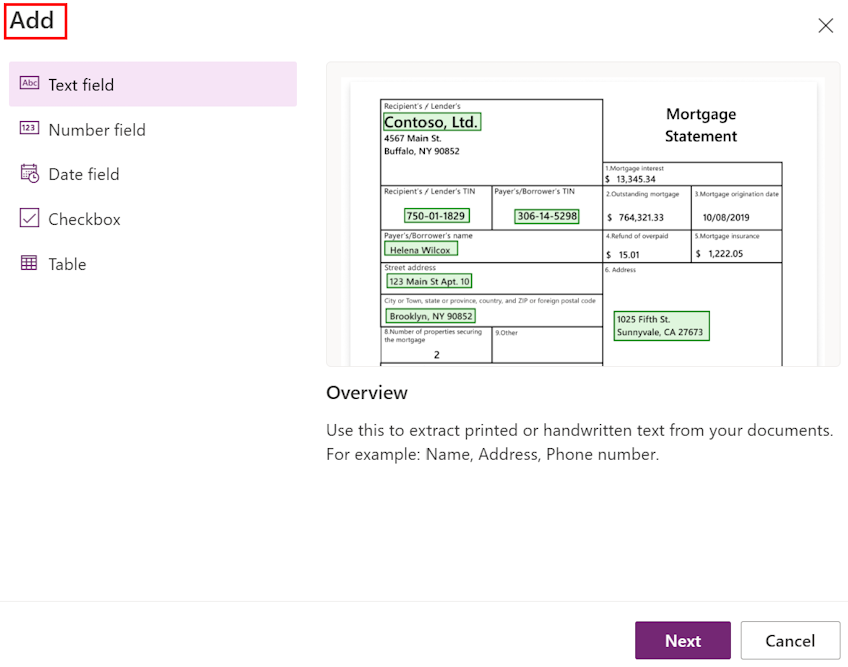
This is where you define your data schema. You tell AI Builder exactly what pieces of information—fields, tables, checkboxes—you want to extract. This is analogous to defining the properties of a C# class or the columns of a SQL table that will hold the extracted data.
Create a document processing custom model in AI Builder
This article provides more detail on defining your data schema within the AI Builder wizard.
Read the section 'Define information to extract'. Note how you can specify data types and formats (like for dates and numbers), which helps the model make more accurate extractions.
Step 2: Group Documents by Collections
This is perhaps the most important concept for training an effective model that can handle multiple document layouts. A collection is a group of documents that share the same template.
For example, if you need to process invoices from two different vendors ("Contoso" and "Fabrikam"), you would create two separate collections, one for each vendor's unique invoice layout. You must provide at least five sample documents for each collection.
Create a document processing custom model in AI Builder
The Microsoft documentation briefly introduces collections. Understanding this concept is key to building scalable models.
Read the short section 'Group documents by collections'. This sets the stage for the practical demonstration that follows.
Step 3: Upload, Tag, Train, and Test
Once your collections are defined, you'll:
- Upload your sample documents (JPG, PNG, or PDF) into the appropriate collections.
- Tag the documents. For each document, you'll draw boxes around the data and map it to the fields and tables you defined in Step 1. This is how you teach the AI what to look for and where.
- Train the model. After tagging, you'll click "Train," and AI Builder will use your examples to build the model.
- Quick Test & Publish. Once trained, you can immediately test the model with a new document (one that wasn't used in training) to see how well it performs. If you're satisfied, you publish the model to make it available for use in Power Apps and Power Automate.
3. Practical Walkthrough: Training a Multi-Layout Invoice Model
Now, let's see this entire process in action. The following video by Reza Dorrani is an excellent, concise demonstration of building a form processing model that handles invoices with different layouts using collections.
Multiple forms Processing using AI Builder (Different Layouts)
This video, 'Multiple forms Processing using AI Builder (Different Layouts)', will guide you step-by-step through creating, training, and testing a custom model.
Please watch the video from the beginning until 10:33. Focus on the following key stages: Introduction (0:00 - 3:16): Understand the business problem and how collections solve it. Model Creation and Training (3:16 - 7:45): Observe the process of creating the model, defining fields, setting up two distinct collections, uploading documents, and tagging the data. Testing and Publishing (7:45 - 10:33): See how to perform a quick test with a new document and then publish the model.
The rest of the video demonstrates how to use this model in Power Apps and Power Automate, which we will cover in detail in subsequent lessons. However, it's a great preview of how your trained model becomes a functional part of a business application.
Test your understanding!
An organization needs to automate the processing of purchase orders (POs). They primarily receive POs from three major suppliers, each with a consistent but unique PO template. Occasionally, they receive POs from new, smaller suppliers with unpredictable formats.
Based on what you've learned, how would you approach building an AI model for this scenario? Specifically:
- What document type (
Fixed templateorGeneral documents) would you choose, and why? - How would you structure your collections?
Show answer
-
Document Type: You should choose General documents. While the three main suppliers have fixed templates, the presence of unpredictable formats from new suppliers makes the
Fixed templateoption too rigid. TheGeneral documentstype is designed for this kind of structural variation and will produce a more robust and flexible model. -
Collections Structure: You should create three separate collections, one for each of the three major suppliers. You would upload at least five sample POs from each of those suppliers into their respective collections and tag them. By training the model on these well-defined layouts, you give it a strong foundation. When it encounters a new, unseen layout, the
General documentsengine will leverage what it learned from the known layouts to make an intelligent attempt at extracting the same fields (like PO Number, Date, and Line Items).
4. Best Practices and Common Pitfalls
Building a successful model goes beyond the wizard. As with any development process, quality in equals quality out. Your experience with data integrity and testing in Dynamics 365 projects is directly applicable here.
Microsoft AI Builder Guide – How to Train Custom AI Models in ...
This blog post, 'Microsoft AI Builder Guide', provides professional-level insights into the fundamentals of model training, including data preparation and avoiding common issues.
Read the sections 'AI Model Training Fundamentals in Power Platform' and 'Form Processing AI Builder Tutorial'. Pay special attention to the subsections on 'Data prep patterns by data type' and 'Common pitfalls and fixes'. These sections contain practical advice that will significantly improve your model's accuracy.
Key takeaways for high-quality models:
- Data Quality is Paramount: Use high-resolution, clear scans. Avoid skewed images, shadows, and handwritten clutter where possible.
- Be Representative: Your training data must reflect the reality of what the model will see in production. Include examples with long tables, multiple pages, and common variations (e.g., with or without tax).
- Iterate, Iterate, Iterate: Your first training attempt is rarely perfect. Use the "Quick Test" feature to identify fields with low confidence scores. Go back, add more various examples to the collection, re-tag if necessary, and retrain. Model building is an iterative process of refinement.
Conclusion
In this lesson, you've walked through the end-to-end process of creating and training a custom AI Builder form processing model. You've seen how to translate a business requirement for document automation into a tangible, intelligent component ready to be integrated into the Power Platform.
Key Takeaways:
- The training process is a structured cycle: Define fields -> Create collections -> Upload & Tag documents -> Train -> Test & Publish.
- Collections are essential for teaching a model to handle documents with different layouts from various sources.
- The choice between Fixed template and General documents depends on the variability of your source documents;
General documentsoffers more flexibility for real-world scenarios. - The quality and variety of your training documents directly determine the accuracy and reliability of your model.
What's Next?
Having mastered custom model training for documents, you're ready to apply these skills to a different domain. In the next lesson, you will learn how to train a custom AI Builder object detection model using a custom image dataset. This will involve teaching a model to identify and count specific objects within images, opening up a new category of automation possibilities.