Welcome back! In our last lesson, we established a strong foundation for secure integrations by mastering Azure AD App Registrations and Managed Identities. You learned how to choose the right authentication method based on where your application code is running, a critical skill for enterprise-grade solutions.
Today, we'll apply that knowledge to a very common and practical challenge: data synchronization. Your learning outcome is to implement a pattern for synchronizing data between Dataverse and an external Azure SQL database. This scenario is a cornerstone of many real-world Power Platform projects, often required for integrating with legacy systems, offloading data for analytics, or creating consolidated reporting databases.
We will explore three distinct architectural patterns to achieve this, each with its own strengths and trade-offs. By the end of this lesson, you will be able to select and design the appropriate synchronization strategy for different business requirements.
The Three Core Synchronization Patterns
Synchronizing data between Dataverse and Azure SQL isn't a one-size-fits-all problem. The right approach depends on the direction of data flow, the required data freshness, and performance considerations. We will cover:
- Real-time Read from SQL (in Dataverse): Using Virtual Tables to surface SQL data inside a Power App without storing it in Dataverse.
- Batch Synchronization (from SQL to Dataverse): Using Azure Data Factory (ADF) or Synapse Pipelines for scheduled, transformation-heavy data migrations.
- Batch Synchronization (from Dataverse to SQL): Using Azure Synapse Link for Dataverse for efficient, scalable data export and replication.
Let's dive into the first pattern.
Pattern 1: Real-time Data with Virtual Tables
Imagine you have a large product catalog or financial ledger in an existing Azure SQL database. You want to display and link to this data within a Model-driven App, but you don't want to duplicate terabytes of data and consume expensive Dataverse capacity. This is the perfect use case for Virtual Tables.
A Virtual Table acts as a live "view" or "pointer" to data in an external system. Dataverse stores only the metadata (the table definition), but all CRUD (Create, Read, Update, Delete) operations are passed through directly to the external data source in real-time.
To see how this is implemented, we'll watch a tutorial that walks through the modern, wizard-driven process.
Connect to External Tables with Dataverse Virtual Tables in Dataverse (Tutorial) 💡
This video from Pragmatic Works provides a clear, step-by-step demonstration of creating a virtual table that connects to an Azure SQL database. Pay attention to how seamless the process has become with the latest Power Platform features.
Please watch the following segments: Introduction (00:00 - 02:16): Understand the core value proposition—saving capacity and providing a live link. Creating the Connection and Table (03:35 - 07:09): Observe the wizard for connecting to SQL and selecting a table. Using the Virtual Table in an App (08:43 - 15:34): See how the virtual table behaves just like a native Dataverse table within a model-driven app, including lookups.
Key Takeaways for Virtual Tables:
- Benefit: Provides real-time access to external data without consuming Dataverse file/database capacity.
- Mechanism: A Virtual Connector Provider translates Dataverse API calls into the native query language of the source (e.g., T-SQL for Azure SQL).
- Behavior: The virtual table appears and behaves almost identically to a native table in apps, forms, and views. You can even create lookups from native Dataverse tables to virtual tables.
- Limitations to consider:
- Security: Security is "all or nothing" at the connection level. The permissions defined in the SQL connection string apply to all users accessing the virtual table. Complex row-level security must be handled in the source database.
- Schema Changes: If the underlying SQL table schema changes (e.g., a new column is added), you must refresh or re-create the virtual table definition in Dataverse.
- Performance: Performance is dependent on the network latency and query performance of the external SQL database.
Virtual tables are an excellent tool for data virtualization, but they are not a solution for true data synchronization or migration. For that, we turn to Azure Data Factory.
Pattern 2: Batch Synchronization from SQL to Dataverse with Azure Data Factory
When you need to perform a one-time data migration or set up a recurring (e.g., nightly) batch job to push data into Dataverse from SQL, Azure Data Factory (ADF) is the standard tool. As an ETL/ELT service, it's designed for complex data movement and transformation at scale.
A common challenge in this pattern is mapping relationships. Your source SQL database likely uses integer-based primary and foreign keys, while Dataverse uses GUIDs for its unique identifiers. Handling this mapping correctly is crucial for maintaining data integrity.
The following resource provides a masterclass in solving this exact problem. Given your technical background, you'll appreciate the detailed approach to mapping foreign keys to Dataverse lookups.
SQL to Dataverse Data Migration using Azure Data Factory | Power Apps
This video from Andrea Pinillos demonstrates a robust pattern for migrating related data from SQL to Dataverse using Azure Data Factory, with a special focus on resolving lookup relationships.
We'll focus on the most critical parts of the process: Dataverse Preparation (03:26 - 05:58): Watch this section to understand the essential strategy of adding an integer column and an alternate key to your Dataverse table. This is the foundation for mapping SQL's integer IDs. Mapping the Lookup Relationship (15:33 - 26:02): This is the most complex and important part. Pay close attention to how a second Copy data activity and a special query are used to populate the lookup field in the child table by cross-referencing the integer IDs.
Let's break down the sophisticated pattern shown in the video for synchronizing a parent/child relationship (e.g., Lesson and Student):
-
Prepare Dataverse: For each table you're importing (
Lesson,Student), add:- A whole number (integer) column (e.g.,
Lesson Number ID) to store the original integer primary key from SQL. - An alternate key on this new integer column. This allows ADF to use the integer ID to "upsert" records, preventing duplicates on subsequent runs.
- For the child table (
Student), add another integer column (e.g.,Lesson Number ID) to temporarily hold the foreign key value from SQL.
- A whole number (integer) column (e.g.,
-
Build ADF Pipeline (Pipeline 1 - Student Data):
- Copy Parent Data: A
Copy dataactivity moves data from the SQLLessontable to the DataverseLessontable. It maps the SQLLessonIDto theLesson Number IDinteger column in Dataverse. - Copy Child Data: A second
Copy dataactivity moves data from the SQLStudenttable to the DataverseStudenttable. It maps the SQLStudentIDto theStudent Number IDand, crucially, the SQLLessonID(foreign key) to theLesson Number IDinteger column in the DataverseStudenttable. At this point, the lookup field is still empty.
- Copy Parent Data: A
-
Build ADF Pipeline (Pipeline 2 - Relationship Mapping):
- Update Lookups: This is the clever part. A final
Copy dataactivity is used not to copy new rows, but to update the existingStudentrecords.- Source: The source is a custom FetchXML query (or similar query against Dataverse) that joins the
StudentandLessonentities on their integerLesson Number IDcolumns. It retrieves theStudentID(GUID) and the correspondingLessonID(GUID). - Sink: The sink is the Dataverse
Studenttable. The activity maps theLessonIDGUID from the source query to thelessonidlookup field in theStudenttable, using theStudentIDGUID as the key to find the right record to update.
- Source: The source is a custom FetchXML query (or similar query against Dataverse) that joins the
- Update Lookups: This is the clever part. A final
While complex, this pattern is extremely powerful and reliable for large-scale data migrations with relational data.
Test your understanding!
Why is creating an alternate key on the integer ID column in the Dataverse table a critical step for a recurring synchronization job using ADF?
Show answer
The alternate key allows the ADF Copy activity's sink to use the "Upsert" writeBehavior. On the first run, ADF inserts new records. On subsequent runs, if a record with the same integer ID already exists in Dataverse, ADF will update it instead of creating a duplicate or failing. This makes the pipeline idempotent and reliable for ongoing synchronization. Without the alternate key, you could only insert, which would lead to duplicate data on every run after the first.
Pattern 3: Dataverse to Azure SQL with Azure Synapse Link
For getting data out of Dataverse and into Azure SQL, the modern, recommended approach is Azure Synapse Link for Dataverse. This service provides a continuous, managed export of your Dataverse data to an Azure Data Lake in an optimized format (Parquet). From there, you can easily load it into an Azure SQL database using a Synapse Pipeline.
This architecture is ideal for feeding a data warehouse, populating a reporting database, or offloading heavy analytical queries from your transactional Dataverse database.
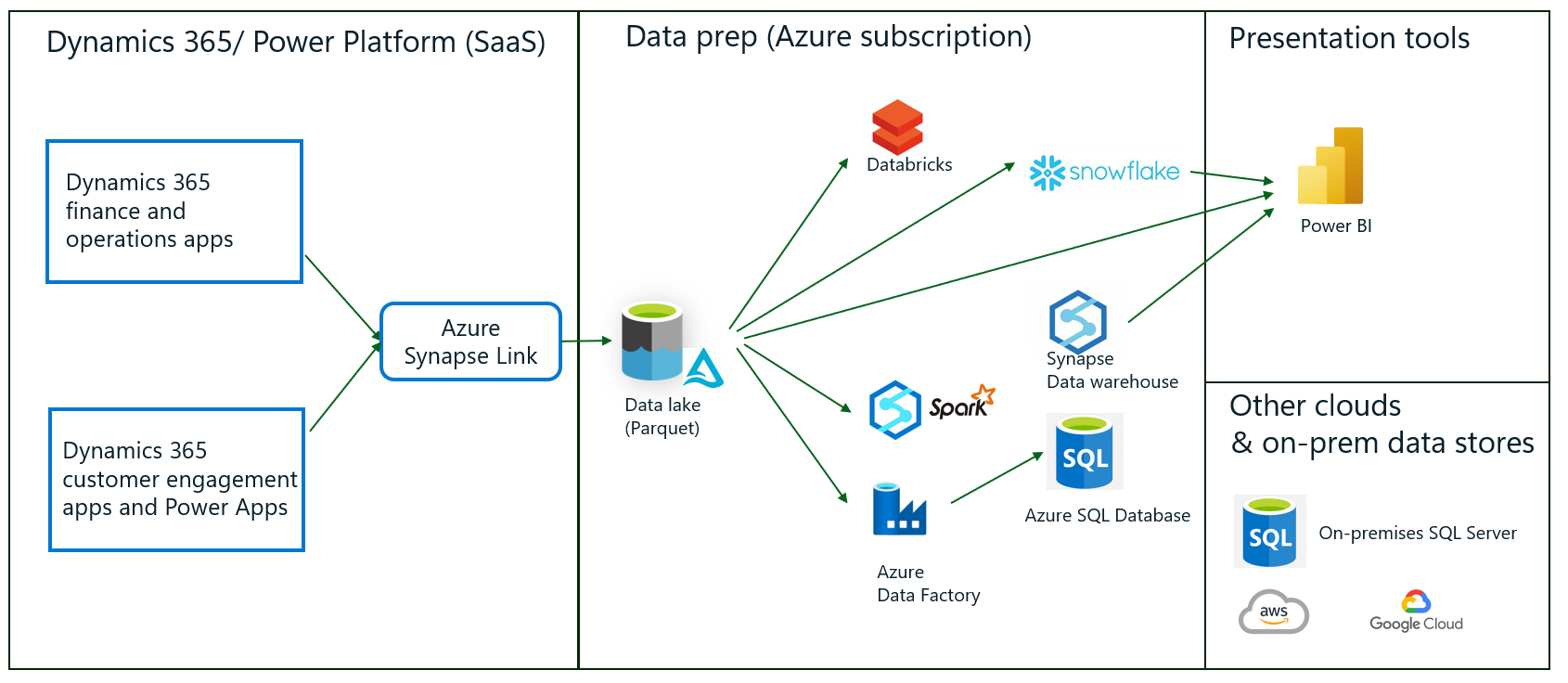
Microsoft provides a solution template in Azure Data Factory and Synapse Analytics that makes this process incredibly straightforward.
Copy Dataverse data into Azure SQL
This Microsoft Learn article details how to use a built-in template to create a pipeline that synchronizes data from a Synapse Link-enabled Data Lake into Azure SQL, including handling incremental updates.
Read through the article to understand the end-to-end process. Focus on these key concepts: The Prerequisites, especially the requirement to have Azure Synapse Link for Dataverse enabled with 'incremental folder update'. How to Use the solution template in ADF or Synapse. The configuration of the storage event trigger on the /model.json file, which automates the pipeline to run only when Dataverse has finished exporting new changes. The purpose of the event subscription filter to make the trigger more precise.
Key Steps for the Synapse Link Pattern:
- Enable Synapse Link: In the Power Apps maker portal, create an Azure Synapse Link for Dataverse, connecting your environment to an Azure Data Lake Storage Gen2 account. Select the tables you want to export and enable the "Incremental Update" feature.
- Use the ADF/Synapse Template: In your ADF or Synapse workspace, create a new pipeline from the template gallery and select "Copy Dataverse data into Azure SQL".
- Configure Linked Services: The template will prompt you to configure the connections to your source Azure Data Lake and your target Azure SQL Database.
- Create an Event Trigger: To automate the process, you create a storage event trigger that fires whenever the
model.jsonfile is created in the Data Lake container. This file signals the completion of a Dataverse export cycle. - Publish and Run: Once published, the pipeline will automatically detect new or updated Dataverse data in the lake and apply those changes to your Azure SQL database.
This event-driven, incremental pattern is highly efficient and the definitive Microsoft-endorsed method for building analytical replicas of your Dataverse data.
Conclusion
You have now explored three powerful, distinct patterns for synchronizing data between Dataverse and Azure SQL. Your ability to choose and implement the right one is a key skill for a Power Platform developer.
Key Takeaways:
- Virtual Tables: Use for real-time read access to SQL data from within Power Platform without data duplication or capacity usage. Best for "live lookups."
- Azure Data Factory: Use for batch synchronization from SQL to Dataverse. It is the go-to tool for complex data migrations and transformations, especially when handling relational data and key mapping.
- Azure Synapse Link: Use for efficient, scalable export from Dataverse to Azure SQL. This is the modern, recommended pattern for creating reporting databases or analytical data stores.
Choosing the Right Pattern:
| Criteria | Virtual Tables | Azure Data Factory (SQL -> DV) | Azure Synapse Link (DV -> SQL) |
|---|---|---|---|
| Data Direction | Bi-directional (Live) | SQL -> Dataverse | Dataverse -> SQL |
| Data Timeliness | Real-time | Batch (Scheduled) | Near Real-time (Event-driven) |
| DV Capacity Use | None (Metadata only) | High (Stores a full copy) | None |
| Use Case | Exposing external data in UI | Data migration, periodic import | Analytics, reporting, data warehousing |
| Complexity | Low | High | Medium |
What's Next?
Now that we have designed and understood how to build these powerful integration pipelines, the next logical step is to ensure they are reliable. In our next lesson, we will cover how to monitor and troubleshoot integrations using Application Insights and Azure Monitor, giving you the tools to build robust, production-ready solutions.