Hello! Welcome to the first lesson in our module on Azure and Power Platform Integration Patterns.
In the previous module, we focused on building custom UI components with the Power Apps Component Framework (PCF) and deploying them into Dataverse. Now, we shift our focus from the front-end to the back-end, exploring how to build robust, scalable, and loosely-coupled enterprise solutions by connecting Dataverse to powerful Azure services. This is a critical skill for any senior Power Platform developer.
Today's learning outcome is to configure Azure Service Bus for asynchronous, event-driven integration with Dataverse.
Given your extensive experience with Dynamics 365 plugins, you're already familiar with the concept of asynchronous operations within Dataverse. We are now going to extend that concept to push event data out of Dataverse to an external, enterprise-grade message broker. This opens up powerful architectural possibilities, such as offloading long-running jobs and notifying other enterprise systems of events occurring in Dataverse.
1. The "Why": Decoupling with a Message Broker
Before we dive into the "how," let's establish the "why." Why not just call an external API directly from a plugin?
Direct, synchronous calls create tight coupling. If the downstream system is slow or unavailable, the user in Dataverse is stuck waiting, and the operation might fail. Asynchronous messaging with a service like Azure Service Bus solves this by decoupling the systems.
Dataverse simply posts a "message" (the event details) to a central location and moves on. Other systems can then pick up that message and process it independently, at their own pace.
Azure Service Bus offers two primary models for this:
- Queues (Point-to-Point): A message is sent to a queue and is processed by a single consumer. This is ideal for offloading a specific task, like a complex calculation or document generation, from Dataverse to a backend worker process.
- Topics (Publish-Subscribe): A message is published to a topic. The topic then forwards the message to multiple "subscriptions," allowing many different systems to react to the same event independently. This is perfect for broadcasting events, like "Account Created," to an ERP, a marketing platform, and a data warehouse simultaneously.
To get a better sense of the more advanced publish-subscribe pattern, let's review a short article. While we will be implementing a Queue in our hands-on section, understanding Topics is essential for designing complex enterprise architectures.
Microsoft Azure Fundamentals #4: Azure Service Bus Topics ...
This article by Microsoft MVP Venkata Subbarao Polisetty provides an excellent overview of using Azure Service Bus Topics for multi-system workflows with Dataverse.
Read the sections '1. Scenario Overview', '2. Core Concepts', and '3. Architecture Overview'. Focus on understanding the pub/sub model and the role of Topics and Subscriptions in decoupling systems.
2. Hands-On: Configuring a Dataverse-to-Service Bus Queue Integration
Now, let's walk through the end-to-end process of configuring Dataverse to send a message to an Azure Service Bus Queue when a record is created. The following video provides a clear, practical demonstration of all the steps involved.
PL-400 Exam Prep: Posting Microsoft Dataverse Events to Azure Service Bus
This video from CRM Chap, created for the PL-400 exam prep, walks through the entire configuration. We will follow its steps and I will add commentary and context along the way.
Watch from 01:01 to 07:39. This covers the four main stages of the setup: Creating the Service Bus Namespace and Queue in Azure. Creating a Shared Access Policy and getting the connection string. Registering a Service Endpoint in the Plugin Registration Tool (PRT). Registering a Step to trigger the endpoint.
Let's break down the key steps you just saw.
Step 1: Create Azure Resources
As shown in the video, the first step is to provision the necessary resources in the Azure portal.
- Service Bus Namespace: This is a container for all messaging components. You choose a globally unique name, a location, and a pricing tier. The Standard tier is required if you plan to use Topics, while Basic supports only Queues.
- Queue: Within the namespace, you create a queue that will receive the messages from Dataverse.
Step 2: Obtain the Connection String
To allow Dataverse to connect to your queue, you need to grant it permission and get the credentials.
- Shared Access Policy (SAS): This policy defines the permissions (
Send,Listen,Manage) for your queue. You'll create a policy that at least hasSendpermissions. - Connection String: The SAS policy provides a connection string. This string contains all the information needed for an application to authenticate and connect to your Service Bus endpoint.
Security Note: While connection strings are used in this demo, the best practice for production environments is to use Managed Identities for Azure resources to avoid storing secrets in configuration. We will cover this in more detail later in the course.
Step 3: Register the Service Endpoint in Dataverse
This is where your deep experience with the Plugin Registration Tool (PRT) comes in handy. Instead of registering an assembly, you will register a Service Endpoint.
- Launch the PRT and connect to your Dataverse environment.
- Go to Register > Register New Service Endpoint.
- Paste the connection string you copied from the Azure portal. The tool will parse it and populate the details.
- Set the Message Format to JSON. This makes the message content easily readable by modern applications.
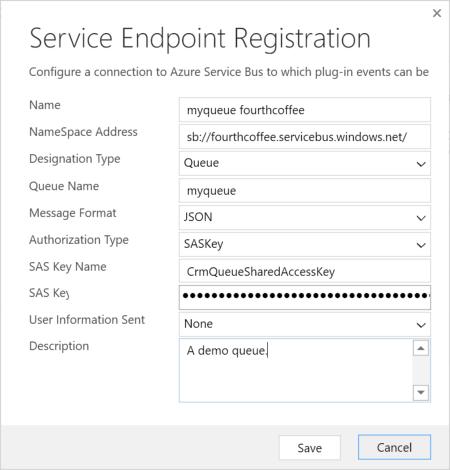
Step 4: Register a Step on the Endpoint
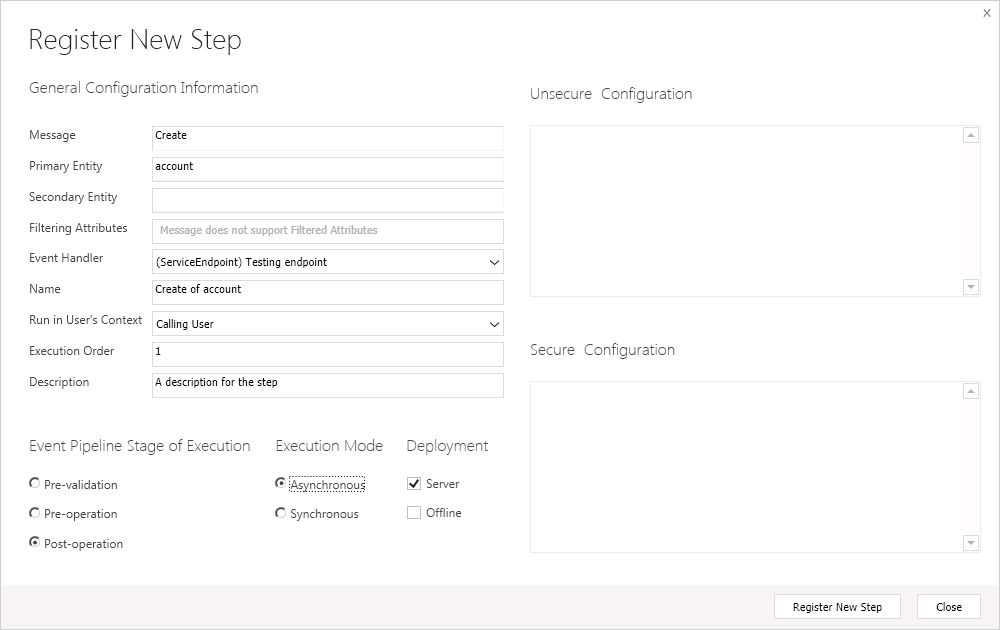
Just like a plugin, a Service Endpoint doesn't do anything until you register a step that tells it when to fire.
- Right-click your newly created Service Endpoint in the PRT and select Register New Step.
- Configure the step just as you would for a plugin:
- Message: e.g.,
Create - Primary Entity: e.g.,
account - Execution Mode: This must be Asynchronous.
- Event Pipeline Stage: Typically
Post-operation.
- Message: e.g.,
- Optionally, you can add Pre and Post images, just like with a plugin, to include more record data in the message.
Test your understanding!
You have configured a Service Endpoint to fire on the Update of a Contact. You want to send the message to Azure Service Bus only when the emailaddress1 field changes, and you need to include the previous value of the email address in the message payload for auditing purposes. How would you configure the step in the PRT?
Show answer
- In the 'Register New Step' dialog, specify
emailaddress1in the Filtering Attributes field. This ensures the step only runs when that specific attribute is updated. - Right-click the step and select 'Register New Image'. Create a Pre-image with the alias "preimage" and ensure it includes the
emailaddress1attribute. This will make the contact's state before the update available in the message payload.
3. Verifying the Message and Understanding the Payload
Now that everything is configured, how do you verify it works and inspect the message?
PL-400 Exam Prep: Posting Microsoft Dataverse Events to Azure Service Bus
Let's return to the CRM Chap video to see the test and verification.
Watch from 07:39 to the end (11:28). Observe how to: Trigger the event by creating an account in Dataverse. Use the 'Service Bus Explorer' in the Azure portal to 'peek' at the message in the queue. Analyze the JSON payload of the message.
The most important takeaway from this section is the structure of the message payload. As highlighted in the video, the JSON message sent to the Service Bus is a serialized version of the IPluginExecutionContext.
This is incredibly powerful because it means all the information you are used to working with in a plugin is available to the downstream application:
MessageName("Create", "Update", etc.)PrimaryEntityName("account", "contact", etc.)InitiatingUserIdInputParameters(containing theTargetentity)PreEntityImagesandPostEntityImages
Your C# background and plugin development experience give you a significant head start in understanding how to consume and process these messages.
4. What Happens Next? Consuming the Message
This lesson's goal is to configure the sending of the message. But to complete the picture, what happens on the receiving end?
A common pattern is to use an Azure Function with a Service Bus Trigger. This is a small, serverless piece of code that automatically runs whenever a new message arrives in the queue. This is a perfect way to handle long-running operations that would exceed Dataverse's 2-minute synchronous plugin timeout.
Let's look at an article that demonstrates this pattern. You don't need to implement it now, but reviewing the code will show you how the concepts connect.
Dataverse + Azure Service Bus Queue + Azure Function for ...
This article by Microsoft MVP Temmy Wahyu Raharjo demonstrates using an Azure Function to process a message from a Service Bus Queue, specifically to bypass the Dataverse plugin timeout. Focus on the structure of the Azure Function code.
Skim through the C# code in the 'Create Azure Functions' section and the host.json configuration that follows. Pay attention to: The [ServiceBusTrigger] attribute that invokes the function. The DeserializeJsonString method, which turns the message back into a RemoteExecutionContext object. The use of ServiceClient to connect back to Dataverse from the function. The maxConcurrentCalls setting in host.json to control message processing concurrency.
This example solidifies the end-to-end pattern: a Dataverse event triggers a message to a Service Bus Queue, which in turn triggers an Azure Function to perform a task.
Conclusion
You have now learned how to configure one of the most fundamental and powerful integration patterns between Dataverse and Azure. This ability to asynchronously push events to a robust message broker is a cornerstone of building scalable and resilient enterprise solutions on the Power Platform.
Key Takeaways:
- Azure Service Bus decouples Dataverse from other systems, improving reliability and scalability.
- Queues are for point-to-point delivery (one sender, one receiver), while Topics are for publish-subscribe (one sender, many receivers).
- The integration is configured using the Plugin Registration Tool by registering a Service Endpoint and an asynchronous Step.
- The message payload sent to the Service Bus is a JSON representation of the
IPluginExecutionContext, which is immediately familiar to a Dynamics 365 developer. - Azure Functions with a Service Bus trigger are a common and effective way to consume and process these messages.
What's Next?
Now that you've mastered pushing events to a Service Bus, our next lesson will explore another common asynchronous pattern: Webhooks. We will learn how to register and configure a webhook to call an external service directly from a Dataverse event and, importantly, discuss when you would choose a webhook over a Service Bus, and vice-versa.