Hello! Welcome back to our journey into building Canvas Apps.
In our previous lesson, we laid the architectural groundwork for a professional Canvas App by designing structured, scalable navigation patterns. We now have an app "shell" that knows how to move between screens. Today, we'll breathe life into that shell by connecting it to data.
This lesson directly addresses the learning outcome: Connect a Canvas App to Dataverse and external tabular data sources like SharePoint and SQL Server.
We will explore how to establish connections to these three key data sources, which are fundamental for any Power Platform developer. For each source, we will cover:
- The "Why": The typical scenarios and strategic reasons for choosing it.
- The "How": The practical steps to connect it to your Canvas App.
- Key Developer Considerations: The specific implications for performance, security, and functionality that you, as a developer, need to understand.
Your background in SQL and enterprise systems will provide a strong foundation as we compare and contrast how Power Apps interacts with these different data backends.
Choosing Your Data Source: A Strategic Decision
Before we dive into the connections, it's important to understand that the choice of a data source is a critical architectural decision. It impacts everything from performance and scalability to licensing and offline capabilities.
This table provides a high-level comparison of common data sources for Power Apps.

As you can see, Dataverse is positioned as the premium, high-performance option, while SharePoint and SQL Server serve other important enterprise scenarios. Let's explore connecting to each.
1. Connecting to Microsoft Dataverse: The Native Choice
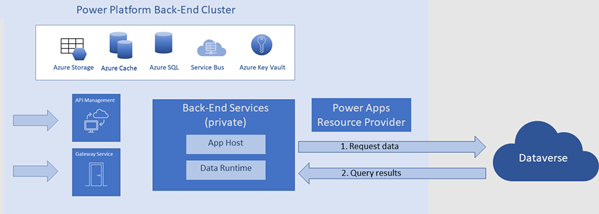
Dataverse is the foundational data service for the Power Platform and Dynamics 365. For a developer with your D365 background, you'll recognize it as the evolution of the Common Data Service. It's not just a database; it provides rich data types, complex security modeling, and server-side business logic that you can leverage directly in your app.
When you build a Canvas App in the same environment as your Dataverse database, connecting to it is seamless. You don't need to create a "connection" in the same way you do for external sources. Power Apps already knows about the tables in the environment.
Practical Implementation: Building with Dataverse
The best way to understand the power of the Dataverse connection is to see it in action. The following video by Reza Dorrani is an excellent, practical walkthrough of building a complete solution. It covers creating tables with relationships and then building a Canvas App to interact with that data.
Introduction to Microsoft Dataverse in Power Apps | Build Tables & Relationships | Beginners Guide
This video provides a comprehensive guide to using Dataverse in Power Apps. Pay close attention to how Dataverse relationships are effortlessly leveraged within the app's formulas.
Watch the following key segments to understand the end-to-end process: Connecting to Dataverse (15:32 - 16:12): See how simple it is to add a Dataverse table as a data source to a blank Canvas App. Creating and Viewing Data (16:12 - 19:26): Observe the use of an Edit Form to create new records. Notice how lookup columns (like 'Client') automatically render as dropdowns populated with related data. Working with 1:N Relationships (21:28 - 25:03): This is a critical part. Notice the formula gallery_projects.Selected.ProjectTasks. Coming from a SQL background, you'd typically expect to write a JOIN or a filtered query. In Power Apps with Dataverse, you simply navigate the pre-defined relationship like an object property. This is a major productivity benefit. Working with N:N Relationships (25:03 - 28:35): See how the Relate() and Unrelate() functions are used to manage many-to-many relationships (e.g., adding team members to a project). This is another specific pattern for Dataverse that abstracts away the complexity of managing the intersect table.
For a text-based reference, the Microsoft Learn article "Create a canvas app using Microsoft Dataverse" walks through similar steps, showing how to add a Dataverse table and configure list and form screens.
Create a canvas app using Microsoft Dataverse
This Microsoft Learn article provides a step-by-step guide to connecting a blank app to Dataverse and building basic UI. It's a good supplement to the video.
Quickly review these sections to reinforce the core steps: Add a Dataverse table in a blank app: This shows the initial 'Add data' flow. Add a list screen: Focus on how the gallery's Items property is set to the Accounts table. Add a form screen: Note how the form's DataSource is set, and its Item property is bound to the gallery's selected item (BrowseGallery.Selected).
2. Connecting to External Tabular Data
While Dataverse is the preferred source, you will frequently need to connect to existing data in SharePoint or SQL Server. The process involves creating an explicit connection that your app then uses.
A. Connecting to SharePoint Lists
SharePoint is often used for apps that require team collaboration, document management, or when Dataverse licensing is a consideration. It's quick to set up, but it comes with important limitations.
How to Connect:
The process is straightforward. In your app, you navigate to Data > Add data > Connectors > SharePoint. You'll then be prompted to select a SharePoint site and the list(s) you want to use.
Key Developer Consideration: Delegation
The single most important concept when working with SharePoint (and other non-Dataverse sources) is delegation. When you write a formula like Filter(MyList, Status = "Active"), Power Apps will try to "delegate" the processing of that filter to SharePoint. SharePoint runs the query on the server and sends back only the matching results. This is highly efficient.
However, not all functions or formulas are delegable. If a formula cannot be delegated, Power Apps first pulls a limited number of records (by default, 500, max 2000) from the data source and then applies the filter on the client device. For a list with 10,000 items, this means your app may produce incomplete or incorrect results.
The following resource is essential reading.
Connect to SharePoint from a canvas app
This Microsoft Learn article details how to connect to SharePoint and, most importantly, contains the tables for data type mapping and delegable operations. You should bookmark this.
Focus on these critical sections: Create a SharePoint connection: Understand the flow for connecting to SharePoint Online. Add data to an existing app: The practical steps for adding a list to your app. Power Apps data type mappings: Review how SharePoint column types (like 'Person' or 'Choice') are represented in Power Apps. Power Apps delegable functions and operations for SharePoint: This is the most important section. Study this table to understand which functions (Filter, Sort, StartsWith, etc.) can be delegated to SharePoint. Understanding these limitations is non-negotiable for building performant and reliable apps on SharePoint.
B. Connecting to SQL Server
Connecting to SQL Server (on-premises or Azure SQL) allows you to build Power Apps on top of your existing enterprise relational databases.
Key Developer Consideration: Authentication
As a senior developer, choosing the correct authentication method is a critical security and architectural decision. The video below provides an excellent explanation of the options when creating a SQL connection.
Microsoft SQL Connector for Power Apps and Power Automate #PowerApps #PowerAutomate #SQL
This video walks through connecting a Power App to SQL. The most valuable part for you will be the detailed discussion on authentication types and their security implications.
Watch the following sections: Authentication Types (00:37 - 06:57): Pay very close attention to the difference between Azure AD Integrated (explicit connection, uses each user's credentials) and SQL Server Authentication (implicit connection, shares a single username/password with all app users). The former is almost always the recommended approach for security. Connecting to Tables (06:57 - 08:27): See the standard process of selecting the server, database, and tables after the connection is made. Using SQL Views (09:59 - 11:35): Note that you can connect your app directly to a SQL View. This is a powerful pattern you can use to pre-filter, join, or shape complex data on the SQL server before it even reaches Power Apps, which can simplify your app's logic.
Like SharePoint, the SQL connector is also subject to delegation. While it supports more delegable functions than SharePoint, you must always be mindful of building delegable queries to ensure your app performs well at scale.
Test your understanding!
You are tasked with designing a Power App for a company's sales team. The requirements are:
- The app must work offline for sales representatives who visit clients in remote areas.
- The app needs to display customer accounts and their related contacts. The company already uses Dynamics 365 Sales.
- A separate, simple app is needed for the marketing team to manage a list of upcoming events. This data is highly collaborative and changes frequently. Performance is secondary to ease of use.
Questions:
- Which data source would you choose for the sales app and why?
- In the sales app, if you have a gallery of accounts named
GalleryAccounts, what Power Fx formula would you use for theItemsproperty of a second gallery to show only the contacts related to the selected account? - Which data source is most appropriate for the marketing team's event list app?
Show answer
-
Dataverse is the correct choice for the sales app. The primary reasons are its native offline capability and its seamless integration with Dynamics 365 Sales (which is built on Dataverse). This ensures data consistency and leverages the existing data model.
-
You would use the relationship name. The formula would be:
GalleryAccounts.Selected.Contacts. This works because Dataverse exposes the one-to-many relationship between the Account and Contact tables directly, allowing you to navigate it in Power Fx without aFilterfunction. -
A SharePoint List would be a suitable choice for the marketing app. It excels in collaborative scenarios, is easy for business users to understand and manage, and meets the requirement where peak performance is not the primary driver.
Conclusion
In this lesson, we established how to connect your Canvas App to the three most important tabular data sources in the Power Platform ecosystem.
Key Takeaways:
- Dataverse is the premier, natively integrated data source. Its key advantage is the ability to directly use table relationships in Power Fx formulas (e.g.,
Parent.Child). - SharePoint Lists are excellent for collaborative scenarios but require a deep understanding of delegation to build apps that are reliable and performant with large datasets.
- SQL Server allows you to leverage existing enterprise databases. Choosing the right authentication method (preferably Azure AD Integrated) is a critical security decision.
- You cannot write raw SQL queries in Power Apps, but you can use delegable Power Fx functions or connect to SQL Views to achieve similar results.
Up Next:
We've successfully connected our app to its data. In the next lesson, "Perform CRUD operations on data sources using Power Fx functions like Patch, Filter, and LookUp," we will learn the essential functions needed to create, read, update, and delete records, giving your app full data manipulation capabilities.