Hello! Welcome back to our series on building professional Canvas Apps.
In our last lesson, we successfully connected our app to various data sources, including Dataverse, SharePoint, and SQL Server. Now that the data pipeline is established, it's time to learn how to interact with and manipulate that data.
This lesson focuses on the learning outcome: Perform CRUD operations on data sources using Power Fx functions like Patch, Filter, and LookUp. CRUD stands for Create, Read, Update, and Delete—the fundamental operations for any data-driven application. We will master the core Power Fx functions that enable these actions.
Given your background in SQL, you'll find some useful parallels:
Filter()is analogous to aSELECTstatement with aWHEREclause that can return multiple rows.LookUp()is likeSELECT TOP 1, retrieving the first record that matches a condition.Patch()is a versatile function that handles bothINSERTandUPDATElogic.Remove()andRemoveIf()are yourDELETEstatements.
Let's dive in and give your app the power to manage data.
Reading Data: The "R" in CRUD
Before we can modify data, we need to be able to find and display it effectively. This is where Filter() and LookUp() come in.
Filtering for Multiple Records with Filter()
The Filter() function returns a table of records from your data source that satisfy a formula. Its syntax is Filter(DataSource, LogicalFormula).
Imagine you have a gallery connected to a 'Projects' table. To show only the projects that are "In Progress", you would set the gallery's Items property to:
Filter(Projects, Status = "In Progress")
You can also combine multiple conditions. For instance, to find all "In Progress" projects with a budget over $50,000:
Filter(Projects, Status = "In Progress" And Budget > 50000)
This is a highly common pattern for creating searchable galleries or lists in your apps.
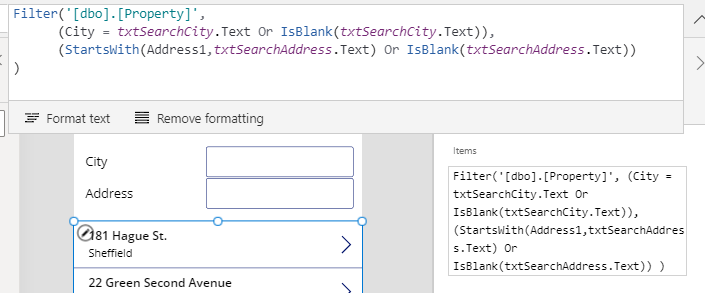
A crucial reminder on delegation: As we discussed in the last lesson, always ensure your Filter conditions are delegable to the data source (especially for SharePoint and SQL) to avoid performance issues and incomplete data sets.
Finding a Single Record with LookUp()
When you only need to find the first record that matches a condition, LookUp() is more efficient than Filter(). It returns a single record, not a table. Its syntax is similar: LookUp(DataSource, LogicalFormula).
This is incredibly useful for retrieving the complete details of an item selected in a gallery to display them on an edit form. For example, to set the Item property of a form to display the details of the selected project from Gallery1:
LookUp(Projects, ProjectID = Gallery1.Selected.ProjectID)
Often, a simpler way is to directly use the selected item: Gallery1.Selected. LookUp becomes essential when you need to find a record based on criteria other than a gallery selection.
Creating and Updating Data: The "C" and "U" with Patch()
The Patch() function is one of the most powerful and versatile functions in Power Fx. It's used to both create new records and modify existing ones.
The basic syntax is: Patch(DataSource, BaseRecord, ChangeRecord)
DataSource: The table you want to modify (e.g.,Projects).BaseRecord: The record to modify. To create a new record, you useDefaults(DataSource).ChangeRecord: A record containing the new or updated values for the columns (e.g.,{ Title: "New Project", Status: "Not Started" }).
Creating a New Record
To create a new record, you use Defaults() to provide a blank template for Patch() to fill in.

The code for creating a basic record looks like this:
Patch(
    Projects,
    Defaults(Projects),
    {
        Title: "Project Alpha",
        Budget: 75000,
        Status: "Not Started"
    }
)
Updating an Existing Record
To update an existing record, the BaseRecord must identify the specific record you want to change. You typically do this using the selected item from a gallery (Gallery1.Selected) or by using LookUp() to find the record first.
// Update the status of the item selected in a gallery
Patch(
    Projects,
    Gallery1.Selected,
    {
        Status: "Completed"
    }
)
A Practical Pattern: The Combined "Save" Button
In most apps, you'll use the same form for both creating and editing. A common pattern is to have a single "Save" button that intelligently handles both cases. You can achieve this by checking if a variable holding the selected record is blank.
How to use PATCH Function in Power Apps | Insert and Update data
The following video from Reza Dorrani provides an excellent demonstration of the combined create/update pattern. It also introduces crucial concepts like error handling with IfError.
Watch the following two segments: Updating Existing Records (06:59 - 12:25): Pay close attention to how a variable (varIdea) is used to hold the selected item from the gallery. The Patch function's second argument then becomes If(IsBlank(varIdea), Defaults(Ideas), varIdea). This is a core pattern for developers. Error Handling (12:25 - 15:08): This section is critical. It shows how to wrap your Patch function in an IfError() block to gracefully catch and display errors from the data source (like mandatory fields being empty). You must turn on the 'Formula-level error management' feature for this to work.
Patching Complex Dataverse Column Types
Your experience with Dynamics 365 means you're familiar with complex data types like Lookups, Choices, and Customer fields. Patching these in Power Apps requires a specific syntax for each type. This is a common area where developers get stuck, and mastering it is key for the PL-400 exam.
The following video is a practical masterclass on this topic. It shows how to build a form and write a single Patch function that handles all common Dataverse column types.
Power Apps Patch Function with All Dataverse Complex Column Types
This video by Dhruvin Shah walks through patching every common complex Dataverse column type. This is a highly practical guide that directly maps to the real-world scenarios you'll build.
Watch the section Patching a New Record (07:19 - 10:09). Focus on the syntax used within the Patch function for each column type: Text: Simple Control.Text. Lookup: LookUp(RelatedTable, Name = ComboBox.Selected.Name). Choice (single-select): DropDown.Selected.Value. Date: DatePicker.SelectedDate. Multi-select Choice: ComboBox.SelectedItems. Number: Value(TextInput.Text) to convert text to a number.
For a handy text reference, this article breaks down the Patch syntax for each complex Dataverse data type with clear code examples. It's an excellent resource to bookmark.
Dataverse - How to Patch the 5 most complex data types
This article from Power Apps Guide serves as a perfect text-based companion to the video, providing clear syntax for patching the most complex Dataverse data types.
Quickly review sections 1 through 6. Each section corresponds to a specific data type and provides the exact Patch syntax. Pay special attention to: 1. Lookup Column: How to use LookUp() to find the related record. 3. Choices column (multi-select): The use of square brackets [...] to create a table of choice values. 5. Customer column: The syntax for patching polymorphic lookups, which can point to either Accounts or Contacts.
Deleting Data: The "D" in CRUD
To delete records, you use the Remove() or RemoveIf() functions.
-
Remove(DataSource, RecordToRemove): Deletes a single, specific record. This is commonly used with a gallery's selected item.// Add to a trash can icon's OnSelect property in a gallery Remove(Projects, ThisItem) -
RemoveIf(DataSource, LogicalFormula): Deletes all records that match a condition. This is very powerful and should be used with care. It's analogous to SQL'sDELETE FROM ... WHERE ....// Deletes all completed projects RemoveIf(Projects, Status = "Completed")
The Patch function video by Dhruvin Shah also includes a quick demonstration of the Remove function from 17:35 to 18:02.
Test your understanding!
You are building a "Service Tickets" app connected to a Dataverse table with the following columns:
Title(Text)Priority(Choice, with options 'High', 'Medium', 'Low')Status(Choice, with options 'New', 'In Progress', 'Resolved')Assigned To(Lookup to theUserstable)
Questions:
- Write a
Filterformula for a gallery'sItemsproperty to show only tickets that are 'New' and have a 'High' priority. - On an edit screen, you have a combo box named
cmbUserfor theAssigned Tofield. Write thePatchformula to create a new ticket with the title "Fix login issue", priority "High", and assign it to the user selected incmbUser. - Write the
Patchformula for a button to update theStatusof a ticket selected in a gallery namedgalTicketsto 'Resolved'. - Write the formula for a button to delete all tickets that are currently 'Resolved'.
Show answer
-
Filter Formula:
Filter(
    'Service Tickets',
    Priority = 'Priority (Service Tickets)'.High And Status = 'Status (Service Tickets)'.New
)
Note: The exact choice syntax might be
Priority.Highdepending on the context, but using the full enumerationChoices('Service Tickets'.Priority).Highor'Priority (Service Tickets)'.Highis more explicit and robust. -
Create New Ticket Formula:
Patch( 'Service Tickets', Defaults('Service Tickets'), { Title: "Fix login issue", Priority: 'Priority (Service Tickets)'.High, 'Assigned To': cmbUser.Selected } ) -
Update Status Formula:
Patch( 'Service Tickets', galTickets.Selected, { Status: 'Status (Service Tickets)'.Resolved } ) -
Delete Resolved Tickets Formula:
RemoveIf('Service Tickets', Status = 'Status (Service Tickets)'.Resolved)
Conclusion
You now have the fundamental Power Fx tools to build fully functional, data-driven applications. Mastering these functions is the bedrock of Canvas App development.
Key Takeaways:
- Read: Use
Filter()to get a table of records andLookUp()to get the first matching record. - Create: Use
Patch()withDefaults(DataSource)to create a new record. - Update: Use
Patch()with a specific record reference (likeGallery.Selected) to modify an existing record. - Complex Types: Pay close attention to the specific syntax required to patch complex Dataverse columns like Lookups and Choices.
- Delete: Use
Remove()for single records andRemoveIf()for bulk deletion based on a condition.
Up Next:
So far, we have manipulated data that lives permanently in our data source. In the next lesson, "Manage app state and temporary data using collections and variables," we will explore how to create and manage data that exists only while the app is running. This is essential for improving performance, managing complex UI state, and preparing data before sending it to the data source.