Hello! It's great to reconnect for our next lesson.
In our last session, we delved into the technical details of implementing advanced Dataverse data structures like polymorphic lookups and hierarchical relationships. Now that we've explored how to build complex models, it's time to address the real-world constraints that govern them. As a developer, understanding licensing isn't just about cost—it's about the technical guardrails of the platform that directly influence your solution's architecture, scalability, and performance.
This lesson focuses on the learning outcome: Identify and plan for developer-relevant licensing constraints (e.g., premium connectors, API limits, Dataverse capacity). We will explore the key constraints you must design around to build robust, scalable, and compliant Power Platform solutions.
1. The Licensing Trigger: Standard vs. Premium Features
The first and most fundamental licensing consideration is the distinction between standard and premium capabilities. Your choice of connectors and data sources is often the primary factor that determines the required license for your app or flow users.
- Standard Connectors: These connect to services included within a Microsoft 365 license (e.g., SharePoint, Outlook, Excel).
- Premium Connectors: These connect to services that require a standalone Power Apps or Power Automate license. This category includes connectors to external systems (like Salesforce or Twitter), enterprise databases (like SQL Server), and, most importantly for us, Microsoft Dataverse.
- Custom Connectors: Any custom connector you build is automatically considered a premium feature.

The moment your solution uses a premium feature, every user of that app or every flow run will require a premium license.
To understand the core Power Apps licensing models that are unlocked by these premium licenses, the following video provides a clear overview.
Power Apps Licensing Explained (UPDATED Nov 2021 including pay-as-you-go)
Watch this segment from 'Power Apps Licensing Explained' by Lisa Crosbie. It clearly explains when you move from the included Microsoft 365 license to a paid premium license, and the different options available.
Watch from 00:43 to 07:07. Focus on understanding the distinction between what's included with Office 365 (like SharePoint apps) and what requires a premium license (like apps using Dataverse or premium connectors). Pay attention to the three main premium models: per user, per app, and pay-as-you-go.
Similarly, Power Automate has its own licensing tied to the use of premium connectors.
Power Automate flows: Licensing, Ownership, and API Limits
Now let's look at this from a Power Automate perspective with this video from Reza Dorrani. It explains how premium connectors classify a flow as 'premium'.
Watch the first three minutes (00:00 - 02:56). Note how a flow is automatically marked as 'premium' the moment a premium connector, like the Dataverse connector, is added.
As a developer, this is your first architectural checkpoint. If a business requirement can be met with a SharePoint list (standard) versus a Dataverse table (premium), you must be aware of the licensing impact of that decision.
2. Constraint #1: Power Platform Request Limits (Daily Entitlements)
Once you're in the premium world, the next major constraint is API usage. The Power Platform allocates a certain number of API requests per user over a 24-hour period based on their license. Think of this as a "daily budget" of actions.
What counts as a request? It's not just Dataverse API calls. It includes almost every action across the platform:
- CRUD operations in Dataverse from any client.
- API requests to any connector in Power Apps or Power Automate.
- Every single action in a Power Automate flow, even initializing a variable or a compose action. Retries and pagination also count.
The official documentation provides the most accurate and detailed information on these limits.
Requests limits and allocations - Power Platform
The Microsoft Learn article 'Requests limits and allocations' is the definitive source for this topic. It contains the specific numbers you need to know for planning and troubleshooting.
Please read the following sections: 'What is a Microsoft Power Platform request?' to understand what actions are counted. 'Licensed user request limits' to see the table of daily limits for different licenses (e.g., 6,000 for per app vs. 40,000 for per user). 'Non-licensed user request limits' to understand the concept of a tenant-wide pool for application users and other non-interactive identities. This is critical for your integration work.
Key Developer Takeaways:
-
Licensed vs. Non-Licensed Limits:
- Licensed Users: Each user with a premium license gets their own daily request pool (e.g., 40,000 for a Power Apps/Automate Premium license).
- Non-Licensed Identities (Application Users): For your backend integrations using service principals (Application Users), there is a separate, tenant-wide pool. The size of this pool depends on the licenses purchased for the tenant (e.g., a Dynamics 365 Enterprise license provides a base of 500,000 requests).
-
Flow Ownership and Triggers Matter: The identity whose API "budget" is consumed depends on the flow type.
- Automated/Scheduled Flows: Requests are counted against the flow owner's limit.
- Instant/Manual Flows: Requests are counted against the invoking user's limit.
- Process License (Per-Flow): Assigning a Process license gives the flow its own large, dedicated pool of requests (250,000 per 24 hours), independent of any user. This is the best practice for critical, high-volume business processes.
Your experience with C# integrations is directly relevant here. When designing a system-to-system integration, choosing to run it under an Application User identity means you are drawing from the shared non-licensed pool, which must be managed carefully across all such integrations in the tenant.
3. Constraint #2: Service Protection API Limits (Throttling)
Distinct from the daily entitlement limits are the service protection limits. These are not about a daily budget but about protecting the platform's health and performance from "noisy neighbors"—applications that send an overwhelming number of requests in a short period.
These limits are evaluated over a 5-minute sliding window and are based on three factors:
- Number of requests: A high volume of calls.
- Combined execution time: The total server computation time used by your calls.
- Number of concurrent requests: How many parallel requests you are sending.
When these limits are exceeded, Dataverse returns a 429 Too Many Requests error. This is not a failure; it's the platform telling your application to slow down.
Service protection API limits - Power Apps, Microsoft Dataverse
The documentation on 'Service protection API limits' is written specifically for developers. It explains the errors and, more importantly, how to handle them.
Please read the following sections: 'Impact on client applications' to see why this matters. 'Impact on plug-ins and custom workflow activities' to understand a key difference between internal and external calls. 'Retry operations' - this is crucial. Pay close attention to the Retry-After header and the C# code example using the Polly library. 'How Service Protection API Limits are enforced' and 'Service Protection API Limit Errors returned' to understand the specific limits and error codes.
Architectural Implications for Developers:
-
Retry Logic is Mandatory: Any professional application that performs bulk operations (data migrations, large updates) must implement a retry mechanism. When you receive a
429error, your code should:- Read the
Retry-Afterheader from the HTTP response. - Pause execution for the specified duration.
- Retry the request.
Your background in C# and .NET makes you well-equipped to implement this using libraries like Polly, as shown in the documentation.
- Read the
-
Plugins vs. Flows: Dataverse operations originating from within a plugin or custom workflow activity do not count towards the service protection API limits (though the extra computation time they add to the initial request does). An external client (like a Power Automate flow or a C# console app) making thousands of calls is far more likely to be throttled than a single plugin performing the same number of internal operations. This is a critical factor when choosing between an on-platform (plugin) or off-platform (flow, Azure Function) automation strategy.
Test your understanding!
You are writing a C# console application to migrate 1 million contact records into Dataverse overnight. Your script uses a Parallel.ForEach loop to speed up the process by sending 100 concurrent requests. After about 10 minutes, the script starts failing with HTTP 429 errors.
- What are the two types of service protection limits you have likely exceeded?
- What is the correct, robust way for your application to handle this error?
Show answer
-
You have likely exceeded both the Number of concurrent requests limit (default is 52, you're sending 100) and the Execution time or Number of requests limit within the 5-minute sliding window. The high concurrency and volume of create operations would quickly exhaust the platform's short-term capacity.
-
The correct way to handle this is:
- Implement Retry Logic: The application should catch the
429exception. - Respect
Retry-After: It should inspect theRetry-Afterheader in the HTTP response to determine how many seconds to wait. - Pause and Retry: The code must pause execution for that duration before retrying the failed request(s).
- Tune Concurrency: You should also reduce the
MaxDegreeOfParallelismin yourParallelOptionsto a value at or below the concurrency limit (e.g., 50) to prevent hitting that specific limit immediately.
- Implement Retry Logic: The application should catch the
4. Constraint #3: Dataverse Capacity
The final constraint is storage. Your Power Platform tenant has a finite amount of Dataverse capacity, which is broken down into three types:
- Database Capacity: For storing your table data (records).
- File Capacity: For storing file attachments, notes, and images.
- Log Capacity: For audit logs and other system logs.
This capacity comes from a default amount provided per tenant, plus an accrued amount for each full premium license purchased.
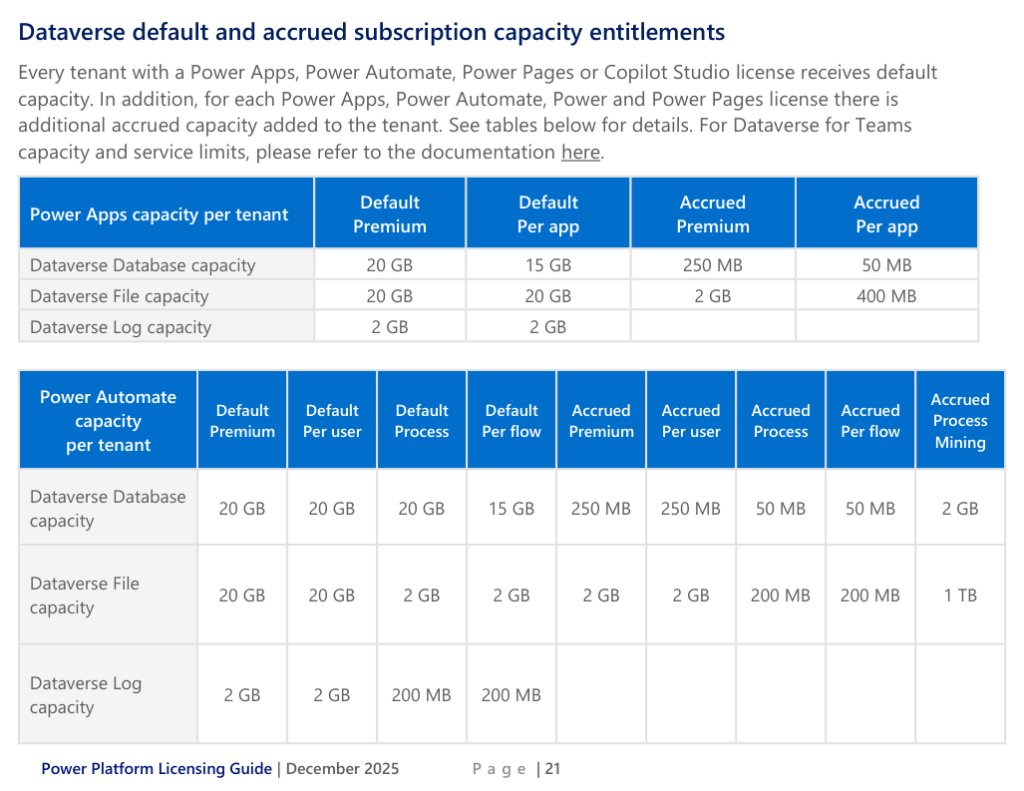
Why this matters for your architecture:
- Data Model Design: A poorly designed data model with redundant data can consume database capacity unnecessarily.
- File Storage Strategy: For solutions that handle many large files (e.g., a document management system), storing them directly in Dataverse File storage can be expensive. A common architectural pattern is to use Azure Blob Storage for the files and store only the URL in Dataverse, which consumes minimal database capacity. This is a key design decision with significant cost and licensing implications.
Conclusion
Today we've moved from the "how" of building to the "how to build responsibly" within the platform's rules. For a developer, these are not just administrative details; they are core architectural principles.
Key Takeaways:
- Premium is a Gateway: Using Dataverse or a premium/custom connector is the trigger that requires a premium license for your users or flows.
- Daily API Budget: Power Platform Request limits are a daily entitlement per user or process. Design efficient flows and integrations to stay within these limits. Use Process/Per-flow licenses for critical automations.
- Handle Throttling Gracefully: Service Protection API limits are a fact of life for high-volume applications. Your code must include retry logic based on the
Retry-Afterheader to be considered production-ready. - Storage is an Architectural Choice: Dataverse capacity is a finite resource. Plan your data and file storage strategy to be both cost-effective and scalable.
In our next lesson, we will continue our journey through solution architecture by looking at Application Lifecycle Management (ALM). We'll compare and contrast the use of unmanaged and managed solutions, a foundational concept for moving your work from a development environment to testing and production professionally.