Hello! Let's dive into the next topic in your PL-400 preparation.
In our last lesson, we designed a Dataverse data model using standard relationship types (1:N, N:N) and configured relationship behaviors to enforce business logic. We now have a solid foundation for most common scenarios. Today, we'll build on that by tackling more complex business requirements.
This lesson addresses the learning outcome: Implement complex data structures in Dataverse using polymorphic lookups and hierarchical relationships. These advanced structures allow you to create more flexible and sophisticated data models that can represent intricate real-world connections, moving beyond the standard parent-child or tagging relationships.
1. Polymorphic Lookups: One Column, Many Tables
Imagine a scenario where a single record needs to relate to one of several different types of tables. For example, a "Payment" record could be for a "Course," a "Product," or a "Consulting Service."
Your experience with Dynamics 365 might bring to mind the Customer lookup, which can point to either an Account or a Contact. This is a built-in polymorphic lookup. The good news is that we can now create our own custom ones.
The Problem with Standard Lookups
Before custom polymorphic lookups, you had a few less-than-ideal workarounds:
- Create multiple lookup columns: One for "Course," one for "Product," etc., and use business rules to show/hide them. This clutters the data model and makes reporting difficult.
- Use the Activity table: You could create a custom activity type, but this mixes your business data with standard activities like emails and phone calls, which can be confusing for users and create security complications.
Polymorphic lookups solve this by allowing a single lookup column to reference records from a defined set of multiple tables.
Multi-table lookups in Microsoft Dataverse
To see this in action, let's watch the first few minutes of the video 'Multi-table lookups in Microsoft Dataverse' from 365.Training. It clearly explains the problem and introduces polymorphic lookups as the solution.
Please watch from the beginning until 03:02. Pay close attention to the limitations of the common workarounds discussed.
Implementing a Polymorphic Lookup
While you can use tools like the XRM Toolbox to create these lookups, as a developer, you need to be familiar with the programmatic approach using the Dataverse Web API. This is done via a custom action called CreatePolymorphicLookupAttribute.
Use multi-table lookup columns - Power Apps
The Microsoft Learn article 'Use multi-table lookup columns' provides the technical details, including the Web API request structure. This is essential for understanding the underlying implementation.
Please read the introduction and the 'Examples' section. Then, carefully examine the 'Web API example' section, paying close attention to the JSON payload for the POST request. You don't need to memorize the syntax, but understand its structure: the OneToManyRelationships array defines which tables are part of the lookup, and the Lookup object defines the properties of the polymorphic column itself.
As you saw in the documentation, the core of the creation process is a POST request to the CreatePolymorphicLookupAttribute endpoint. The JSON payload consists of two main parts:
OneToManyRelationships: An array where you define each 1:N relationship that will be part of this polymorphic lookup.Lookup: The metadata for the new lookup column itself, such as itsSchemaNameandDisplayName.
Given your background with C# and the Web API, you can see how this could be wrapped in a helper method to create complex columns as part of an automated deployment or data migration script.
Using Polymorphic Lookups in Apps
Once created, you can add the lookup to a Model-driven App form just like any other column. The user will see a dropdown to select the table type before selecting the record.
In Canvas Apps, working with polymorphic data requires special functions because the app needs to know which table the lookup is pointing to in order to access its columns. The key functions are:
IsType(lookup_column, table_name): A boolean function that checks if the record in the lookup column is of a specific table type.AsType(lookup_column, table_name): A function that "casts" the record to a specific table type, allowing you to access its columns using dot notation.

Test your understanding!
You are designing a system to track internal support tickets. A ticket can be raised against a piece of Hardware (like a laptop), a Software application (like CRM), or a specific Office Location (like a meeting room). Each of these is a separate table in Dataverse. You need a single field on the "Ticket" table called "Regarding" to link to the relevant item.
What data structure would you implement and why is it superior to the alternatives?
Show answer
You should implement a polymorphic lookup column named "Regarding" on the "Ticket" table.
This is the superior solution because:
- It's a single column: This keeps the data model clean and simplifies the UI for the user.
- It's flexible: It can point to records in the
Hardware,Software, orOffice Locationtable. - It's scalable: If you need to add a new type of item to track (e.g., "Company Vehicle"), you can add a new relationship to the existing polymorphic lookup without changing the core table schema drastically.
The alternatives (multiple lookups or using a generic "Asset" table) would either clutter the model and UI or lose the specific attributes of each distinct item type.
2. Hierarchical Relationships: Parent and Child Within the Same Table
Hierarchical relationships are used to model parent-child structures within a single table. This is perfect for scenarios like:
- An organizational chart (Employee reports to another Employee).
- A multi-level product catalog (Category has a parent Category).
- A project with sub-projects (Project has a parent Project).
To achieve this, you create a self-referencing 1:N relationship on the table.
Implementing a Hierarchical Relationship
Setting up a hierarchy is a multi-step process that involves both the modern and, for now, the classic interface.
Hierarchies and Self-Joins in Power Apps [Dataverse Relationships Part 2]
The video 'Hierarchies and Self-Joins in Power Apps' from Pragmatic Works provides a complete, step-by-step guide to setting this up correctly.
Please watch from 01:12 to 11:23. The video will guide you through all the necessary steps: Creating the self-referencing lookup column. Marking the relationship as 'hierarchical'. Switching to the classic interface to create a 'Hierarchy Setting' for the table (this is the key step for enabling visualization). Customizing the Quick View Form to control what data appears in the hierarchy tiles.
To summarize the key steps from the video:
- Create a Self-Referencing 1:N Relationship: On your table (e.g.,
Account), create a new lookup column that points back to theAccounttable itself. You might call itParent Account. - Mark the Relationship as Hierarchical: In the relationship's properties, there is a toggle to enable hierarchy.
- Define Hierarchy Settings (Classic UI): This is the crucial step. You must switch to the classic solution explorer, navigate to your table, find "Hierarchy Settings," and create a new setting. Here, you associate the hierarchy with a Quick View Form that will be used as a template for the visualization cards.
- Populate Data: Create records and use the new lookup field to set their parent-child relationships.
- Visualize: In a Model-driven App view, records that are part of a hierarchy will now show a special icon, which you can click to see the visual hierarchy.
Querying Hierarchical Data
Once a hierarchy is defined, you gain access to a powerful set of query operators in FetchXML and QueryExpression that understand the hierarchical structure. This allows you to retrieve records based on their position in the tree.
Query hierarchical data (Microsoft Dataverse) - Power Apps
The official Microsoft documentation 'Query hierarchical data' lists the specific operators you can use. This is a must-know for any developer working with hierarchical data.
First, read the introduction and the section 'Condition operators for hierarchical data' to familiarize yourself with operators like under, above, and eq-or-under. Then, read 'Retrieve the number of hierarchically related child records' to learn about the rowaggregate attribute, a very useful feature for performance.
The key FetchXML operators are:
| FetchXML Operator | Description |
|---|---|
above |
Returns all records in the specified record's ancestry. |
eq-or-above |
Returns the specified record AND all of its ancestors. |
under |
Returns all records in the descendant tree of the record. |
eq-or-under |
Returns the specified record AND all of its descendants. |
not-under |
Returns all records EXCEPT those under the specified record. |
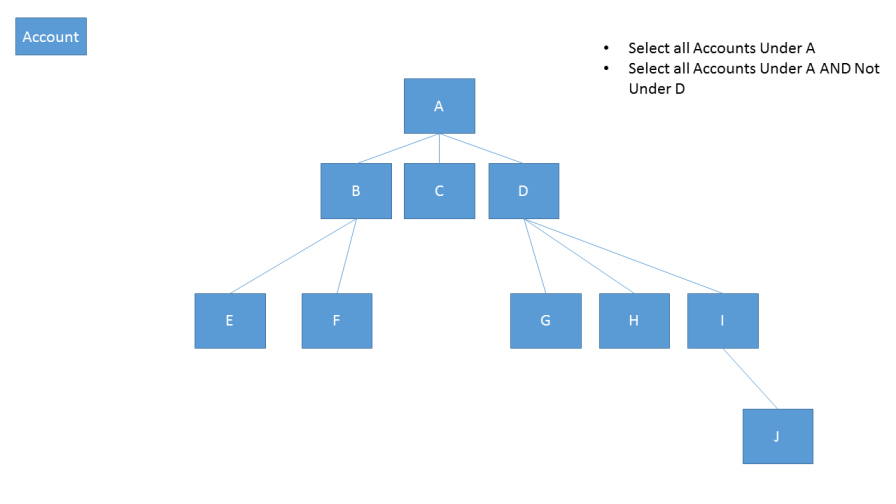
For example, to get all accounts under 'Account D' from the image above (G, H, I, and J), your FetchXML condition would look like this:
<filter type='and'>
  <condition attribute='accountid' operator='under' value='{ID of Account D}' />
</filter>
Additionally, the rowaggregate='CountChildren' feature is an efficient way to get a count of child records without performing a separate, expensive query.
Test your understanding!
Using the hierarchy shown in the "Visual Representation of an Account Hierarchy" image, what records would be returned by the following FetchXML condition?
<filter type='and'>
  <condition attribute='accountid' operator='under' value='{ID of Account A}' />
  <condition attribute='accountid' operator='not-under' value='{ID of Account D}' />
</filter>
Show answer
The query would return accounts B, C, E, and F.
Here's the breakdown:
operator='under' value='{ID of Account A}'selects all descendants of Account A: B, C, D, E, F, G, H, I, and J.operator='not-under' value='{ID of Account D}'excludes all descendants of Account D from the result set. The descendants of D are G, H, I, and J.- The final result is the first set minus the second set, leaving B, C, E, and F. Note that Account D itself is not included because the
not-underoperator excludes everything in its hierarchy, and theunderoperator doesn't include the parent record itself.
Conclusion
You can now design and implement two of the most powerful data structures in Dataverse. These tools are critical for modeling complex business logic that standard relationships cannot handle.
Key Takeaways:
- Polymorphic Lookups are for relating one table to records from multiple different tables. Use them to avoid cluttering your model with multiple lookups when a record can be related to various entity types.
- Hierarchical Relationships are for creating parent-child relationships between records within the same table. Use them for org charts, product categories, or any tree-like structure.
- Implementation Matters: Creating these structures involves specific steps, including using the Web API for polymorphic lookups and navigating the classic UI for hierarchy settings.
- Querying is Key: Both structures come with specialized ways to access the data, using
IsType/AsTypein Power Fx for polymorphic lookups and hierarchical operators in FetchXML.
In our next lesson, we'll shift our focus from designing the data model to understanding the platform's constraints. We will identify and plan for developer-relevant licensing constraints, such as premium connectors, API limits, and Dataverse capacity, which are critical considerations for any real-world solution architecture.