Hello! Welcome back to your advanced Power Platform course.
In our last lesson, we focused on making your Canvas Apps robust and functional even without an internet connection. We covered offline patterns, a critical skill for building mobile-first enterprise solutions.
Today, we'll explore a powerful integration technique that bridges two major components of the Power Platform. The learning outcome for this lesson is to integrate Canvas Apps within Model-driven Apps using embedding and context passing.
You'll learn how to combine the rich, pixel-perfect UI capabilities of Canvas Apps with the structured, data-centric forms of Model-driven Apps. Given your extensive experience with Dynamics 365 forms, you'll see how this technique unlocks new possibilities for user experiences, allowing you to embed custom components, visualizations, or even interfaces for external systems directly onto a record's form.
1. Why Embed a Canvas App?
While Model-driven App forms are excellent for standardized data entry and process flows, they can be restrictive. Embedding a Canvas App allows you to:
- Create rich UI controls not available natively, such as signature pads, complex calculators, or interactive diagrams.
- Display related data in a highly customized way, going beyond what standard sub-grids offer.
- Connect to and interact with external data sources directly on a Model-driven App form without needing to build complex server-side integrations.
Essentially, you get the best of both worlds: the structured environment of a Model-driven App and the design freedom of a Canvas App.
2. The Mechanics of Embedding
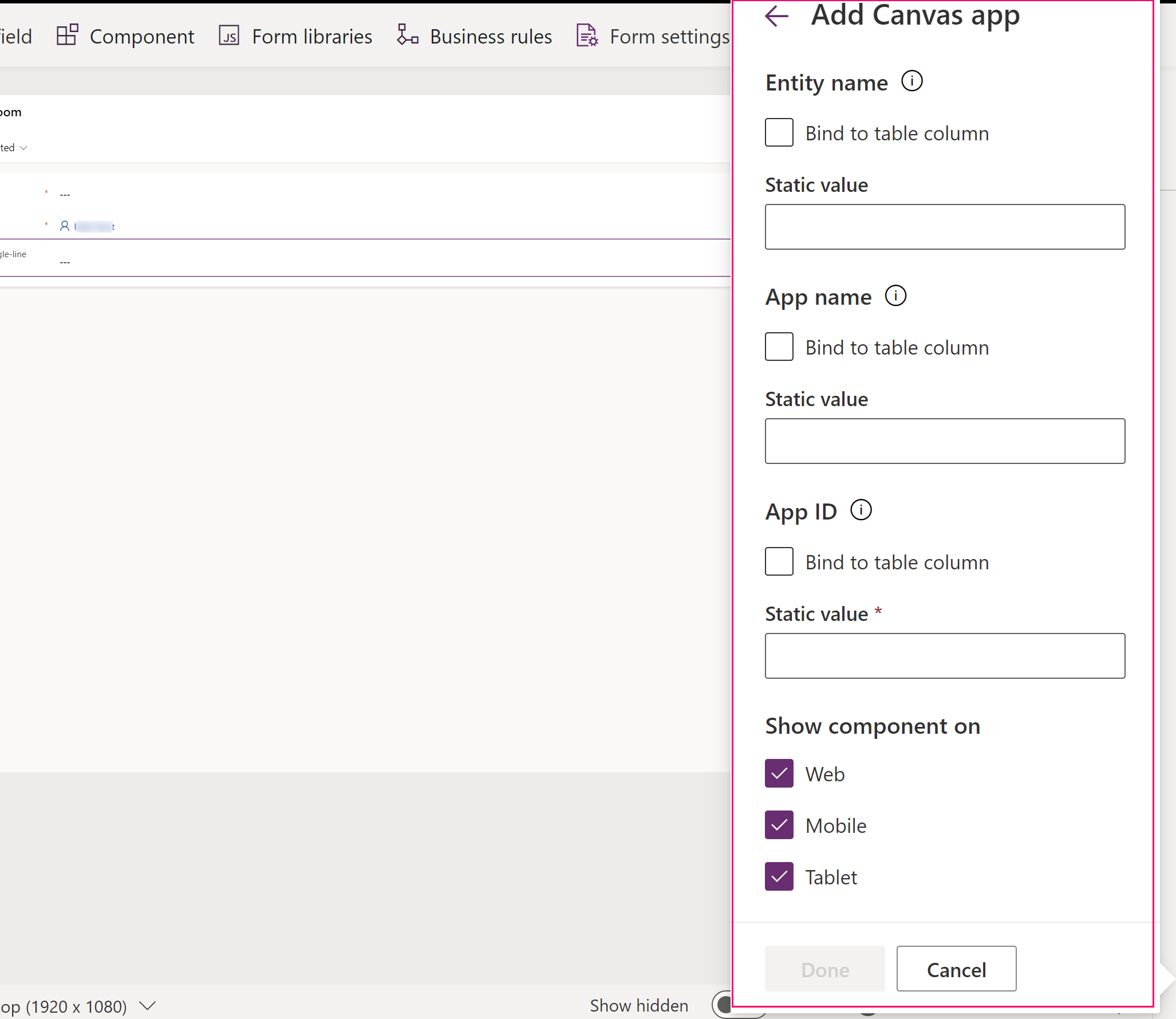
The process involves adding a special component to a Model-driven App's main form that points to a specific Canvas App. You can either create a new Canvas App from within the form designer or embed an existing one.
For a detailed walkthrough of the modern embedding process, please review the official Microsoft documentation.
Add an embedded canvas app on a model-driven form
This document outlines the step-by-step process for embedding a Canvas App. We will focus on the modern experience, which is the current best practice.
Please read the sections titled 'Embed a canvas app using the modern experience' and 'How to find the unique name and app ID for a canvas app'. Pay close attention to the properties you need to configure: App name and App ID.
As the documentation shows, the key is to add the Canvas app component to a section on your form and configure it with the unique name and ID of the app you want to embed.
3. Passing Context and Interacting with the Host Form
Once embedded, the Canvas App isn't just a static window. It's context-aware. The Power Platform provides a special object, ModelDrivenFormIntegration, that acts as the bridge between the host Model-driven form and the embedded Canvas App.
This object allows you to:
- Access data from the record currently displayed on the host form.
- Tell the host form to refresh its data.
The following video provides an excellent practical demonstration of building a signature-capture solution by embedding a Canvas App. It perfectly illustrates how to use the ModelDrivenFormIntegration control.
Embed Canvas PowerApps into Model-Driven app Full Tutorial
This tutorial by Ahmed Salih walks through a complete end-to-end scenario. It covers data modeling, embedding the app, passing the record context, and refreshing the host form. It also includes a valuable professional tip for enabling the integration control on an existing Canvas App.
Please watch the following key segments: 08:17 - 10:56: Observe how the Canvas App component is added to the Model-driven form and configured. 10:56 - 14:33: This section demonstrates a crucial 'trick' using the classic designer to enable the ModelDrivenFormIntegration control for an existing Canvas App. This is a very practical tip. 14:33 - 20:17: This is the core logic. Pay close attention to how the ModelDrivenFormIntegration.Item.ItemId property is used to get the GUID of the host record and how ModelDrivenFormIntegration.RefreshForm(true) is called to update the sub-grid on the host form after a signature is saved.
As you saw, the two most important formulas are:
- Reading the host record's ID:
ModelDrivenFormIntegration.Item.ItemIdgives you the GUID of the record displayed on the Model-driven form. You can then use this to filter galleries or submit related data. - Refreshing the host form:
ModelDrivenFormIntegration.RefreshForm(true)signals to the Model-driven form that it should reload its data. This is essential for showing immediate updates in sub-grids or other form components.
4. Advanced Context Passing: Accessing Related Record Data
The ModelDrivenFormIntegration.Item object is powerful, but it has a key limitation: it only provides data for the columns of the host record itself. You cannot directly access columns from a related record using dot notation like ModelDrivenFormIntegration.Item.'Primary Contact'.'Full Name'. This will not work.
So, how do you solve this common requirement? The solution involves using the host record's ID to perform a LookUp against the data source from within the Canvas App.
The following article describes a real-world scenario and presents the formula to solve this exact problem.
Embedding Canvas Apps in Model-Driven Forms - Alex Dan
This blog post by Alex Dan addresses the challenge of filtering an embedded Canvas App based on a field from a related record (a lookup on the host form). This is a frequent and important developer scenario.
Please read the sections: "The Challenge: Access related table columns...": Understand the specific business problem. "Explaining the formula": This contains the solution. Carefully study the Power Fx formula provided. "Detailed Step-by-Step Execution" and "Conclusion": Review the breakdown of how the formula works to retrieve data from a related record.
The key takeaway is the pattern:
// General Pattern to get a field from a related record (e.g., a lookup)
LookUp(
    HostTable,
    HostTablePrimaryKey = GUID(First([@ModelDrivenFormIntegration].Data).ItemId)
).'Lookup Field'.'Field from Related Record'
This pattern first uses LookUp to find the full host record based on its ID, and then you can use dot notation to traverse the relationship and get the data you need. This is a fundamental technique for advanced context-passing scenarios.
Test your understanding!
You have embedded a Canvas App on the main Opportunity form. You need to display the Email address of the parent Account associated with the Opportunity.
Based on the advanced pattern you just learned, what Power Fx formula would you use in a label inside the Canvas App to display this information?
Show answer
The formula would be:
LookUp(
    Opportunities,
    Opportunity = GUID(First([@ModelDrivenFormIntegration].Data).ItemId)
).Account.Email
Breakdown:
GUID(First([@ModelDrivenFormIntegration].Data).ItemId)gets the GUID of the current Opportunity record from the host form.LookUp(Opportunities, Opportunity = ...)finds the specific Opportunity record in theOpportunitiestable..Account.Emailthen navigates from the found Opportunity record through theAccountlookup to retrieve theEmailfield from the related Account record.
Conclusion
In this lesson, you've learned how to create richer, more dynamic user experiences by embedding Canvas Apps within Model-driven App forms. This technique is a powerful tool in your developer toolkit, enabling you to overcome the limitations of standard form controls.
Key Takeaways:
- Embedded Canvas Apps are ideal for creating custom UI components and displaying data from multiple sources on a single form.
- The
ModelDrivenFormIntegrationcontrol is the essential bridge, providing the Canvas App with the context of the host record. - Use
ModelDrivenFormIntegration.Item.ItemIdto retrieve the current record's GUID for filtering and data operations. - To access data from records related via a lookup on the host form, you must use a
LookUpfunction from within the Canvas App; direct dot notation on the.Itemobject is not supported for related records. - Use
ModelDrivenFormIntegration.RefreshForm(true)to ensure the host form reflects data changes made from within the embedded app.
Up Next:
Now that you are building more complex, integrated applications, debugging becomes even more critical. In our next lesson, we will dive into a key diagnostic tool: you will learn how to debug and analyze Canvas App performance using the Monitor tool.